Vulnerability Scanning
Vulnerability Scanning runs external security scans against your configured targets through a managed scanning infrastructure powered by HostedScan. Choose from four scan presets that bundle multiple scanning engines, configure targets, launch scans on demand or on a schedule, and triage findings -- all from within Vulnerability Management.
Overview
Access from Security Operations > Vulnerability Management > Scanning in the sidebar. The module has five tabs:
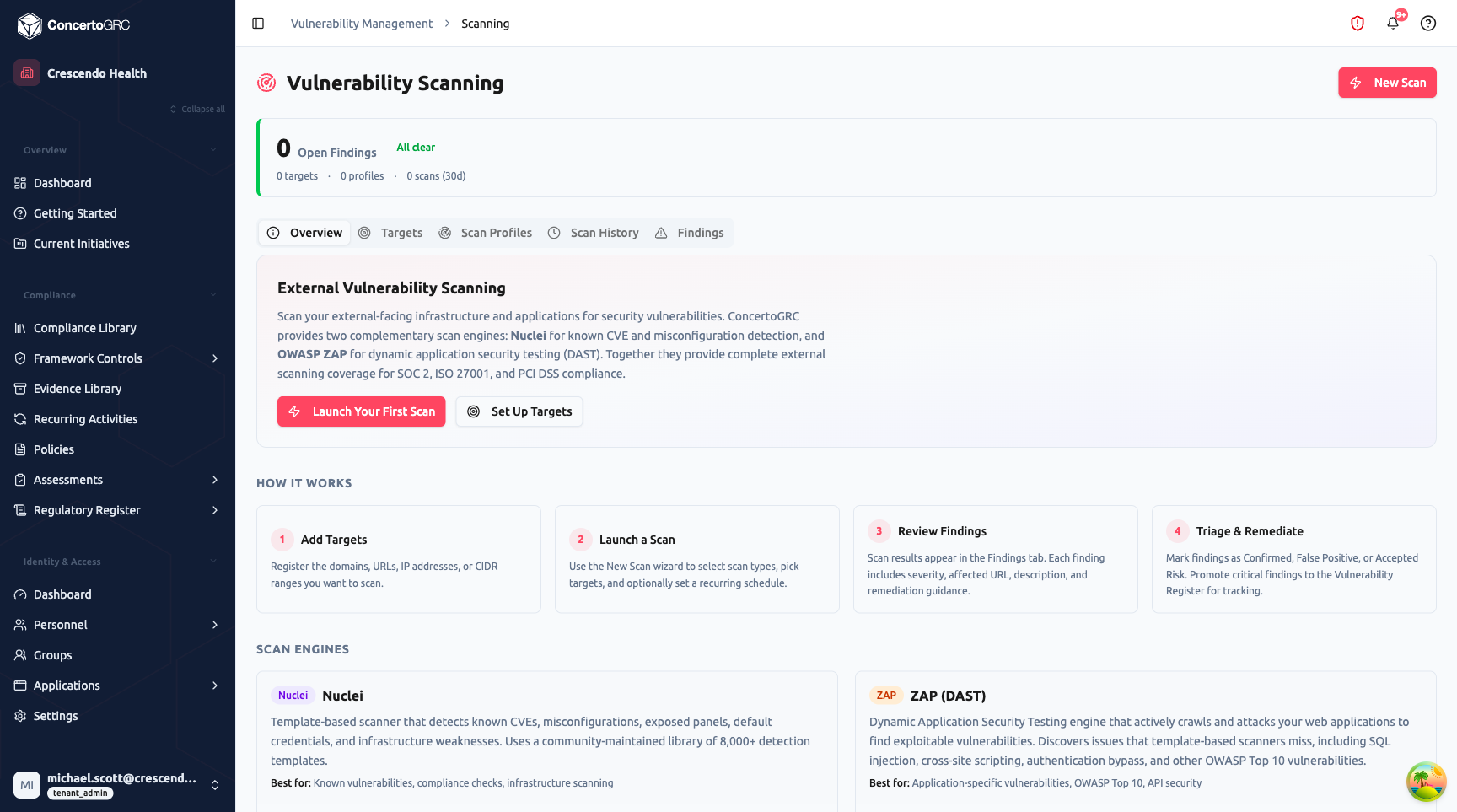
- Overview -- How scanning works, scan presets, and key concepts
- Targets -- Systems to scan (domains, IPs, URLs, CIDRs)
- Scan Profiles -- Preset-based scan configurations with optional scheduling
- Scan History -- Execution records with status and finding counts
- Findings -- Discovered vulnerabilities with triage workflow
The header displays the count of open (untriaged) findings with a status indicator.
Scan Presets and Engines
Scans are configured using four presets, each bundling a set of scanning engines appropriate for the scan type.
Presets
| Preset | Description | Use Case |
|---|---|---|
| Web App | OWASP ZAP (active) + Nuclei | Web application DAST and CVE/misconfiguration detection |
| Network | Nmap (TCP/UDP) + OpenVAS | Port scanning and network-level vulnerability assessment |
| SSL/TLS | SSLyze | Certificate validation, cipher suite analysis, protocol testing |
| Full Assessment | All engines combined | Comprehensive scan covering web, network, and SSL/TLS |
Scanning Engines
| Engine | Description |
|---|---|
| Nuclei | Template-based scanner for CVEs, misconfigurations, exposures, and default credentials |
| OWASP ZAP (Active) | Dynamic application security testing -- crawls and attacks web applications |
| OWASP ZAP (Passive) | Passive observation of web traffic for security issues |
| Nmap TCP | TCP port scanning and service detection |
| Nmap UDP | UDP port scanning and service detection |
| SSLyze | SSL/TLS certificate and cipher configuration testing |
| OpenVAS | Network-level vulnerability scanning |
| Dependabot | Dependency and supply-chain vulnerability detection |
All scans run on managed infrastructure outside your environment. Results are delivered via webhooks and a reconciliation poller for reliability.
Targets
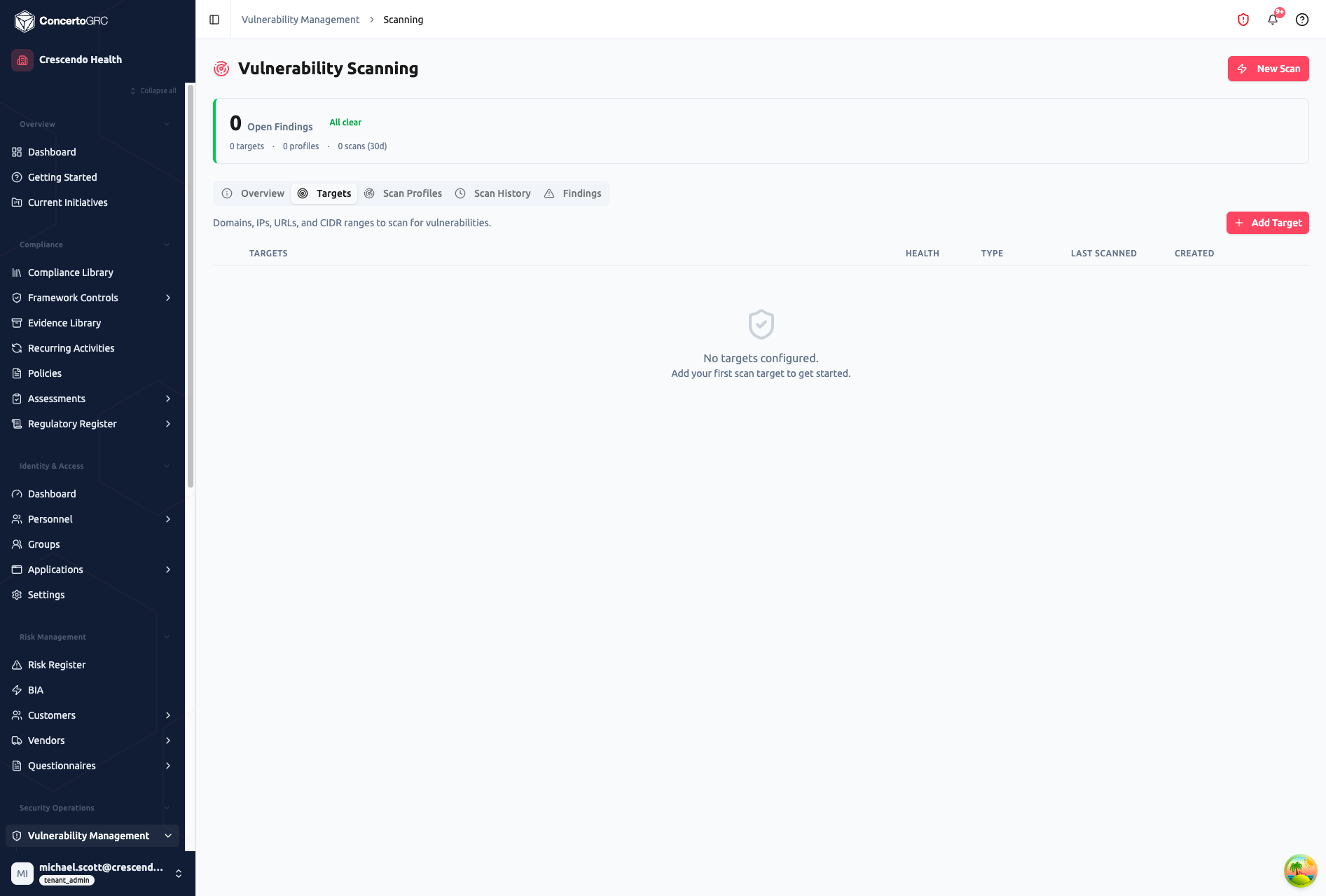
Targets define the systems you want to scan. Each target has a type, value, optional description, and active/inactive status.
Target Types
| Type | Description | Example |
|---|---|---|
| Domain | Fully qualified domain name | app.example.com |
| IP Address | IPv4 address (no private ranges) | 203.0.113.10 |
| URL | Full URL with http/https protocol | https://app.example.com/api |
| CIDR | Network range in CIDR notation | 203.0.113.0/24 |
Private IP ranges (10.0.0.0/8, 172.16.0.0/12, 192.168.0.0/16, 127.0.0.0/8, 169.254.0.0/16) are blocked to prevent internal network scanning.
Target Table
| Column | Description |
|---|---|
| Targets | Target name and value |
| Health | Active (green) or Inactive (gray) badge |
| Type | Domain, IP, URL, or CIDR badge |
| Last Scanned | When the target was last included in a scan |
| Created | Creation date |
Click any target row to expand the detail panel showing severity breakdown (Critical, High, Medium, Low, Info counts), description, linked scan profiles, and a Scan this target button.
Adding a Target
Click + Add Target and provide:
- Name -- Friendly name for the target
- Target Type -- Domain, IP, URL, or CIDR
- Target -- The actual value (validated per type)
- Description -- Optional context
Duplicate targets within the same organization are rejected.
Authenticated Scanning
Targets support three authentication methods for scanning behind login walls:
| Method | Description |
|---|---|
| None | Default. Unauthenticated scanning. |
| Custom Headers | Add up to 20 HTTP headers (e.g., API keys, bearer tokens) sent with scan requests |
| Selenium Script | Upload a Selenium script (up to 100KB) for complex authentication flows |
Configure authentication from the target detail panel under the Authentication section.
Scan Profiles
Scan profiles define how scans are configured. Each profile selects a preset, links to one or more targets, and optionally enables scheduling.
Profile Fields
| Field | Description |
|---|---|
| Name | Profile name |
| Description | What this profile scans for |
| Preset | Web App, Network, SSL/TLS, or Full Assessment |
| Targets | One or more targets to include in each scan |
| Max Duration | Timeout in minutes (5--240, default 60) |
| Schedule Enabled | Toggle automatic recurring scans |
| Schedule (Cron) | Cron expression for scheduled runs (e.g., 0 2 * * 0 for weekly Sunday 2am) |
| Report Enabled | Generate a report after each scan |
| Report Type | Audit (compliance-focused) or Remediation (technical detail) |
| Report Recipients | Email addresses to receive the report (up to 10) |
Schedule Validation
Cron expressions must use a specific minute and hour value (not wildcards or ranges). Day-of-month, month, and day-of-week can use wildcards or comma-separated lists but must be satisfiable -- for example, February 31 is rejected.
Deleting a Profile
Profiles with in-flight scans cannot be deleted. Stop all running scans first using the Stop All action, then confirm deletion. Deleting a profile removes all associated scan executions and their raw findings. Any findings that were promoted to the Vulnerability Register are preserved.
Running Scans
Manual Scan
Click Run Now on any scan profile, or click Scan this target from a target detail panel. The system validates your scan quota and target configuration before launching.
Scheduled Scans
Enable scheduling on a scan profile with a cron expression. The scan scheduler checks for pending scheduled scans every 15 minutes and launches them automatically.
Concurrency Limits
A configurable maximum concurrent scan limit prevents overwhelming your infrastructure. Additional scans queue as Pending until a running slot becomes available.
Scan History
The Scan History tab shows all scan executions with status tracking and finding summaries.
Execution Table
| Column | Description |
|---|---|
| Profile | Scan profile name with preset badge |
| Status | Execution status with icon |
| Trigger | Manual or Scheduled badge |
| Started | When the scan began (relative time) |
| Duration | Elapsed time or ETA for running scans |
| Severity Breakdown | Critical, High, Medium, Low counts |
Click any execution to expand the detail panel showing execution ID, start/completion timestamps, duration, trigger type, finding summary, and error message (if failed).
Execution Statuses
| Status | Description |
|---|---|
| Pending | Queued, performing quota checks and target sync |
| Queued | Waiting in the scan engine queue |
| Scanning | Actively scanning targets |
| Processing | Post-processing and ingesting results |
| Finished | Successfully completed |
| Failed | Error during execution (error message recorded) |
| Cancelled | Cancelled by user |
| Over Limit | Scan quota exceeded |
| Timed Out | Max duration reached before completion |
Running scans can be cancelled. Only scans in Pending, Queued, or Scanning status can be cancelled.
Findings
Scan findings are discovered vulnerabilities, each linked to a specific scan execution and scanning engine.
Finding Fields
| Field | Description |
|---|---|
| Template Name | Human-readable vulnerability name |
| Severity | Critical, High, Medium, Low, or Info |
| Finding Type | Category (e.g., CVE, exposure, misconfiguration) |
| Scan Engine | Which engine detected the finding |
| Host | Target host where the vulnerability was found |
| Matched At | Specific URL or location |
| Description | Vulnerability description |
| Solution | Recommended remediation steps |
| References | CVE links, advisory URLs |
| CWE ID | Common Weakness Enumeration identifier |
| Extracted Results | Scanner matcher output |
| Curl Command | Reproducibility command |
| Occurrence Count | Times this finding has been seen across scans |
| First Seen / Last Seen | Discovery and most recent detection dates |
Fingerprint Deduplication
Each finding has a fingerprint computed from its risk definition, host, and matched location. When the same vulnerability is found in a subsequent scan, the existing finding is updated (last seen date and occurrence count incremented) rather than creating a duplicate.
Finding Filters
| Filter | Options |
|---|---|
| Search | Free-text search across template name and host |
| Severity | Critical, High, Medium, Low, Info |
| Triage Status | New, Confirmed, False Positive, Accepted Risk, Promoted |
| Engine | Filter by scanning engine |
| Recurring | Show only findings seen in multiple scans |
By default, findings with terminal triage statuses (False Positive, Accepted Risk, Promoted) are excluded from the list. Use the triage filter to include them.
Resolution State
Findings have a resolution state separate from triage status. When a subsequent scan detects that a previously found vulnerability is no longer present, the finding is automatically marked as resolved with the date and source. Resolved findings are excluded from open counts and severity headlines. If a resolved finding is detected again in a later scan, it automatically reopens.
Severity Levels
| Severity | Color | Description |
|---|---|---|
| Critical | Red | Exploitable with severe impact -- immediate remediation required |
| High | Orange | Significant risk requiring prompt attention |
| Medium | Amber | Moderate risk, should be addressed in a reasonable timeframe |
| Low | Blue | Minor risk, low priority |
| Info | Gray | Informational, no direct security impact |
Triage Workflow
Each finding has a triage status that tracks its review progress.
Triage Statuses
| Status | Description |
|---|---|
| New | Newly discovered, not yet reviewed |
| Confirmed | Verified as a real vulnerability |
| False Positive | Determined to be a false detection |
| Accepted Risk | Risk acknowledged, no immediate remediation planned |
| Promoted | Promoted to the Vulnerability Register as a formal vulnerability record |
Triaging a Finding
Click any finding to review it. Set the triage status and add a note explaining the decision. The reviewer and timestamp are recorded automatically.
Bulk Triage
Select multiple findings using checkboxes, choose a triage status from the dropdown, and click Apply to update all selected findings at once (up to 500 per batch). Promoted findings are skipped during bulk triage to prevent orphaning their linked vulnerability records.
Promote to Vulnerability Register
Confirmed findings can be promoted to the Vulnerability Register, creating a formal Vulnerability record with a linked remediation task. Once promoted, the finding's triage status is locked to Promoted and linked to the vulnerability record.
To reverse a promotion, use the Un-promote action. This severs the link between the finding and the vulnerability record (setting the finding back to Confirmed) but preserves the vulnerability record itself.
AI Analysis
Click Analyze on any finding to generate AI-powered analysis including:
- Impact assessment -- What the vulnerability means for your environment
- Remediation guidance -- Step-by-step fix instructions
- Priority recommendation -- Where this should fall in your remediation queue
- False positive indicators -- Whether the finding may be a false detection
Dashboard
The Overview tab header displays aggregate statistics across several sections.
Targets and Profiles
| Metric | Description |
|---|---|
| Total Targets | Total and active target counts, broken down by type |
| Total Profiles | Total profiles and how many have scheduling enabled |
Executions
| Metric | Description |
|---|---|
| Total Runs | All-time execution count |
| Currently Running | Active scans in progress |
| Completed (30d) | Successfully finished scans in the last 30 days |
| Failed (30d) | Failed scans in the last 30 days |
| Last Scan | When the most recent scan completed |
Findings
| Metric | Description |
|---|---|
| Open Findings | Active findings not yet triaged or resolved |
| By Severity | Critical, High, Medium, Low, Info counts |
| By Triage | New, Confirmed, False Positive, Accepted Risk, Promoted counts |
| By Engine | Breakdown by scanning engine |
| Recurring | Findings seen in multiple scan runs |
| New Since Last Scan | Findings first detected in the most recent completed scan |
Coverage Matrix
A target-by-preset grid showing when each combination was last scanned. Use this to identify gaps in your scanning coverage -- for example, targets that have had Web App scans but never a Network scan.
Trends
Weekly trend charts over 30, 90, or 180-day ranges showing:
- New findings detected per week
- Resolved findings per week, broken down by resolution type (False Positive, Accepted Risk, Promoted)
How It Works
- Configure Targets -- Add the domains, IPs, URLs, or CIDRs you want to scan
- Create Scan Profiles -- Choose a preset (Web App, Network, SSL/TLS, or Full Assessment), link targets, and optionally set a schedule
- Launch Scans -- Run manually or let the scheduler handle it; scans execute on managed infrastructure
- Triage Findings -- Review results, confirm or dismiss findings, promote real vulnerabilities to the register