Infrastructure
The Infrastructure module provides visibility into your cloud environment through automated inventory scanning, interactive network diagrams, drift detection, security finding review, and network access reviews. Connect your AWS account to auto-discover resources, or create freestyle network diagrams manually for compliance documentation.
Overview
Access from Security Operations > Infrastructure in the sidebar. The module has five tabs:
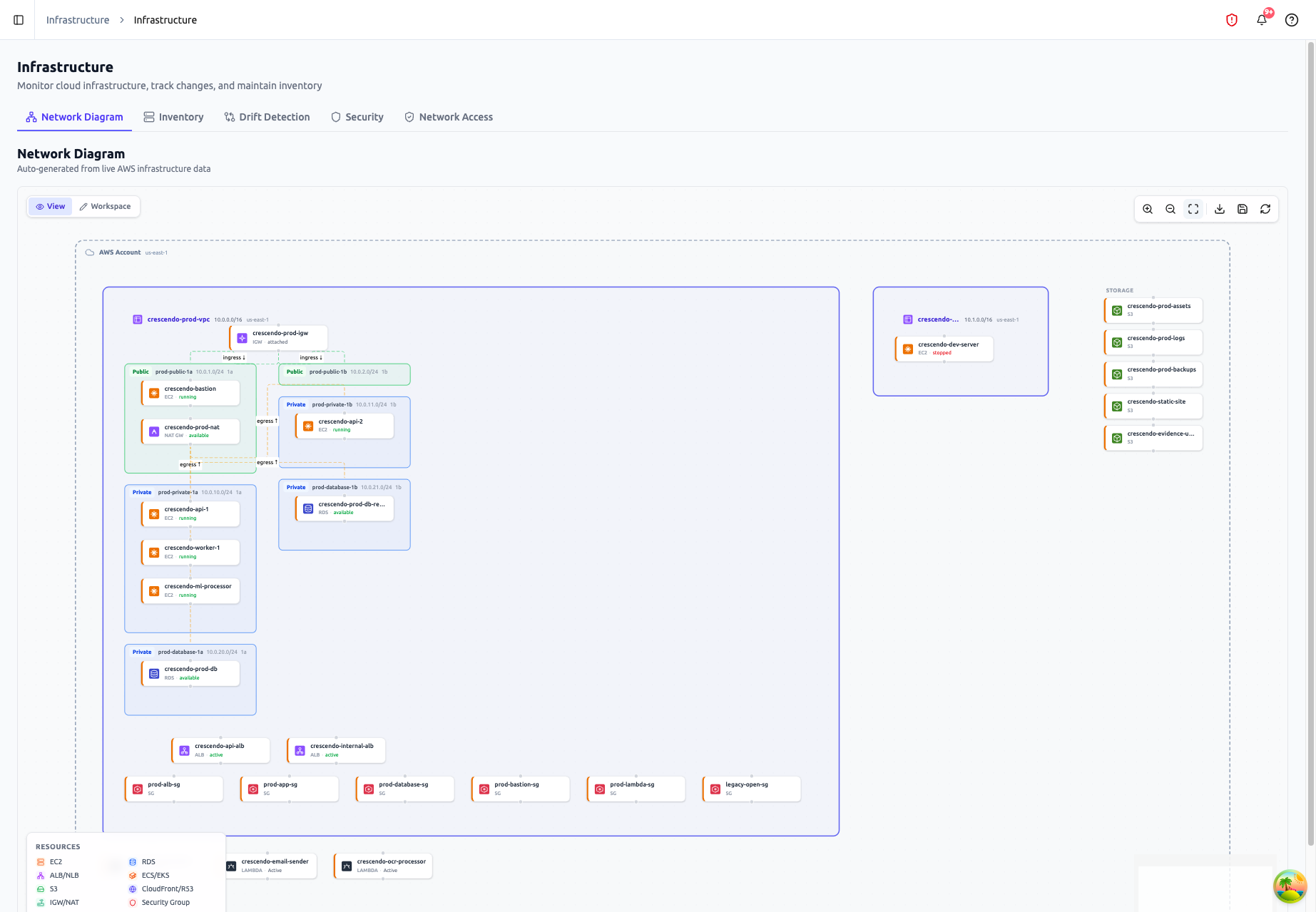
- Network Diagram -- Interactive visual topology of your infrastructure
- Inventory -- Complete resource listing with classification
- Drift Detection -- Changes detected between inventory snapshots
- Security -- Aggregated security findings with review workflow
- Network Access -- Security group and NACL rule review
Connect an AWS account through Administration > Integrations to enable automated scanning, or click Create Freestyle Diagram to build a manual network diagram.
Network Diagram
The Network Diagram tab renders an interactive topology visualization of your cloud infrastructure using data from inventory scans.
Automated Diagrams
When connected to AWS, the diagram auto-generates from inventory data showing:
- VPC boundaries with CIDR blocks
- Subnet placement within VPCs (public vs. private)
- Resource nodes -- EC2 instances, RDS databases, load balancers, containers
- Security group relationships and network connectivity
- Hierarchical layout for readability
Freestyle Diagrams
Create manual network diagrams without an AWS integration. Freestyle mode provides a canvas where you can:
- Add custom nodes representing any infrastructure component
- Draw connections between nodes
- Annotate data flows between resources
- Export as evidence for compliance audits
Diagram Workspaces
Multiple diagram workspaces can be created, each with its own customizations:
- Resource labels -- Assign friendly names to resources
- Data flows -- Annotate data movement between resources with data type tags (PII, PHI, Financial)
- Hidden resources -- Hide irrelevant resources from the view
- Viewport state -- Saved zoom and position per workspace
Workspaces can be synced to the latest inventory snapshot to incorporate newly discovered resources.
Inventory
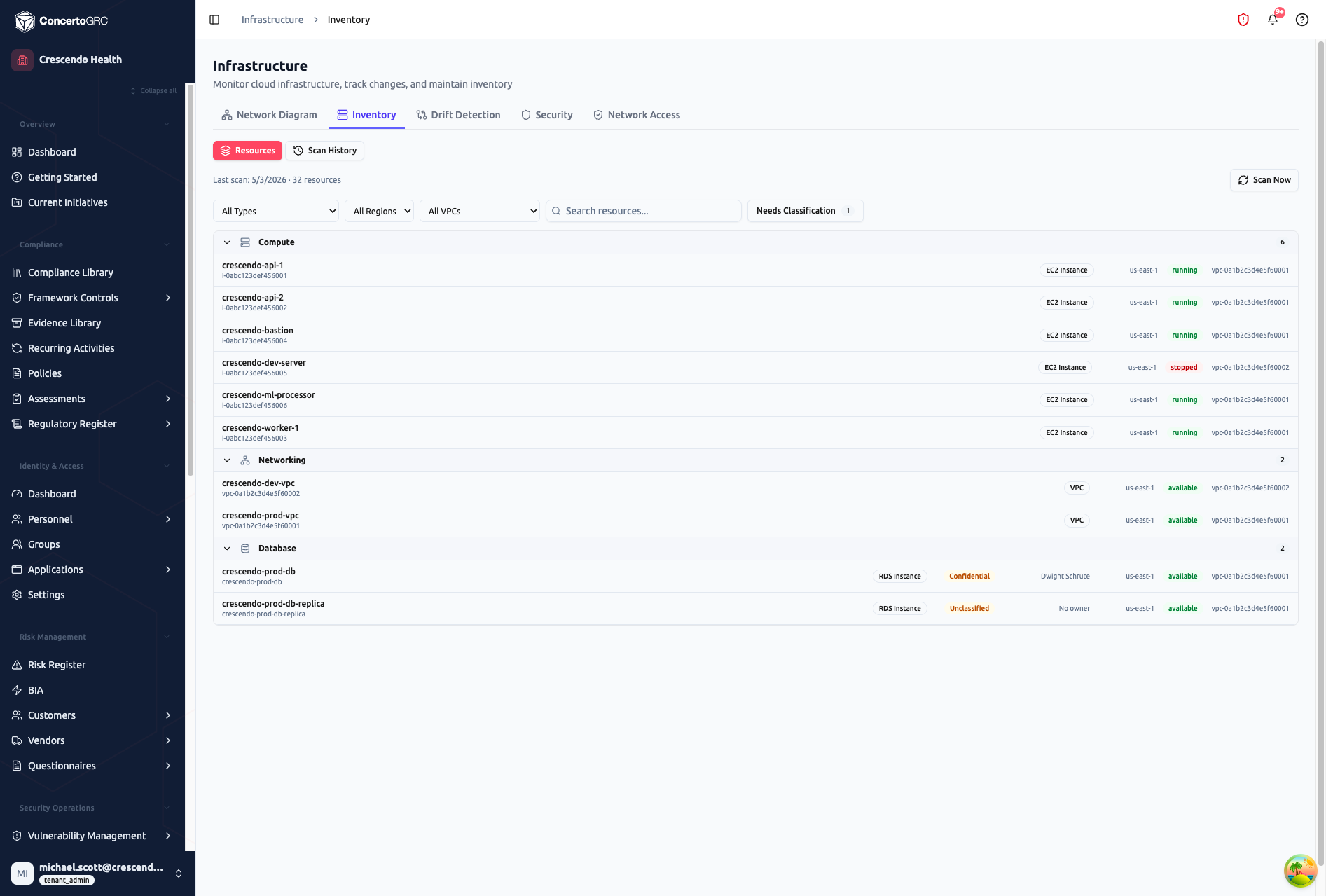
The Inventory tab shows all discovered cloud resources grouped by category.
Resource Categories
| Category | Resource Types |
|---|---|
| Compute | EC2 instances |
| Networking | VPCs, Subnets, Security Groups, Network ACLs, Internet Gateways, NAT Gateways |
| Database | RDS instances |
| Load Balancers | Application Load Balancers (ALB), Network Load Balancers (NLB) |
| Containers | ECS Clusters, EKS Clusters |
| Global | S3 Buckets, CloudFront Distributions, Route 53 Hosted Zones |
Resource Table
Each resource row shows:
| Field | Description |
|---|---|
| Name | Resource name (from AWS Name tag) or resource ID |
| Type | Resource type badge (EC2, RDS, S3, etc.) |
| Data Classification | For data-storing resources: Public, Internal, Confidential, Restricted, or Unclassified |
| Owner | Assigned team member or external contact |
| Region | AWS region badge |
| State | Color-coded status (running/available = green, stopped = red) |
| VPC | Parent VPC ID |
Use the filter bar to search by name, filter by resource type, region, or VPC. A Needs Classification button shows the count of data-storing resources that haven't been classified.
Resource Detail Sidecar
Click any resource to open the detail sidecar with five tabs:
- Overview -- Related resources, identity fields (resource ID, region, AZ, VPC, subnet, ARN)
- Configuration -- Full resource metadata grouped by category (compute, network, security, storage, encryption)
- Connections -- Resources this resource connects to or from
- Tags -- AWS resource tags as key-value pairs
- Classification -- Data classification dropdown, owner assignment, and notes (for data-storing resources only)
Data Classification
Data-storing resources (S3, RDS, ECS, EKS) can be classified for compliance purposes:
| Level | Description |
|---|---|
| Public | Data intended for public access |
| Internal | Internal business data, not sensitive |
| Confidential | Sensitive data requiring access controls |
| Restricted | Highly sensitive data (PHI, PII, financial) requiring strict controls |
Scan History
The Inventory tab includes a Scan History sub-tab showing all past infrastructure scans with date, resource count, regions scanned, duration, and status (Completed, Failed, In Progress).
Click Scan Now to trigger a manual infrastructure discovery scan.
Drift Detection
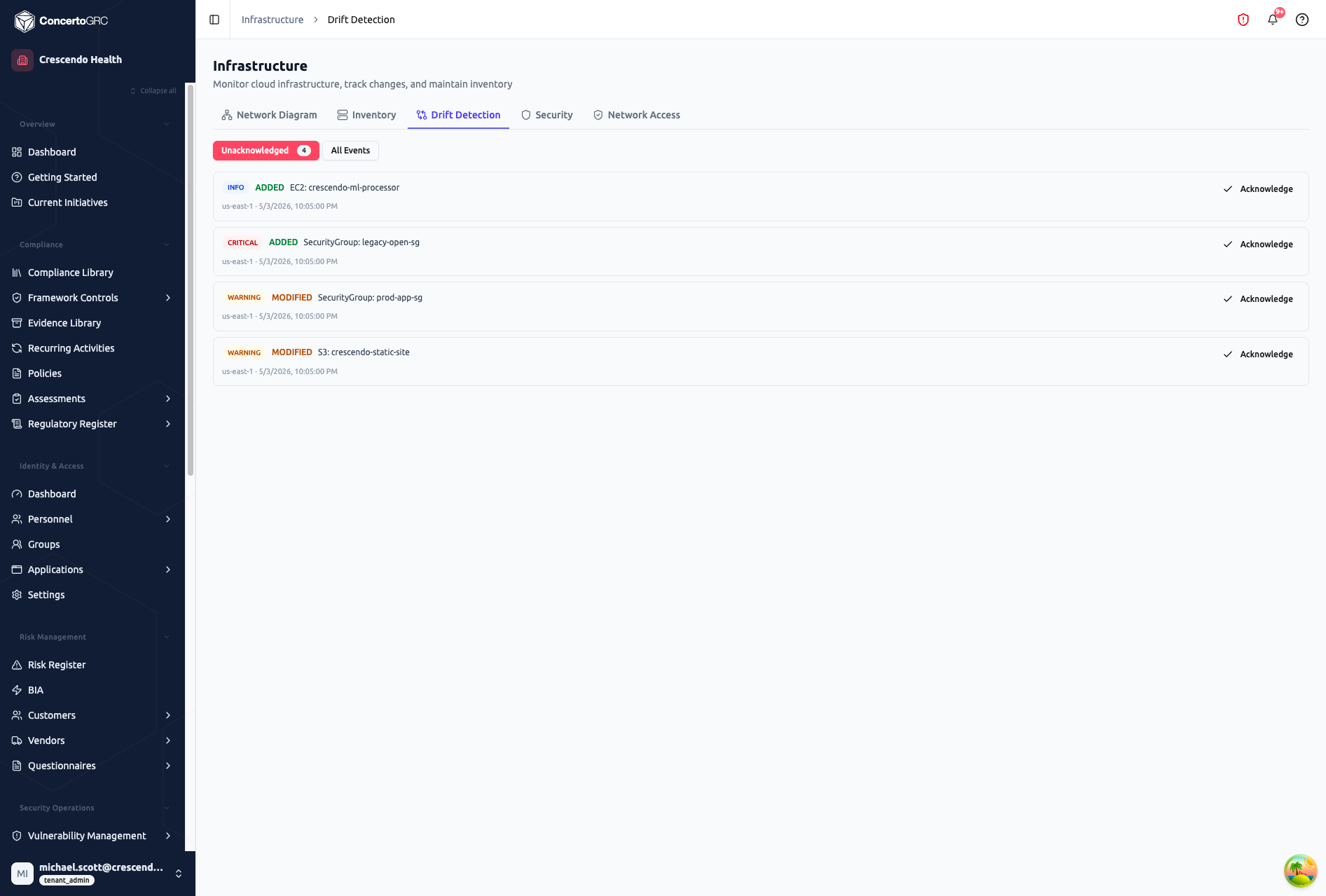
Drift detection compares consecutive inventory snapshots and flags changes to your infrastructure.
Drift Events
Each drift event shows:
| Field | Description |
|---|---|
| Severity | Critical, Warning, or Info |
| Change Type | Added (green), Removed (red), or Modified (amber) |
| Resource | Resource type and name/ID |
| Region | AWS region |
| Timestamp | When the change was detected |
| Changes | Field-level diffs for modified resources |
Severity Levels
| Severity | Examples |
|---|---|
| Critical | Security group opened to 0.0.0.0/0, encryption disabled, public access enabled |
| Warning | New public-facing resource, IAM policy change, instance type change |
| Info | Tag modification, minor configuration update |
Filter by Unacknowledged to see events requiring attention. Click Acknowledge on any event to mark it as reviewed with an optional note.
Security Findings
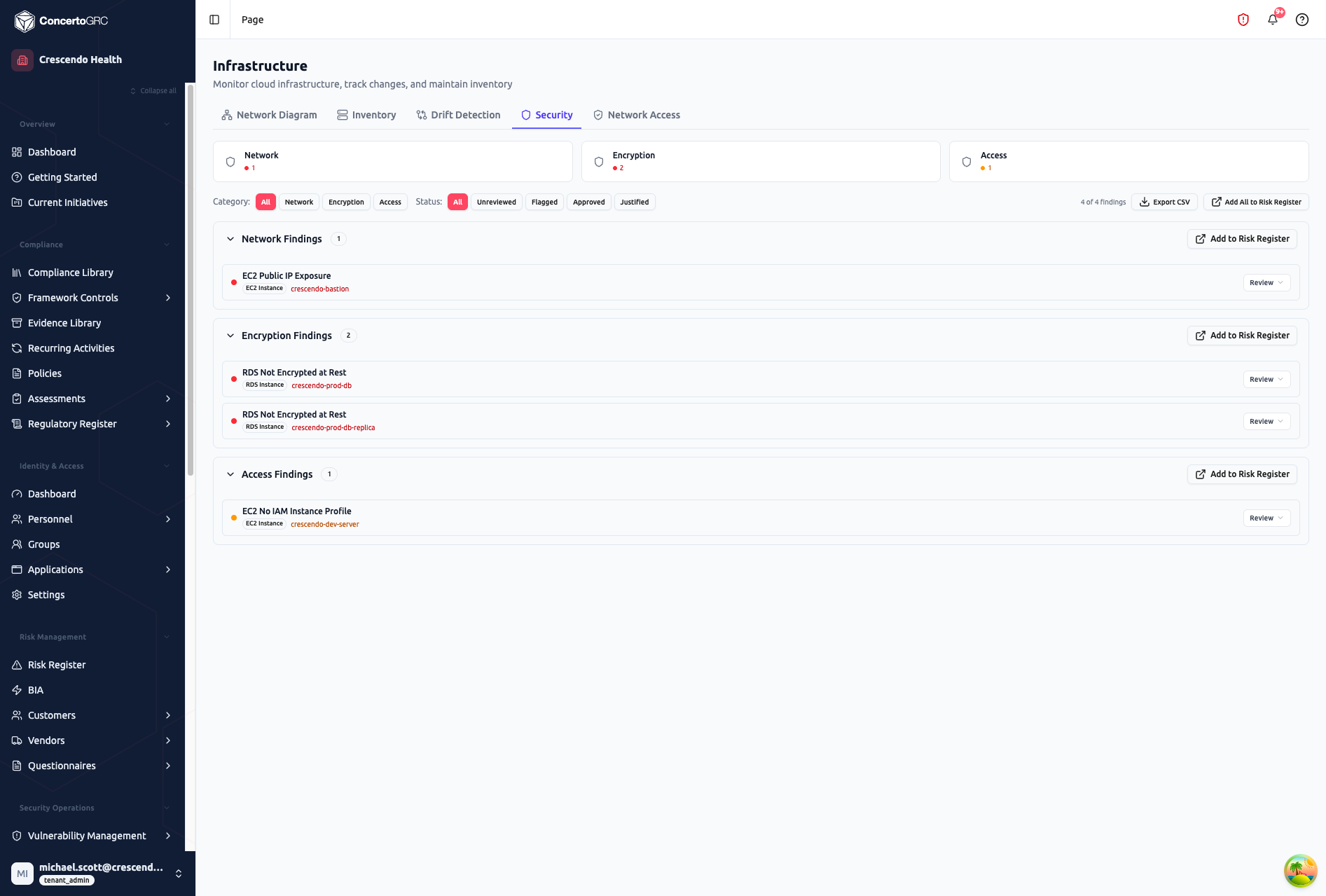
The Security tab aggregates security findings from your latest infrastructure scan with a review workflow.
Finding Categories
| Category | Description |
|---|---|
| Network | Overly permissive security group rules, open NACL entries |
| Encryption | Unencrypted storage, missing KMS keys, weak cipher configurations |
| Access | Overly broad IAM policies, public resource access |
Review Workflow
Each finding can be reviewed with one of three decisions:
| Decision | Description |
|---|---|
| Approved | Configuration is intentional and acceptable |
| Justified | Configuration has a documented business justification |
| Flagged | Configuration requires remediation |
Flagged findings can be promoted to the Risk Register as formal risk entries. Findings can also be exported as CSV for offline review.
Remediation
AI-powered remediation guidance can be generated for security findings, providing step-by-step instructions for resolving the issue.
Network Access Reviews
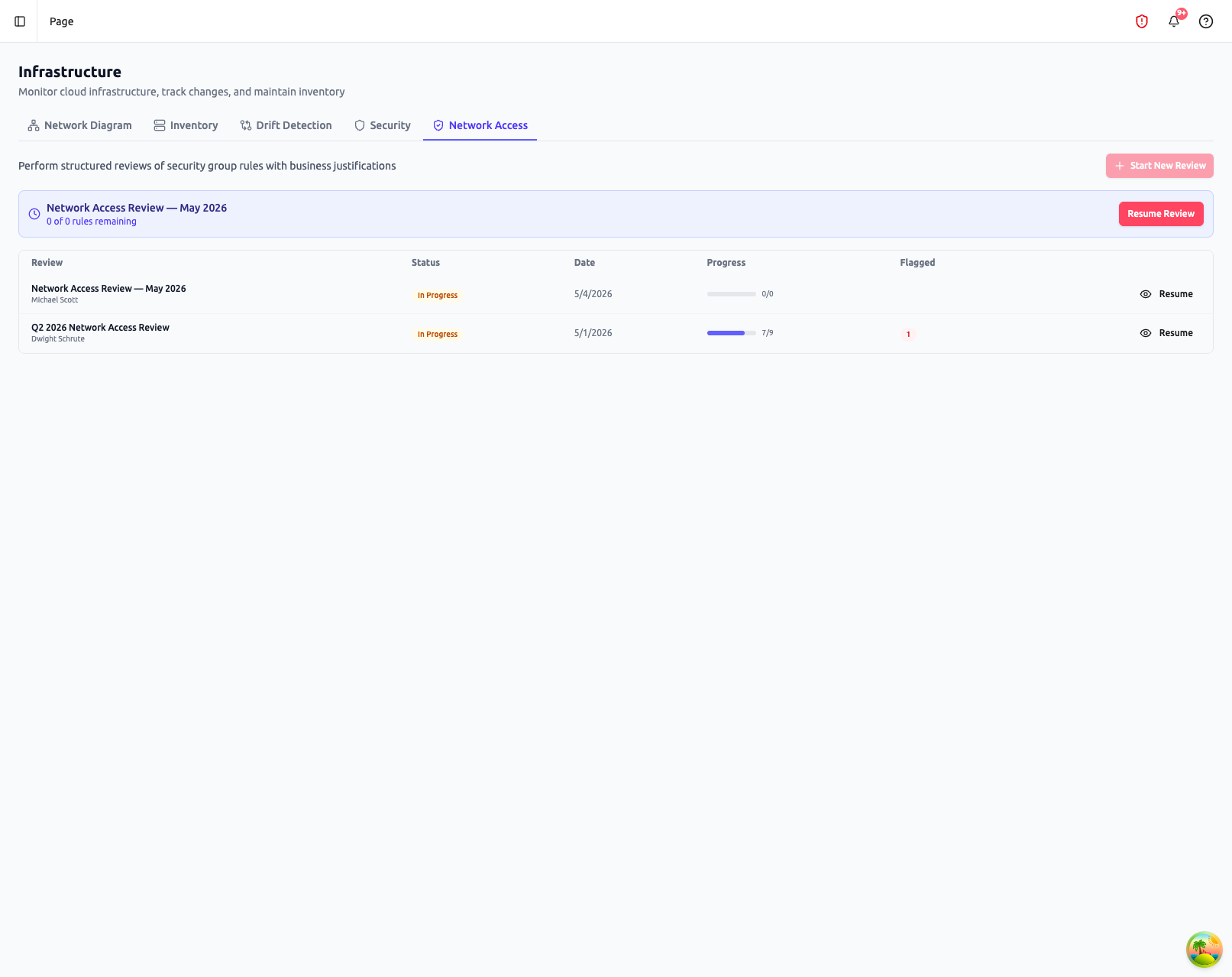
The Network Access tab provides a formal review process for security group and NACL rules. The review list shows all reviews with their status, creation date, progress bars, and flagged rule counts.
Creating a Review
Click Start New Review to create a review based on the latest inventory snapshot. The review pulls all security group and NACL rules for systematic evaluation.
Rule Review
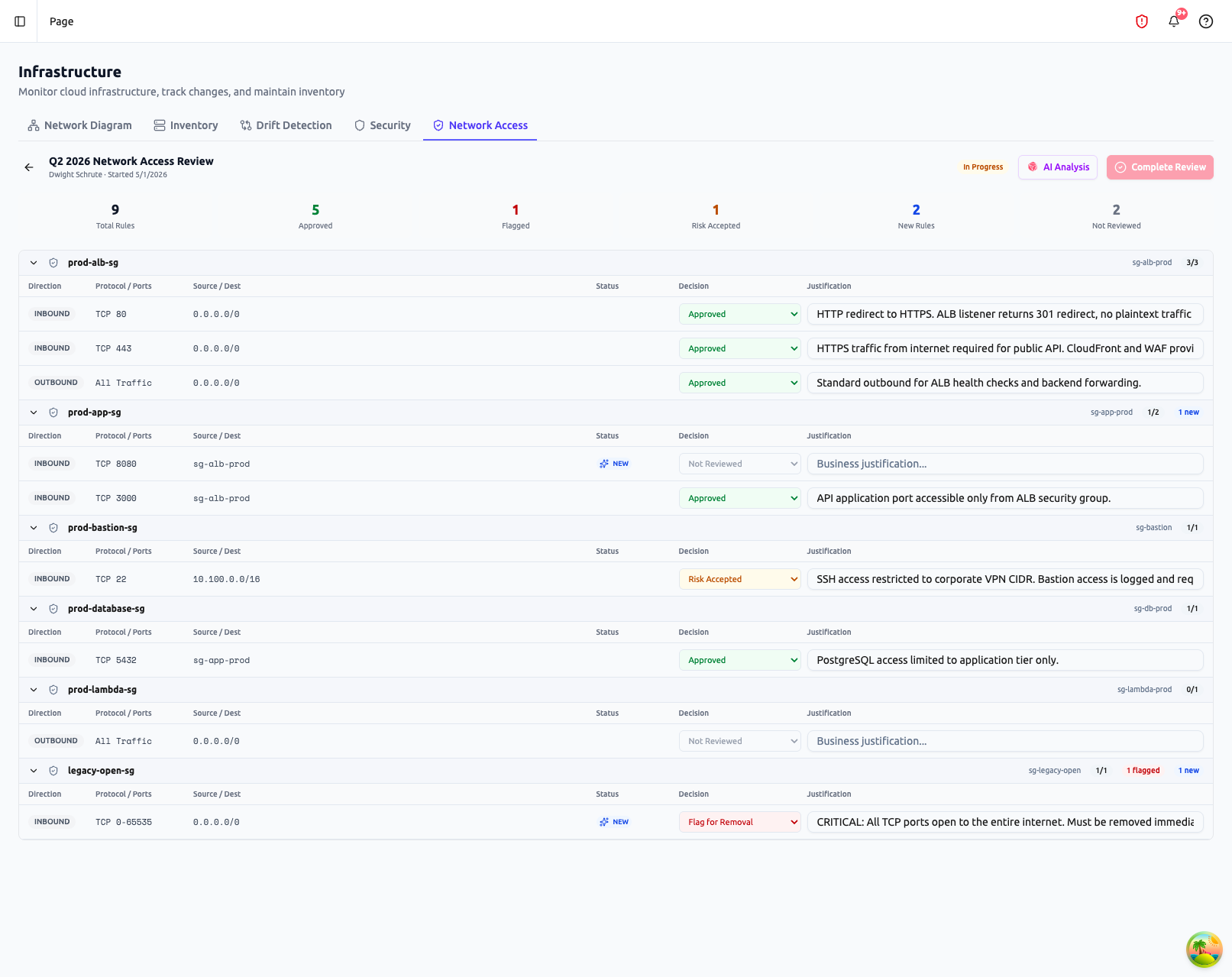
Click Resume on any review to open the rule-level detail. Rules are grouped by security group, each showing direction, protocol/ports, source/destination, and a decision dropdown with justification field. Stat cards at the top summarize review progress.
Each rule is evaluated individually with a decision:
| Decision | Description |
|---|---|
| Not Reviewed | Rule hasn't been evaluated yet |
| Approved | Rule is necessary and properly scoped |
| Flagged for Removal | Rule should be removed |
| Risk Accepted | Rule is overly broad but the risk is accepted with justification |
AI Analysis
Click Analyze to have AI review all rules and provide recommendations based on security best practices, least-privilege principles, and your organization's compliance requirements.
Review Lifecycle
| Status | Description |
|---|---|
| In Progress | Review is active, rules being evaluated |
| Completed | All rules reviewed, findings documented |
Completed reviews serve as evidence of periodic network access review for compliance frameworks (SOC 2, ISO 27001).
Evidence Generation
Infrastructure data feeds directly into compliance evidence:
- Network diagrams -- Export as PNG for visual evidence of network architecture
- Inventory exports -- CSV exports of resource inventory
- Drift detection reports -- Demonstrate continuous monitoring of infrastructure changes
- Security finding summaries -- Document security posture and remediation efforts
- Network access reviews -- Evidence of periodic access rule review
Diagrams and inventory can be saved directly to Evidence Requests via the Save as Evidence action.