Phishing Simulation
Phishing Simulation lets you test your employees' security awareness by sending simulated phishing emails. Track who opens, clicks, and submits credentials, then automatically enroll clickers in remediation training. ConcertoGRC manages campaigns, templates, recipients, and analytics while an external GoPhish instance handles email delivery, landing page hosting, and click tracking.
Overview
Access from Security Operations > Phishing Simulations in the sidebar. The module has five pages:
- Campaigns -- Create, launch, and manage phishing campaigns
- Templates -- Email templates used in campaigns
- Landing Pages -- Educational or credential-capture pages shown after a click
- Dashboard -- Analytics, trends, and department comparisons
- Settings -- Authorization consent, GoPhish connection, and email whitelisting
Campaigns
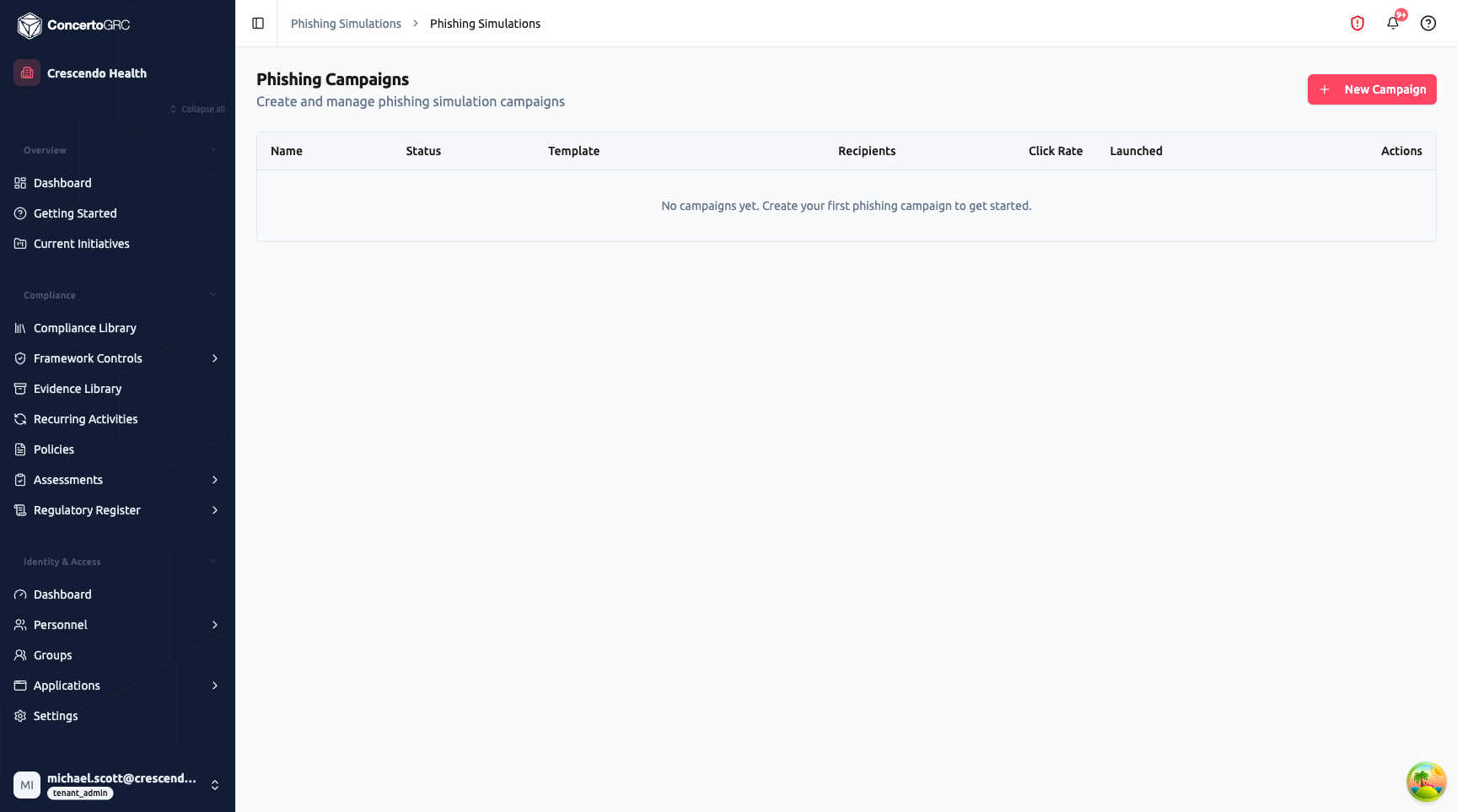
The Campaigns page lists all phishing campaigns with:
- Name -- Campaign title
- Status -- Lifecycle status badge (Draft, Scheduled, Launching, Active, Completed, Archived)
- Template -- Which email template is being used
- Recipients -- Number of targeted recipients
- Click Rate -- Percentage of recipients who clicked the phishing link
- Launched -- Date the campaign was sent
- Actions -- Launch, complete, archive, download PDF report, or export CSV
Creating a Campaign
Click + New Campaign to open the three-step creation wizard.
Step 1: Campaign Details
- Campaign Name -- Descriptive title for the campaign
- Email Template -- Select from your template library
- Landing Page -- Page shown when recipients click the link (optional)
- Sending Profile -- SMTP configuration for delivery
- Sending Window -- Minutes over which to stagger email delivery (1–1440, default 60) to avoid IT help desk spikes
- Schedule -- Optional future launch date/time
- Auto-Remediate Clickers -- Automatically enroll clickers in a training module (select the module when enabled)
Step 2: Add Recipients Add recipients via:
- Manual entry (email, first name, last name, department -- comma-separated)
- CSV upload
- Import from Personnel directory
- Import from platform Users
Step 3: Review & Launch Summary of all settings with a recipients preview table. Choose to Save as Draft, Schedule, or Launch Now.
Campaign Detail Page
Click any campaign to view detailed results:
Summary Stat Cards:
| Metric | Description |
|---|---|
| Total | Total recipients in the campaign |
| Sent | Emails successfully delivered |
| Opened | Recipients who opened the email (tracking pixel) |
| Clicked | Recipients who clicked the phishing link |
| Submitted | Recipients who entered credentials on the landing page |
| Reported | Recipients who reported the email as phishing |
Aggregate Rates:
- Click Rate -- Percentage of recipients who clicked
- Report Rate -- Percentage of recipients who reported
Recipient Tracking Table: Per-recipient timeline showing email, name, department, status badge, and timestamps for sent, opened, clicked, and reported events.
Actions:
- Launch -- Start a draft campaign
- Complete -- End an active campaign
- Archive -- Archive a completed campaign
- PDF Report -- Download a formatted campaign report
- Export CSV -- Download recipient results as CSV
Campaign Lifecycle
DRAFT > SCHEDULED > LAUNCHING > ACTIVE > COMPLETED > ARCHIVED
| Status | Description |
|---|---|
| Draft | Campaign configured but not yet launched |
| Scheduled | Set to launch at a future date/time |
| Launching | Emails being sent (within the sending window) |
| Active | Emails delivered, tracking clicks and submissions |
| Completed | Campaign ended, results finalized |
| Archived | Archived for historical reference |
Email Templates
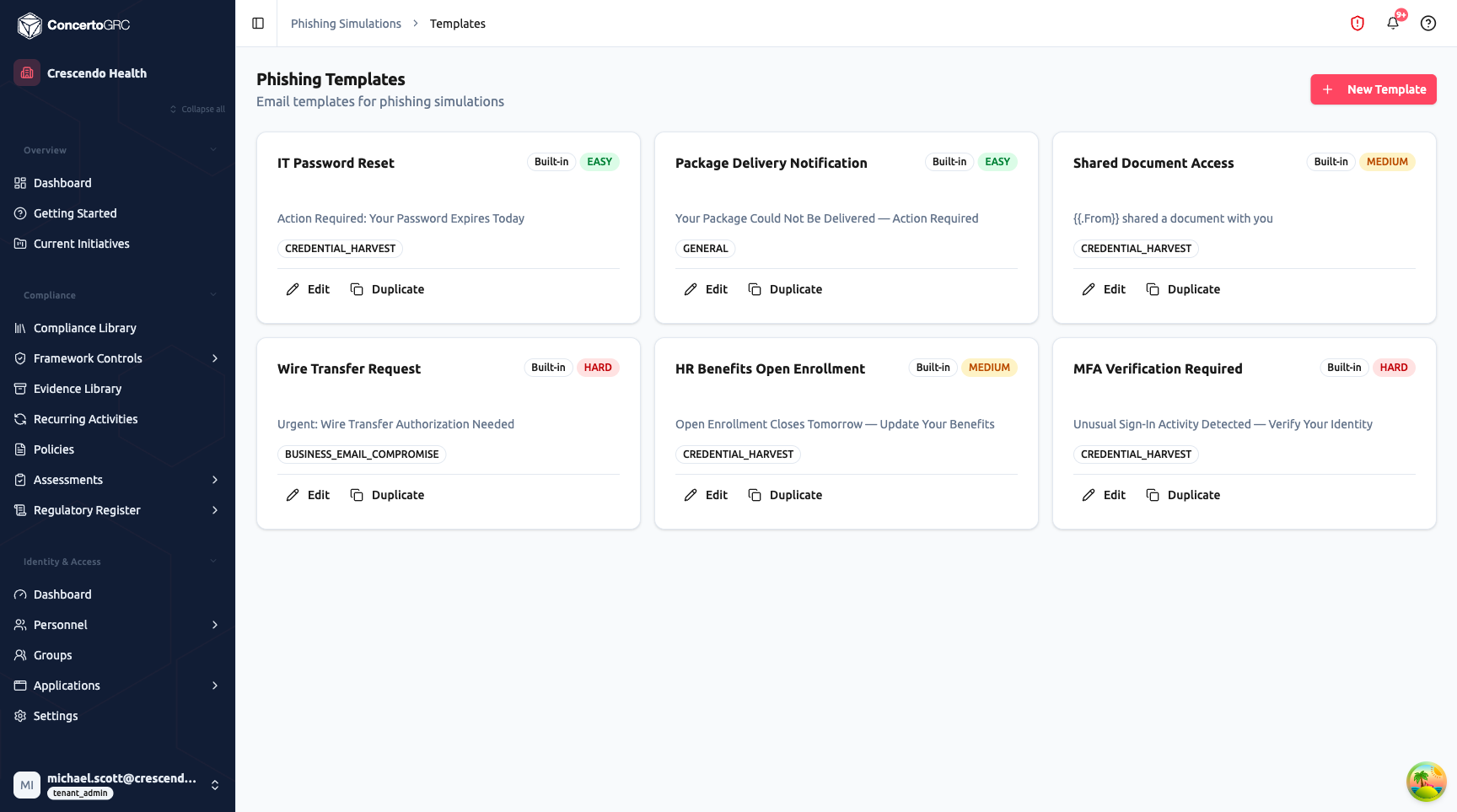
Templates define the phishing emails sent to recipients. The platform includes six built-in templates covering a range of difficulty levels and attack techniques.
Template Fields
- Name -- Internal template name
- Subject -- Email subject line
- Difficulty -- Easy, Medium, or Hard
- Category -- Attack technique classification
- HTML Content -- Email body with template variables
Template Variables
Insert dynamic placeholders in the email body:
| Variable | Description |
|---|---|
{{.FirstName}} | Recipient's first name |
{{.LastName}} | Recipient's last name |
{{.Email}} | Recipient's email address |
{{.TrackingURL}} | The phishing link (required for click tracking) |
Difficulty Levels
| Level | Description |
|---|---|
| Easy | Obvious phishing indicators -- urgency, misspellings, generic greetings |
| Medium | Moderately convincing -- branded, contextual, but with subtle red flags |
| Hard | Sophisticated -- personalized, realistic branding, minimal indicators |
Attack Categories
| Category | Description |
|---|---|
| Credential Harvest | Directs to a fake login page to capture credentials |
| General | Generic phishing with a malicious link |
| Malware | Simulates a malware download link |
| Spear Phishing | Targeted phishing using personal or organizational context |
| Business Email Compromise | Impersonates executives or vendors requesting urgent action |
Template Best Practices
- Start with Easy templates to establish a baseline click rate
- Progress to Medium and Hard as employees improve
- Mix attack categories to test different awareness areas
- Rotate templates across campaigns to prevent pattern recognition
Landing Pages
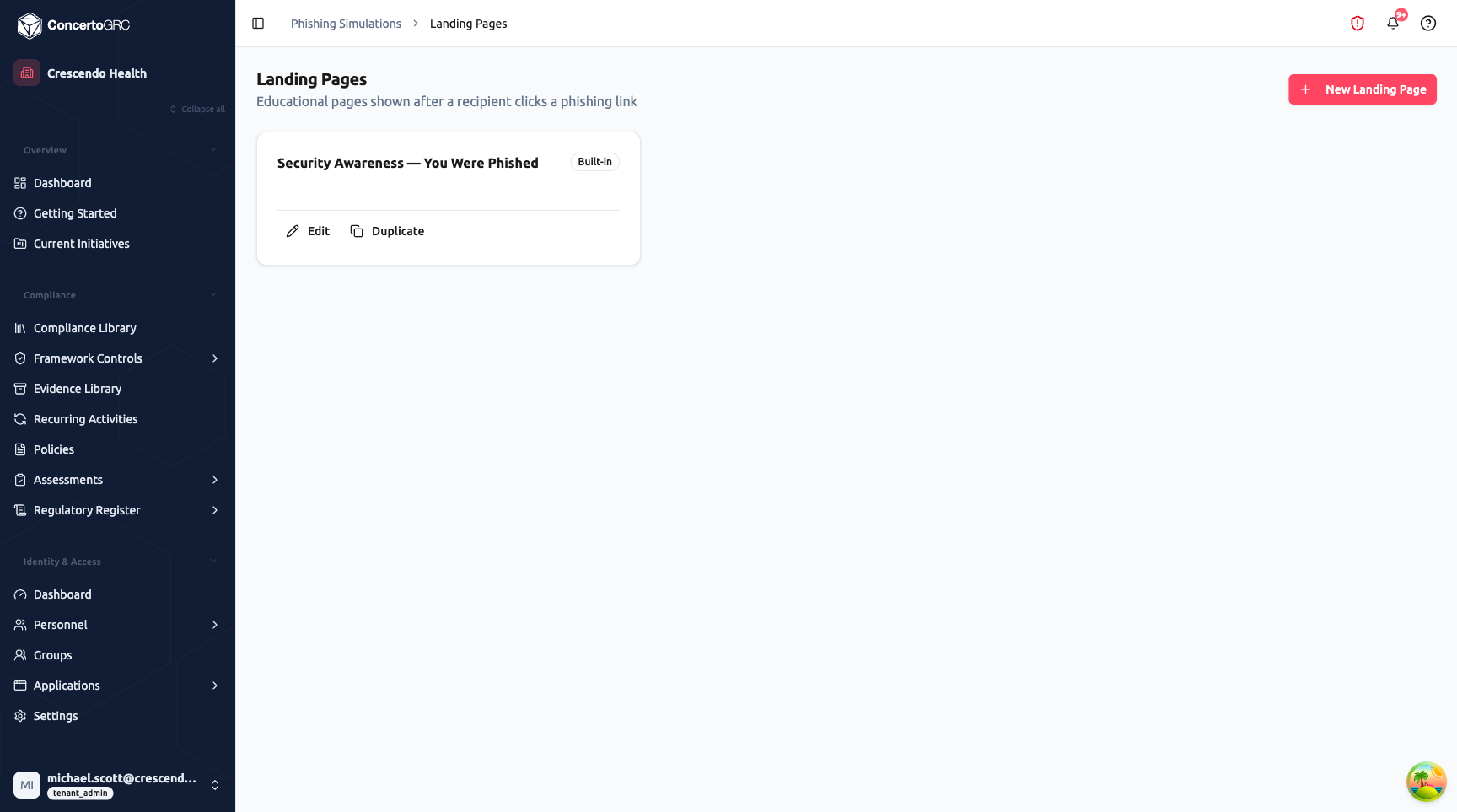
Landing pages are shown when a recipient clicks the phishing link. The platform includes a built-in awareness page.
Landing Page Fields
- Name -- Internal page name
- HTML Content -- Page body (HTML editor with preview mode)
- Capture Credentials -- Whether to present a fake login form before revealing the awareness message
- Redirect URL -- Optional URL to redirect after the awareness page
Landing Page Types
- Awareness Page -- Immediately shows an educational message explaining it was a simulation
- Credential Capture -- Presents a fake login form, records the submission (credentials are hashed, never stored in plain text), then redirects to the awareness message
Dashboard
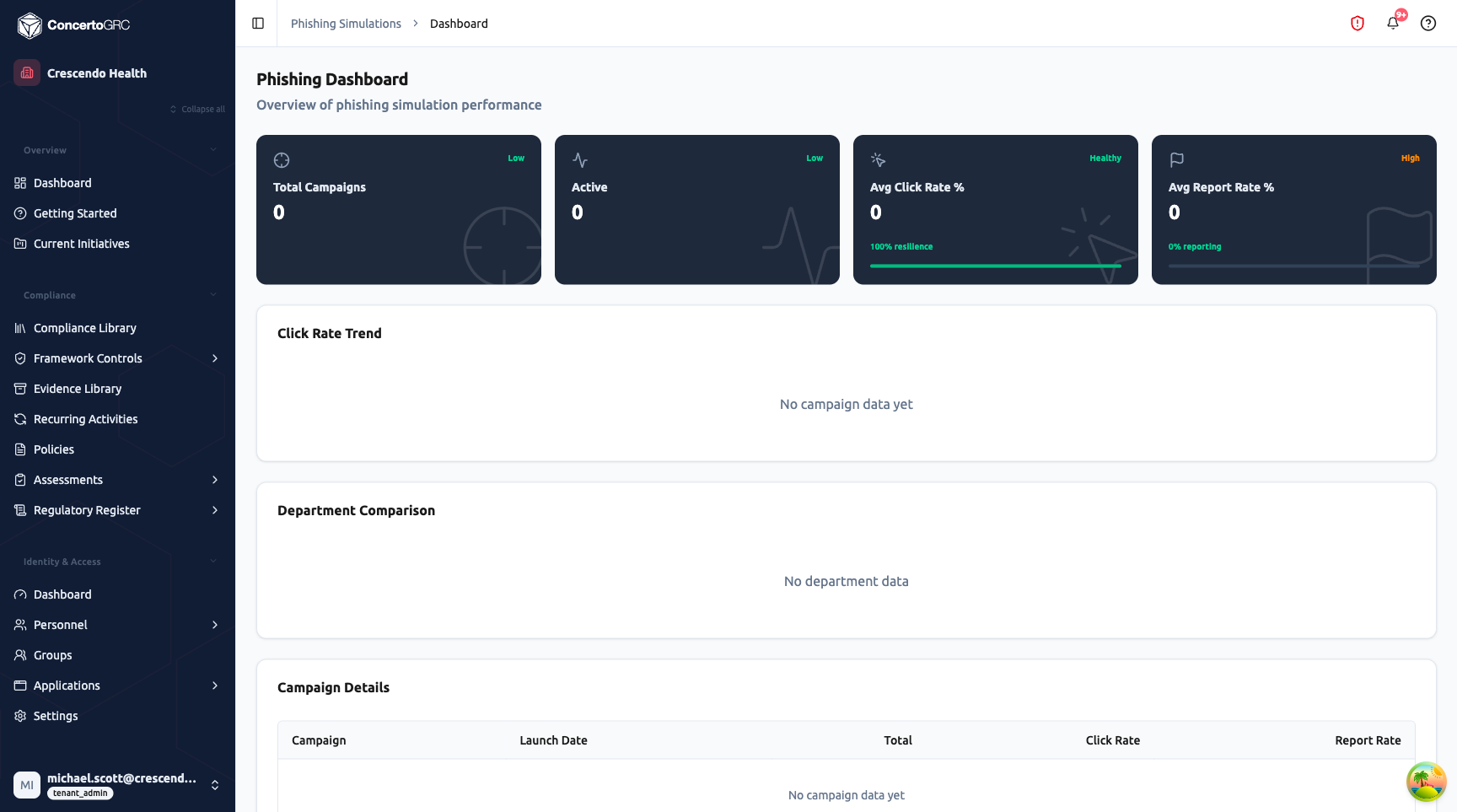
The dashboard provides program-level analytics across all campaigns.
KPI Cards
| Metric | Healthy Threshold | Description |
|---|---|---|
| Total Campaigns | -- | Count of all campaigns |
| Active | -- | Currently running campaigns |
| Avg Click Rate % | Under 5% | Average across campaigns (Critical if over 30%, High if over 15%, Medium if over 5%) |
| Avg Report Rate % | 50% or higher | Average reporting rate (High if under 25%, Medium if under 50%) |
Charts
- Click Rate Trend -- Line chart showing click rate and report rate across campaigns over time
- Department Comparison -- Bar chart comparing click and report rates across departments
Tables
- Campaign Details -- Campaign name, launch date, total recipients, click rate, and report rate
- Repeat Offenders -- Employees who have clicked in multiple campaigns, with name, department, and times clicked
Auto-Remediation
When Auto-Remediate Clickers is enabled during campaign creation, recipients who click the phishing link are automatically enrolled in a selected training module. This creates a closed-loop workflow:
- Test -- Send simulated phishing campaign
- Identify -- Track who clicks
- Train -- Auto-enroll clickers in remediation training
- Retest -- Include in future campaigns to measure improvement
The training module is selected during campaign creation and can be any module from the Security Awareness Training library.
Settings
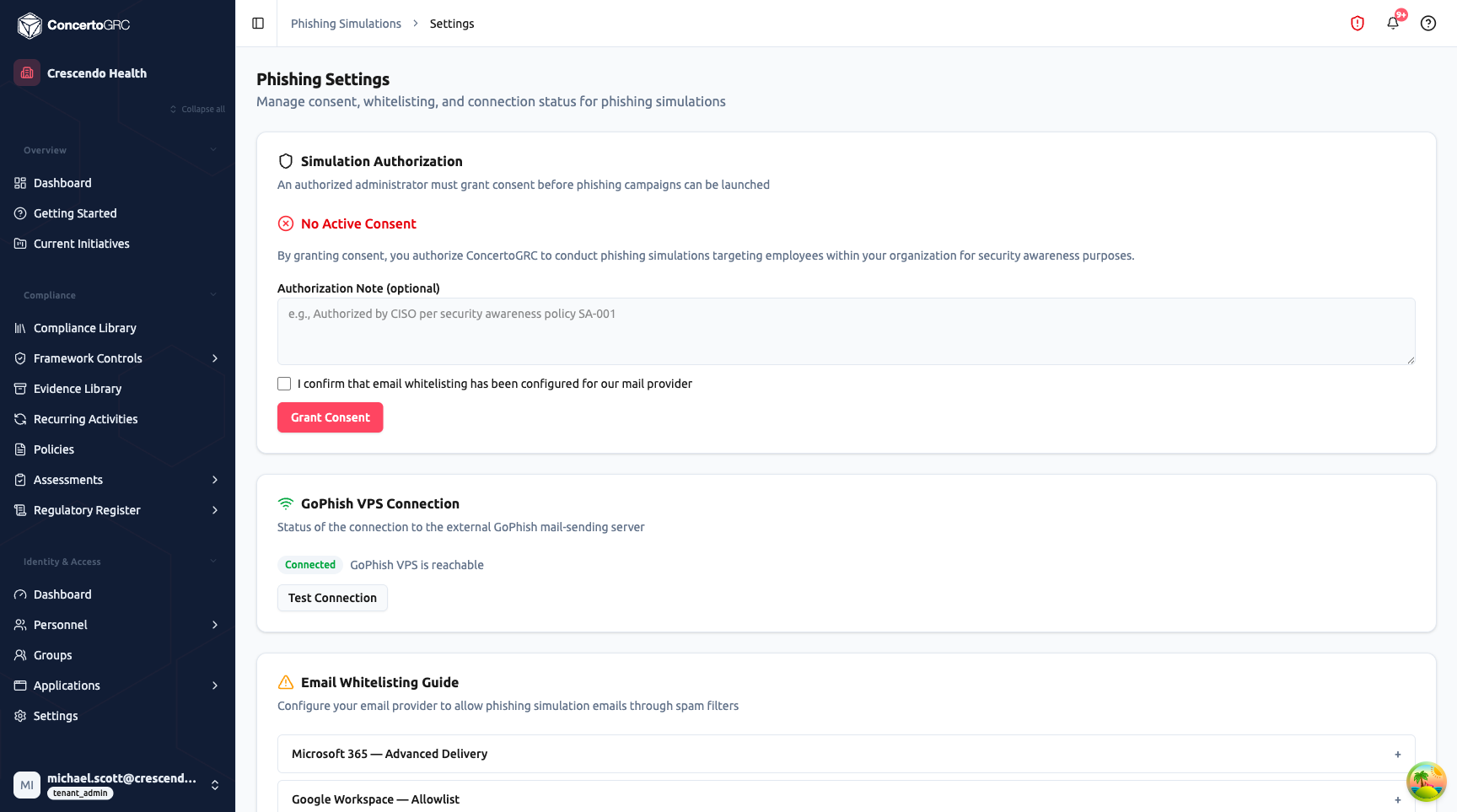
Simulation Authorization
An authorized administrator must grant consent before any phishing campaigns can be launched. This ensures organizational approval for security testing.
- Consent Status -- Active or No Active Consent
- Authorization Note -- Document who authorized and under what policy (e.g., "Authorized by CISO per security awareness policy SA-001")
- Email Whitelisting Confirmation -- Checkbox confirming that email whitelisting has been configured
- Grant/Revoke Consent -- Toggle authorization on or off
GoPhish VPS Connection
The platform uses an external GoPhish instance for email delivery and click tracking:
- Connection Status -- Connected or Disconnected with status badge
- Test Connection -- Verify the GoPhish VPS is reachable
Email Whitelisting Guide
Expandable guides for configuring your email provider to allow simulation emails through spam filters:
- Microsoft 365 -- Advanced Delivery configuration
- Google Workspace -- Allowlist configuration
- Generic SMTP Gateway -- Spam filter bypass rules