Security Awareness Training
The Training module lets you build and deliver security awareness training to your organization. Create modules from the platform library, build custom content, or generate modules with AI. Organize modules into campaigns alongside policy acknowledgments and secure coding challenges, then track completion with magic-link delivery, automated reminders, email delivery tracking, and an analytics dashboard. Completed assignments produce tamper-proof evidence attestations for auditors.
Overview
Access from Security Operations > Training in the sidebar. The module has four pages:
- Training Library -- Browse, enable, and manage training modules
- Campaigns -- Create, launch, and track training campaigns
- Email Templates -- Customize emails for each step of the training lifecycle
- Dashboard -- Organization-wide training metrics and compliance overview
Training Library
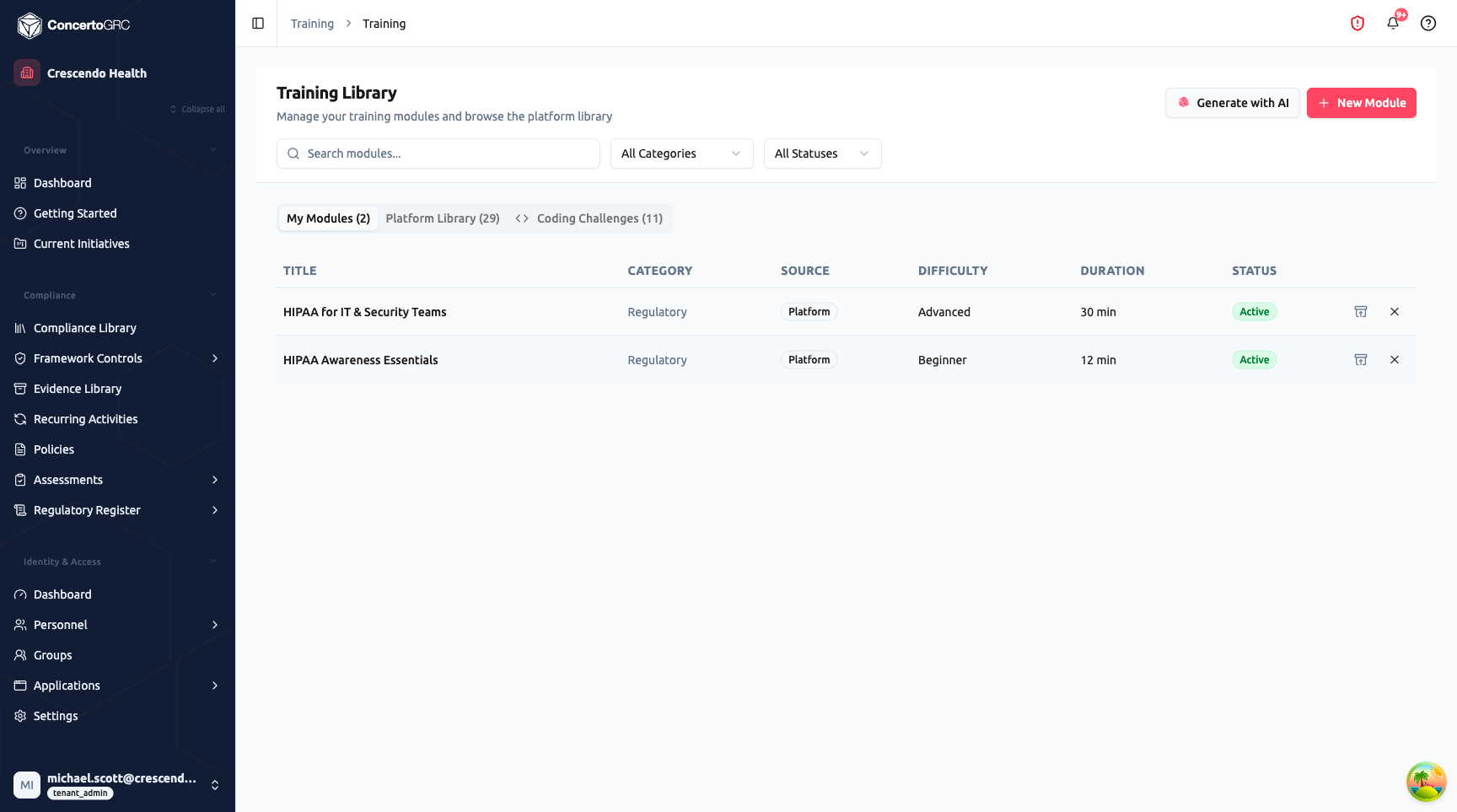
The Training Library is the central hub for managing training content. It has three tabs:
My Modules
Your organization's enabled training modules in a sortable table:
| Column | Description |
|---|---|
| Title | Module name (click row to open the module editor) |
| Category | Topic area badge |
| Source | Where the module came from -- Platform, Custom, or AI Generated |
| Difficulty | Beginner, Intermediate, or Advanced |
| Duration | Estimated completion time in minutes |
| Status | Draft, Active, or Archived |
Use the search bar and dropdown filters to find modules by title, category, or status. Action buttons let you toggle a module between Draft and Active or archive it.
Platform Library
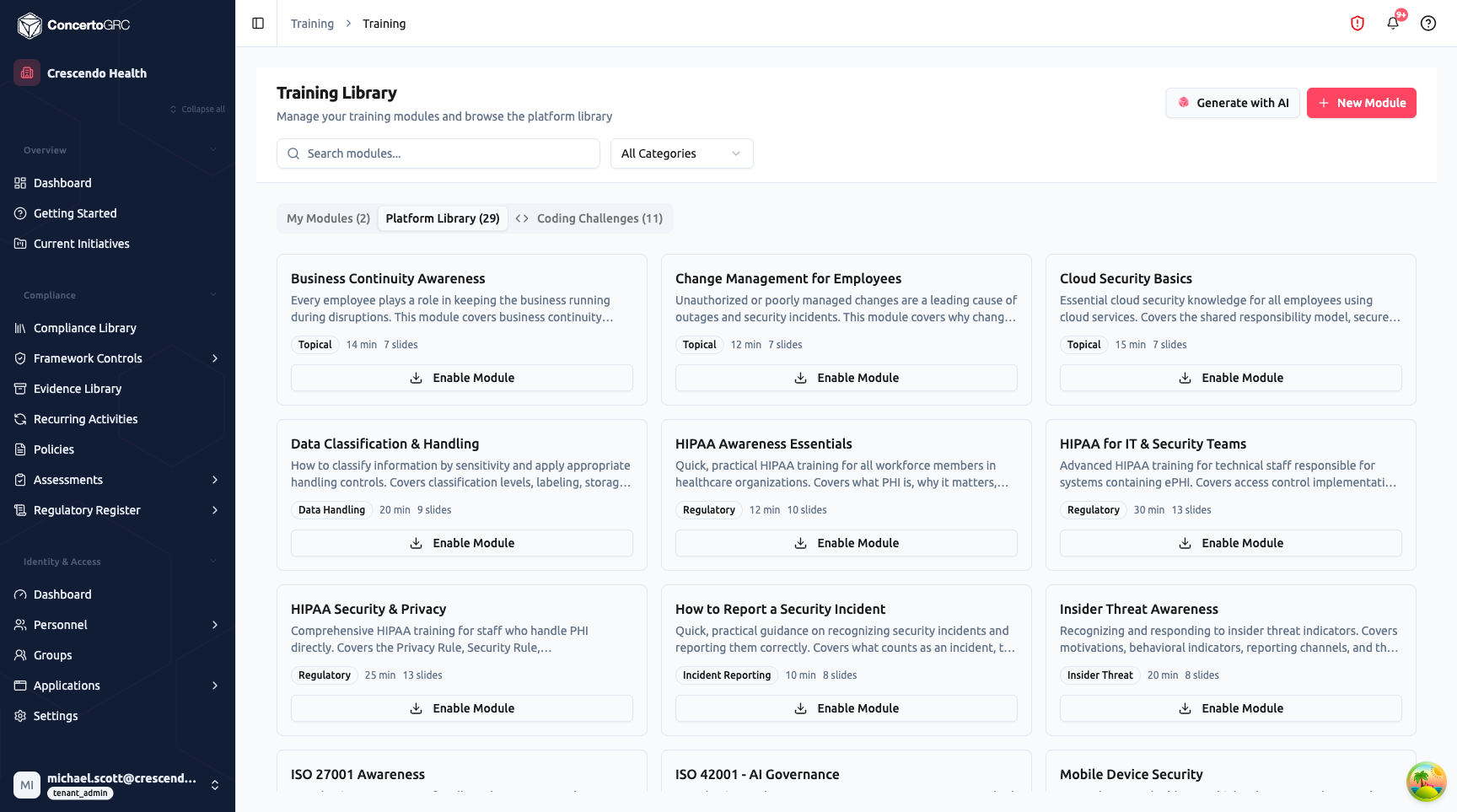
A curated library of pre-built modules maintained at the platform level. Each card shows the module title, description, category badge, duration, slide count, and an Enable Module button that copies the module into your organization's library.
Coding Challenges
Secure coding challenges that test employees' ability to identify and fix vulnerabilities. Each card shows the title, difficulty badge, OWASP category, programming language (JavaScript, Python, SQL), time limit, and description. Challenges are evaluated in an isolated sandbox environment.
Creating Modules
Click + New Module to create a custom module from scratch, or Generate with AI to have AI create a module based on a topic description. Custom modules use a slide-based editor where you build content slide by slide.
Module Fields
| Field | Description |
|---|---|
| Title | Module name |
| Description | What the module covers |
| Category | Topic area (see categories below) |
| Difficulty | Beginner, Intermediate, or Advanced |
| Duration | Estimated completion time in minutes |
| Passing Score | Minimum percentage to pass (default 80%) |
| Max Quiz Attempts | Maximum number of quiz retakes allowed per learner (1--10, optional). When set, learners see "X of Y attempts used" and are locked out after exhausting their attempts |
| Status | Draft, Active, or Archived |
| Tags | Searchable keywords |
Categories
| Category | Description |
|---|---|
| General Awareness | Broad security awareness topics |
| Phishing | Email phishing recognition and response |
| Password Hygiene | Password management and best practices |
| Data Handling | Data classification, handling, and protection |
| Incident Reporting | How to recognize and report security incidents |
| Remote Work | Secure remote work practices |
| Physical Security | Physical access and environmental security |
| Insider Threat | Recognizing and responding to insider threats |
| Regulatory | Compliance-specific training (HIPAA, PCI DSS, etc.) |
| Role-Based | Training tailored to specific job functions |
Slide Types
Each module contains slides of different types:
| Type | Description |
|---|---|
| Content | Informational slides with text, images, and realistic artifacts (simulated emails, Slack messages, alerts) |
| Quiz | Knowledge check questions with scoring |
| Scenario | Interactive decision-making exercises |
| Video | Embedded video content with optional presenter video |
| Code Challenge | Secure coding exercises evaluated in a sandboxed Lambda environment |
| Summary | Recap and key takeaways |
Campaigns
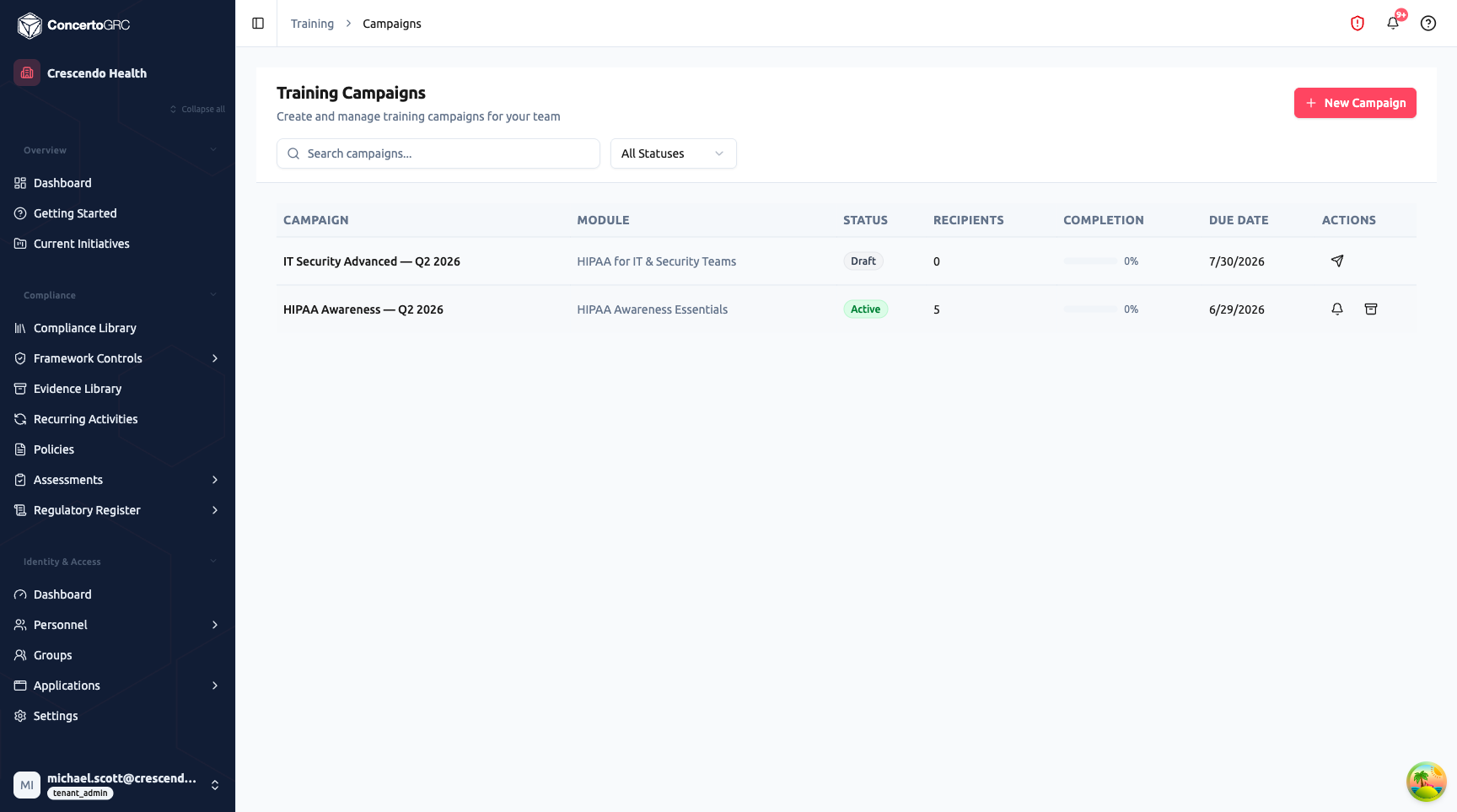
Campaigns assign training content to employees and track completion. The campaign table shows all campaigns with their name, linked module, status badge, recipient count, completion progress bar, due date, and action buttons.
Creating a Campaign
Click + New Campaign to open the three-step creation wizard.
Step 1: Select Content
Choose what content to include in the campaign across three sub-tabs:
- Training -- Select training modules from your library (with search and category/status filters)
- Policies -- Select policies for acknowledgment signing (learners can add an optional note when acknowledging)
- Challenges -- Select secure coding challenges
Selected items appear as cards below the selection list. Campaigns can include a mix of all three content types. Drag to reorder -- the sequence number controls the order learners see content in the training portal.
Step 2: Campaign Details
- Campaign Name -- Descriptive title (required)
- Due Date -- Target completion deadline
- Auto-Enroll -- Automatically add new employees to the campaign
- Auto-Enroll Scope -- Description of which employees get enrolled (e.g., "All new hires", "Engineering department")
- Auto-Enroll Due Days -- Days after enrollment before the assignment is due
- Reminder Rules -- Configure automated reminder notifications
Step 3: Review & Create
Summary of selected content and campaign settings. Click Create to save as a draft campaign.
Campaign Lifecycle
DRAFT > SCHEDULED > ACTIVE > COMPLETED > ARCHIVED
| Status | Description |
|---|---|
| Draft | Campaign configured but not yet launched |
| Scheduled | Set to launch at a future date/time |
| Active | Invitations sent, tracking completions |
| Completed | Campaign ended |
| Archived | Archived for historical reference |
Campaign Detail Page
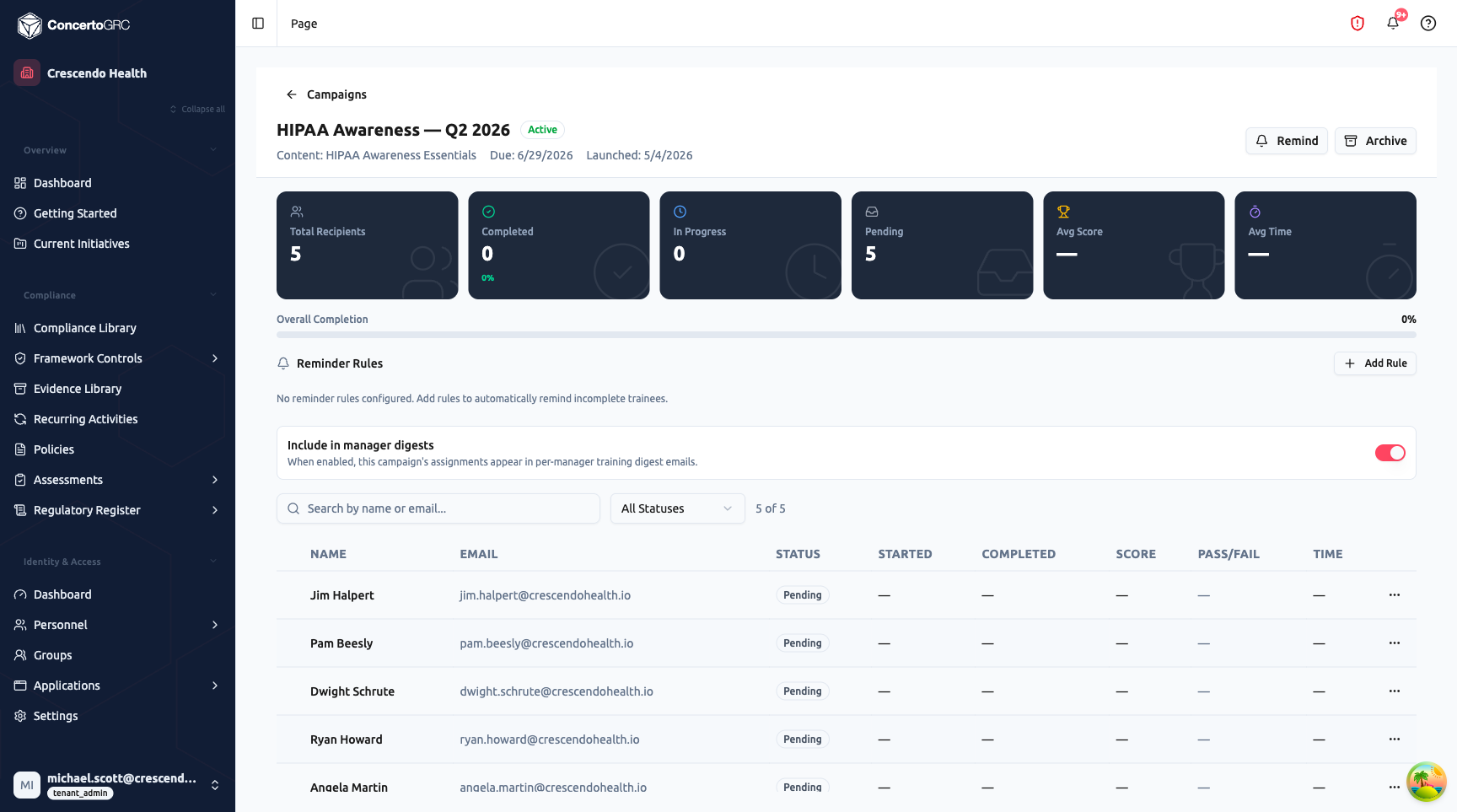
Click any campaign to view detailed results.
Header: Campaign name, status badge, content module, due date, launched date, and action buttons (Remind, Archive).
Stat Cards:
| Metric | Description |
|---|---|
| Total Recipients | Number of assigned trainees |
| Completed | Count and percentage who finished |
| In Progress | Currently working on the training |
| Pending | Invitation sent but not yet started |
| Avg Score | Average assessment score across completions |
| Avg Time | Average time spent on the training |
Overall Completion: A progress bar showing the percentage of recipients who have completed.
Reminder Rules: Configure rules to automatically remind trainees who haven't completed. Click + Add Rule to create a rule:
| Rule Type | Description |
|---|---|
| After Enrollment | Send reminder N days after the assignment was created |
| Before Due Date | Send reminder N days before the due date |
| Recurring Interval | Send reminder every N days until completion |
Manager Digests: Toggle to include this campaign's assignments in per-manager training digest emails.
Assignments Table:
| Column | Description |
|---|---|
| Name | Trainee name |
| Trainee email address | |
| Status | Pending, In Progress, Completed, Expired, or Waived |
| Started | When the trainee opened the training |
| Completed | When they finished |
| Score | Assessment score (if applicable) |
| Pass/Fail | Whether they met the passing threshold |
| Time | Total time spent |
Use the search bar and status filter to find specific assignments. The actions menu on each row lets you send a reminder, waive the assignment, or re-assign.
Bulk Actions:
- Add recipient -- Add a single trainee by email
- Bulk CSV upload -- Import a list of email addresses
- Roster picker -- Select from your Personnel directory
- Download results CSV -- Export assignment data
Adding Recipients
Recipients can be added via:
- Manual entry -- Email address and name
- CSV upload -- Bulk import from a spreadsheet
- Personnel roster -- Select from your AccessPersonnel directory
- Key contacts -- Select from organizational key contacts
Assignment Lifecycle
| Status | Description |
|---|---|
| Pending | Magic link sent, trainee hasn't started |
| In Progress | Trainee has opened and begun the training |
| Completed | Trainee finished all content (passed or failed) |
| Expired | Magic link token has expired |
| Waived | Trainee waived from the requirement |
Trainees access their training via a magic link in the enrollment email. The link opens a public training portal where they progress through slides, answer quizzes, complete scenarios, and submit coding challenges. Progress is saved automatically.
Email Templates
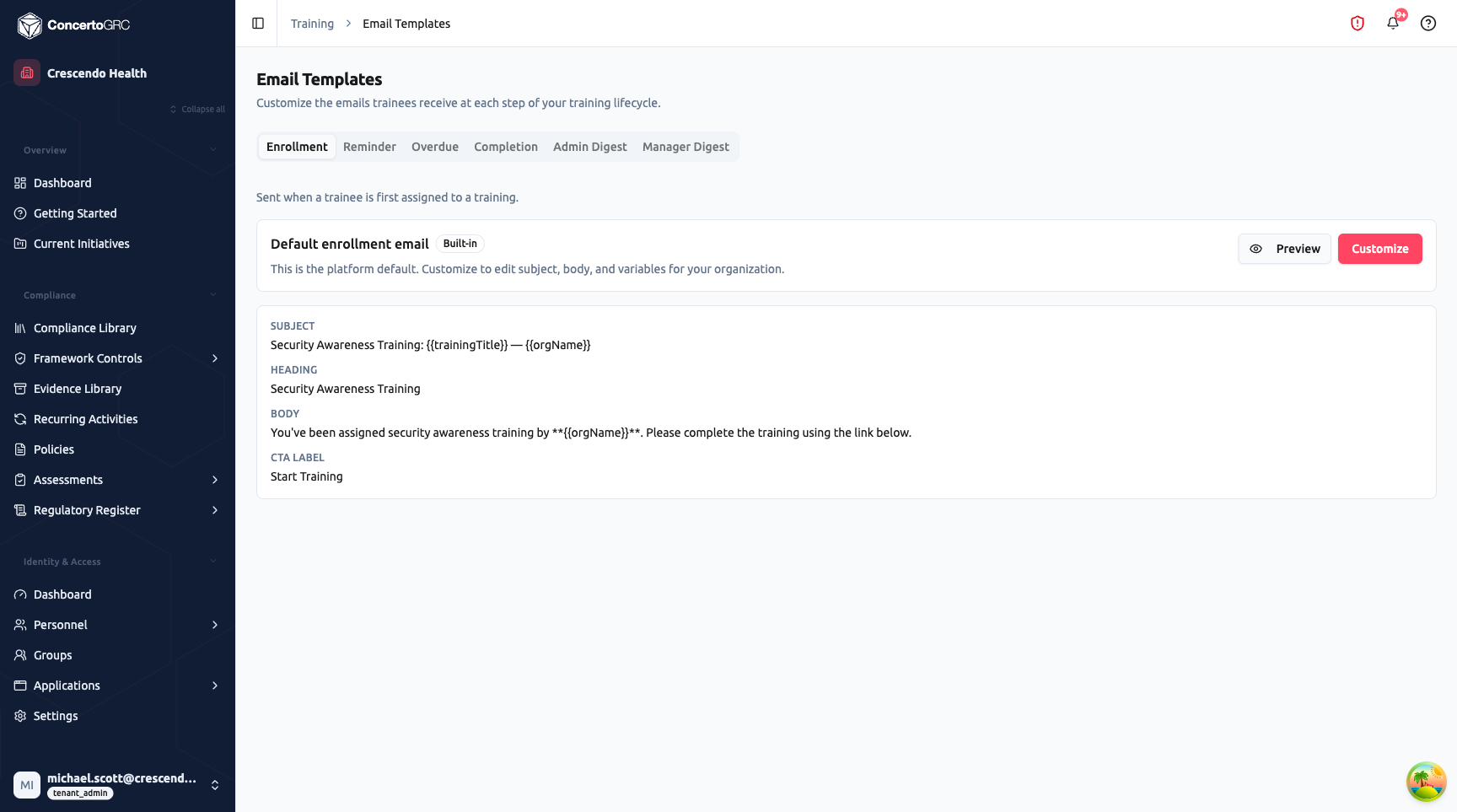
Customize the emails trainees receive at each step of the training lifecycle. The page has six tabs, one for each communication type.
Communication Types
| Type | Description |
|---|---|
| Enrollment | Sent when a trainee is first assigned to a training |
| Reminder | Sent on your reminder schedule for assignments still in progress |
| Overdue | Sent automatically when an assignment passes its due date |
| Completion | Sent when a trainee finishes all modules |
| Admin Digest | Scheduled summary of training compliance sent to admins |
| Manager Digest | Scoped training status sent to each manager for their direct reports |
Template Fields
Each template includes:
- Subject -- Email subject line (supports template variables)
- Heading -- Bold title in the email body
- Body -- Main message text (supports
**bold**formatting and template variables) - CTA Label -- Call-to-action button text (e.g., "Start Training")
- Footnote -- Optional footer text
- Preheader -- Optional preview text shown in email clients
Template Variables
Insert dynamic placeholders using the Insert variable menu:
| Variable | Description |
|---|---|
{{trainingTitle}} | Name of the training module |
{{orgName}} | Organization name |
{{recipientName}} | Trainee's name |
{{dueDate}} | Assignment due date |
{{campaignName}} | Campaign name |
{{trainingUrl}} | Magic link to start the training |
Built-in vs. Custom Templates
- Built-in templates are platform defaults shown as read-only with Preview and Customize buttons. Click Customize to create an editable copy for your organization.
- Custom templates autosave on blur and include a Reset to default button to revert to the platform template.
Admin Digest Configuration
The Admin Digest tab includes a schedule configuration section:
- Enabled -- Toggle digest emails on/off
- Cadence -- Weekly or Monthly
- Day -- Day of week (weekly) or day of month (monthly)
- Send Hour (UTC) -- Hour to send
- Upcoming Due Window -- How many days ahead to include upcoming assignments
- Recipient Mode -- Explicit list of email addresses or permission-based
- Send Now -- Trigger an immediate digest
Manager Digest Configuration
- Campaign Scope -- Include all active campaigns or only those with the manager digest toggle enabled
- Missing Manager Fallback -- What to do when an employee has no manager: escalate up the chain, include in admin digest only, or one-hop escalation
Dashboard
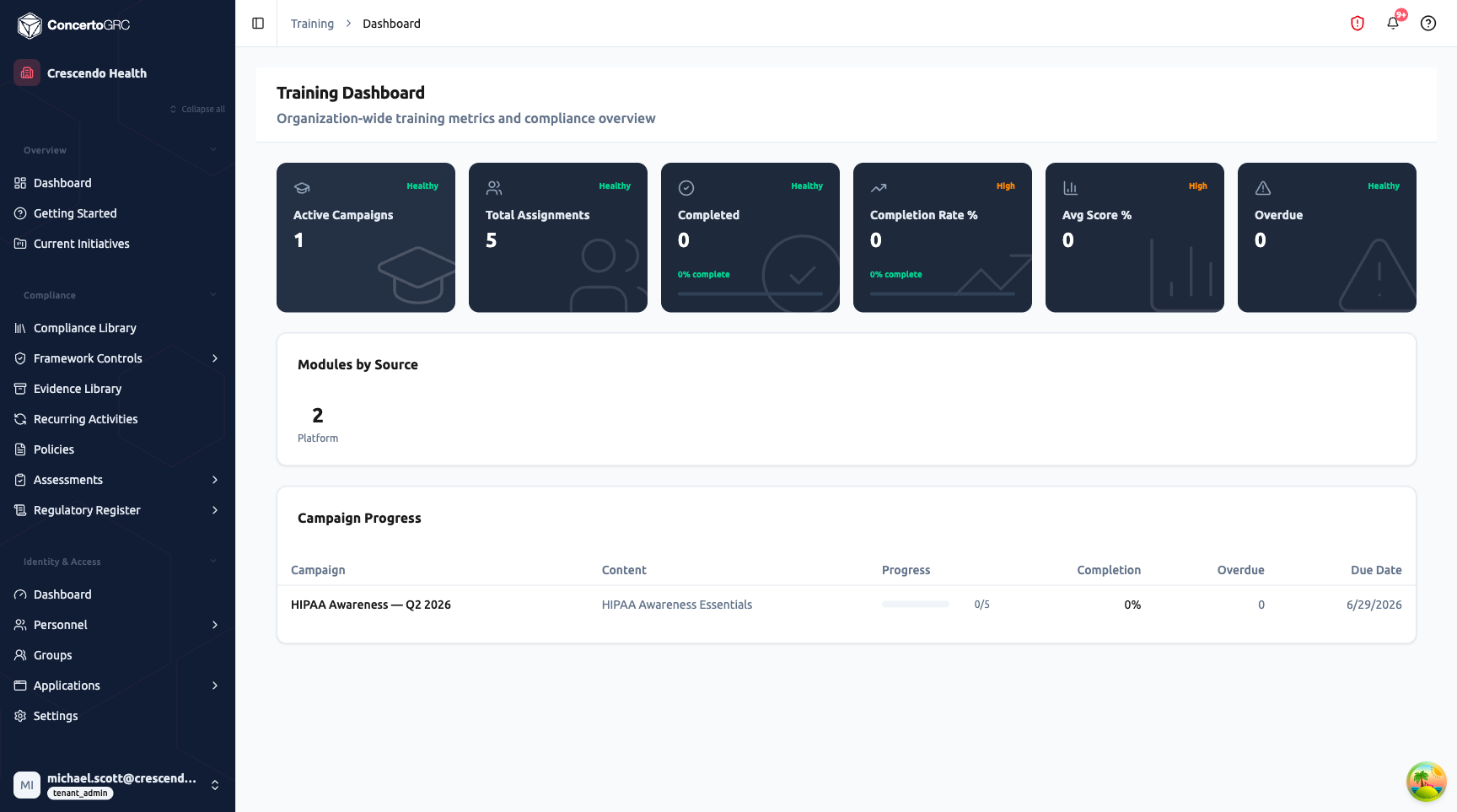
The dashboard provides an organization-wide view of training metrics and compliance.
KPI Cards
| Metric | Healthy Threshold | Description |
|---|---|---|
| Active Campaigns | -- | Count of currently active campaigns |
| Total Assignments | -- | Total assignment count across all campaigns |
| Completed | -- | Count and percentage of completed assignments |
| Completion Rate % | 70% or higher | Percentage of assignments completed (High if under 40%, Medium if under 70%) |
| Avg Score % | 70% or higher | Average score across completed assignments (High if under 40%, Medium if under 70%) |
| Overdue | 0 | Incomplete assignments past their due date (Critical if over 10, High if over 5, Medium if 1–5) |
Each card is color-coded by health status: green (Healthy), amber (Medium), orange (High), or red (Critical).
Modules by Source
A breakdown showing how many modules you have from each source: Platform, Custom, and AI Generated.
Campaign Progress
A table showing active and recently completed campaigns:
| Column | Description |
|---|---|
| Campaign | Campaign name (click to navigate to detail page) |
| Content | Module and policy titles included in the campaign |
| Progress | Visual progress bar with completed/total count |
| Completion | Completion rate percentage |
| Overdue | Count of overdue assignments (red badge if non-zero) |
| Due Date | Campaign deadline |
Auto-Enrollment
When enabled during campaign creation, auto-enrollment automatically adds new employees to active campaigns:
- Scope -- Define which employees get enrolled (free-text description, e.g., "All new hires", "Engineering department")
- Due Days -- Number of days after enrollment before the assignment is due
The training scheduler checks for new employees every 5 minutes and creates assignments automatically.
Integration with Phishing Simulation
When phishing simulation Auto-Remediate Clickers is enabled, employees who click simulated phishing links are automatically enrolled in a selected training campaign. This creates a closed-loop workflow:
- Test -- Send simulated phishing campaign
- Identify -- Track who clicks
- Train -- Auto-enroll clickers in remediation training
- Retest -- Include in future campaigns to measure improvement
Email Delivery Tracking
All training emails (enrollment, reminders, overdue notifications) route through a durable delivery pipeline with per-recipient tracking. From the campaign detail page, click Delivery to view:
| Column | Description |
|---|---|
| Recipient | Email address and name |
| Status | Pending, Sending, Sent, Suppressed, or Failed |
| Attempts | Number of send attempts |
| SES Message ID | AWS SES tracking identifier |
| Failure Reason | Why the delivery failed (if applicable) |
Delivery Statuses
| Status | Description |
|---|---|
| Pending | Queued for sending |
| Sending | Currently being sent via SES |
| Sent | Successfully delivered |
| Suppressed | Recipient's email bounced or they filed a complaint (automatically updated via SES webhooks) |
| Failed | Delivery failed after all retry attempts |
The campaign detail header shows aggregate delivery counts (pending, sent, suppressed, failed) so you can quickly identify delivery issues.
Completion Evidence
When a trainee completes all assigned content in a campaign, an immutable evidence attestation is automatically created in the Evidence Library. This provides tamper-proof proof of completion for auditors.
Each attestation records:
- Learner identity (name, email)
- Module titles, scores, and pass/fail status
- Completion timestamps
- Content snapshot provenance (what the learner actually saw)
Evidence attestations are preserved even if personnel records are later deleted, ensuring the completion record survives for compliance retention requirements.
Content Integrity
When a learner first opens a training module, the current slide content (including quiz answer keys) is frozen as a snapshot for that learner. This ensures:
- Learners are graded on exactly the content they saw, not later edits
- Admins can update module content without affecting in-progress assignments
- Audit evidence reflects the actual training material delivered
If a module's content changes after a learner has started, the learner continues to see and be graded against their frozen snapshot.
Public Training Portal
Trainees access their assigned training through a public portal via magic link (no platform login required). The portal presents:
- Slide-by-slide progression through module content in the campaign's configured sequence
- Interactive quizzes with immediate feedback and attempt tracking
- Policy acknowledgment with optional notes
- Scenario-based decision exercises
- Secure coding challenges with sandboxed execution
- Automatic progress saving
- Score calculation and pass/fail determination on completion
Expired Link Recovery
If a trainee's magic link has expired, they can request a new link directly from the expired link page. The system sends a fresh 30-day link to the email address on file (rate-limited to 3 requests per minute for security). No admin action is required.