Framework Controls
Framework Controls are the specific requirements your organization must implement and maintain for each compliance framework (SOC 2, ISO 27001, HIPAA, PCI DSS, ISO 42001). Each control tracks implementation status, ownership, evidence links, recurring activities, per-product scoping, and cross-framework mappings.
Overview
Access from Compliance > Framework Controls in the sidebar. Select a framework from the sub-menu to view its controls. The page header shows total controls, how many are in place, and the overall progress percentage.
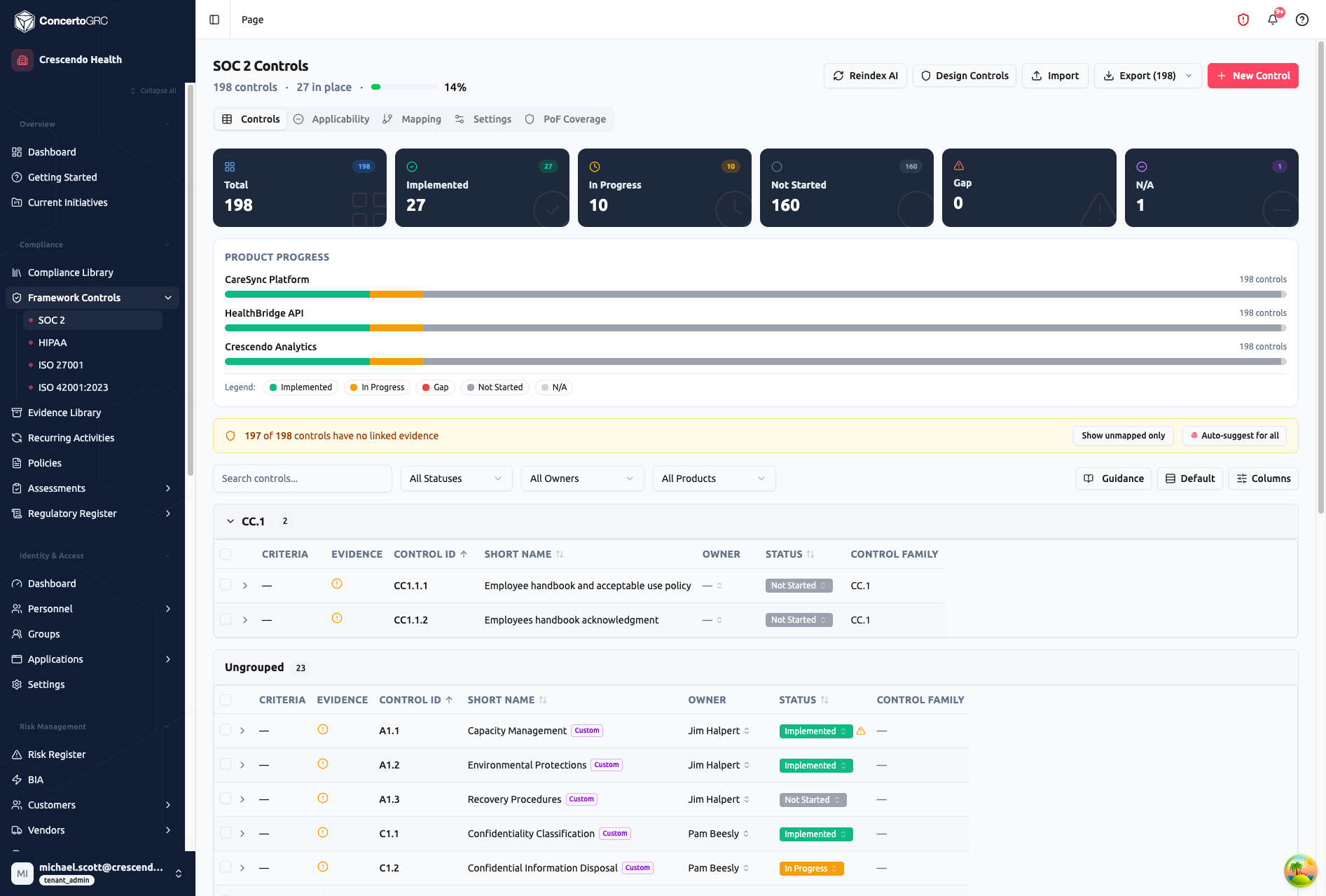
The page has five main tabs:
- Controls -- The main table with all controls, filters, and bulk actions
- Applicability -- Mark controls as applicable or not applicable with justifications
- Mapping -- Cross-framework control mappings (read-only, from master library)
- Settings -- Framework configuration and defaults
- PoF Coverage -- Points of Focus coverage tracking (SOC 2 only)
Summary Statistics
The top bar shows live counts by status: Total, Implemented, In Progress, Not Started, Gap, and N/A. Click any stat card to filter the table. Below the stats, Product Coverage rings show one ring per in-scope product: the product logo (or a colored-initials fallback) sits in the center, with the implementation percentage and product name below. The percentage is the product's Implemented controls divided by its applicable controls (total minus N/A) for this framework; a product with no applicable controls shows a dash. The ring color follows coverage thresholds (green ≥75%, yellow ≥50%, orange ≥25%, red below). Hover or focus a ring for a per-status breakdown. Click a ring to filter the table to that product -- the rings stay visible and the selected ring is highlighted; click it again (or Clear) to show all controls. Upload a product's logo from Settings > Products in the product's create/edit dialog.
Evidence Gap Banner
An amber banner shows how many controls have no linked evidence (e.g., "197 of 198 controls have no linked evidence"). Click Show unmapped only to filter to just those controls, or Auto-suggest for all to run AI evidence suggestions across all unmapped controls.
Controls Table
Controls are grouped by Control Family (collapsible sections). Each row shows:
- Criteria -- Framework criteria indicators
- Evidence -- Evidence status icon (green check, amber warning, red missing)
- Control ID -- Framework-specific identifier (e.g., CC1.1.1, A1.1)
- Short Name -- Control title, with a "Custom" badge if customized from the master library
- Owner -- Assigned control owner (inline editable)
- Status -- Implementation status (inline editable with color-coded badges)
- Control Family -- Category grouping
Use the filter bar to search by text, filter by status, owner, or product. The Guidance toggle shows/hides implementation guidance columns. The Columns button lets you show/hide and reorder columns.
Inline Editing
Click any status or owner cell to edit inline. Status changes save immediately. Status indicators alert you to:
- Status Conflict (amber warning) -- The overall status is "In Place" but not all products are Implemented
- Status Drift (blue info) -- The calculated status based on evidence/activities differs from the manually set status
Working with Controls
Click any control row to open the detail sidecar with up to 7 tabs.
Details Tab
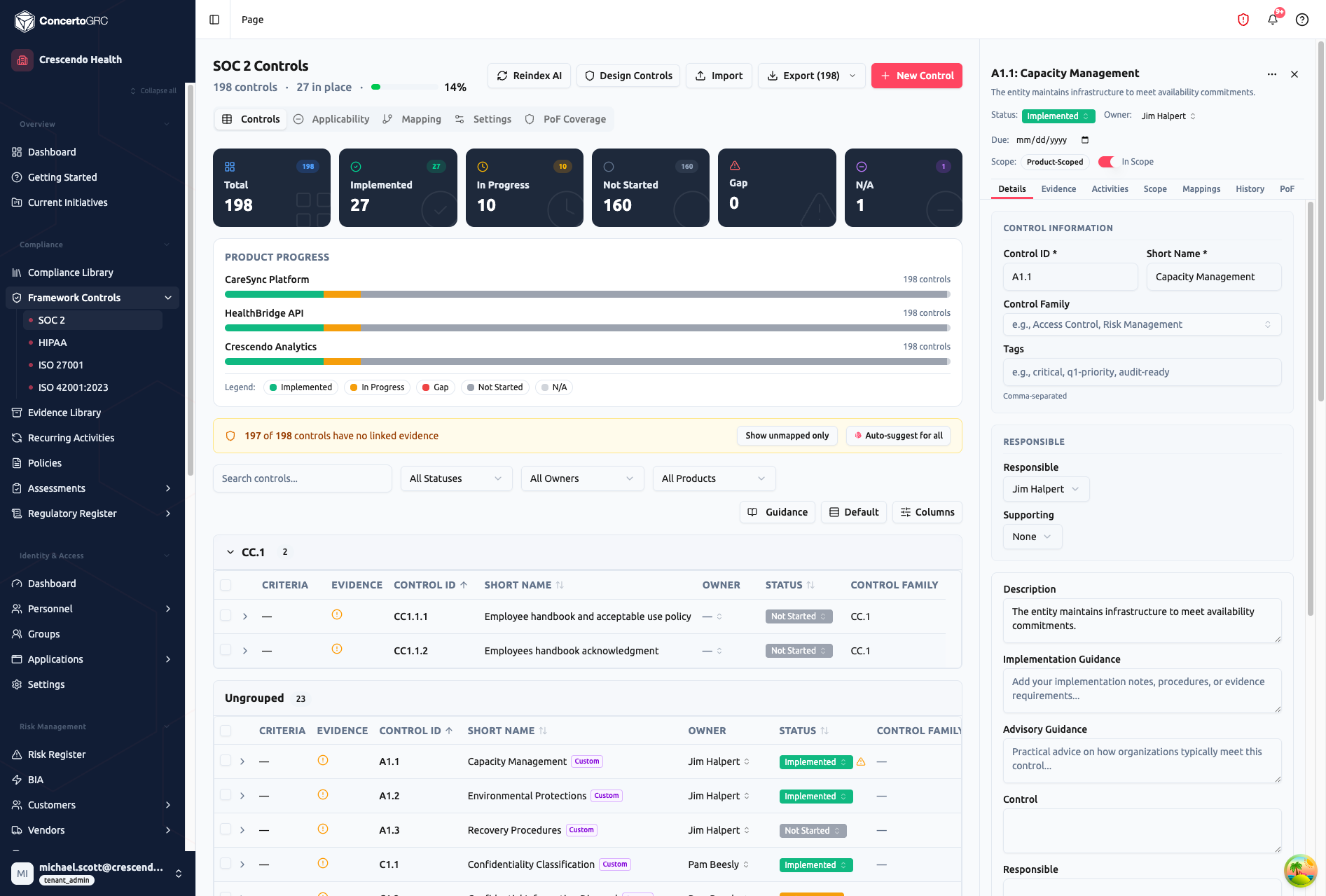
Header fields (always visible):
- Status -- Implementation status dropdown
- Owner -- Assigned person
- Due Date -- Target completion date (color-coded: red if past due, amber if within 7 days)
- Scope -- Product scope type badge and In Scope toggle
Control Information:
- Control ID (required) and Short Name (required)
- Control Family -- Searchable combobox with auto-complete; create new families on the fly
- Tags -- Comma-separated labels for filtering and organization
Responsible Section:
- Responsible -- Primary control owner
- Supporting -- Secondary owner (framework-specific)
Detail Fields:
- Description -- Full control requirement text
- Implementation Guidance -- How to implement (with AI Generate button)
- Advisory Guidance -- Practical advice (with AI Generate button)
- Framework metadata fields -- Control, Responsible, Accountable, Operational Frequency, Mapped Control
Master Control Binding: When a control is customized from the master library, a section shows the original master guidance with a Reset to Master button to revert local customizations.
Evidence Tab
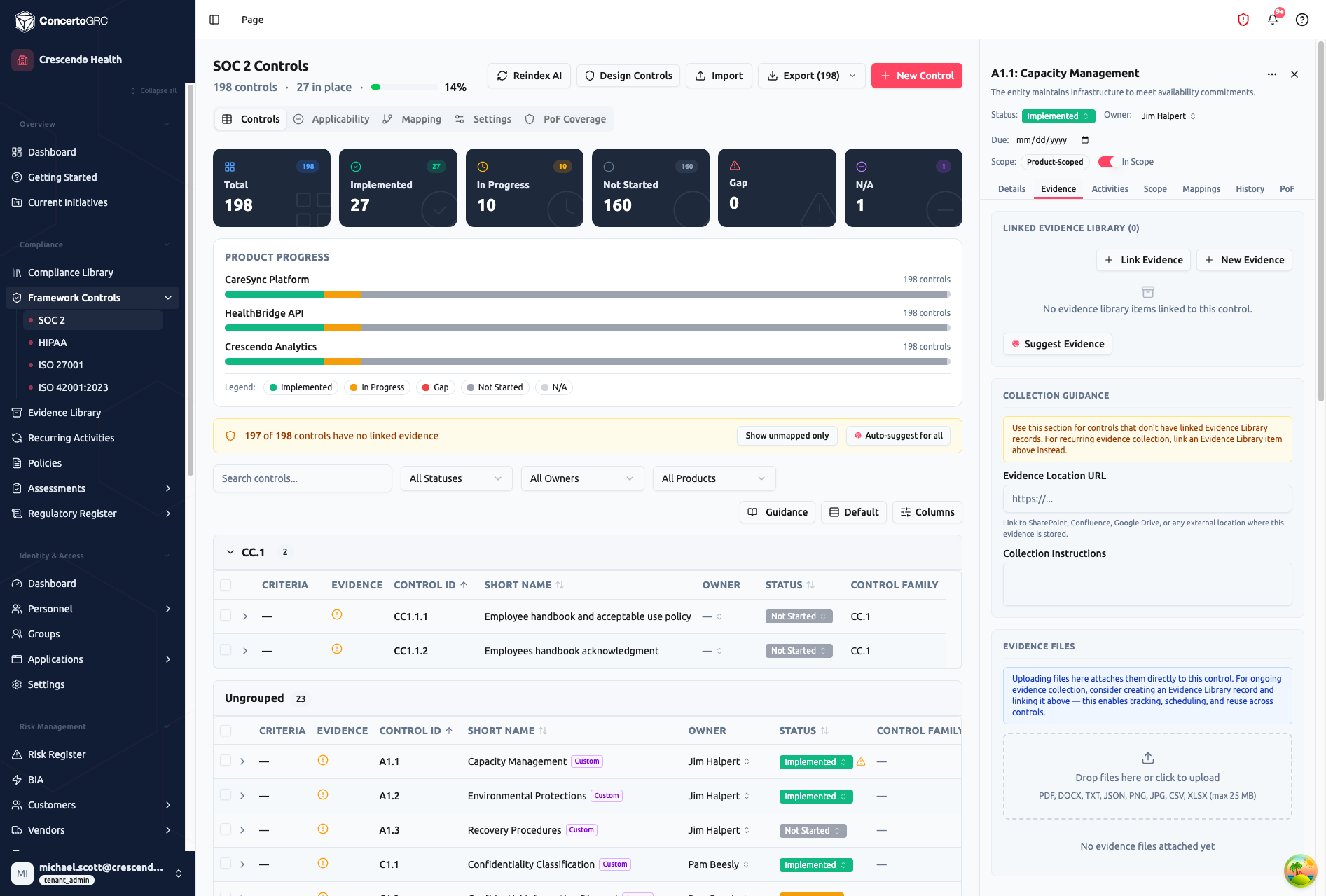
- Linked Evidence Library -- View and manage linked evidence items. Each shows status (Current, Expiring Soon, Expired, Not Collected), file count, and requirement type (Required/Supporting). Click + Link Evidence to search and attach existing evidence, or + New Evidence to create a new evidence record pre-linked to this control
- Suggest Evidence -- AI-powered embedding search matches this control against your evidence library. Accept or dismiss suggestions, or generate new evidence items
- Collection Guidance -- Evidence Location URL (external link to where evidence is stored) and Collection Instructions (detailed collection steps)
- Evidence Files -- Upload files directly to this control (drag-and-drop, up to 25 MB). For ongoing evidence collection, create an Evidence Library record instead -- it enables tracking, scheduling, and reuse across controls
Activities Tab
- Required Tasks -- Tasks linked to this control from recurring activities
- Linked Recurring Controls -- Recurring activities associated with this control, shown with frequency color-coding (Daily=red, Weekly=orange, Monthly=yellow, Yearly=green). Click Link Activity to attach existing activities, or use AI Suggestions to find matching ones
- Create Activity -- Create a new recurring activity pre-linked to this control with AI-assisted prefill
Scope Tab
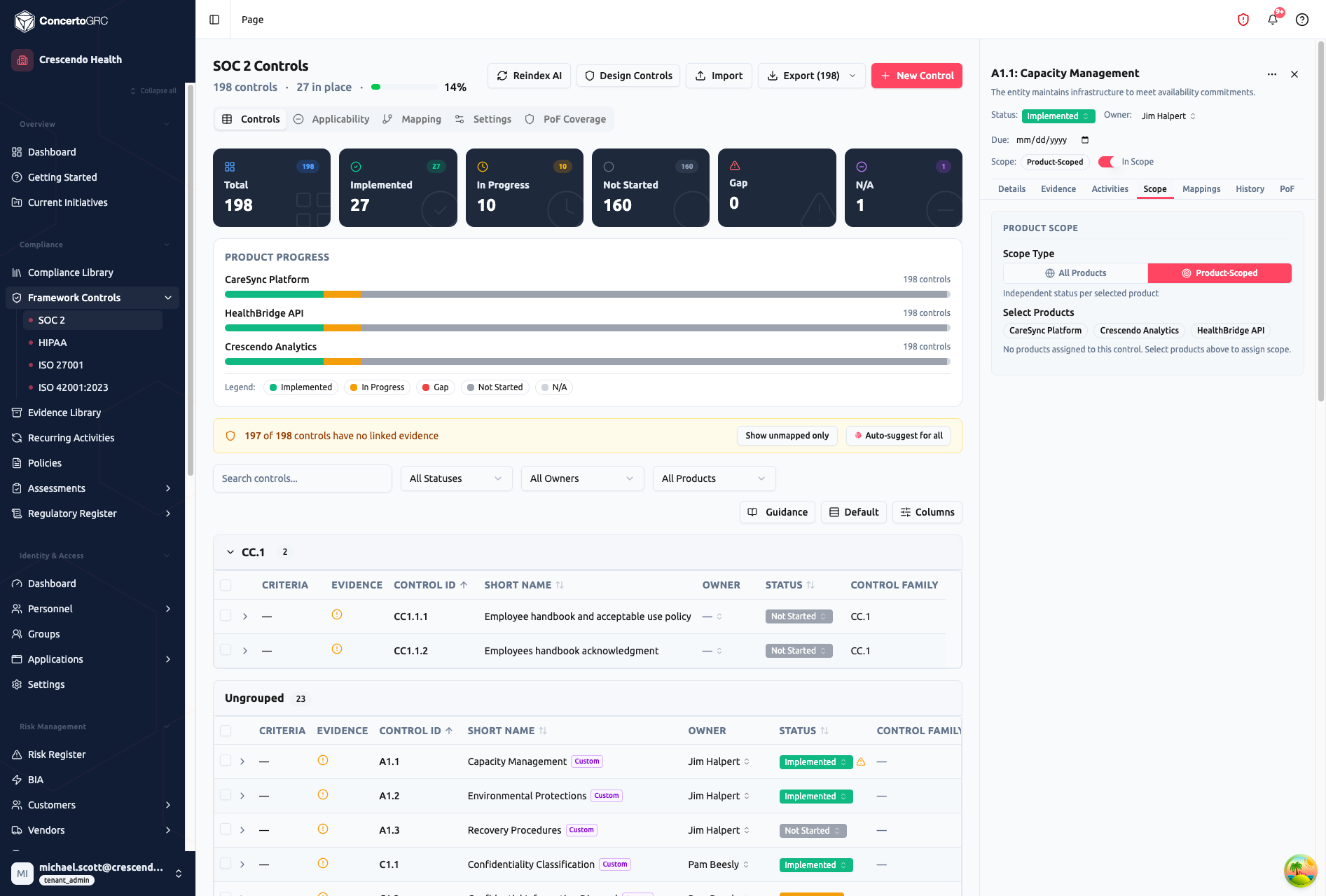
Configure how the control applies across your products:
- All Products -- Single status for the entire organization. The control applies uniformly
- Product-Scoped -- Select specific products this control applies to. Each product gets its own status, owner, notes, and evidence uploads. The overall status aggregates from per-product statuses
When Product-Scoped is selected, click the product chips to assign them. Per-product status management appears below with expandable rows for each assigned product.
Mappings Tab
- Library Mappings (read-only) -- Cross-framework mappings from the master library. Shows which controls in other frameworks this control maps to, with framework name, control ID, and mapping type
- Your Mappings -- Tenant-created cross-framework mappings. Click Add Mapping to link to controls in other enrolled frameworks. Links are bidirectional
- Suggest Mappings -- AI-powered cross-framework mapping suggestions with confidence scores
History Tab
- Notes -- Free-form notes textarea
- Audit History -- Changelog of all modifications (creator, creation date, all field changes)
PoF Tab (SOC 2 Only)
Points of Focus coverage for SOC 2 design controls. Shows all PoF items for this control with status (Addressed, Partial, Gap, Uncovered) and summary badges.
Applicability
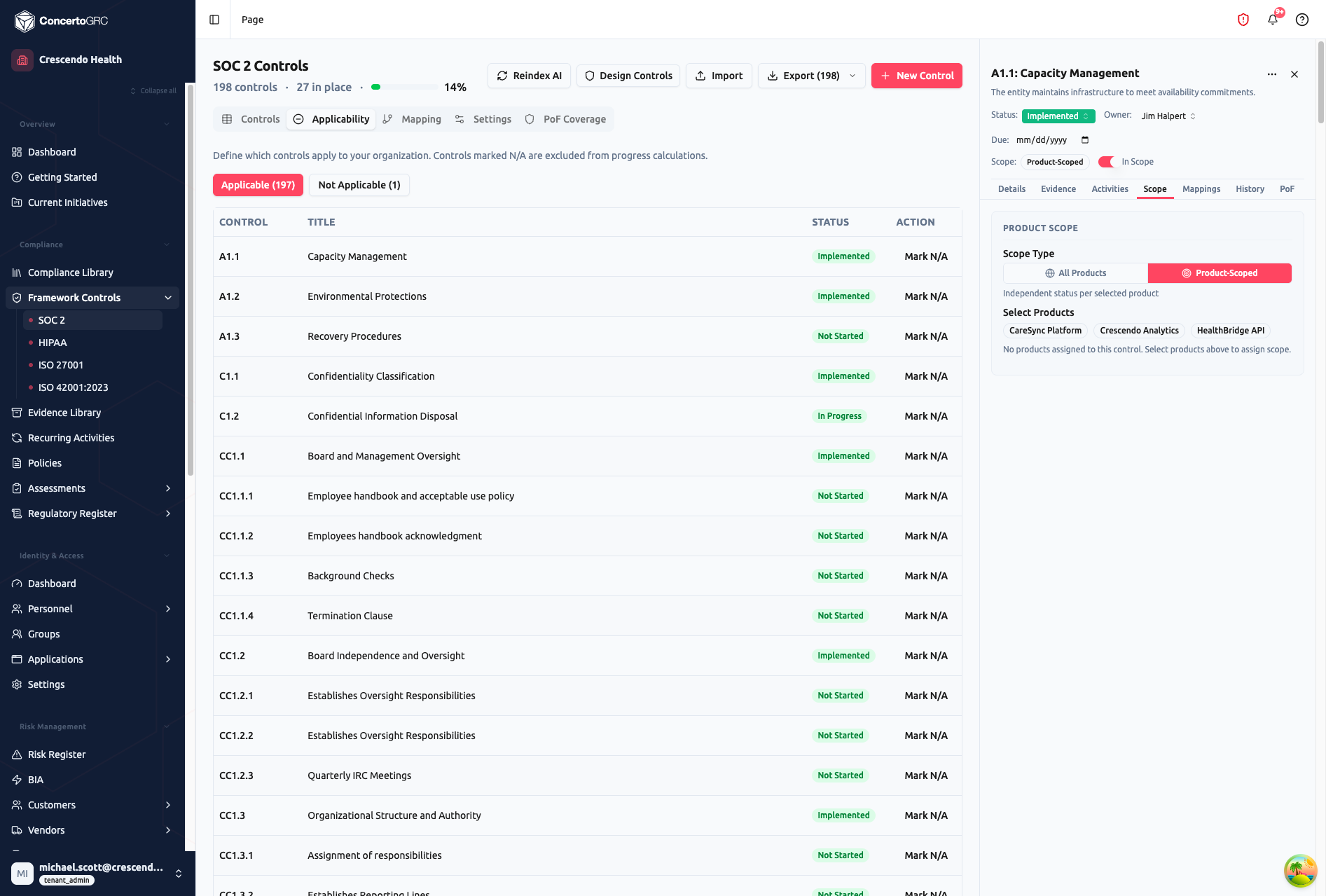
The Applicability tab shows all controls with a simplified view for scoping decisions. Toggle between Applicable and Not Applicable views. Click Mark N/A to mark a control as not applicable -- a justification prompt appears requiring you to explain why the control doesn't apply. N/A controls are excluded from progress calculations and flagged for auditors in assessment reports.
Cross-Framework Mappings
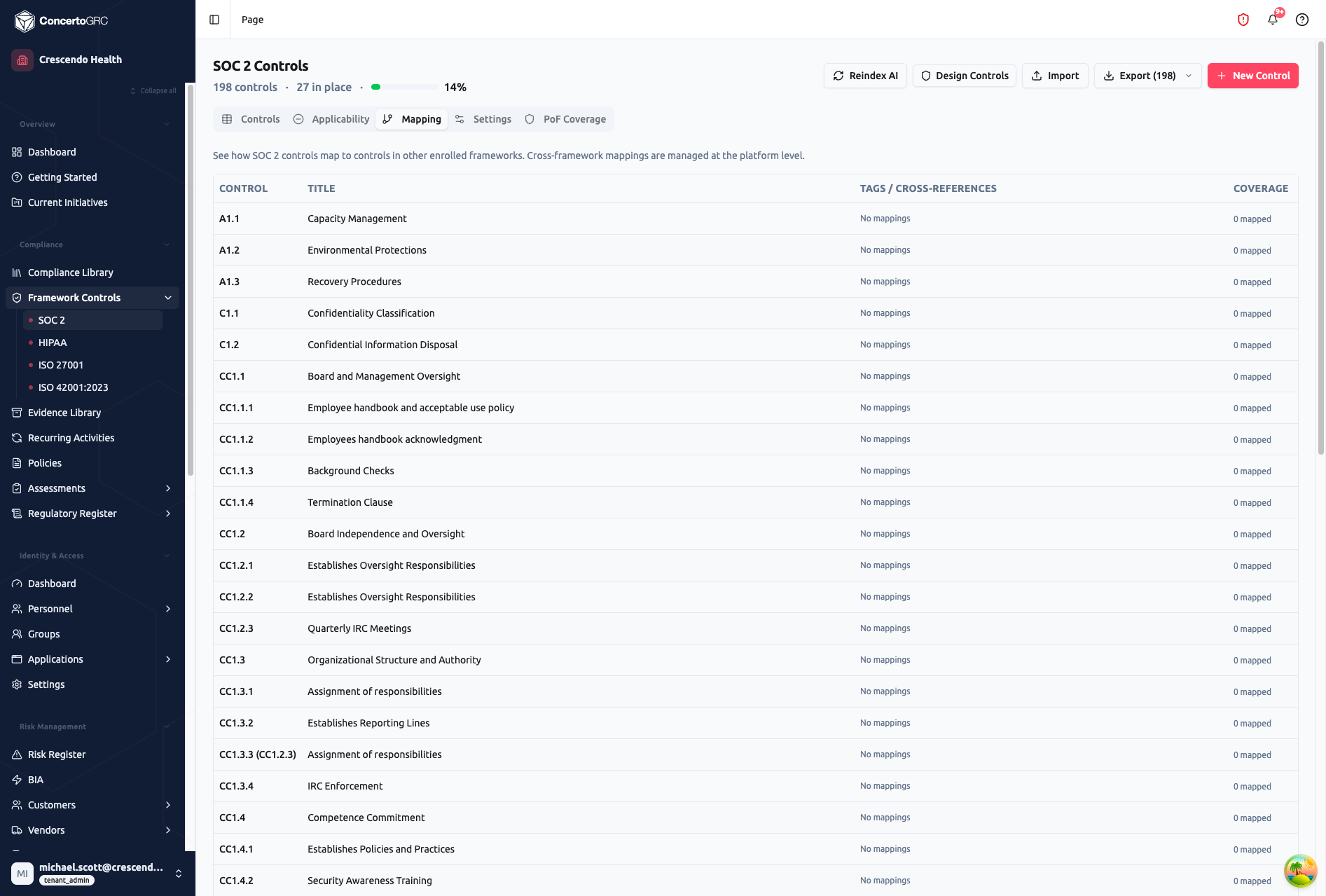
The Mapping tab shows how controls in this framework map to controls in other enrolled frameworks. Cross-framework mappings are managed at the platform level (Master Framework Library) and inherited by your organization. This lets you see which controls satisfy requirements across multiple frameworks simultaneously -- implement once, satisfy many.
AI Features
Implementation Guidance Generation
Click the AI icon next to the Implementation Guidance field. Claude generates context-aware guidance based on the control name, description, and framework. Click Regenerate for alternative versions.
Advisory Guidance Generation
Click the AI icon next to the Advisory Guidance field. Claude generates practical advice on how organizations typically meet this control requirement.
Evidence Suggestions
In the Evidence tab, click Suggest Evidence to run an AI-powered embedding search against your evidence library. The system shows matching evidence items with confidence scores (color-coded). Accept matches to link them, dismiss irrelevant ones, or generate new evidence items when no good matches exist.
Bulk Evidence Auto-Suggest
Click Auto-suggest for all in the evidence gap banner to run AI suggestions across all unmapped controls sequentially. A progress bar tracks the operation, and results appear as a checklist to accept or dismiss per control.
Activity Suggestions
In the Activities tab, use AI suggestions to find matching recurring activities from your library with confidence scores and frequency indicators.
Mapping Suggestions
In the Mappings tab, use AI suggestions to discover cross-framework mapping candidates with confidence scores.
Reindex AI
Click Reindex AI in the toolbar to reindex all tenant entities for improved AI suggestion quality. Shows progress: "Indexed N of M, skipped X, errors Y."
Status Lifecycle
| Status | Description |
|---|---|
| Not Started | Control has not begun implementation |
| In Progress | Implementation is underway |
| Implemented | Control is implemented and operating |
| Gap | Identified deficiency requiring remediation |
| Not Applicable | Does not apply to the organization (requires justification) |
For org-wide controls, an additional In Place aggregate status indicates the control is fully implemented across the organization.
Status Indicators
- Status Conflict (amber warning) -- Overall status is "In Place" but per-product statuses don't all show Implemented
- Status Drift (blue info) -- System-calculated status differs from the manually set status. An "Accept" button lets you align to the calculated status
Bulk Actions
Select multiple controls using the checkboxes, then use the floating toolbar:
- Assign Owner -- Bulk-assign a control owner
- Assign Family -- Bulk-assign a control family
- Assign Scope Type -- Bulk-set scope (Org-wide or Product-Scoped)
- Assign Products -- Bulk-assign products (when Product-Scoped)
- Assign Status -- Bulk-update implementation status
Framework Library Updates
When the master library has updates for your enrolled framework, a blue banner appears: "Updates available from framework library." Click Review Updates to see pending changes -- new controls or modified metadata. Accept or reject each update individually, or use bulk actions (accept all, reject all). Conflicts are highlighted when you've customized a control locally.
Import & Export
Import
Click Import in the toolbar to bulk-import controls via CSV. The import dialog supports drag-and-drop with field mapping.
| Column | Required | Description |
|---|---|---|
| Control ID | -- | Framework-specific identifier |
| Title | ✓ | Control name |
| Description | -- | Full requirement text |
| Category | -- | Control family/grouping |
| Implementation Guidance | -- | How to implement |
| Testing Procedure | -- | How to verify |
| Status | -- | NOT_STARTED, IN_PROGRESS, IMPLEMENTED, NOT_APPLICABLE |
| Owner | -- | Email or name of the assigned owner |
| Related Controls | -- | Semicolon-separated list of related control IDs |
Export
Click Export in the toolbar to download controls as CSV. Framework-specific exports are also available:
- Export SoA (ISO frameworks) -- Statement of Applicability as Excel, including all controls with applicability status and justifications
- Export Responsibility Matrix (PCI DSS) -- Responsibility matrix as Excel showing control ownership and third-party service provider assignments
Framework-Specific Features
SOC 2
- Design Controls -- Wizard for designing control implementations
- PoF Coverage tab -- Points of Focus tracking per control with status indicators (Addressed, Partial, Gap, Uncovered)
PCI DSS
- PCI Control Owner -- Key contact assignment field
- Third Party Service Provider -- Link vendors from the vendor register
- Responsibility Matrix Export -- Excel export of control ownership
ISO 27001 / ISO 42001
- Statement of Applicability Export -- Excel export of all controls with applicability decisions