Endpoint Management
Endpoint Management provides visibility into your organization's device fleet through MDM integrations. Devices are synced from your MDM provider, evaluated against compliance policies (encryption, firewall, passcode, OS version), and tracked through a posture dashboard with trends, historical snapshots, and evidence export for auditors.
Overview
Access from Security Operations > Endpoint Management in the sidebar. The page has four tabs: Dashboard, Devices, Policies, and History.
Dashboard
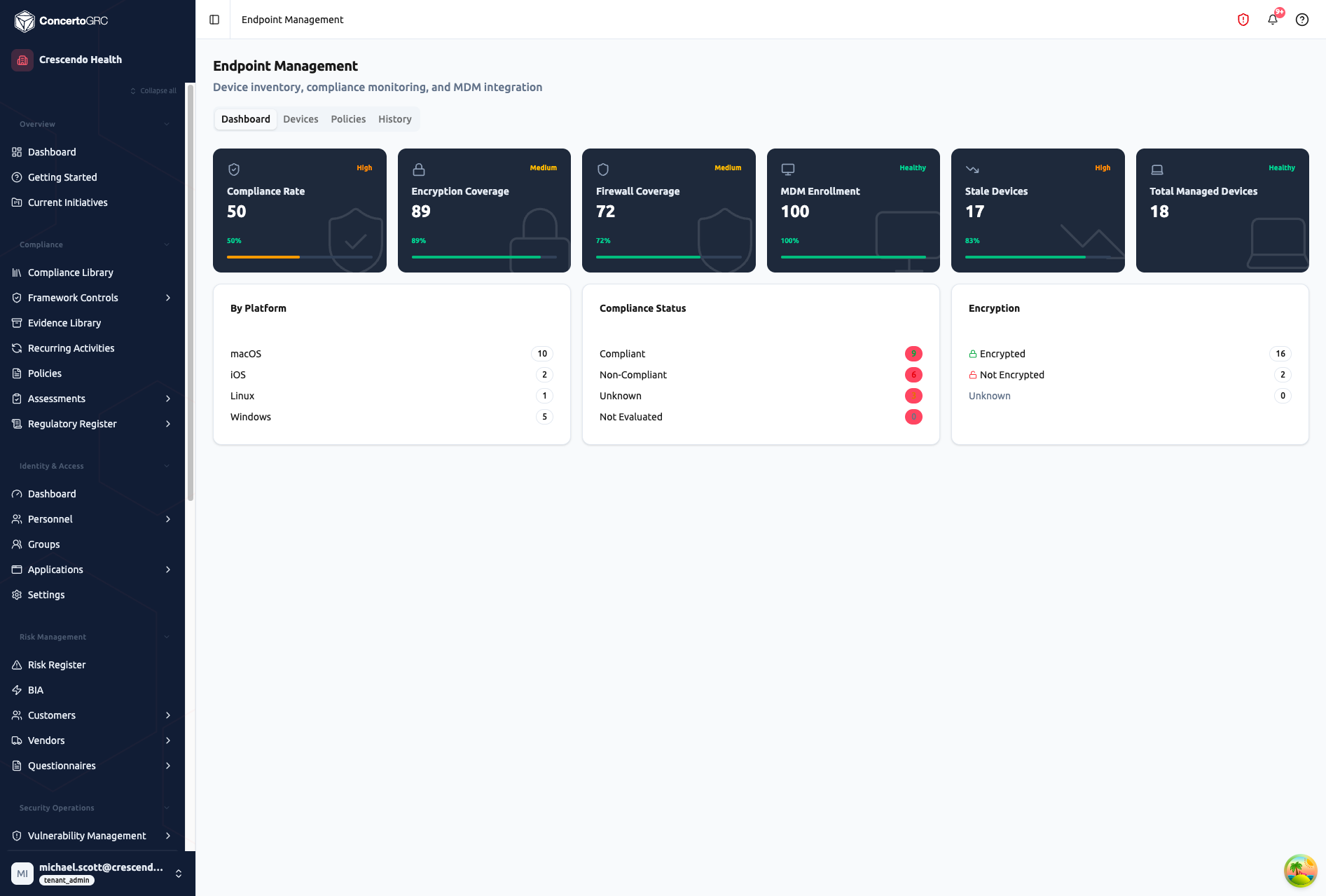
The dashboard provides an at-a-glance view of device posture across KPI cards, attention indicators, breakdown panels, and trend data.
KPI Cards
| Metric | Description |
|---|---|
| Compliance Rate | Percentage of devices meeting all policy requirements (exempt devices excluded from calculation) |
| Encryption Coverage | Percentage of devices with disk encryption enabled |
| Firewall Coverage | Percentage of devices with host firewall active |
| MDM Enrollment | Percentage of known devices enrolled in MDM management |
| Stale Devices | Count and percentage of devices that have not checked in within the configured threshold |
| Total Managed Devices | Total number of devices in the fleet |
Each KPI card shows a trend indicator compared against a 7-day baseline, so you can see whether metrics are improving or declining.
Each card is color-coded by health status:
- Healthy (green) -- Metric meets target thresholds
- Medium (amber) -- Below target but not critical
- High (orange) -- Significant compliance gap
- Critical (red) -- Requires immediate attention
Needs Attention
Quick counts of devices requiring action:
- Non-Compliant -- Devices failing one or more policy rules
- Stale -- Devices that have not synced within the configured threshold
- Unencrypted -- Devices without disk encryption
- Unmanaged -- Devices not enrolled in MDM
Connectors
Shows the status of each connected MDM integration: provider name, connection status, last sync time, and device count per connector.
Breakdown Panels
- By Platform -- Device count by operating system (macOS, Windows, iOS, Android, Linux)
- Compliance Status -- Count of devices in each compliance state (Compliant, Non-Compliant, Exempt, Unknown, Not Evaluated)
- Encryption -- Count of devices by encryption state (Encrypted, Not Encrypted, Unknown)
Device Inventory
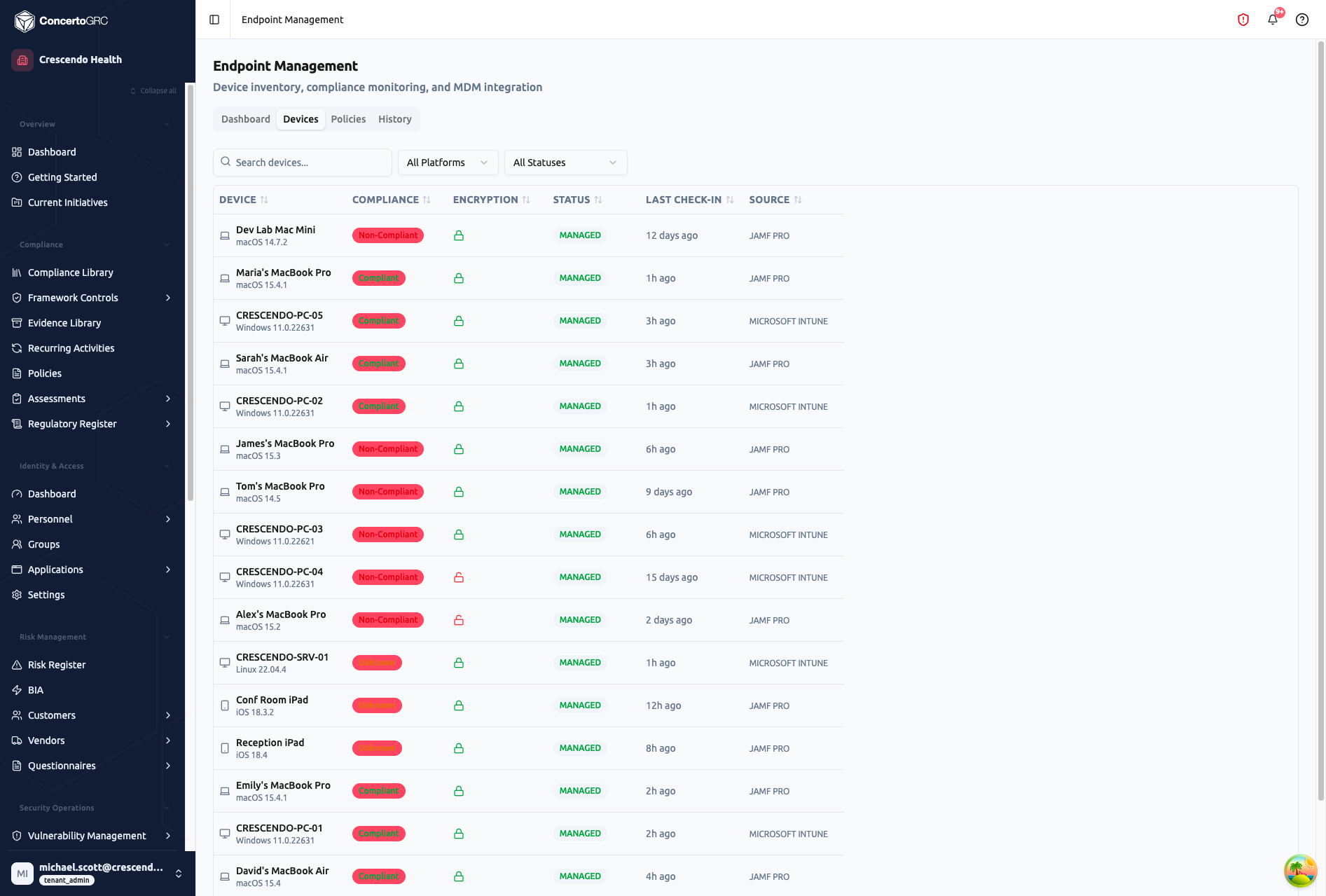
The Devices tab shows all synced devices with filtering and a detail sidecar.
Device Table
| Column | Description |
|---|---|
| Device | Device name with platform icon and OS version |
| Compliance | Color-coded badge: Compliant, Non-Compliant, Exempt, Unknown, or Not Evaluated |
| Encryption | Lock/unlock icon indicating disk encryption status |
| Status | Managed, Unmanaged, or Pending |
| Last Check-In | Relative time since last MDM sync (e.g., "2h ago", "3 days ago") |
| Source | MDM provider name (SimpleMDM, Microsoft Intune, Jamf Pro) |
Filtering
- Search -- Filter by device name
- Platform -- All Platforms, macOS, Windows, iOS, Android, or Linux
- Status -- All Statuses, Compliant, Non-Compliant, Exempt, Unknown, or Not Evaluated
Device Detail Sidecar
Click any device row to open the detail sidecar showing:
Device Information:
- Device name, platform, OS version, model, manufacturer
- Serial number
- Owner (assigned personnel with name and email)
- Source integration
Compliance Status:
- Overall compliance badge
- Managed status (Managed, Unmanaged, Pending)
- Encryption, firewall, and passcode status (Enabled, Disabled, or Unknown)
- Last check-in timestamp
- First seen and last seen dates
Policy Results: Per-policy compliance breakdown showing each rule's pass/fail/unknown result, severity level, and descriptive label. This helps identify exactly which policy rules a non-compliant device is failing.
Device Owner Assignment
Assign a device owner from your AccessPersonnel directory by clicking the owner field in the device detail sidecar. Use the personnel search to find the right person. Owner assignment is preserved across MDM syncs.
Bulk Remediation Tasks
Select multiple non-compliant devices and use the Create Tasks action to generate remediation tasks automatically. Each task includes the device name and failed compliance checks in the description, so assignees know exactly what to fix. Duplicate open tasks for the same device are prevented.
Device Sources
Devices sync automatically from connected MDM providers:
| Provider | Platforms | Description |
|---|---|---|
| SimpleMDM | macOS, iOS | Apple device management with profile-based enforcement |
| Microsoft Intune | Windows, macOS, iOS, Android | Cross-platform device management via Microsoft Endpoint Manager |
| Jamf Pro | macOS, iOS | Enterprise Apple device management with detailed compliance data |
Connect MDM providers through Administration > Integrations. Devices sync on a 6-hour interval via the platform's sync scheduler. Each sync updates device attributes, compliance status, and last check-in timestamp.
Compliance Policies
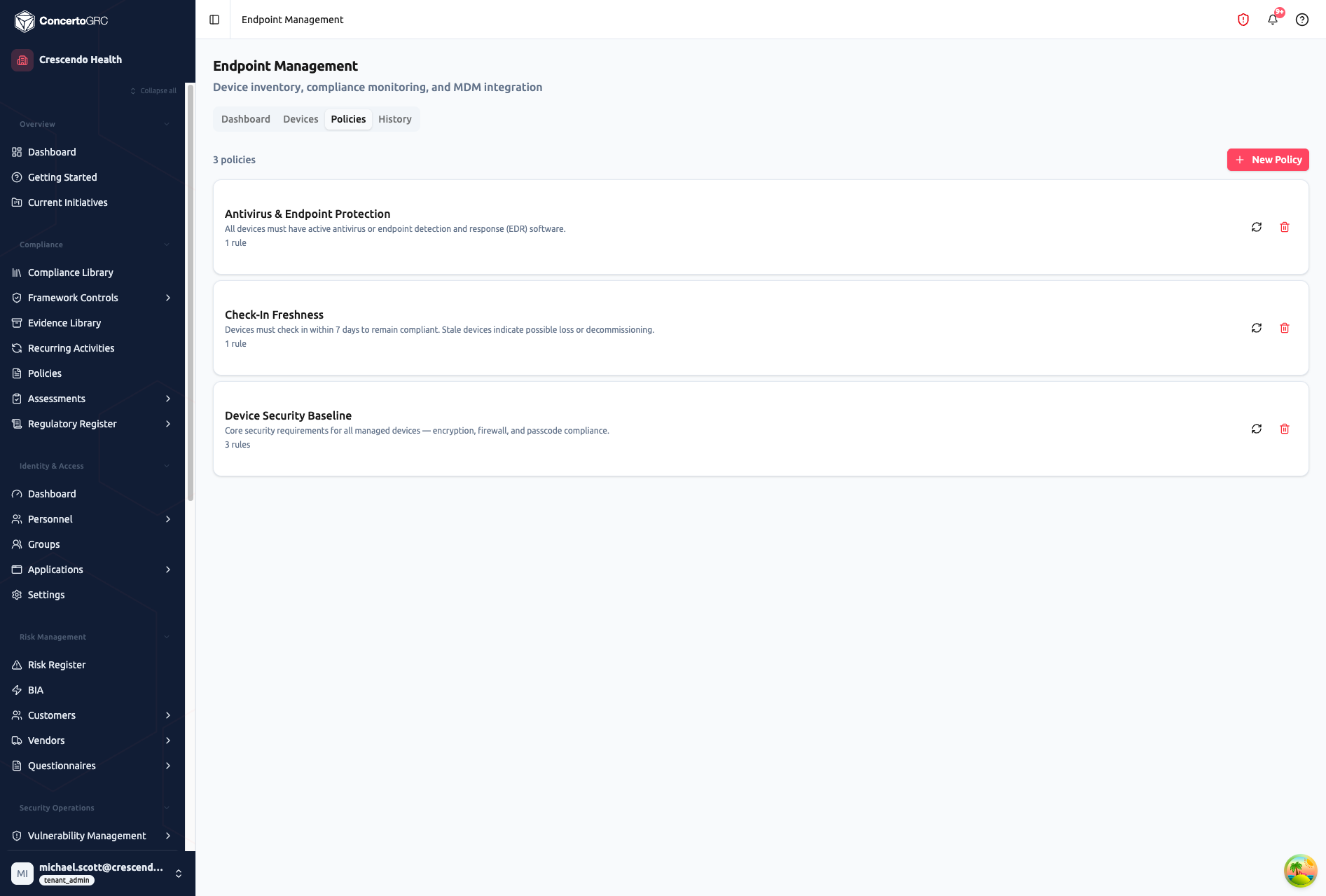
Compliance policies define rules that devices must satisfy to be considered compliant. Devices are evaluated against all enabled policies -- all rules within a policy must pass for the device to be compliant (AND logic).
Creating a Policy
Click + New Policy to create a compliance policy:
- Name -- Descriptive name (e.g., "Baseline Security Requirements")
- Description -- Optional scope and purpose description
- Rules -- Add one or more compliance rules
Rule Types
| Field | Description | Operators |
|---|---|---|
| Encryption Enabled | Disk encryption (FileVault, BitLocker) must be active | equals, notEquals |
| Firewall Enabled | Host firewall must be turned on | equals, notEquals |
| Passcode Compliant | Screen lock passcode must be configured | equals, notEquals |
| Antivirus Active | Antivirus/EDR agent must be running | equals, notEquals |
| OS Version | Operating system must meet a minimum version | semverMin |
| Last Check-In | Device must have synced within a time window | olderThanDays |
Each rule includes:
- Field -- Which device attribute to check
- Operator -- How to evaluate the attribute
- Value -- The expected value or threshold
- Severity -- Critical, High, Medium, or Low -- determines how the failure is weighted
- Label -- Descriptive text shown in compliance reports (e.g., "FileVault encryption required")
Evaluating Policies
Click the Evaluate button on any policy to trigger an immediate re-evaluation against all devices. The result toast shows: "Evaluated X devices: Y compliant, Z non-compliant."
Policies also evaluate automatically after each device sync. Active policy exceptions are respected during evaluation -- devices with valid exceptions for a policy are marked Exempt instead of Non-Compliant.
Example Policies
Baseline Security Policy:
- Encryption Enabled equals true (Critical) -- "Full disk encryption required"
- Firewall Enabled equals true (High) -- "Host firewall must be active"
- Passcode Compliant equals true (Medium) -- "Screen lock passcode required"
OS Currency Policy:
- OS Version semverMin 14.0.0 (High) -- "macOS 14+ required"
- Last Check-In olderThanDays 30 (Medium) -- "Device must sync within 30 days"
Policy Exceptions
Policy exceptions allow you to grant time-limited waivers for specific device-policy pairs. Use exceptions when a device legitimately cannot meet a policy requirement -- for example, a Linux build server that does not support the standard MDM agent.
Granting an Exception
From the device detail sidecar or the exceptions view:
- Select the device and policy to exempt
- Provide a justification explaining why the exception is needed
- Optionally set an expiry date -- exceptions without an expiry remain active until manually revoked
Only one active exception is allowed per device-policy pair. The approver and approval timestamp are recorded automatically.
Managing Exceptions
Active exceptions appear in the device detail sidecar and the exceptions list. Each exception shows:
- Device and policy names
- Justification
- Granted by and granted date
- Expiry date (if set)
- Status (Active, Expired, or Revoked)
Revoking an Exception
Click Revoke on an active exception to end it immediately. The device will be re-evaluated against the policy on the next evaluation cycle. The revoker and revocation timestamp are recorded.
Expiry
Exceptions with an expiry date automatically become inactive when the date passes. An endpoint exception expiry scheduler checks for expired exceptions every 6 hours and creates remediation tasks so the underlying compliance gap is addressed.
Alert Configuration
Configure stale device alerting from the dashboard settings:
| Setting | Description |
|---|---|
| Alerts Enabled | Toggle stale device alerts on or off |
| Stale Threshold | Number of days without check-in before a device is considered stale (1--365, default 7) |
| Fallback Assignee | Default assignee for stale device alerts when no device owner is set |
Compliance Snapshots
The History tab shows point-in-time compliance snapshots. Snapshots are captured automatically after each device sync and policy evaluation, creating an audit trail.
Each snapshot records:
- Timestamp -- When the snapshot was captured
- Triggered By -- Who or what triggered the snapshot (user, scheduler, or sync)
- Total Devices -- Fleet size at capture time
- Compliance Rate -- Percentage of compliant devices
- Device Counts -- Compliant, non-compliant, exempt, and unknown counts
- Platform Breakdown -- Per-platform compliance counts
- Policy Breakdown -- Per-policy pass/fail counts
Snapshots provide historical data for trend analysis and demonstrate to auditors that devices are being actively managed and evaluated.
Evidence Export
Generate compliance evidence from the dashboard for use in audits and assessments. Click Generate Evidence and choose a format:
| Format | Description |
|---|---|
| CSV | Spreadsheet-friendly export of device inventory with compliance data |
| JSON | Machine-readable export with full device details and compliance metadata |
The export includes device attributes, compliance status, policy results, integration source, device owner, and a snapshot summary of fleet posture at export time.
Compliance Statuses
| Status | Description |
|---|---|
| Compliant | Device passes all enabled policy rules |
| Non-Compliant | Device fails one or more policy rules |
| Exempt | Device has an active policy exception waiving compliance requirements |
| Unknown | Device attributes insufficient to evaluate (e.g., null encryption status) |
| Not Evaluated | No compliance policies are defined or the device has not been evaluated yet |
Non-Compliance Handling
When a device fails a policy rule:
- The device is flagged as Non-Compliant in the device inventory
- The detail sidecar shows which specific rules failed, with severity and description
- Dashboard KPI cards, attention counts, and breakdown panels update to reflect the compliance gap
- Compliance snapshots record the posture change for historical tracking
- Remediation tasks can be created to address specific failures (individually or in bulk)
Supported Platforms
| Platform | Icon | Examples |
|---|---|---|
| macOS | Apple icon | MacBook Pro, Mac mini, iMac |
| Windows | Windows icon | Surface Pro, Dell Latitude, ThinkPad |
| iOS | Mobile icon | iPhone, iPad |
| Android | Android icon | Pixel, Samsung Galaxy |
| Linux | Linux icon | Ubuntu, RHEL workstations |
Personnel View
View all devices assigned to a specific person from the User Access Lifecycle > Personnel detail sidecar, or search by personnel in the Devices tab. The personnel view shows a summary of the person's device compliance posture alongside their assigned devices.