Tabletop Exercises
Tabletop exercises are facilitated walkthroughs of simulated incidents. They test your team's response procedures without a real incident, identifying gaps in communication, decision-making, and resource availability. ConcertoGRC supports both Incident Response and BC/DR exercise types with AI-generated scenarios, role-based participants, live facilitation with phase transitions, structured response collection, and AI-generated after-action reports.
Overview
Access from Security Operations > Tabletop Exercises in the sidebar.
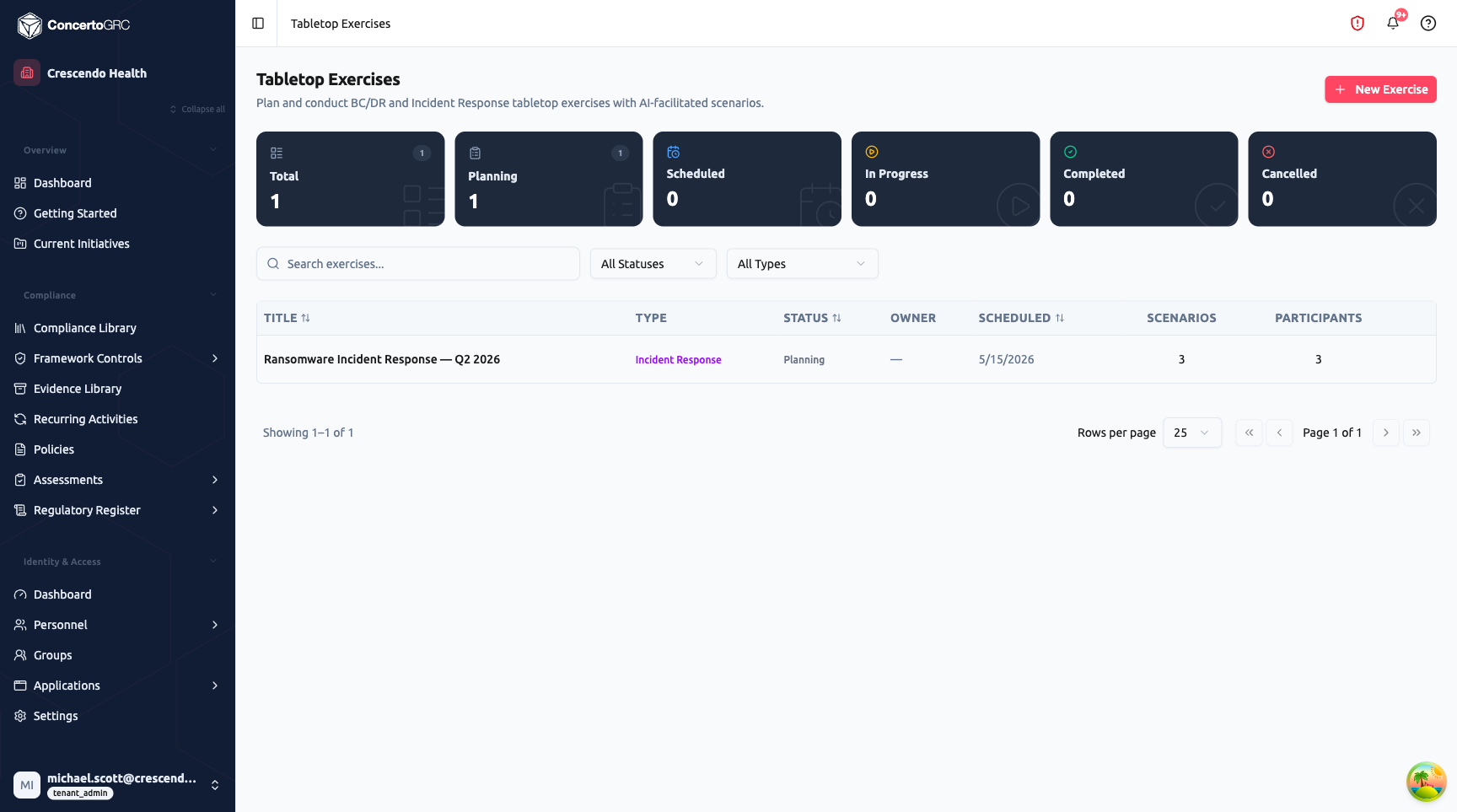
Summary Statistics
The top bar shows live counts by lifecycle status:
- Total -- All exercises
- Planning -- Being prepared
- Scheduled -- Date set, not yet started
- In Progress -- Currently running
- Completed -- Finished, results available
- Cancelled -- Exercise cancelled
Click any stat card to filter the table.
Exercise Table
| Column | Description |
|---|---|
| Title | Exercise name (click to open detail page) |
| Type | Incident Response or BC/DR (color-coded label) |
| Status | Lifecycle status |
| Owner | Exercise facilitator/owner |
| Scheduled | Scheduled date |
| Scenarios | Count of scenario injects |
| Participants | Count of participants |
Use the search bar and dropdown filters to find exercises by title, status, or type.
Exercise Types
| Type | Description |
|---|---|
| Incident Response | Security incident scenarios -- breach, ransomware, unauthorized access, insider threat |
| BC/DR | Business continuity and disaster recovery -- system outage, vendor failure, natural disaster |
Creating an Exercise
Click + New Exercise to open the planning wizard.
Step 1: Exercise Type
Choose between Incident Response and BC/DR with visual cards describing each type.
Step 2: Scope & Objectives
- Sub-type -- More specific scenario category (e.g., Ransomware, Data Breach, Insider Threat for IR; System Outage, Vendor Failure, Natural Disaster for BC/DR)
- Title -- Auto-suggested or manual exercise name
- Description -- Scope and objectives
- Learning Objectives -- Add multiple objectives that define what the exercise should test
Step 3: Organizational Context
Select which organizational data to include as context for AI scenario generation:
- Vendors & Third Parties
- Applications & Systems
- Open Vulnerabilities
- Recent Incidents
- Policies & Procedures
- Risk Register
- Key Personnel
Step 4: Schedule & Participants
- Estimated Duration -- 30 minutes, 1 hour, 1.5 hours, 2 hours, or 3 hours
- Scheduled Date -- When to run the exercise (optional)
- Participants -- Add platform users (optional, can add later)
Step 5: Review
Summary of all settings before creation.
Exercise Detail Page
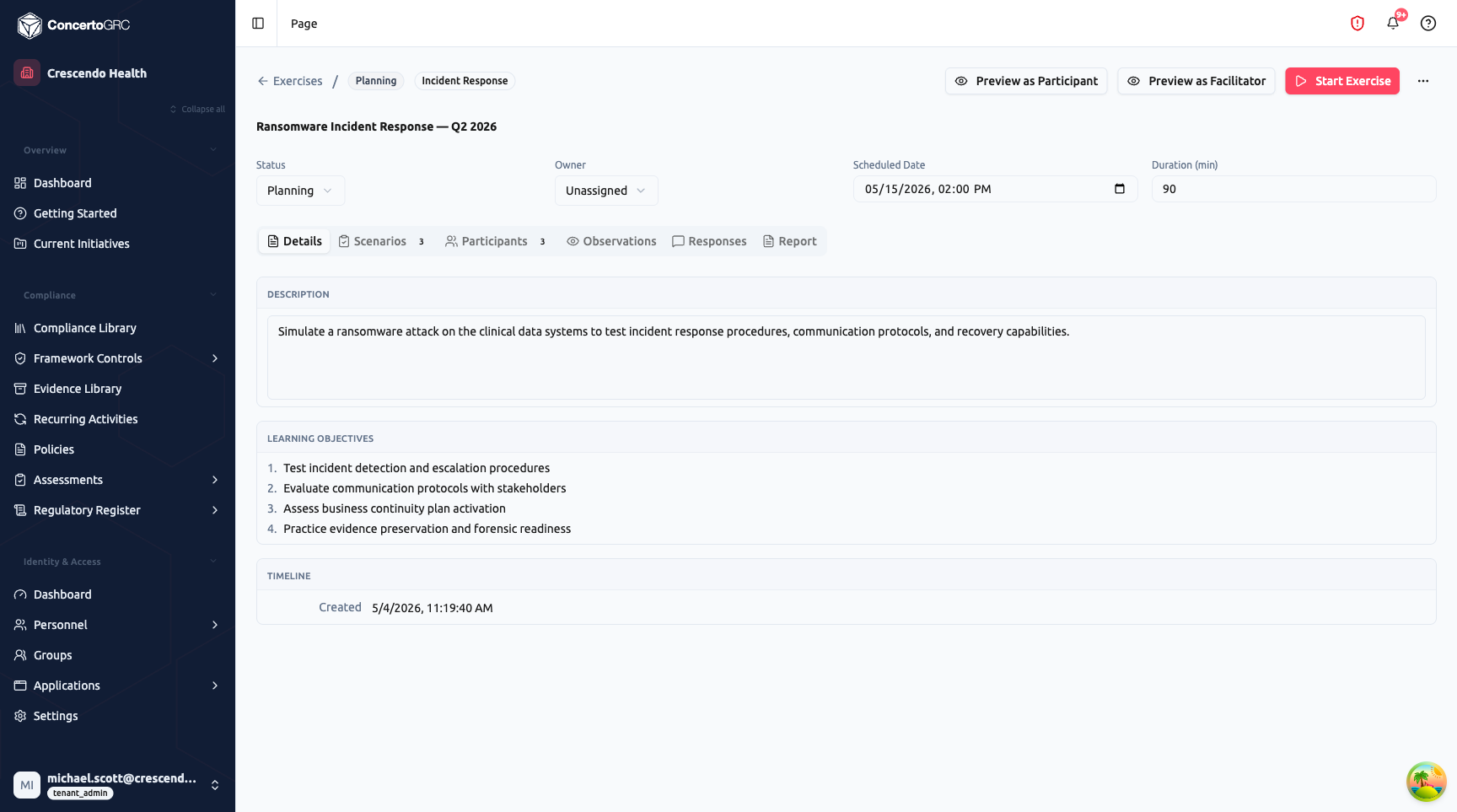
The detail page is a full-page workspace for planning and running an exercise.
Header
- Breadcrumb -- Navigation showing status and type badges
- Title -- Inline editable exercise name
- Status -- Dropdown (Planning, Scheduled, In Progress, Completed, Cancelled)
- Owner -- Dropdown to assign a facilitator
- Scheduled Date -- Date/time picker
- Duration (min) -- Estimated duration in minutes
- Preview as Participant -- Preview the exercise from a participant's perspective
- Preview as Facilitator -- Preview the facilitator's live control view
- Start Exercise -- Begin the live exercise (visible when scenarios exist)
Details Tab
- Description -- Exercise scope and objectives
- Learning Objectives -- Numbered list of what the exercise should test
- Timeline -- Created, started, and completed timestamps
Scenarios Tab
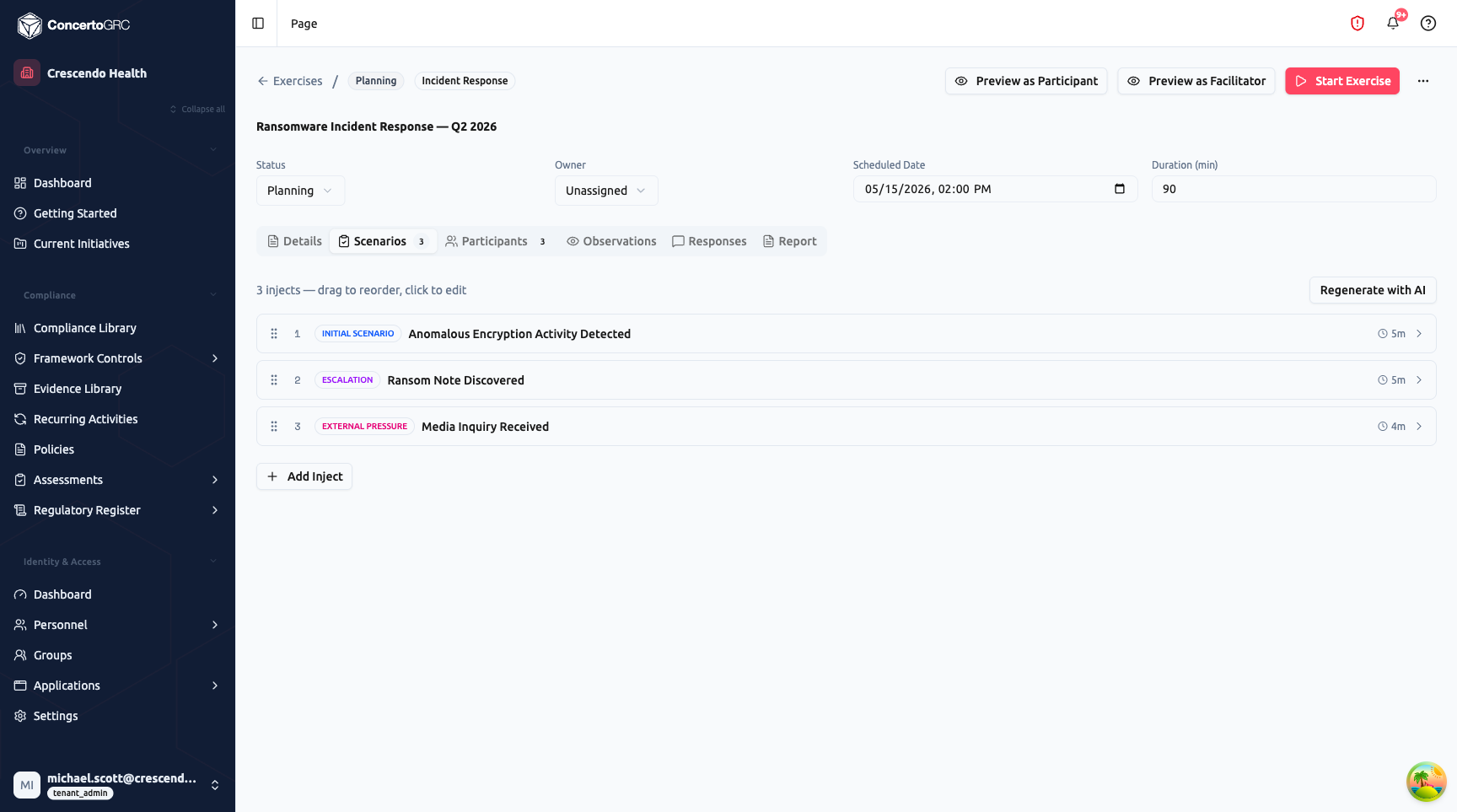
Scenarios are the inject cards presented to participants during the exercise. Each scenario includes:
| Field | Description |
|---|---|
| Title | Scenario headline |
| Inject Type | How the information arrives (see types below) |
| Narrative Text | Detailed scenario description |
| Avatar Mood | Tone of the scenario presentation (Calm, Concerned, Urgent, Encouraging) |
| Time Allowed | How long participants have to respond |
| Scenario Clock | Display time shown to participants (e.g., "02:14 AM") |
| Expected Actions | What a good response looks like |
| Facilitator Notes | Private notes for the facilitator |
| Response Options | Per-role structured choices for participants |
Scenarios can be drag-and-drop reordered. Click + Add Inject to create a manual scenario, or Regenerate with AI to have AI generate scenarios based on the exercise context and learning objectives.
Inject Types
| Type | Description |
|---|---|
| Initial Scenario | Opening scenario setting the stage |
| Inject | Standard scenario or challenge |
| Decision Point | Critical decision moment requiring participant action |
| Escalation | Situation escalates in severity |
| Curveball | Unexpected twist or complication |
| External Pressure | External event affecting response (media, regulator, customer) |
| Resolution | Final resolution scenario |
Response Options
Each scenario can define structured response choices per participant role. Each choice has a label and a tag:
| Tag | Color | Meaning |
|---|---|---|
| Commit | Green | Positive, approved decision |
| Caution | Amber | Risk-aware, measured decision |
| Escalate | Blue | Requests higher authority or expertise |
| Risky | Red | High-risk or discouraged decision |
Participants Tab
Manage exercise participants with role assignments:
| Role | Description |
|---|---|
| Facilitator | Exercise moderator, controls the flow |
| Incident Commander | Leads the response, makes final decisions |
| Team Lead | Department or function-specific lead |
| Communications | Communications and PR lead |
| Legal | Legal and compliance lead |
| Technical | Technical and engineering lead |
| Executive | Executive-level decision maker |
| Observer | Watch-only, no active participation |
| Participant | General participant |
Add participants from platform users or as external participants (name and email). External participants receive a magic link invitation to join the exercise.
Observations Tab
Record observations during and after the exercise:
| Field | Description |
|---|---|
| Type | Strength, Gap, Improvement, or Note |
| Severity | Critical, High, Medium, Low, or Info |
| Description | What was observed |
| Policy Reference | Link to a relevant policy (optional) |
| Scenario | Which scenario the observation relates to (optional) |
Responses Tab
View all participant responses to scenario injects. Each response shows the participant name, related scenario, response text or selected choices, response time, and choice tags.
Report Tab
After the exercise completes, generate an AI-powered After-Action Report containing:
- Executive Summary -- Overall assessment of exercise performance
- Strengths -- Capabilities demonstrated effectively
- Gaps -- Weaknesses and capability gaps with severity ratings
- Recommendations -- Improvement items with priority, owner, and timeline
- Compliance Mappings -- How exercise outcomes map to framework requirements
- Participant Metrics -- Individual performance observations
The report can be downloaded as a PDF and linked to an Evidence Request for compliance documentation.
Exercise Lifecycle
PLANNING > SCHEDULED > IN_PROGRESS > COMPLETED
                                          ↓
                                     CANCELLED
| Status | Description |
|---|---|
| Planning | Exercise being prepared -- adding scenarios, participants, and context |
| Scheduled | Date set, invitations sent, not yet started |
| In Progress | Live exercise running with active phase transitions |
| Completed | Finished -- results, observations, and report available |
| Cancelled | Exercise cancelled (can cancel from any state) |
Live Exercise Facilitation
When the facilitator clicks Start Exercise, the system enters live mode with a phase-based flow:
Brief > Incoming > Collect > Reveal > Debrief
| Phase | Description |
|---|---|
| Brief | Facilitator sets the scene, reviews ground rules and role assignments |
| Incoming | Scenario inject is presented to participants with narrative and context |
| Collect | Participants submit their responses (text or structured choices) with a countdown timer |
| Reveal | Facilitator reveals expected actions, discusses actual responses |
| Debrief | Final discussion -- capture lessons learned and recommendations |
The facilitator advances through phases using controls in the live view. A timer can be started for each phase to keep the exercise on schedule. Phases cycle through Incoming > Collect > Reveal for each scenario inject, then move to the final Debrief.
Live Views
Facilitator View -- Full control panel with phase advancement, timer controls, scenario management, and response monitoring.
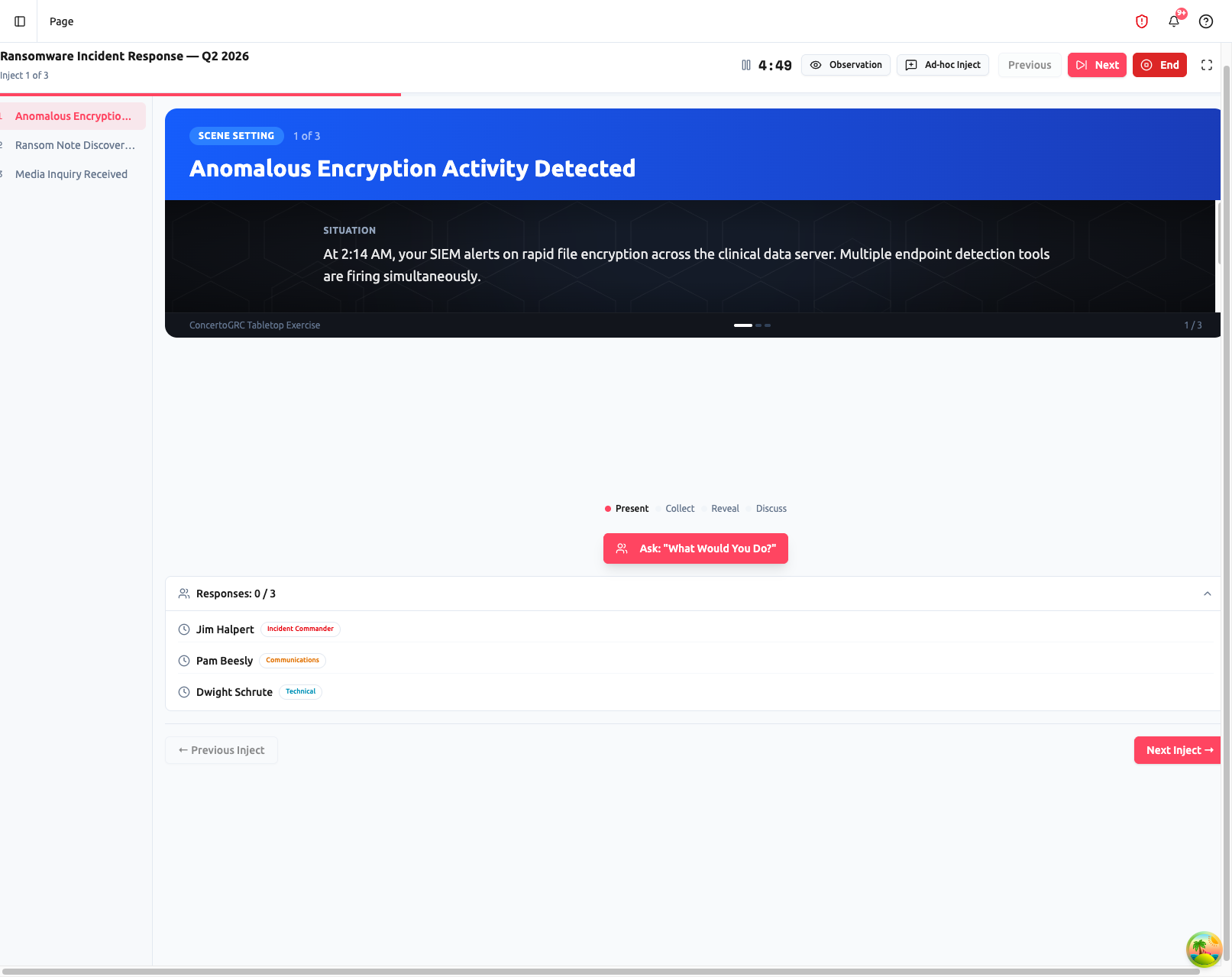
Participant View -- Scenario presentation with role-specific guidance prompts and response submission.
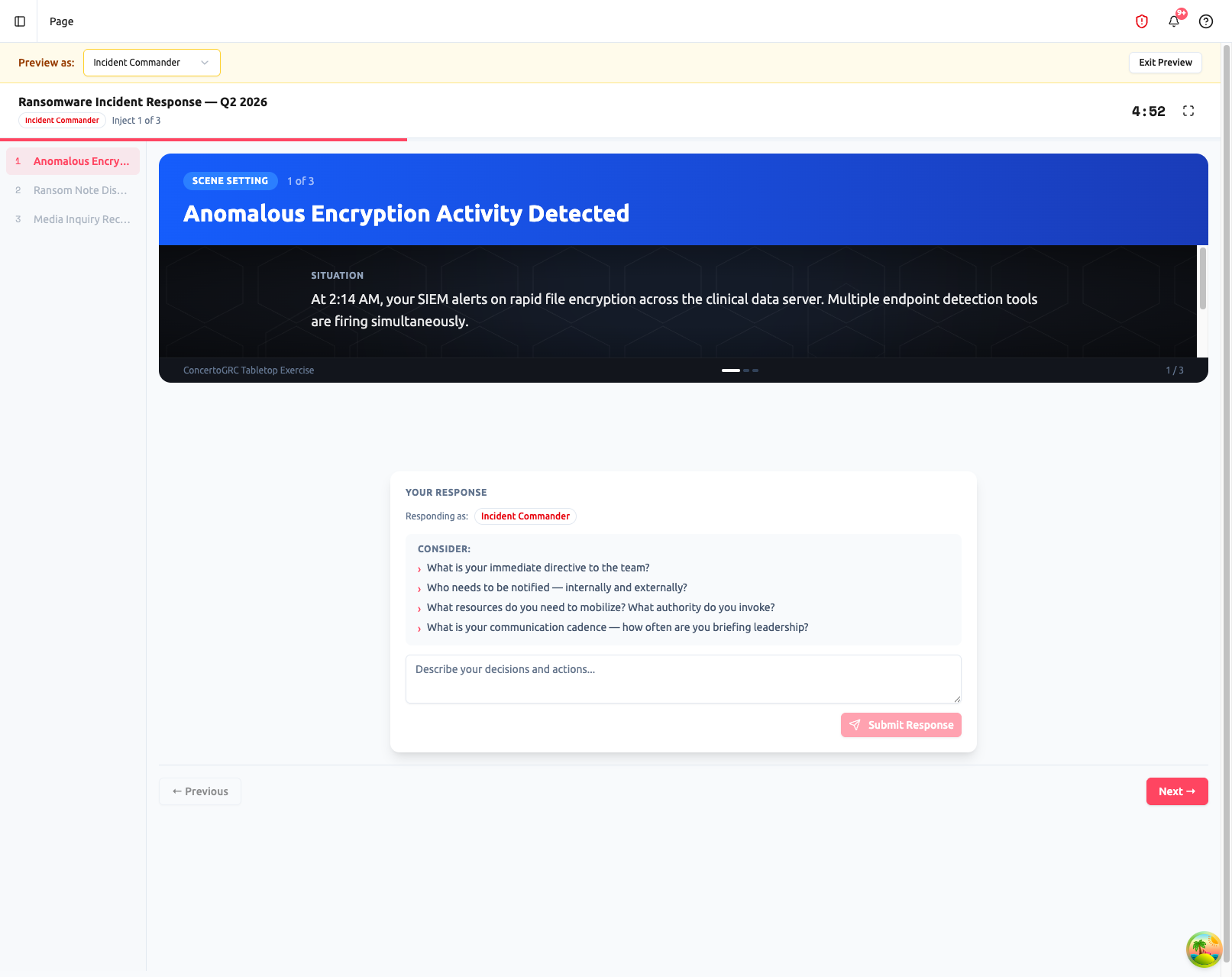
External Participants -- Access via magic link, same participant view without platform login.
AI Features
Scenario Generation
AI generates realistic scenario injects based on:
- Exercise type and sub-type
- Organization context (vendors, systems, vulnerabilities, incidents, policies)
- Learning objectives
- Industry and compliance framework context
Generated scenarios include inject types, narratives, avatar moods, time allocations, and role-specific response options.
After-Action Report
AI analyzes participant responses, observations, and exercise outcomes to generate a structured report with findings, recommendations, and compliance mappings.