Trust Center
The Trust Center is your organization's public-facing security and compliance portal. It showcases your compliance posture, provides gated access to sensitive documents (SOC 2 reports, penetration test summaries), handles visitor access requests, accepts vulnerability disclosures, and serves as a hub for inbound questionnaires -- all without exposing internal platform data.
Overview
Access from External > Trust Center in the sidebar. The module has four tabs:
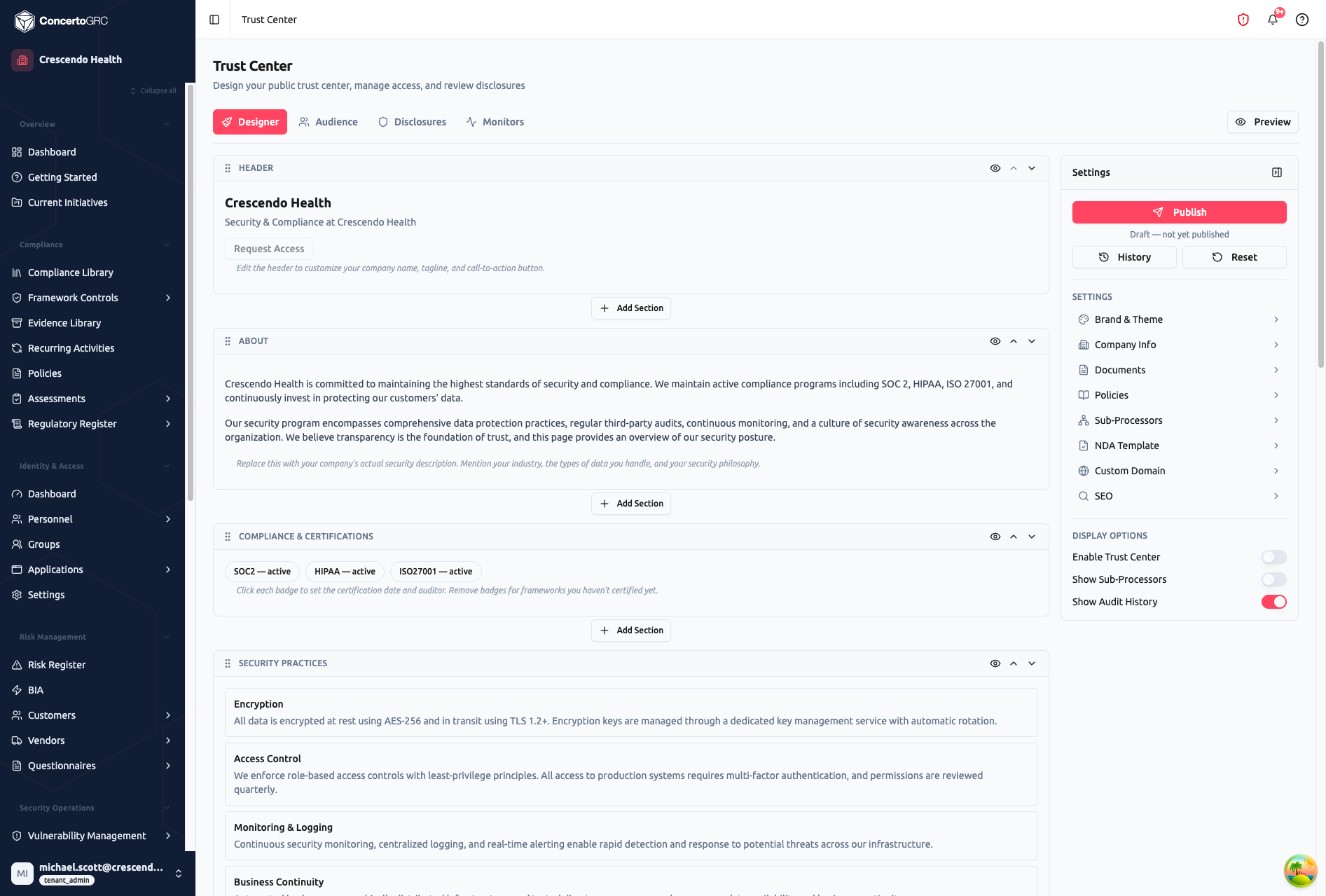
- Designer -- Visual drag-and-drop section editor with settings panel
- Audience -- Access requests, auto-approve rules, subscribers, download log
- Disclosures -- Vulnerability disclosure submissions and notification routing
- Monitors -- Uptime monitoring with incident tracking
A Preview button in the top right lets you see the trust center as visitors will see it.
Designer
The Designer is a two-column layout: the section editor canvas on the left, and the settings panel on the right.
Section Editor
Build your trust center by adding, reordering, and configuring sections. Each section has visibility controls (show/hide), reorder arrows, and a drag handle.
Click + Add Section between any two sections to insert a new one.
Section Types
| Section | Description |
|---|---|
| Header | Hero banner with company name, tagline, and call-to-action button |
| About | Company overview and security philosophy (rich text) |
| Compliance & Certifications | Framework badges with certification status, dates, and auditor |
| Documents | Gated document library (auto-populated from your uploaded documents) |
| FAQ | Question and answer pairs |
| Sub-Processors | Third-party data processing disclosures (linked to your Vendor records) |
| Data Residency | Where data is stored and processed, with region details |
| AI Transparency | How AI is used in your product or service |
| Security Practices | Security controls and measures with icon tiles |
| Policies | Public-facing policy documents (auto-populated from published policies) |
| Updates | Changelog and security bulletin feed |
| Vulnerability Disclosure | VDP reporting instructions and submission form |
| Questionnaire Submission | Inbound security questionnaire intake form |
| Status | Uptime and status page display |
| Contact | Contact email and message |
| Custom | Free-form rich text content |
Settings Panel
The right panel provides:
- Publish -- Publish the current draft to make it live
- History -- View and restore previous published versions
- Reset -- Discard unpublished changes
Settings links:
| Setting | Description |
|---|---|
| Brand & Theme | Colors, fonts, header style, corner style |
| Company Info | Company description and security overview |
| Documents | Manage gated files (SOC 2, ISO certs, pentest reports) |
| Policies | Select which policies to publish on the trust center |
| Sub-Processors | Configure sub-processor metadata overlay |
| NDA Template | Default NDA text for gated document access |
| Custom Domain | Host on your own domain (e.g., trust.yourcompany.com) |
| SEO | Meta title, description, and Open Graph image |
Display Options:
| Toggle | Description |
|---|---|
| Enable Trust Center | Master on/off toggle for the public trust center |
| Show Sub-Processors | Display the sub-processor section |
| Show Audit History | Show audit history timeline |
Publishing & Versioning
Changes are saved as drafts until published. Publishing creates a versioned snapshot with an optional note. You can:
- View previous published versions
- Compare what changed between versions
- Restore any previous version
- See who published each version and when
Documents
Manage gated compliance documents that visitors can request access to download.
Document Types
| Type | Description |
|---|---|
| SOC 2 Report | Service Organization Control audit report |
| Pentest Summary | Penetration testing executive summary |
| ISO Certificate | ISO 27001/42001 certification |
| HIPAA Certificate | HIPAA compliance attestation |
| PCI Certificate | PCI DSS compliance certificate |
| Custom | Any other compliance document |
Access Controls
Each document can be configured with:
| Setting | Description |
|---|---|
| Requires NDA | Visitor must accept NDA before downloading |
| NDA Text | Custom or default NDA language (can upload NDA PDF) |
| Access Expiry Days | How long the download link remains valid |
| Max Downloads | Download limit per access grant |
Audience
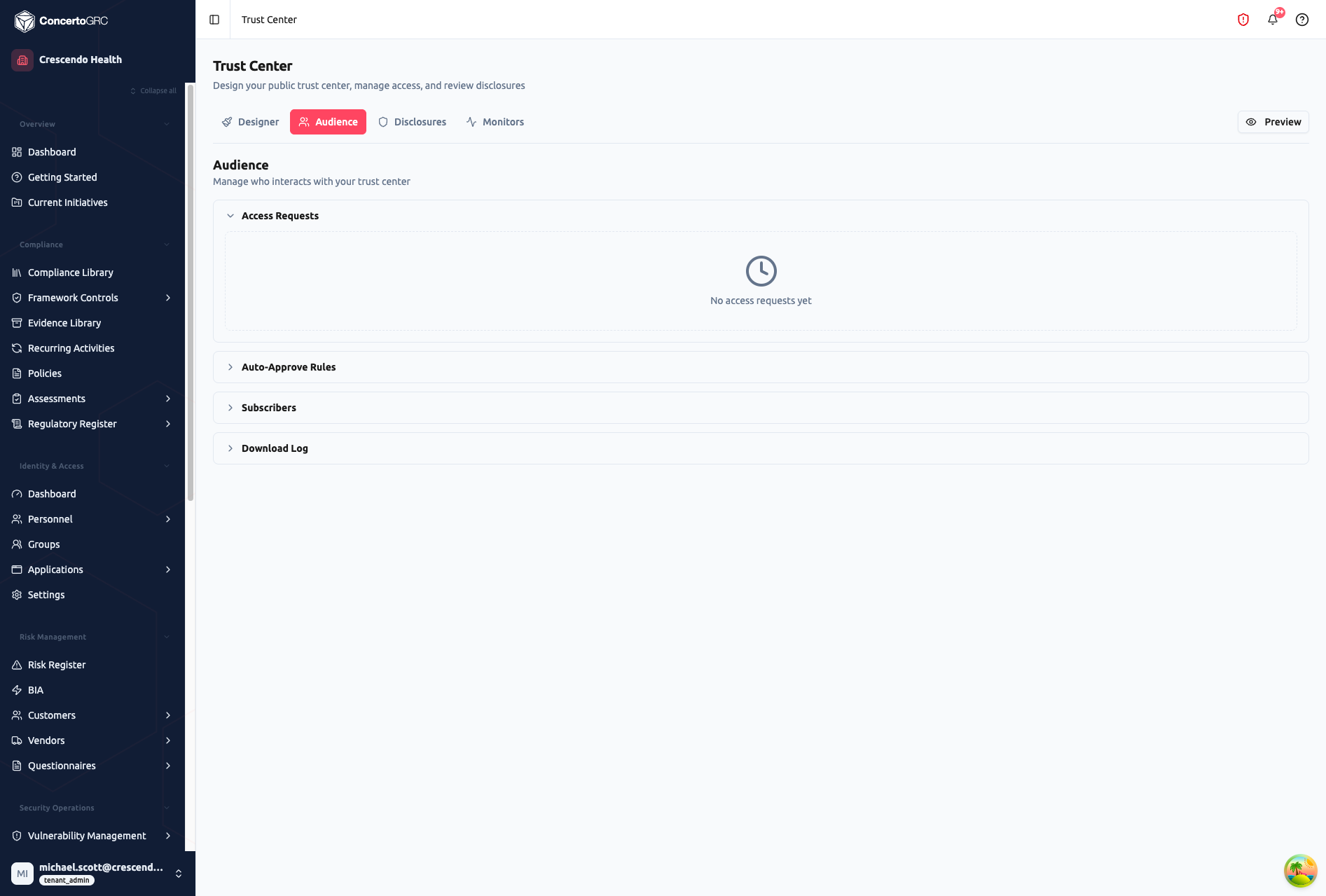
Manage who interacts with your trust center across four sections.
Access Requests
When a visitor requests access to a gated document, the request appears here for review.
| Field | Description |
|---|---|
| Requester Name | Visitor's name |
| Requester Email | Visitor's email address |
| Company | Visitor's company |
| Reason | Why they're requesting access |
| Status | Pending, Approved, Denied, or Expired |
Review workflow:
Visitor requests access > Pending
                            ↓
Admin reviews > Approved (access token emailed) or Denied (with reason)
                  ↓
Visitor downloads > Download count tracked, access expires after configured period
Auto-Approve Rules
Configure automatic approval for trusted domains:
- Set email domain patterns (e.g.,
@partner.com) - Specify access duration (1–365 days, default 30)
- Visitors from matching domains skip the review queue
Subscribers
Visitors can subscribe to trust center updates. View subscriber list with email, name, company, and status (Active or Unsubscribed).
Download Log
Audit trail of all document downloads showing the access request, download timestamp, IP address, and user agent.
Disclosures
Vulnerability Disclosure Program (VDP)
Configure your vulnerability disclosure program:
- Notification emails -- Set email addresses for incoming vulnerability reports
- Program details -- Disclosure policy, reporting instructions, PGP key
- Submission form -- Visitors submit reports with title, description, severity, steps to reproduce, and affected URL
VDP submission statuses:
| Status | Description |
|---|---|
| Submitted | New report received |
| Acknowledged | Report acknowledged by your team |
| Investigating | Actively investigating the report |
| Resolved | Vulnerability has been fixed |
| Closed | Report closed |
Submissions can be assigned to team members, annotated with internal notes, and sent to Vulnerability Management for formal tracking.
Monitors
Configure uptime monitors and track incidents for a public status page:
- Monitors -- Add URLs to monitor with configurable check intervals
- Incidents -- Track and communicate service incidents
- Status Display -- Status section on the trust center shows current system status
Inbound Questionnaires
When enabled, visitors (or your team) can submit security questionnaires through the trust center. Uploaded questionnaires are parsed by AI and auto-answered using your Knowledge Base.
Questionnaire lifecycle:
RECEIVED > PARSING > AI_GENERATING > READY_FOR_REVIEW > IN_REVIEW > COMPLETED > DELIVERED
| Status | Description |
|---|---|
| Received | Questionnaire uploaded |
| Parsing | AI extracting questions from the document |
| AI Generating | AI generating answers from your Knowledge Base |
| Ready for Review | AI answers generated, awaiting human review |
| In Review | Team reviewing AI-generated answers |
| Completed | All answers reviewed and finalized |
| Delivered | Completed questionnaire sent back to requester |
Each question item can be reviewed individually with a status of Pending, Approved, Edited, or Skipped. Answers can be regenerated from the Knowledge Base if needed.
See Inbound Questionnaires for the full questionnaire workflow.
Custom Branding
Theme
| Setting | Options |
|---|---|
| Primary Color | Hex color for main brand elements |
| Accent Color | Hex color for secondary elements |
| Font | Typography selection |
| Header Style | Solid, Gradient, Image, or Aurora |
| Corner Style | Rounded, Sharp, or Pill |
| Logo | Company logo for the header |
| Favicon | Browser tab icon |
Custom Domain
Host your trust center on a custom domain (e.g., trust.yourcompany.com):
- Enter your desired domain in Settings
- Create the DNS CNAME record shown
- Platform verifies DNS propagation automatically
- SSL certificate is provisioned via AWS ACM
- Domain becomes active once verified
Domain verification statuses: None > Pending DNS > Pending SSL > Active (or Failed)
SEO
| Field | Description |
|---|---|
| Meta Title | Browser tab title and search result heading (max 200 chars) |
| Meta Description | Search result snippet (max 500 chars) |
| OG Image | Social sharing preview image |
Sub-Processor Management
Disclose third-party data processors by linking Vendor records and adding metadata:
| Field | Description |
|---|---|
| Vendor | Linked vendor from your Vendor Management registry |
| Processing Location | Where the vendor processes data |
| Processing Type | What type of processing is performed |
| Transfer Mechanism | Data transfer legal basis (e.g., SCCs, adequacy decision) |
| Security Measures | Security controls the vendor has in place |
Sub-processors can be drag-and-drop reordered for display on the trust center.
Updates & Changelog
Publish security bulletins and compliance updates visible on your trust center:
| Field | Description |
|---|---|
| Title | Update headline |
| Body | Full content (rich text) |
| Category | General, Security, Compliance, Incident, or Feature |
| Pinned | Whether to feature at the top of the feed |
| Published At | Publication date |
Subscribers are notified when new updates are published.