Evidence Library
The Evidence Library is your central repository for compliance evidence -- screenshots, reports, logs, configurations, and attestations that demonstrate your controls are operating effectively. Each evidence record defines what to collect, how often, and which framework controls it supports. The system tracks validity periods, generates collection cycles, calculates expiration status automatically, and creates tasks when evidence needs recollection.
Overview
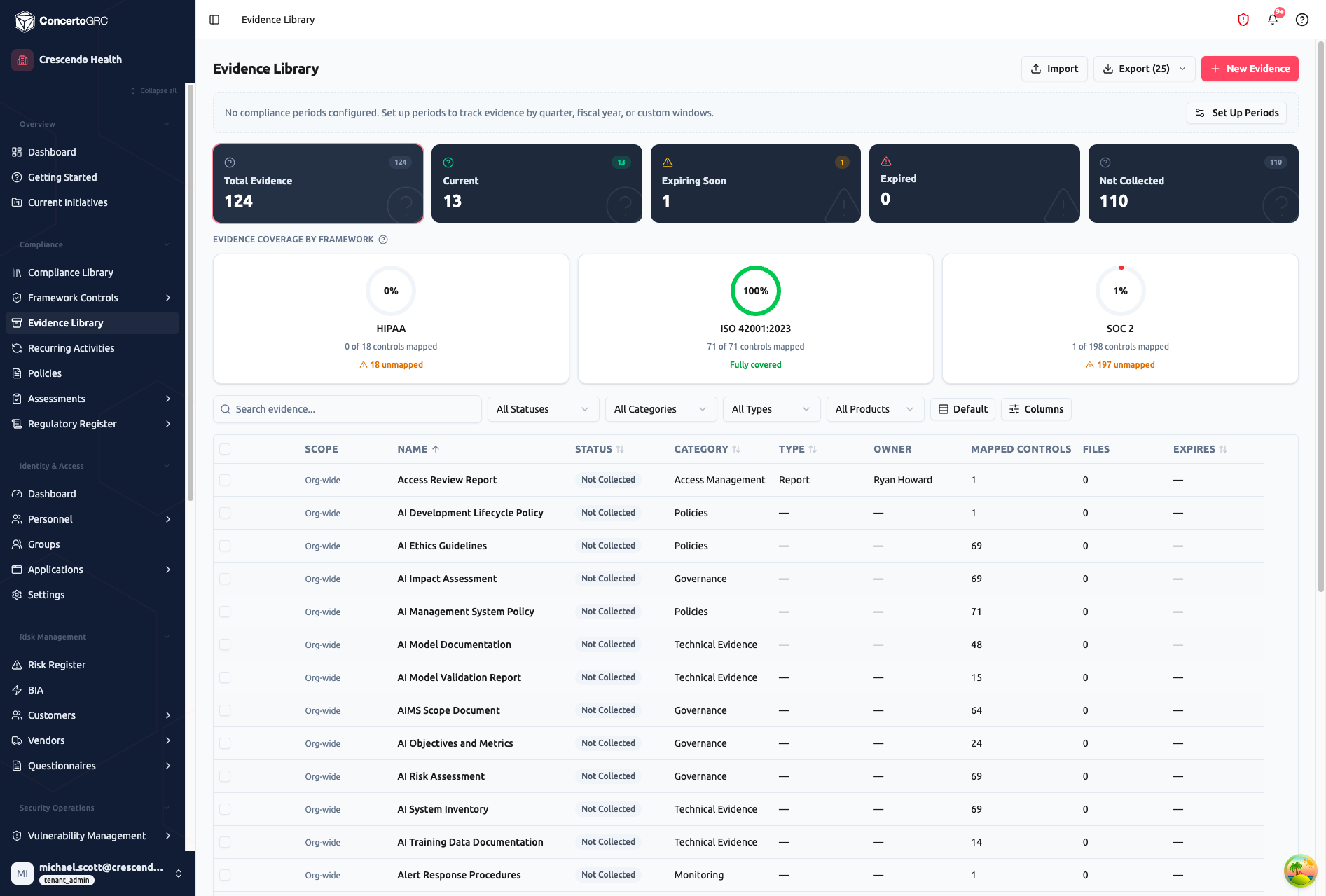
Access from Compliance > Evidence Library in the sidebar. The page shows summary statistics, framework coverage rings, and a filterable evidence table.
Summary Statistics
The top bar shows live counts by status:
- Total Evidence -- All evidence records in your library
- Current -- Evidence uploaded and within its validity period
- Expiring Soon -- Evidence that will expire within 30 days
- Expired -- Evidence past its validity date, needs recollection
- Not Collected -- No evidence has been uploaded yet
Click any stat card to filter the table to that status.
Framework Coverage
Below the stats, Evidence Coverage by Framework shows a ring chart for each enrolled framework displaying the percentage of controls that have linked evidence. Each ring shows the count of mapped vs. total controls, with a link to view unmapped controls. A framework showing "Fully covered" means every control in that framework has at least one linked evidence record.
Compliance Periods
An info banner prompts you to set up compliance periods if none are configured. Click Set Up Periods to define time windows (quarter, fiscal year, or custom) for organizing evidence collection. Once configured, a period filter appears above the table.
Evidence Table
The table shows all evidence records with sortable columns:
- Scope -- Organization-wide or Product-Scoped
- Name -- Evidence record title
- Status -- Current, Expiring Soon, Expired, Not Collected, or Not Applicable
- Category -- Organizational grouping (Access Management, Policies, Governance, Technical Evidence, Monitoring, etc.)
- Type -- Report, Screenshot, Configuration, Policy, Log, Attestation, or Other
- Owner -- Person responsible for collection
- Mapped Controls -- Number of linked framework controls
- Files -- Number of uploaded evidence files
- Expires -- Expiration date (color-coded)
Use the filter bar to search by text, filter by status, category, type, or product. The Default button resets all filters. The Columns button lets you show/hide and reorder columns.
Working with Evidence
Click any evidence row to open the detail sidecar with six tabs.
Details Tab
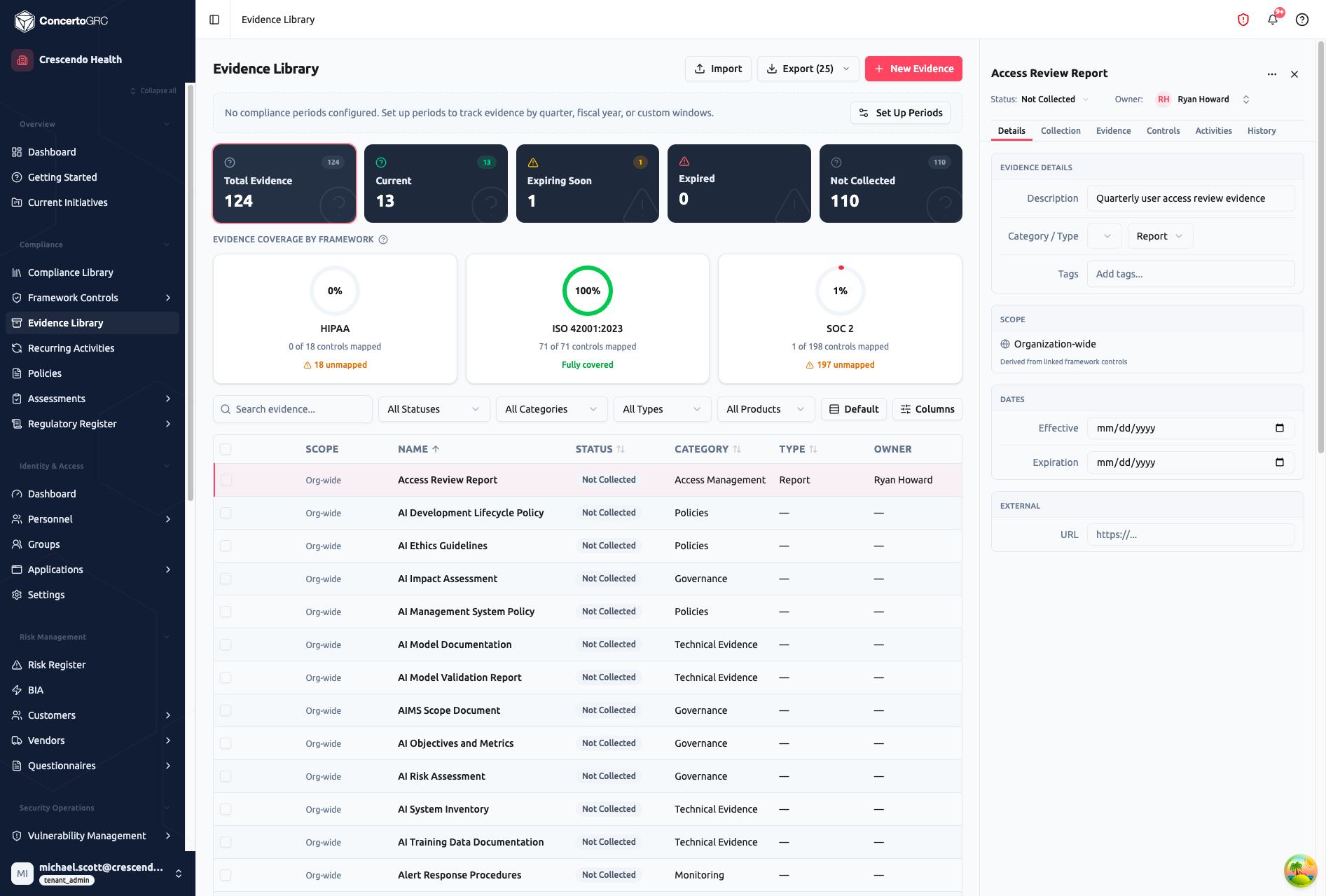
Header fields (always visible):
- Status -- Current status dropdown (auto-calculated, but can be manually overridden)
- Owner -- Assigned evidence collector
Evidence Details:
- Description -- What evidence to collect and what it should demonstrate
- Category / Type -- Classification dropdowns for organizing evidence
- Tags -- Free-form labels for filtering
Scope:
- Organization-wide -- Single evidence record for the entire org (derived from linked framework controls)
- Product-Scoped -- When linked controls are product-scoped, the evidence inherits that scope
Dates:
- Effective -- When this evidence record becomes active
- Expiration -- When the current evidence expires (auto-calculated from validity period and last upload)
External:
- URL -- Link to external evidence location (e.g., a monitoring dashboard, cloud console, or shared drive)
Collection Tab
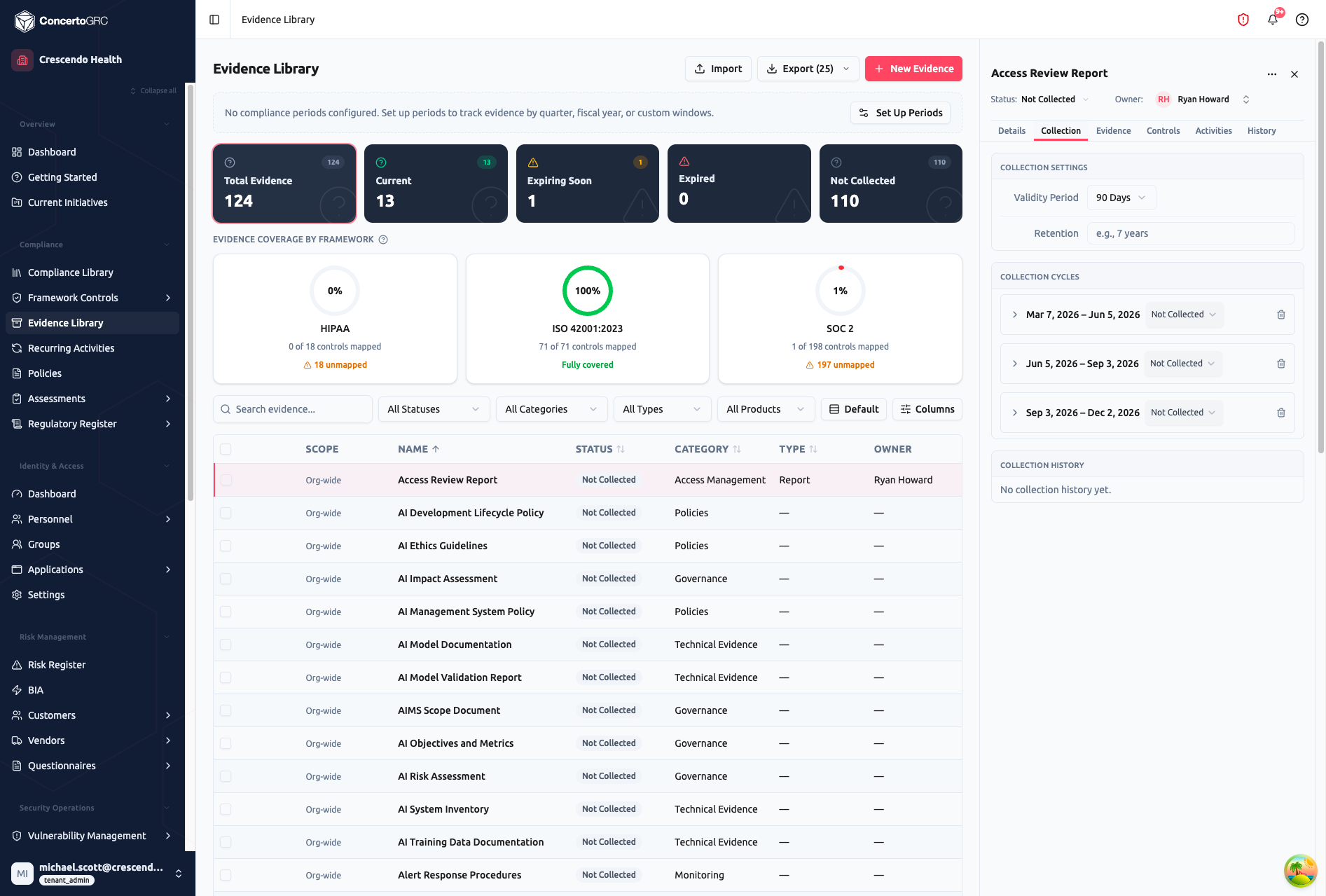
Collection Settings:
- Validity Period -- How long uploaded evidence remains current: 30 Days, 90 Days, 6 Months, 1 Year, or Indefinite. Uploading new evidence resets the expiration clock
- Retention -- How long to retain evidence files after they expire (e.g., 7 years for audit trail)
Collection Cycles: The system automatically generates collection cycles based on the validity period. Each cycle shows:
- Date range -- The collection window (e.g., "Mar 7, 2026 – Jun 5, 2026")
- Status -- Not Collected, Current, Expired
- Delete -- Remove individual cycles
Cycles ensure evidence is collected on schedule. When a cycle's status is "Not Collected," it means evidence needs to be uploaded for that window.
Collection History: A timeline of all past evidence uploads showing who uploaded what, when, and for which cycle.
Evidence Tab
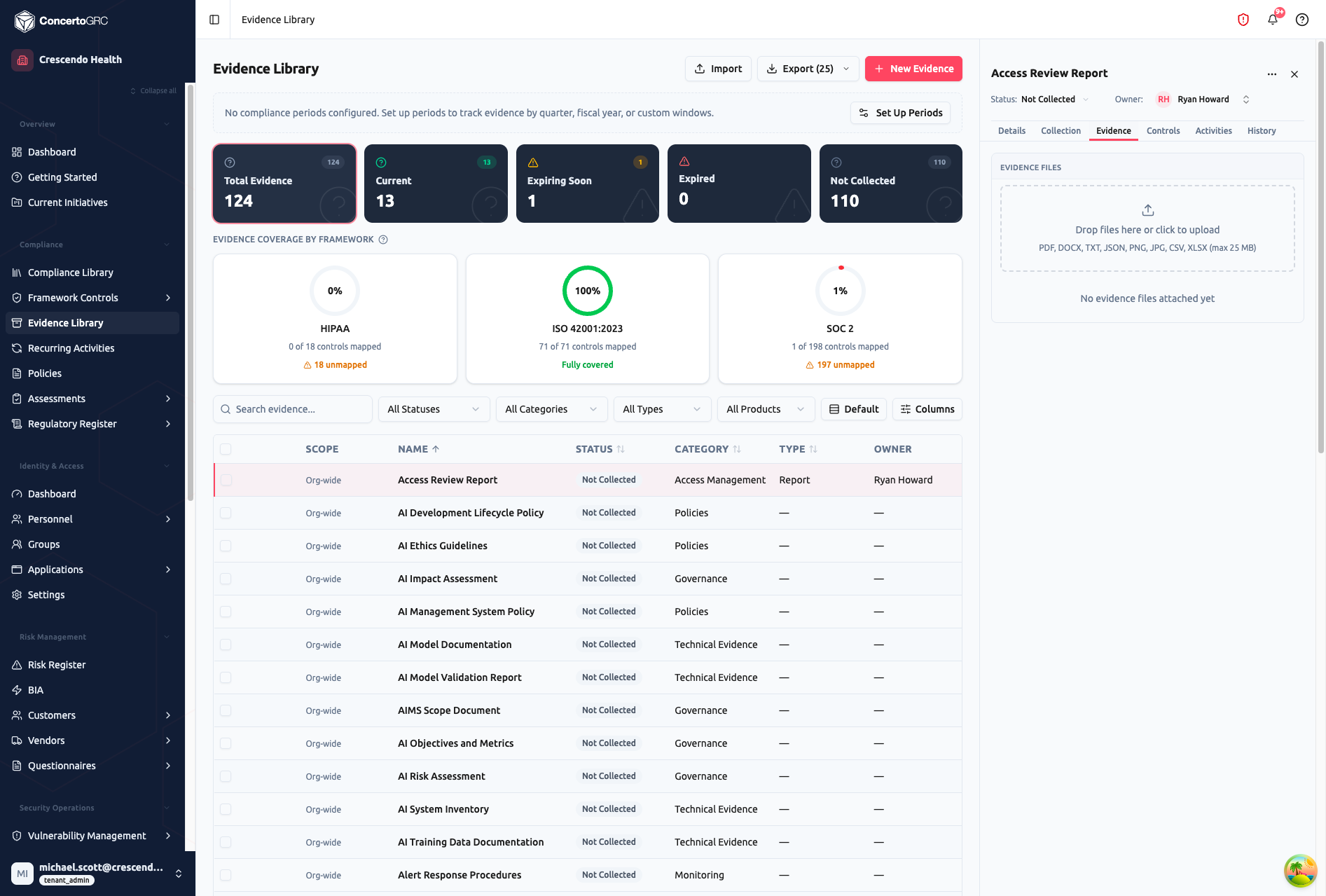
Upload and manage evidence files:
- Drag-and-drop files or click to browse
- Supported formats: PDF, DOCX, TXT, JSON, PNG, JPG, CSV, XLSX
- Maximum file size: 25 MB per file
- Uploads save immediately -- no submit button needed
- Uploading resets the expiration clock based on the validity period
Each uploaded file shows a preview (for images), filename, upload date, and uploader. You can rename, download, or delete individual files.
Controls Tab
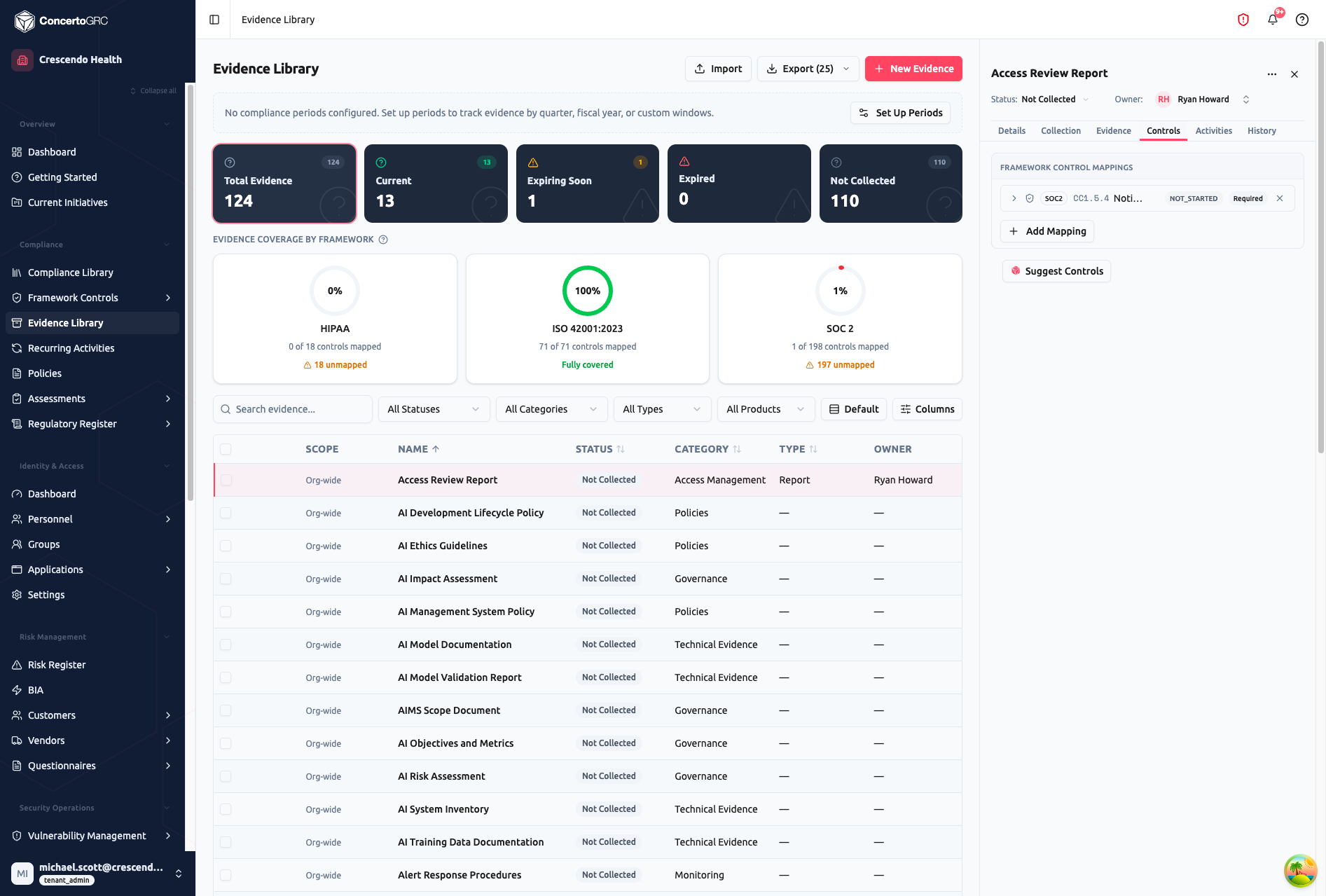
Framework Control Mappings: View and manage which framework controls this evidence supports. Each mapping shows the framework name, control ID, control title, status, and requirement type (Required or Supporting).
- + Add Mapping -- Search and link controls from any enrolled framework
- Remove -- Unlink a control mapping
Suggest Controls: Click Suggest Controls to run an AI-powered embedding search that matches this evidence record against all framework controls. The system shows matching controls with confidence scores. Accept matches to create mappings, or dismiss irrelevant suggestions.
Activities Tab
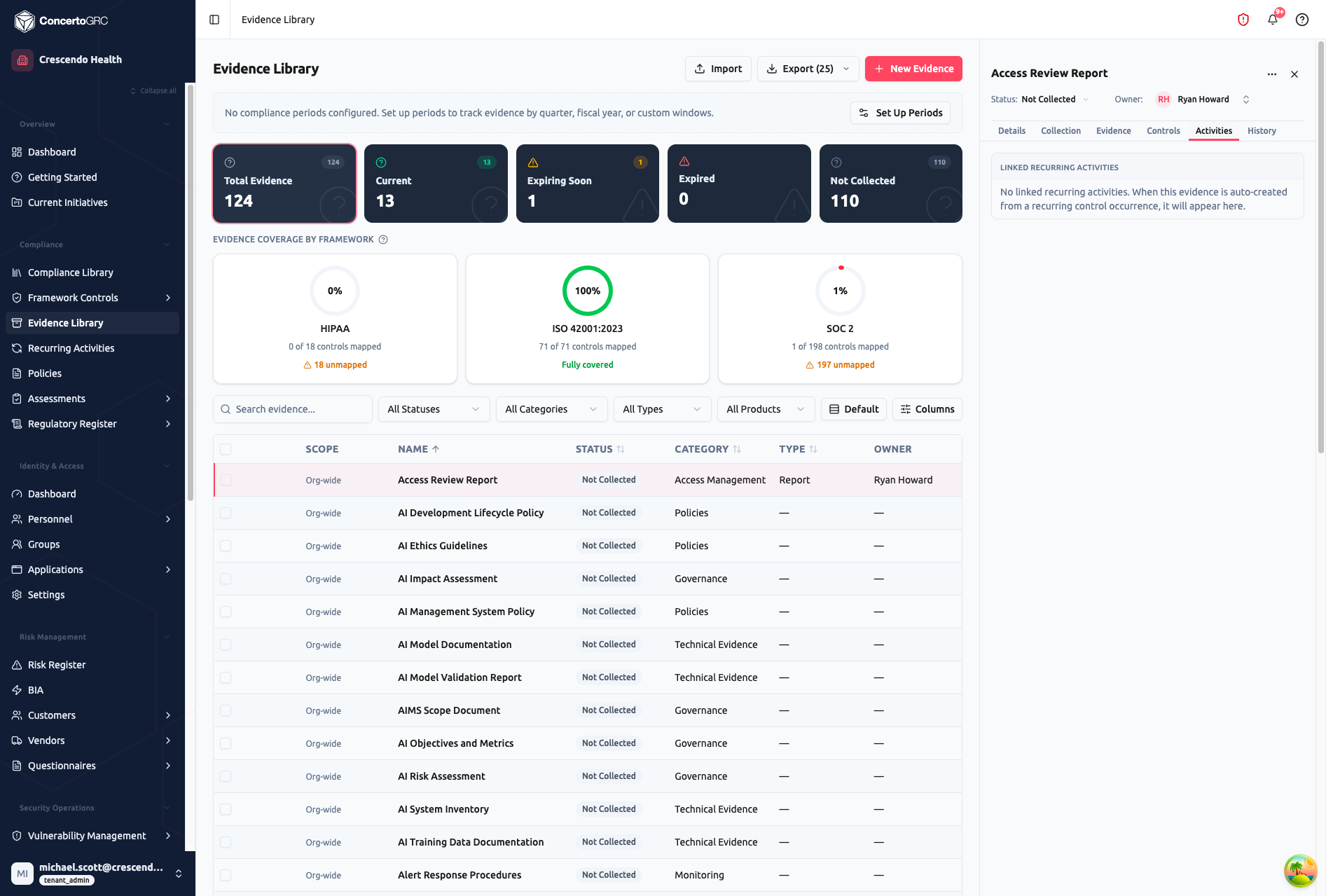
Linked Recurring Activities: Shows recurring activities that generate this evidence. When evidence is auto-created from a recurring control occurrence, the linked activity appears here. This provides traceability from the recurring control schedule to the evidence it produces.
History Tab
- Notes -- Free-form notes textarea
- Audit History -- Changelog of all modifications (creator, creation date, field changes, file uploads/deletions)
Evidence Status Lifecycle
Status is calculated automatically based on the validity period and last upload:
| Status | Description |
|---|---|
| Current | Evidence uploaded and within its validity period |
| Expiring Soon | Within 30 days of expiration |
| Expired | Past the validity date -- needs recollection |
| Not Collected | No evidence has been uploaded yet |
| Not Applicable | Evidence does not apply (excluded from coverage calculations) |
Expiration Tasks
When evidence expires, the system automatically creates a task assigned to the evidence owner. These tasks:
- Appear in the owner's task list and the project management module
- Include a link back to the evidence record for easy navigation
- Are generated by the nightly
syncEvidenceExpirationTasks()scheduler
Validity Periods
| Period | Use For |
|---|---|
| 30 Days | Frequently changing configurations, active monitoring dashboards |
| 90 Days | Quarterly access reviews, configuration audits |
| 6 Months | Semi-annual attestations, penetration test reports |
| 1 Year | Annual reviews, policy acknowledgments, SOC reports |
| Indefinite | Static evidence that doesn't expire (architectural diagrams, one-time certifications) |
Uploading new evidence resets the expiration clock. For example, evidence with a 90-day validity period uploaded on January 1 expires on April 1. Uploading a new file on March 15 extends the expiration to June 13.
AI Features
Control Suggestions
In the Controls tab, click Suggest Controls to run an AI-powered embedding search. The system compares the evidence record's name, description, and category against all framework controls using vector similarity. Matching controls are presented with confidence scores (color-coded: green for high confidence, amber for medium, red for low). Accept matches to link them, dismiss irrelevant ones.
Reindex AI
Click Reindex AI in the toolbar to rebuild the embedding index for all tenant entities. This improves suggestion quality after bulk imports or significant data changes.
Bulk Actions
Select multiple evidence records using the checkboxes, then use the floating toolbar:
- Set Owner -- Bulk-assign an evidence owner
- Delete -- Remove selected evidence records (with confirmation)
Import & Export
Import
Click Import in the toolbar to bulk-import evidence records via CSV.
| Column | Required | Description |
|---|---|---|
| Name | ✓ | Evidence record title |
| Description | -- | Collection guidance |
| Category | -- | Organizational grouping |
| Type | -- | Report, Screenshot, Configuration, Policy, Log, Attestation, Other |
| Owner | -- | Email or name of the assigned owner |
| Validity Period | -- | 30_DAYS, 90_DAYS, 6_MONTHS, 1_YEAR, INDEFINITE |
Export
Click Export to download all evidence records as CSV. The export dropdown shows the count of records that will be exported (e.g., "Export (25)"). Filters applied to the table are reflected in the export.