Assessments
The Assessments module manages your compliance audit lifecycle -- from initial scoping through control testing, evidence collection, findings tracking, and report generation. It supports internal self-assessments, external audits with dedicated auditor collaboration, and gap assessments for pre-audit readiness. Each assessment gets a full-page workspace with a progress dashboard, domain-grouped control list, evidence pipeline, findings tracker, and team management.
Overview
Access from Compliance > Assessments > My Assessments in the sidebar. The page shows summary statistics, a filterable table of all assessments, and a detail sidecar for viewing and editing assessment metadata.
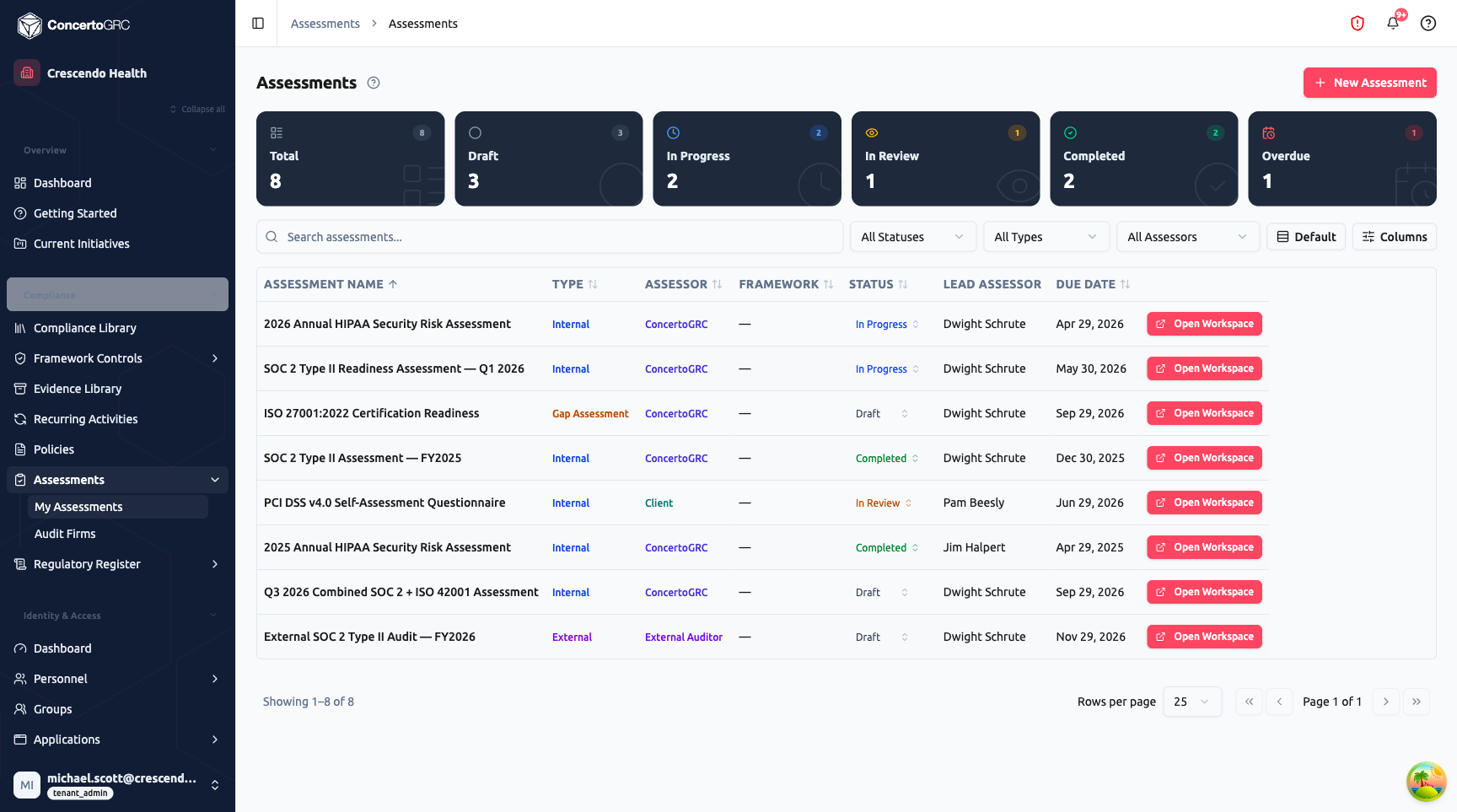
Summary Statistics
The top bar shows live counts by lifecycle status:
- Total -- All assessments
- Draft -- Not yet started
- In Progress -- Actively being worked on
- In Review -- Under stakeholder or management review
- Completed -- Assessment finalized
- Closed -- Assessment archived and locked
- Overdue -- Past due date without completion
Click any stat card to filter the table.
Assessment Table
The table shows all assessments with sortable columns:
- Assessment Name -- Title (click to open sidecar)
- Type -- Internal, External, or Gap Assessment (color-coded badge)
- Assessor -- ConcertoGRC, Client, or External Auditor
- Framework -- Enrolled framework(s) being assessed
- Status -- Lifecycle status with color-coded badge (inline editable)
- Lead Assessor -- Assigned lead (inline editable)
- Due Date -- Assessment deadline
- Open Workspace -- Direct link to the full-page assessment workspace
Use the filter bar to search by text, filter by status, type, or assessor. Additional columns available via the Columns button.
Assessment Detail Sidecar
Click any assessment row to open the detail sidecar with four tabs.
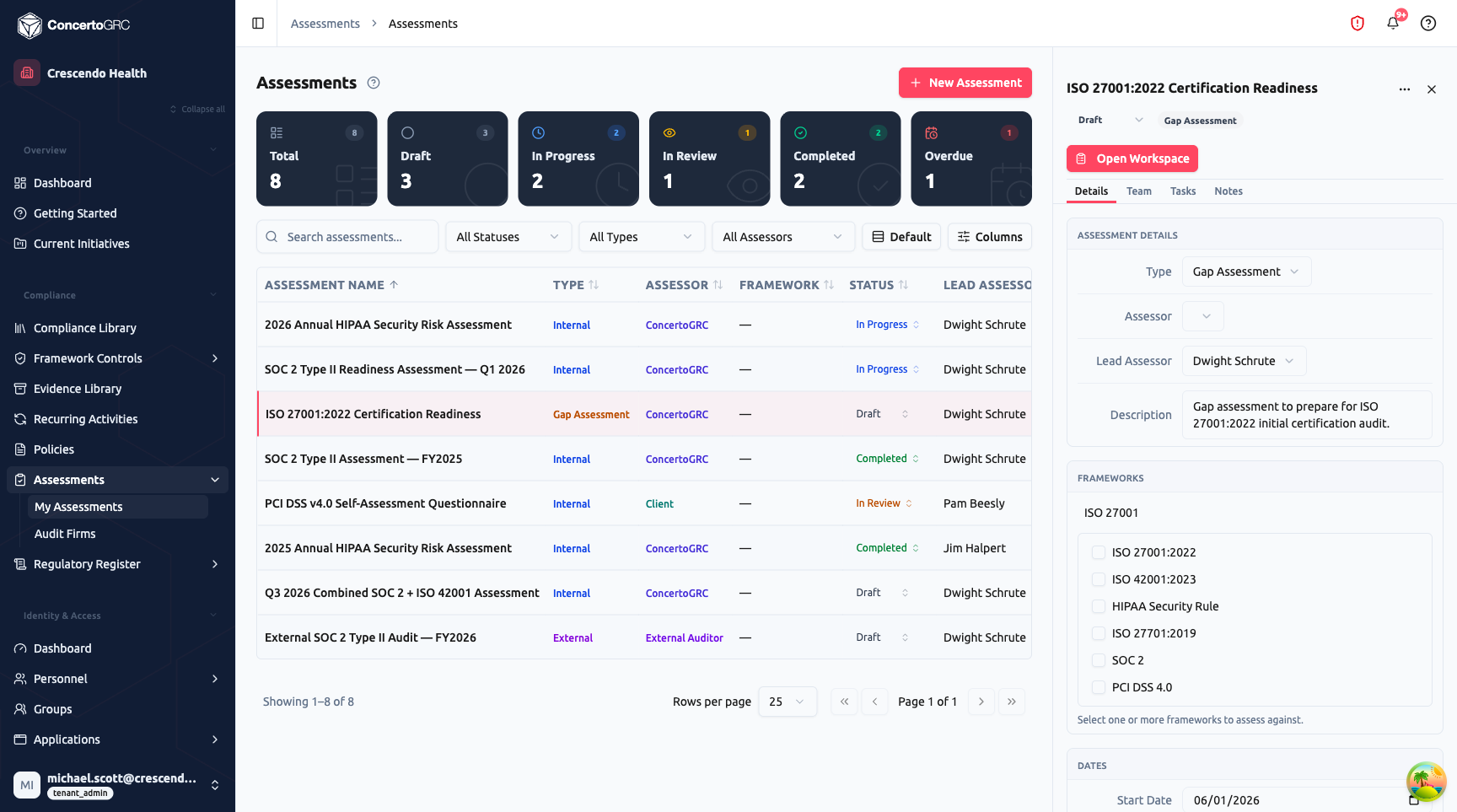
Details Tab
Assessment Details:
- Type -- Internal, External, or Gap Assessment
- Assessor -- ConcertoGRC, Client, or External Auditor
- Lead Assessor -- Person responsible for the assessment
- Description -- Scope and objectives
Frameworks: Select one or more compliance frameworks to assess against. The checklist shows all enrolled frameworks (ISO 27001:2022, ISO 42001:2023, HIPAA, SOC 2, PCI DSS 4.0, etc.). The workspace generates controls from the selected frameworks.
Dates:
- Start Date -- When the assessment period begins
- Due Date -- Assessment deadline
- Completed -- Date of completion (shown when status is Completed)
Products in Scope -- When assessment is product-scoped, shows which products are included.
AI Features -- For External Auditor assessments, a toggle enables or disables AI-assisted evidence review for auditor sessions.
Custom Fields -- Tenant-defined custom fields appear in a collapsible section.
The Open Workspace button navigates to the full-page assessment workspace.
Team Tab
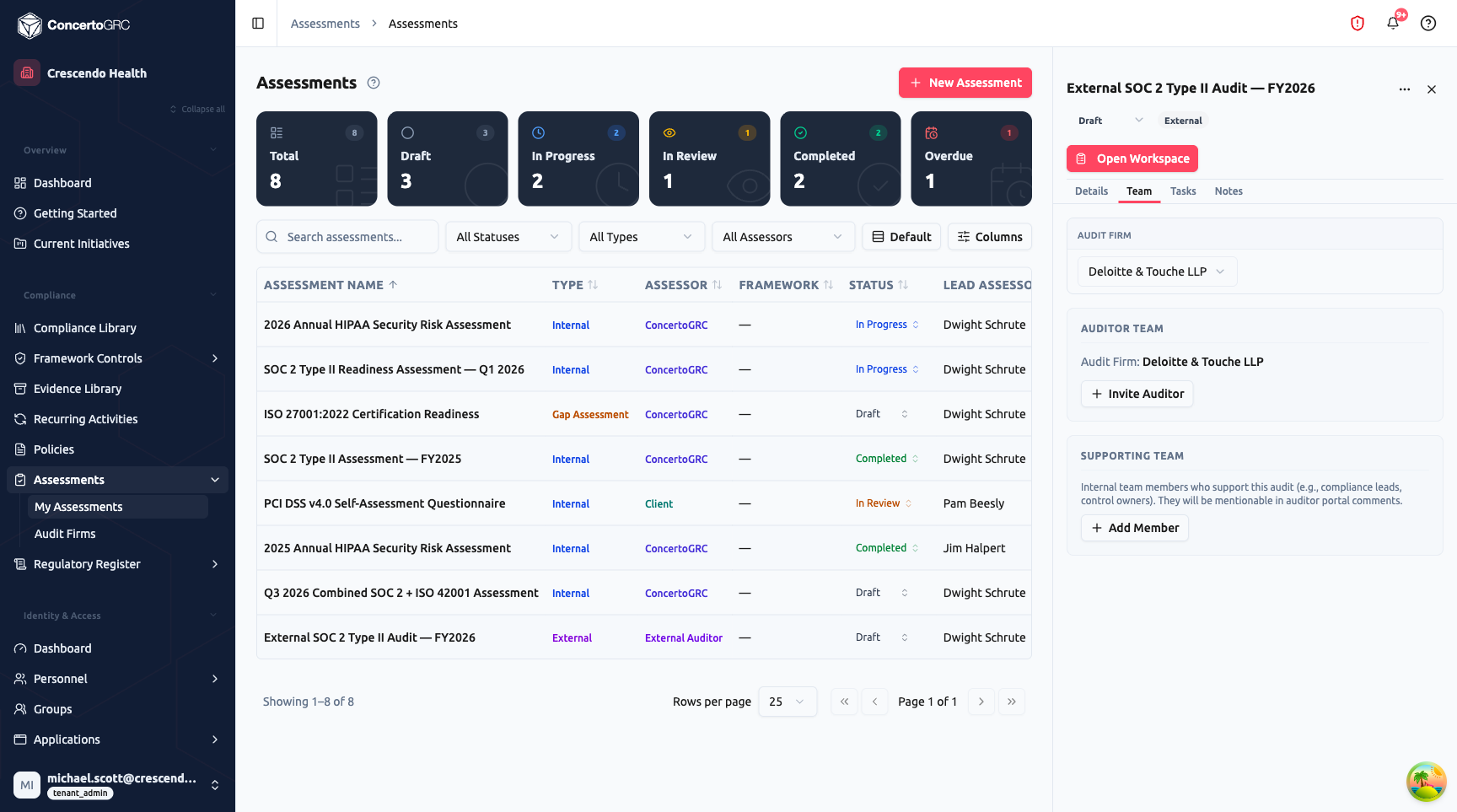
For External Auditor assessments, the Team tab provides:
- Audit Firm -- Select from registered audit firms (manage firms in Assessments > Audit Firms)
- Supporting Team -- Add internal team members (compliance leads, control owners) who support the audit. Supporting team members are mentionable in auditor portal comments.
For Internal and Gap assessments, team management is handled through the workspace Team tab.
Tasks Tab
Create and track tasks associated with the assessment -- action items for the lead assessor or team members.
Notes Tab
Free-form notes for the assessment with timestamped audit history.
Creating an Assessment
Click + New Assessment to open the creation wizard.
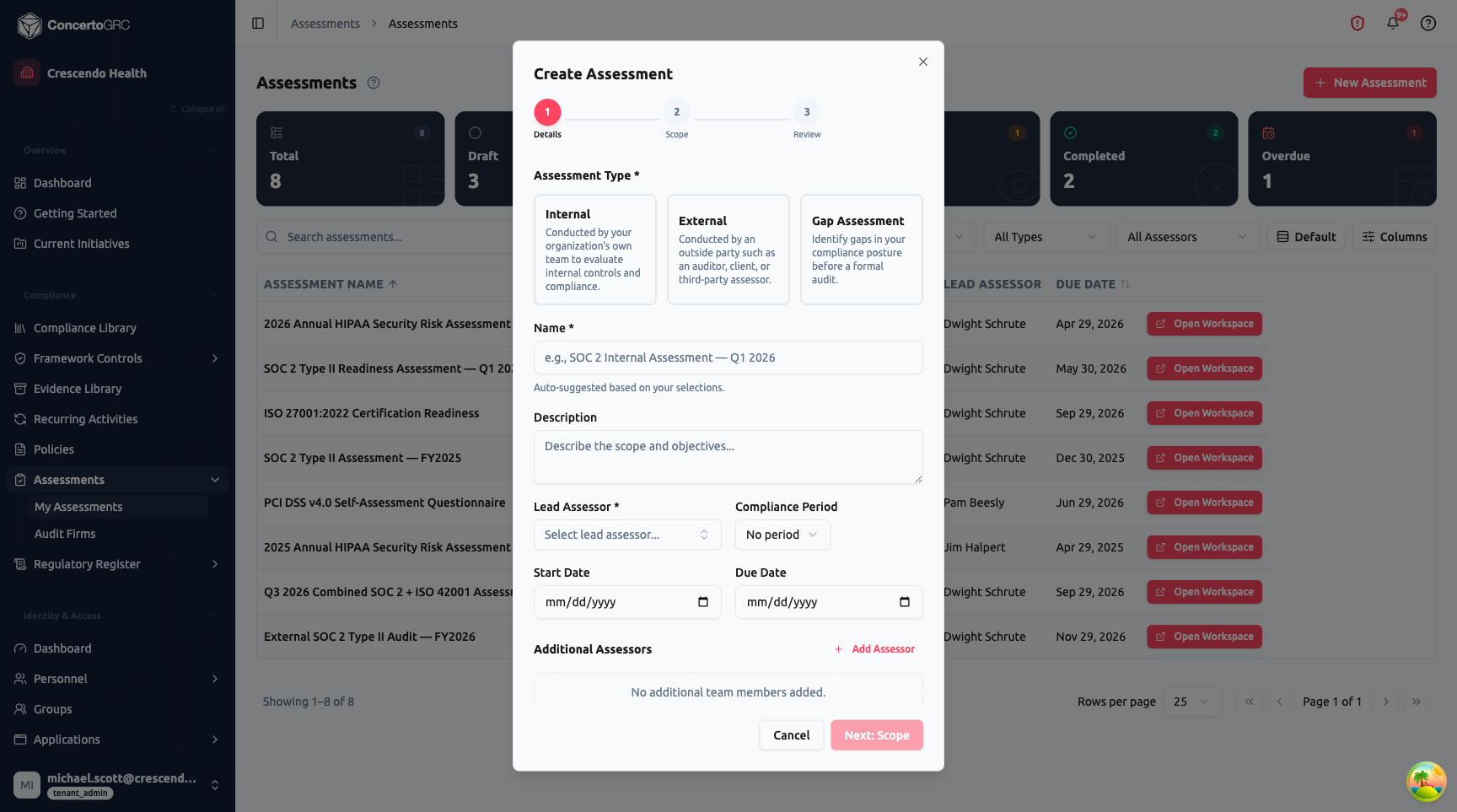
The wizard has three steps:
Step 1: Details
- Assessment Type -- Choose Internal, External, or Gap Assessment. Each type card describes its purpose.
- Name -- Auto-suggested based on your selections (e.g., "SOC 2 Internal Assessment -- Q1 2026")
- Description -- Scope and objectives
- Lead Assessor -- Person responsible
- Compliance Period -- Link to an existing compliance period or leave unset
- Start / Due Dates -- Assessment timeline
- Additional Assessors -- Add team members with roles (Assessor, Reviewer, Observer)
- Audit Firm -- For External assessments, select the auditing firm
Step 2: Scope
- Frameworks -- Select which frameworks to include in the assessment
- Products -- Scope to specific products or organization-wide
- Prior Assessment -- Link to a previously completed assessment for roll-forward (carries forward control mappings and team assignments)
- Capture Evidence Snapshot -- Option to take a point-in-time snapshot of all evidence on creation
Step 3: Review
Summary of all settings before creation. The wizard creates the assessment and optionally captures an evidence snapshot in the background.
Assessment Workspace
The workspace is a full-page environment for executing an assessment. Access it by clicking Open Workspace on any assessment.
Workspace Header
The persistent header shows the assessment name, framework badges, inline progress bar (pass/fail/N/A counts), status dropdown, and action buttons:
- Progress Dashboard -- Toggle the dashboard view
- Report Settings -- Configure report generation options
- Status Report -- Generate and send a status report
Dashboard Tab
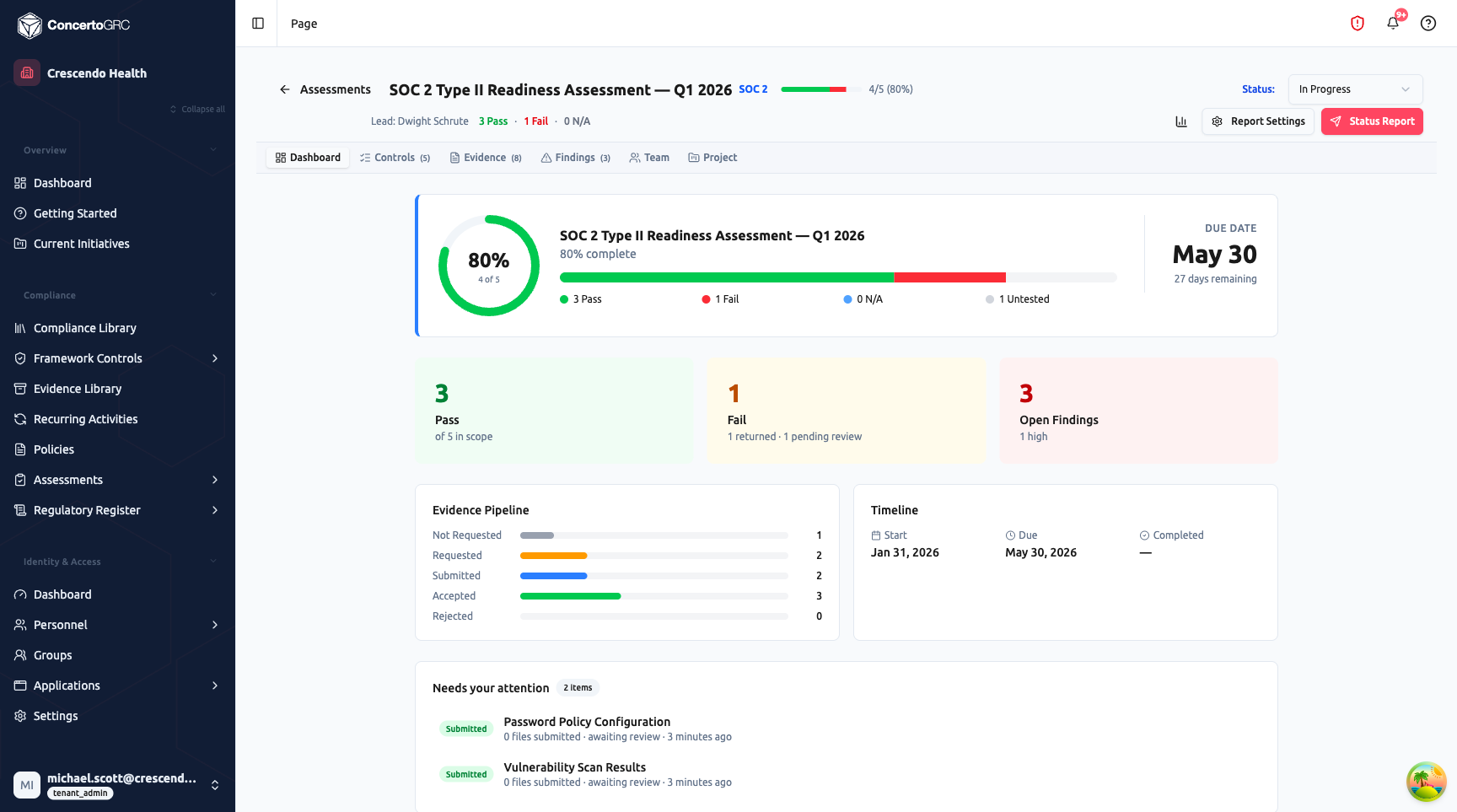
The dashboard provides an at-a-glance view of assessment health:
- Progress Ring -- Overall completion percentage with tested/total count
- Stacked Progress Bar -- Visual breakdown of Pass (green), Fail (red), N/A (blue), and Untested (gray)
- Due Date -- Large-format due date with days remaining/overdue indicator
- Audit Health Summary -- Three cards showing Pass count, Fail count, and Open Findings count
- Evidence Pipeline -- When evidence requests exist, shows the pipeline (Not Requested > Requested > Submitted > Accepted/Rejected)
- Timeline -- Start, Due, and Completed dates with compliance period context
- Needs Your Attention -- Actionable items like controls with Fail status but no linked finding
- Activity Feed -- Chronological log of team actions (status changes, evidence uploads, comments)
For multi-framework assessments, the dashboard includes per-framework progress breakdowns.
Controls Tab
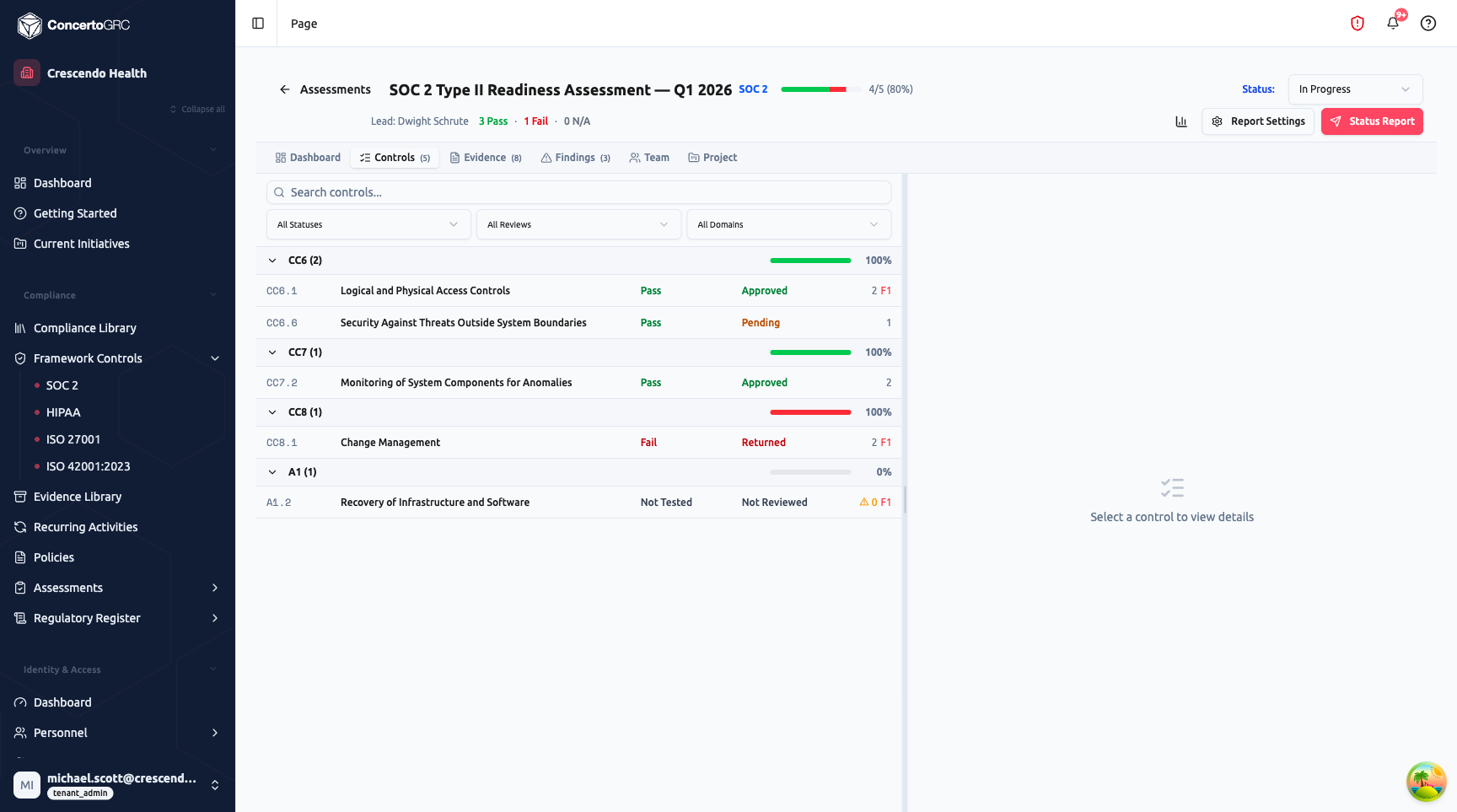
The controls list shows all in-scope framework controls grouped by domain:
- Search -- Filter by control ID or name
- Status Filter -- Not Tested, Pass, Fail, N/A
- Review Filter -- Not Reviewed, Pending Review, Reviewed, Returned
- Domain Filter -- Filter by control domain (CC6, CC7, A1, etc.)
Each domain group shows a progress bar and completion percentage. Control rows display the control identifier, name, test status badge, review status badge, and evidence/finding counts.
Click any control to open the Control Detail Sidecar.
Control Detail Sidecar
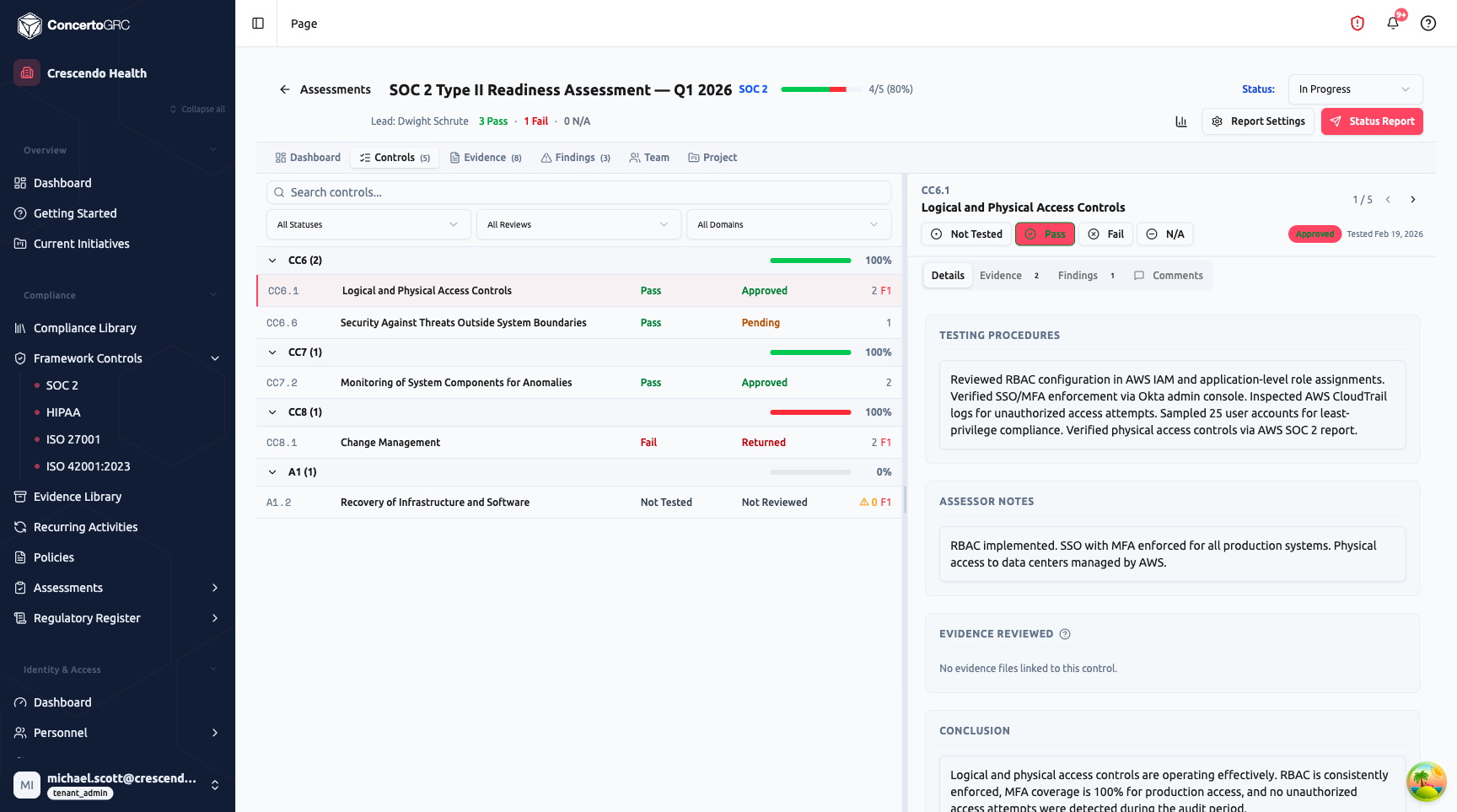
The resizable sidecar (drag the divider handle) shows the selected control with navigation arrows to step through controls:
Test Status Buttons: Set the control's test result: Not Tested, Pass, Fail, or N/A. Status badges update immediately.
Status Badges:
- Evidence -- Shows count of linked evidence, or "No evidence" warning
- Review -- Not Reviewed, Pending Review, Reviewed, or Returned
Details Tab:
- Testing Procedures -- Document the testing methodology
- Assessor Notes -- Record observations and findings
- Evidence Reviewed -- Summary of evidence examined
- Conclusion -- Final assessment conclusion
Evidence Tab: Link evidence from the assessment's evidence snapshot. Upload additional files directly. Each evidence link can include assessor notes.
Findings Tab: Create findings directly from a control. Link existing findings or create new ones with severity, type, and description.
Comments Tab: Threaded discussion on the control. Supporting team members are mentionable in comments.
Evidence Tab
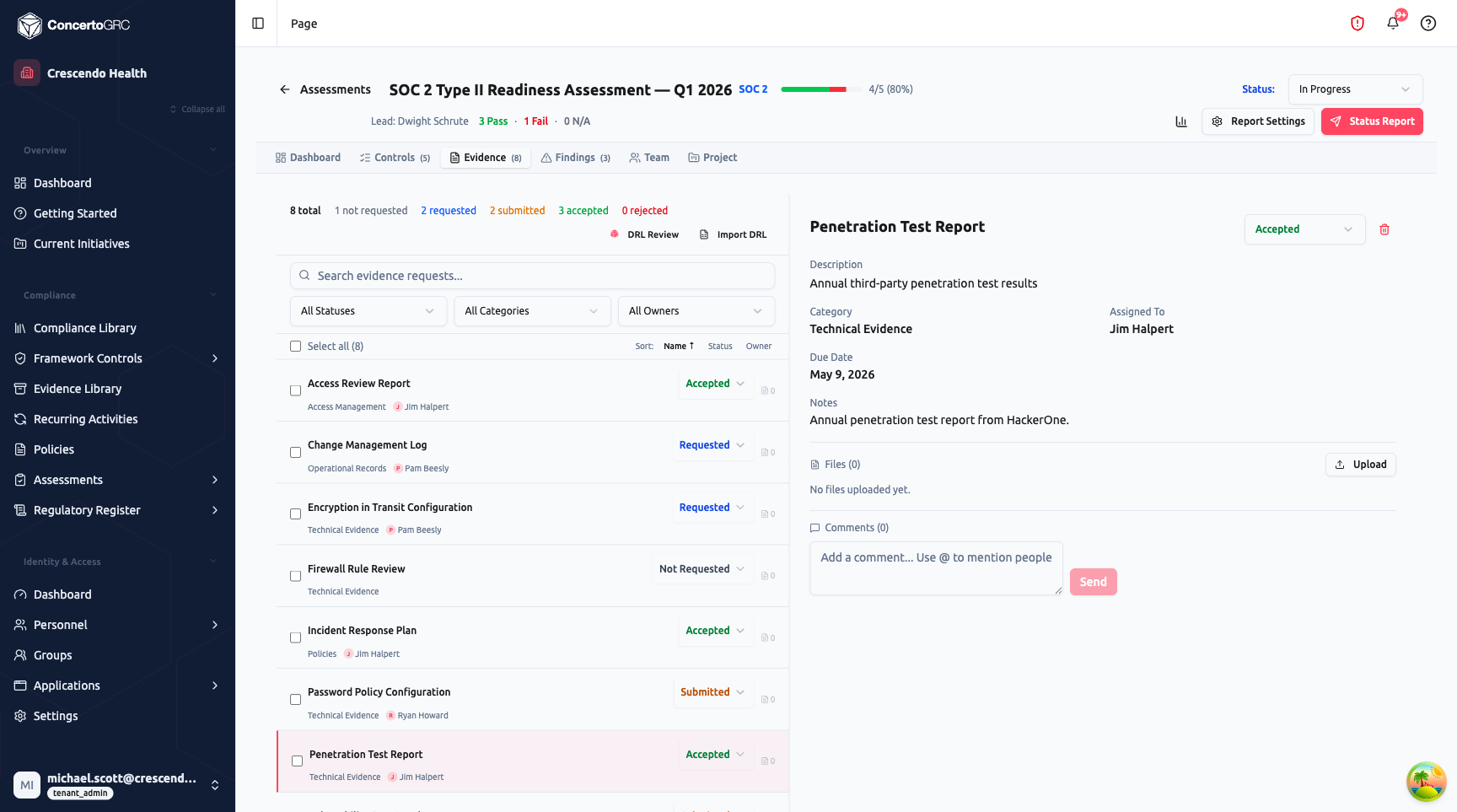
The Evidence tab manages the Document Request List (DRL) -- the evidence requests for this assessment:
- Pipeline Stats -- Counts by status: Not Requested, Requested, Submitted, Accepted, Rejected
- DRL Review -- AI-assisted review of the document request list for completeness
- Import DRL -- Import a DRL from a spreadsheet
- Search & Filter -- Search by name, filter by status, category, or owner
Each evidence request shows its name, status, category, owner, linked controls, and submission details. Click to open a detail view with file upload, submission tracking, and AI evidence review.
Findings Tab
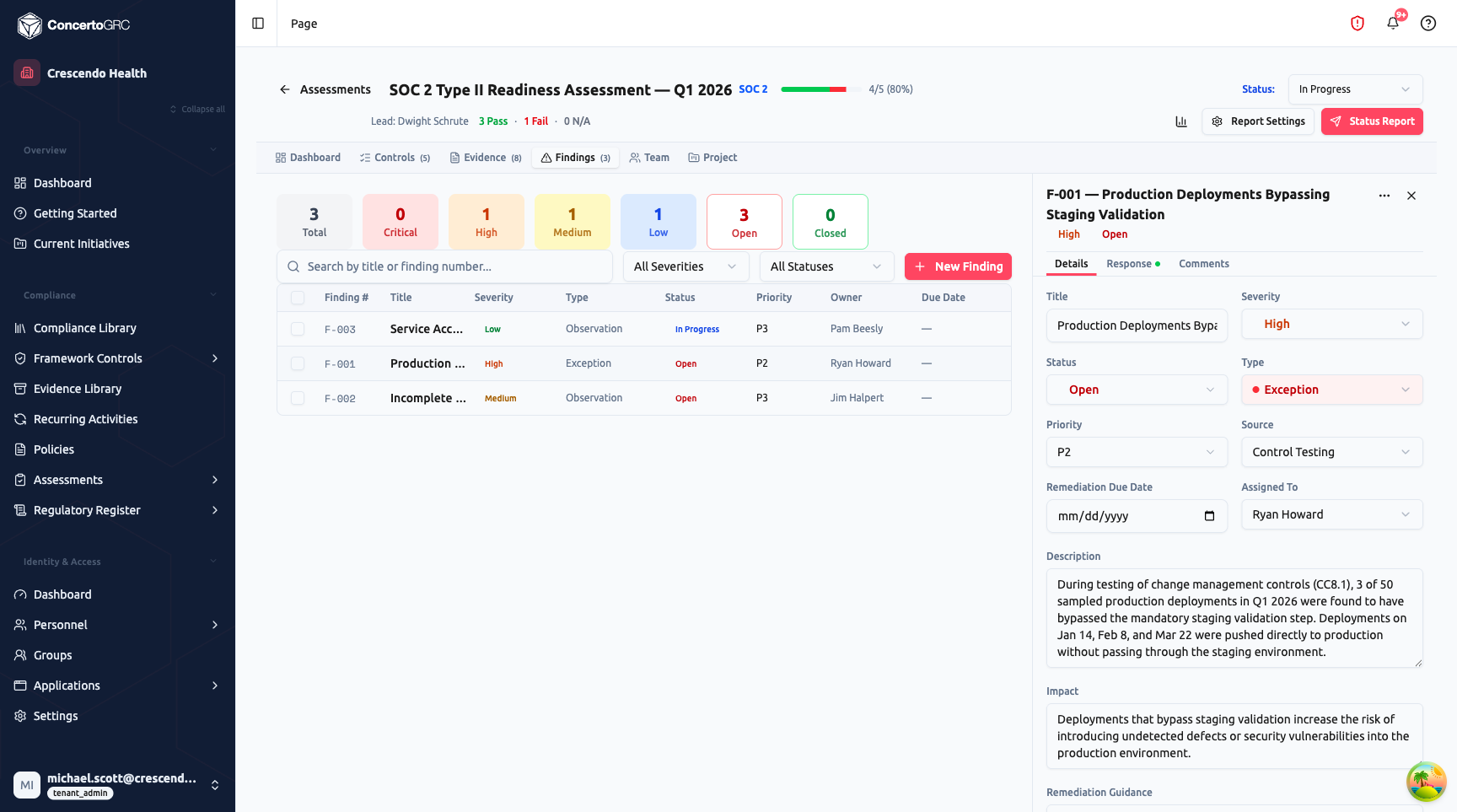
Track and manage audit findings:
- Severity Stats -- Total, Critical, High, Medium, Low, Open, and Closed counts (color-coded)
- Search -- Search by title or finding number
- Filter -- By severity and status
- + New Finding -- Create a finding with title, description, severity, type, and control linkage
Each finding has:
- Title and Description -- What was found
- Severity -- Critical, High, Medium, or Low
- Type -- Observation, Exception, Deviation, Non-Conformity, Deficiency
- Status -- Open, In Remediation, Remediated, Closed, Accepted
- Control Mappings -- Which controls are affected
- Port to Risk -- Promote findings to the Risk Register
Team Tab
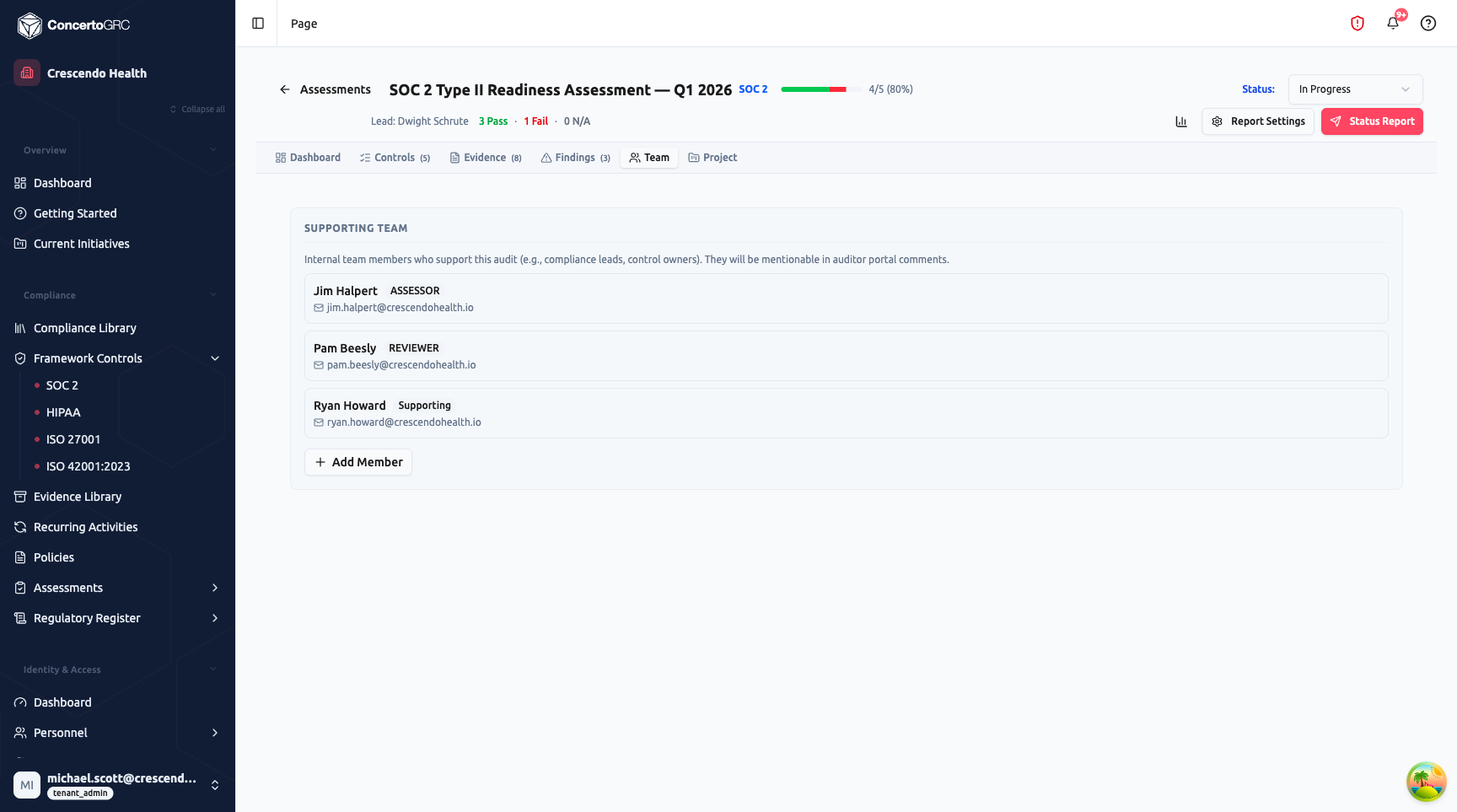
Manage the assessment team:
- Supporting Team -- Internal team members who support the assessment (compliance leads, control owners). Team members are mentionable in comments throughout the workspace.
- Add Member -- Add team members with roles
For External assessments, the team tab also includes auditor management from the linked audit firm.
Project Tab
Link the assessment to a project in the Project Management module for task tracking and initiative alignment.
Audit Firms
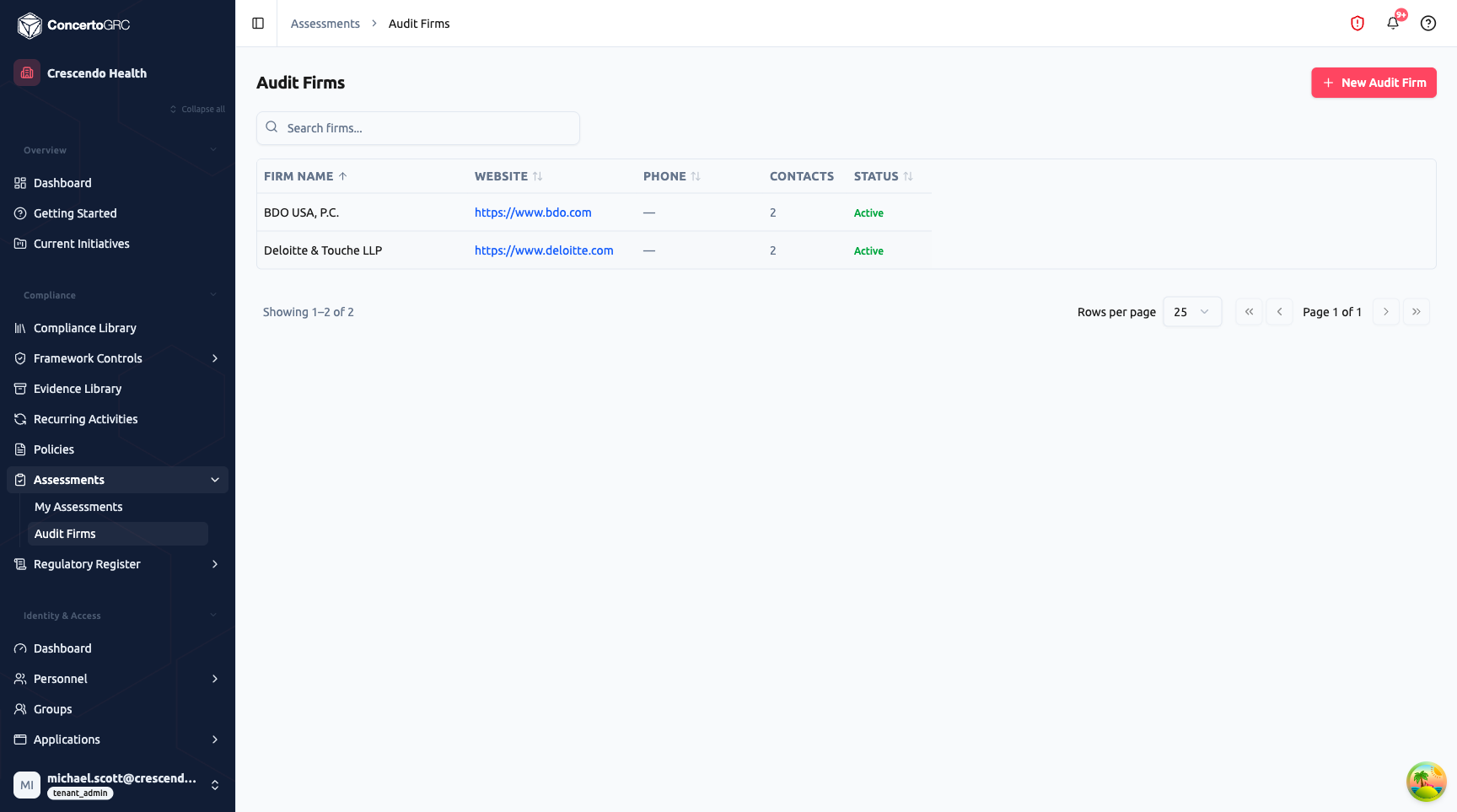
Access from Compliance > Assessments > Audit Firms in the sidebar. Register external audit firms before creating External assessments:
- Click + New Audit Firm to add a firm (name, website, description)
- Add contacts -- auditor name and email
- When creating an External assessment, select the firm and invite contacts
- Invited auditors receive credentials for the Auditor Portal -- a scoped workspace showing only assessment-relevant data
Assessment Lifecycle
DRAFT > IN_PROGRESS > IN_REVIEW > CLOSING > COMPLETED > CLOSED
                                                ↓
                                           CANCELLED
| Status | Description |
|---|---|
| Draft | Assessment created but not yet started |
| In Progress | Active -- controls being tested, evidence being collected |
| In Review | Testing complete, under management or stakeholder review |
| Closing | Final wrap-up -- evidence snapshots being finalized |
| Completed | Assessment finalized with all findings documented |
| Closed | Assessment archived and locked (terminal state) |
| Cancelled | Assessment cancelled (terminal state) |
Status transitions are enforced -- you can only move forward through the lifecycle (or cancel from any state).
Assessment Types
| Type | Description |
|---|---|
| Internal | Self-assessment by your compliance team to evaluate internal controls |
| External | Formal audit conducted by an outside party (auditor, client, or third-party assessor) with dedicated auditor portal access |
| Gap Assessment | Pre-audit readiness check to identify gaps in your compliance posture before a formal audit |
Assessor Types
| Assessor | Description |
|---|---|
| ConcertoGRC | Assessment conducted by the ConcertoGRC platform team |
| Client | Self-assessment by the tenant's own team |
| External Auditor | Assessment by an external audit firm -- enables audit firm selection, auditor portal, and AI toggle for auditor sessions |
Evidence Snapshots
When creating or during an assessment, you can capture an evidence snapshot -- a point-in-time copy of all current evidence. This ensures:
- Evidence collected during the audit period is preserved exactly as it was
- Changes made after the snapshot don't retroactively alter the assessment
- Auditors see exactly what was in place during the compliance period
The workspace header shows the snapshot timestamp when one exists.
Roll Forward
When an assessment is completed, you can roll it forward to the next period during creation:
- In the creation wizard, select a completed assessment as the Prior Assessment
- The new assessment carries forward control mappings and team assignments
- Starts fresh for evidence and findings
- The workspace includes a Prior Engagement tab linking back to the completed assessment for historical reference and comparison
Status Reports
Click Status Report in the workspace header to generate a formatted assessment report. Configure report settings (sections to include, branding, etc.) via Report Settings. Reports include:
- Assessment summary and timeline
- Framework coverage breakdown
- Control testing results by domain
- Findings summary by severity
- Evidence collection status
- Team and reviewer information
AI Features
AI Evidence Review
In the control detail sidecar's Evidence tab, AI can analyze uploaded evidence files against the control requirements. The system uses Amazon Textract for OCR extraction and Claude for intelligent review -- checking whether evidence sufficiently demonstrates control effectiveness.
DRL Review
In the Evidence tab, click DRL Review to have AI analyze your Document Request List for completeness against the selected frameworks.
Control Suggestions
AI-powered matching recommends which framework controls to include based on assessment scope and prior assessments.
Finding Generation
When setting a control to Fail status, AI can suggest finding descriptions based on the control requirements and assessor notes.
Team Roles
| Role | Access |
|---|---|
| Lead Assessor | Full control -- assigns work, manages scope, finalizes assessment |
| Assessor | Tests controls, uploads evidence, creates findings |
| Reviewer | Reviews tested controls, provides feedback, returns controls for rework |
| Observer | Read-only access to the workspace |
External Auditor Portal
For External assessments, invited auditors access a dedicated portal:
- Assessment controls with their test status and evidence
- Evidence requests with submission and review workflow
- Findings they've raised with status tracking
- Threaded comments with @mentions of supporting team members
- AI-assisted evidence review (when enabled by the tenant)
Auditors cannot access organizational data outside the assessment scope.