Recurring Activities
Recurring Activities are compliance tasks performed on a regular cadence -- weekly security reviews, monthly access certifications, quarterly risk assessments, annual penetration tests. Each activity defines a schedule, generates occurrences for each period, and tracks completion with evidence collection. Activities link to framework controls and evidence requests, creating a traceable chain from schedule to proof of compliance.
Overview
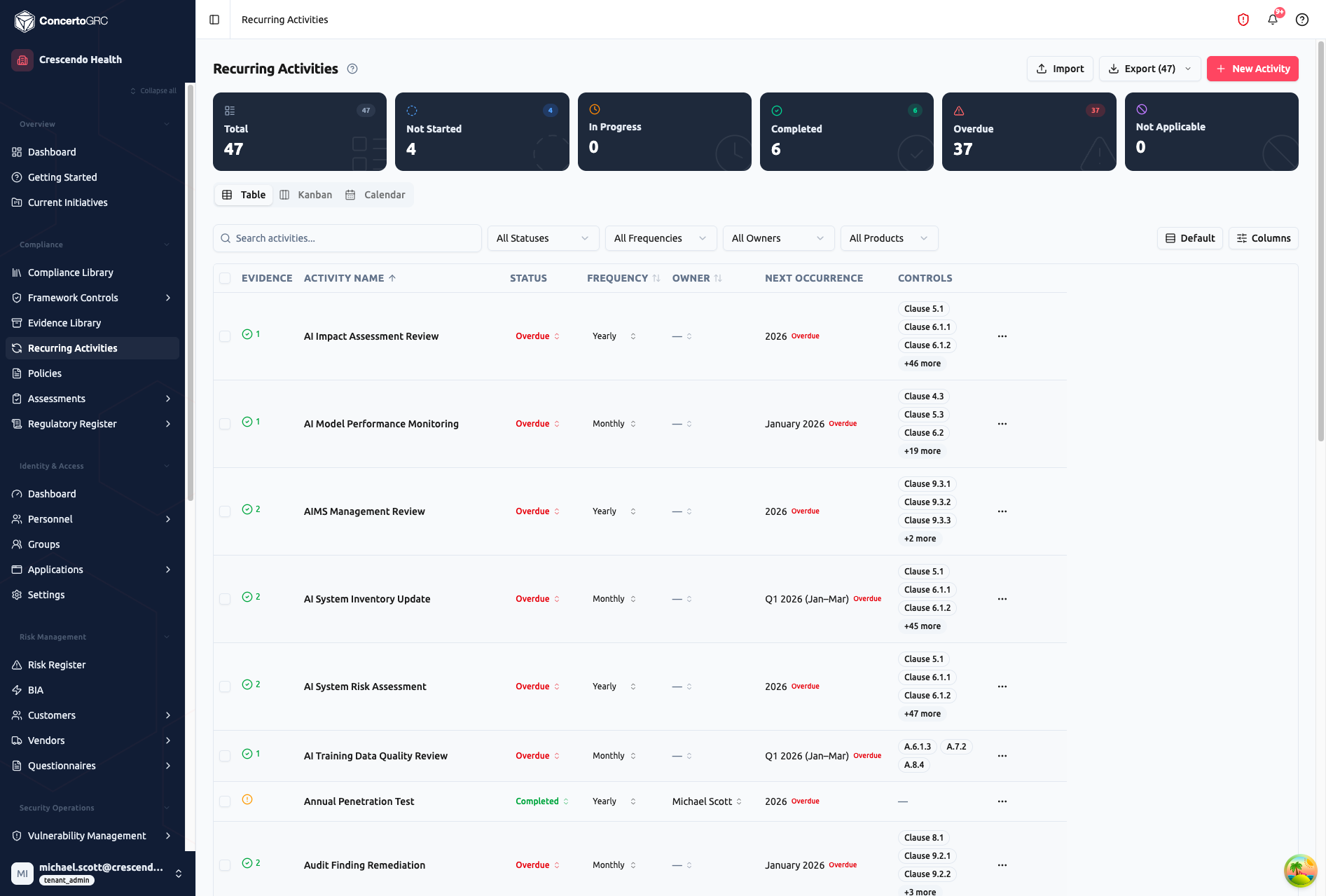
Access from Compliance > Recurring Activities in the sidebar. The page has three view modes (Table, Kanban, Calendar) with shared summary statistics and a filter bar.
Summary Statistics
The top bar shows live counts by status:
- Total -- All recurring activities
- Not Started -- Activity not yet begun for the current period
- In Progress -- Work is underway
- Completed -- Activity finished for the current period
- Overdue -- Past due date without completion
- Not Applicable -- Marked as not relevant
Click any stat card to filter to that status.
View Modes
Table View
The default view with sortable columns:
- Evidence -- Evidence link status icon (green check if linked, amber warning if not)
- Activity Name -- Activity title (click to open sidecar)
- Status -- Current status with color-coded badge
- Frequency -- Daily, Weekly, Monthly, Yearly, or As Needed
- Owner -- Assigned person (inline editable)
- Next Occurrence -- Next scheduled period with overdue indicator
- Controls -- Linked framework control badges (e.g., Clause 5.1, A.6.1.3)
Additional columns available via the Columns button: Start Date, Due Date, Supporting Policy, Notes, Remediation Status, Product, and per-framework mapping fields (SOC 2, HIPAA, ISO 27001, etc.).
Use the filter bar to search by text, filter by status, frequency, owner, or product.
Kanban View
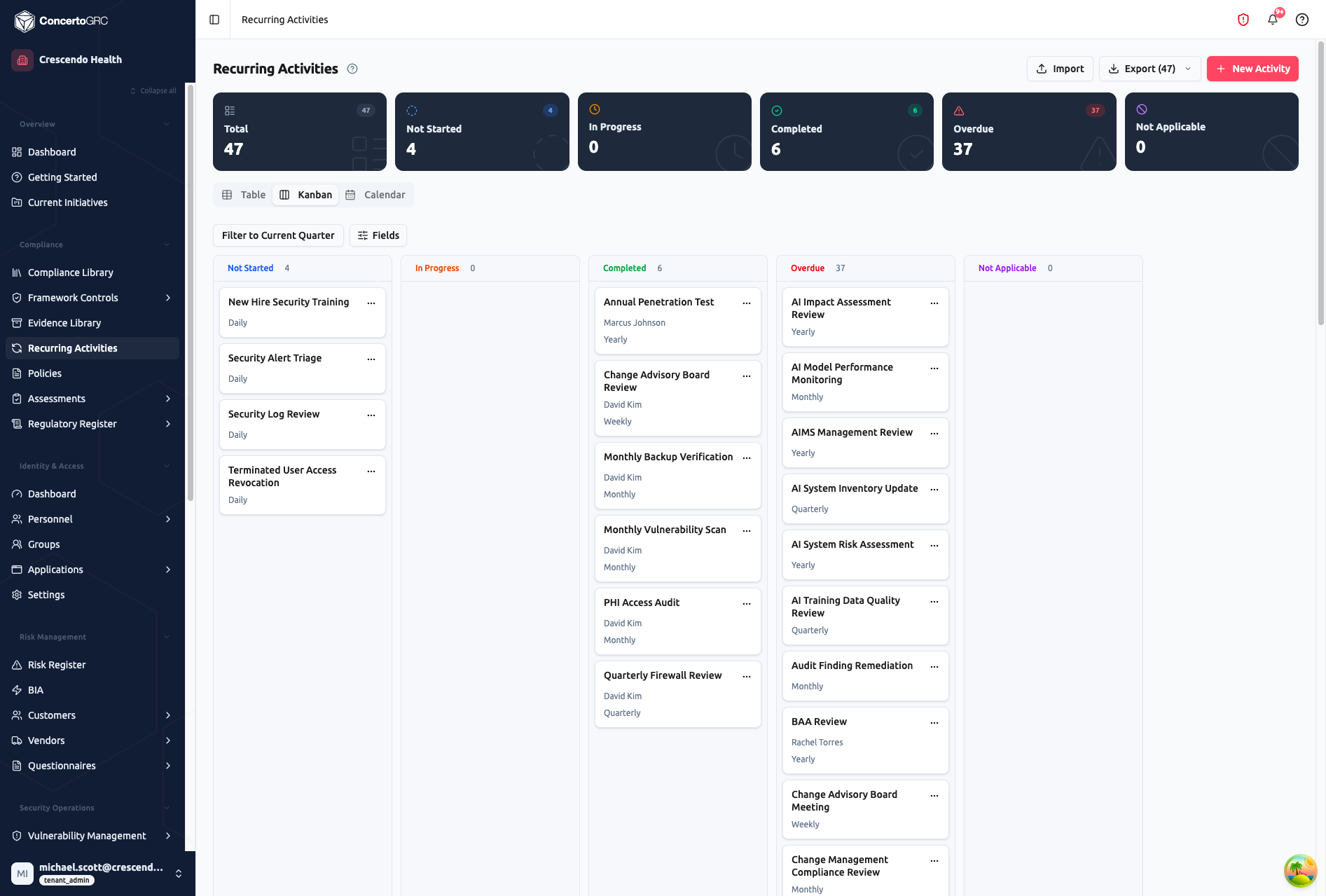
Activities displayed as cards grouped by status in five columns: Not Started, In Progress, Completed, Overdue, and Not Applicable. Each card shows the activity name, owner, and frequency.
- Drag and drop cards between columns to change status (saves immediately)
- Filter to Current Quarter to focus on what's due now
- Fields button toggles which fields display on cards (owner, frequency, due date, quarter badges)
- Click any card to open the detail sidecar
Calendar View
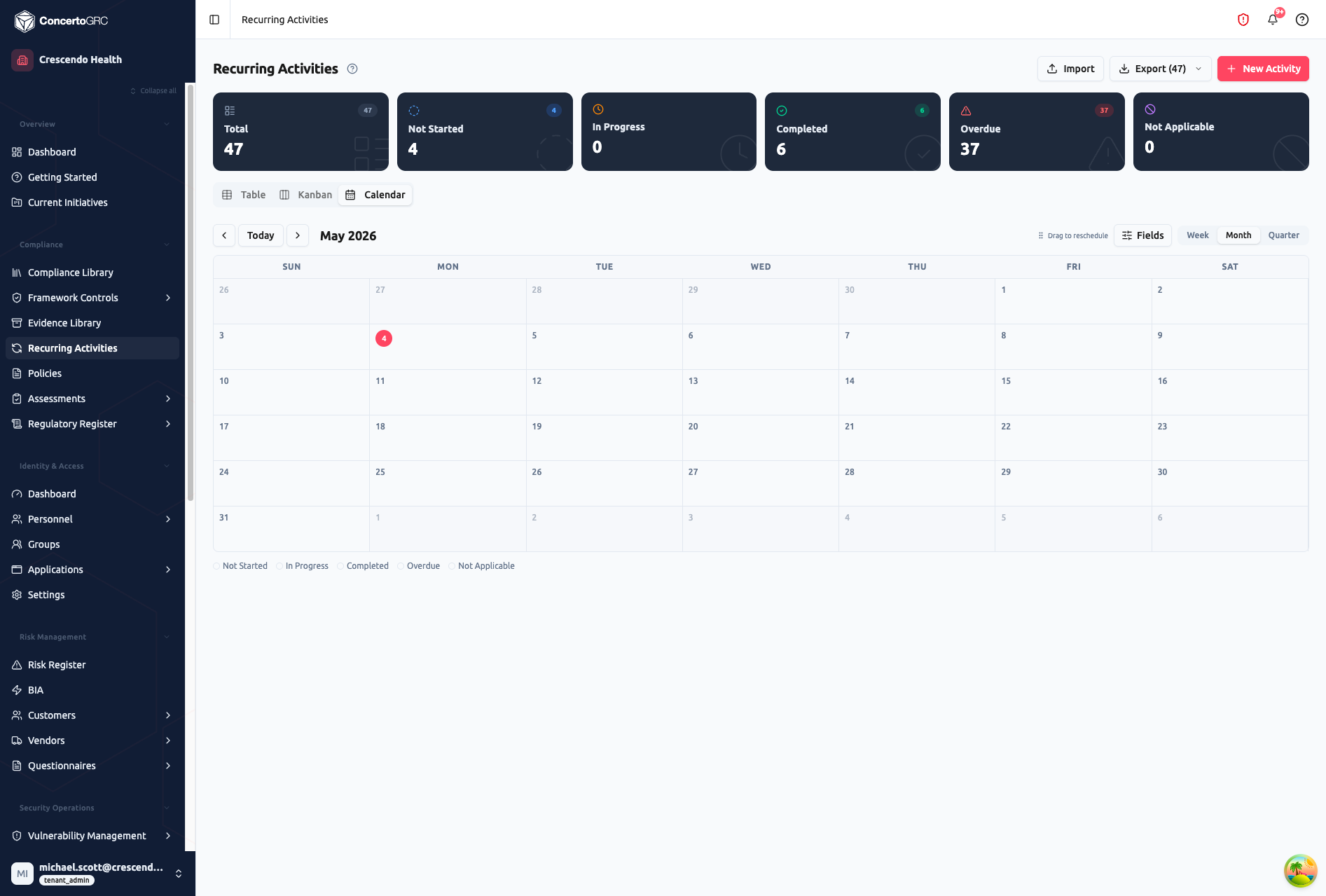
Activities plotted on a calendar by their start and due dates. Switch between three modes:
- Week -- 7-day view with activity time spans
- Month -- Monthly grid (default) with activity bars spanning start-to-due
- Quarter -- 3-month overview for planning
Activity bars are color-coded by status. Drag bars to reschedule start or due dates. Click any activity to open the detail sidecar.
Working with Activities
Click any activity row (or card) to open the detail sidecar with five tabs.
Details Tab
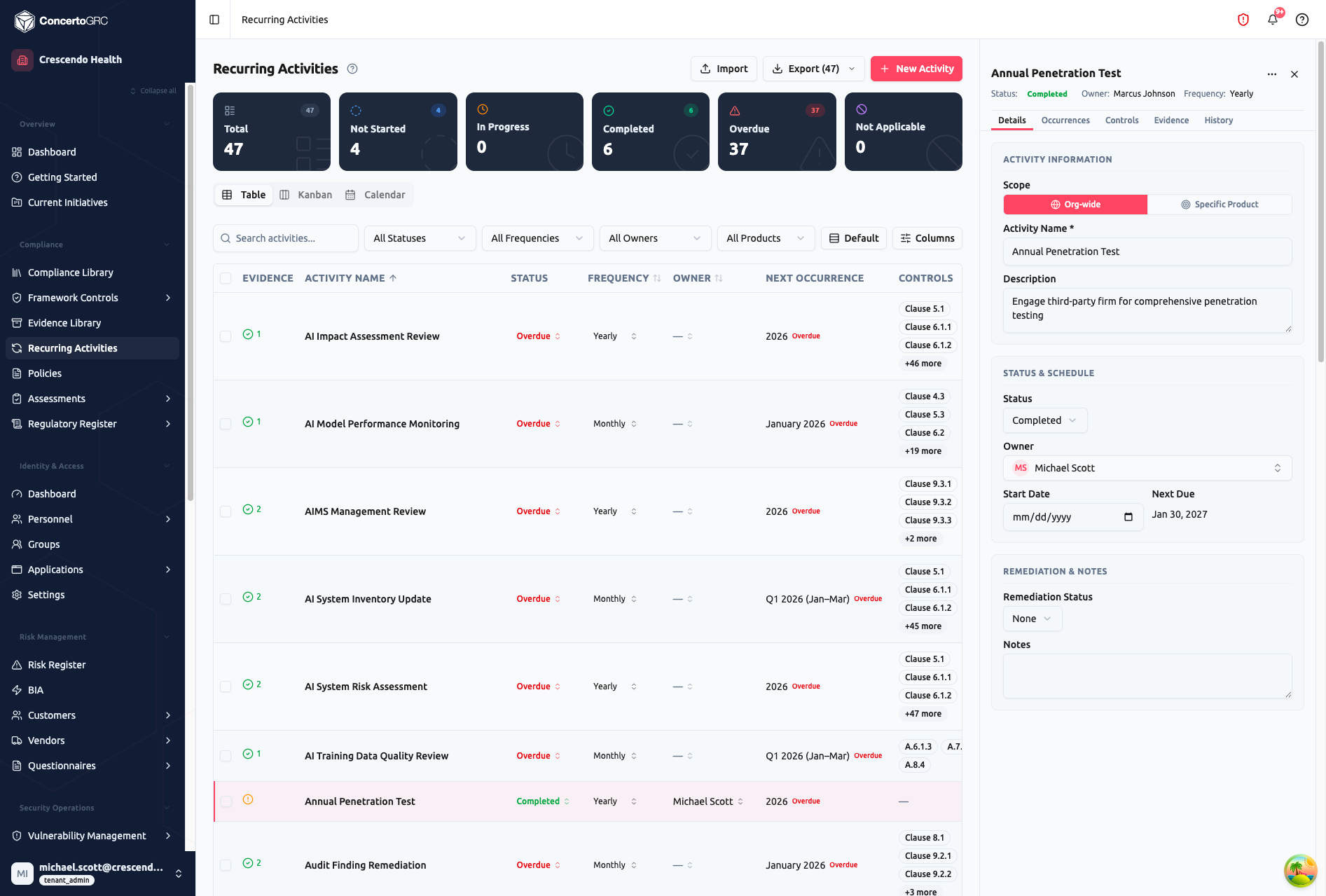
Header (always visible): Status badge, Owner name, Frequency label.
Activity Information:
- Scope -- Toggle between Org-wide (single status) and Specific Product (product-scoped)
- Activity Name (required) -- Short identifier
- Description -- What needs to be done (with AI generation button)
Status & Schedule:
- Status -- Current period status dropdown
- Owner -- Assigned person
- Start Date -- When the schedule begins
- Next Due -- Calculated from the recurrence rule
Remediation & Notes:
- Remediation Status -- None, Open, In Progress, Remediated, or Accepted
- Notes -- Free-form context
Occurrences Tab
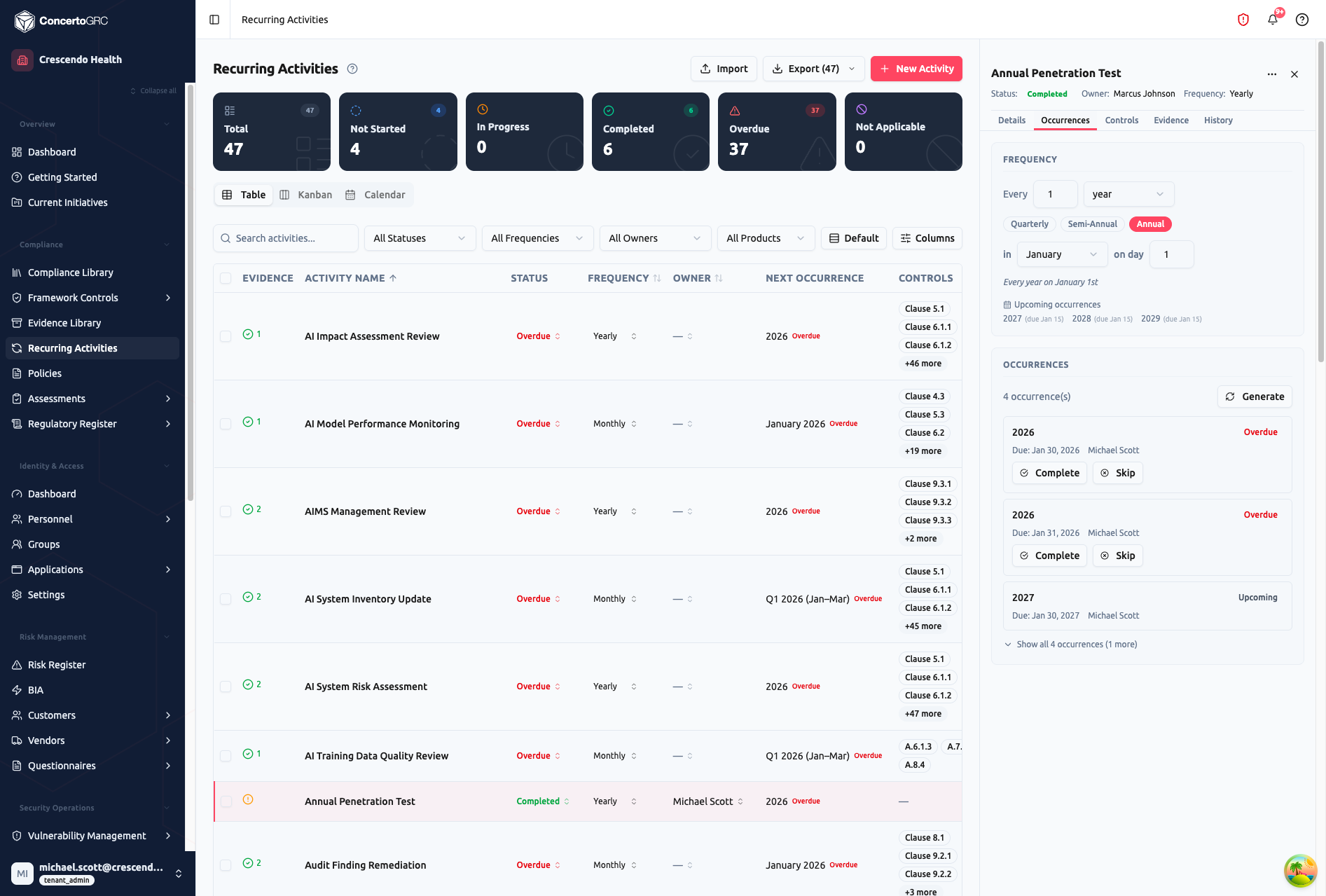
The Occurrences tab is the core workflow surface. It has two sections:
Frequency Configuration:
- Recurrence picker -- Set the interval (e.g., "Every 1 year") with presets: Quarterly, Semi-Annual, Annual
- Schedule details -- Month, day-of-month, day-of-week depending on frequency
- Upcoming occurrences preview -- Shows the next 3 scheduled periods with due dates
Occurrence Timeline: Each occurrence shows its period label (e.g., "2026", "Q1 2026 (Jan–Mar)"), due date, assigned owner, and status. Occurrences are sorted by priority: Overdue first, then Active, Upcoming, Completed.
Actions per occurrence:
- Complete -- Expand to enter completion date, notes, and upload evidence files (up to 25 MB). Uploaded files auto-satisfy linked evidence requests for that period
- Skip -- Expand to enter a justification (required) and optionally select a skip approver
- Generate -- Click the Generate button to regenerate future occurrences after schedule changes
Controls Tab
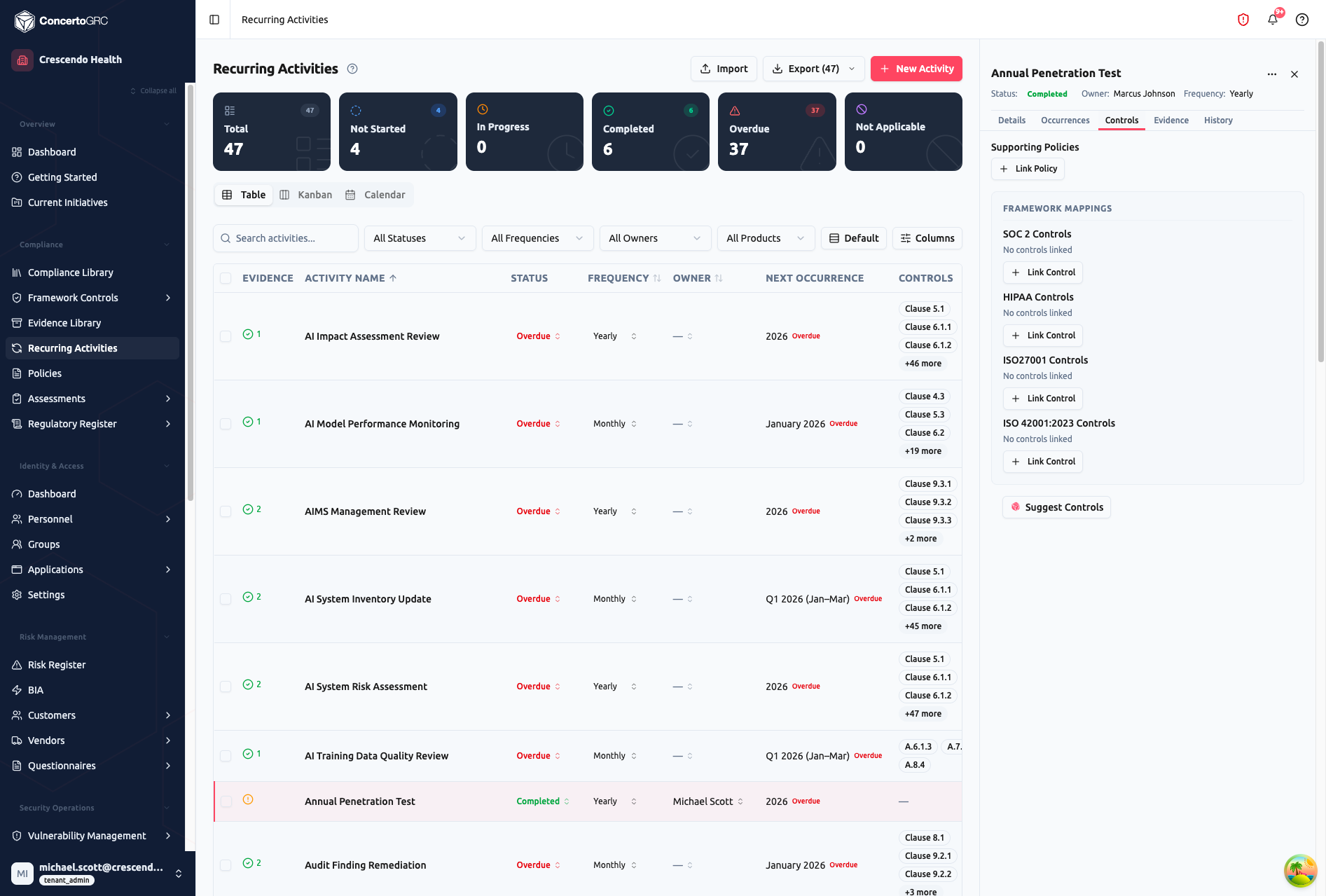
Supporting Policies: Link policies that this activity supports. Click + Link Policy to search and attach existing policies.
Framework Mappings: Link this activity to framework controls across all enrolled frameworks. Each framework section shows linked controls with their IDs. Click + Link Control to search and attach controls from that framework.
Suggest Controls: Click Suggest Controls to run AI-powered matching. The system analyzes the activity name and description to recommend relevant framework controls with confidence scores.
Evidence Tab
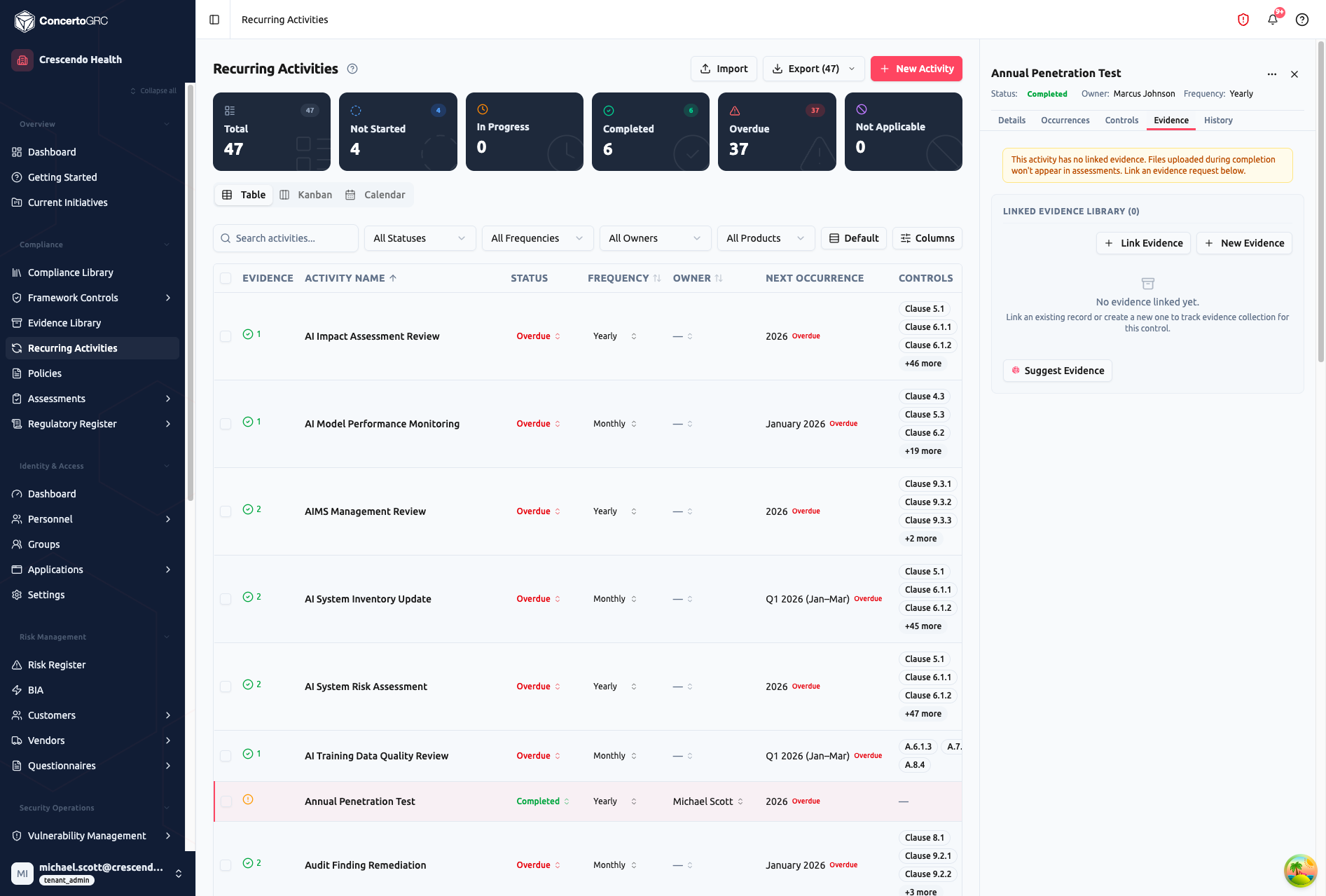
Warning Banner: When no evidence is linked, an amber banner warns that files uploaded during occurrence completion won't appear in assessments until an evidence request is linked.
Linked Evidence Library:
- + Link Evidence -- Search and attach existing evidence requests from the library
- + New Evidence -- Create a new evidence request inline, pre-linked to this activity
- Each linked evidence shows its name, category, type, and a "Primary Autofile" badge if enabled
Suggest Evidence: Click Suggest Evidence to run an AI-powered embedding search matching this activity against your evidence library. Accept matches to link them, dismiss irrelevant ones, or generate new evidence items.
Auto-filing: When an activity has linked evidence with autofile enabled, completing an occurrence and uploading files automatically creates an evidence collection record for that period.
History Tab
- Audit History -- Changelog of all field modifications with who changed what and when
- Occurrence History -- Archive of past occurrence completions with notes and attached files
Creating Activities
New Activity
Click + New Activity to open a creation wizard:
- Activity Basics -- Name (required) and description (with AI generation)
- Schedule & Frequency -- Recurrence picker with presets, schedule type, occurrence preview
- Assignment & Scope -- Owner, product scope, remediation status
- Evidence Linking -- AI-suggested evidence, search existing, or create new
- Framework Mappings -- Link to controls across enrolled frameworks
- Review -- Summary of all settings before creation
The wizard creates the activity and its evidence mappings in a single operation.
From Master Library
When your organization enrolls in a framework, recurring activities from the Master Framework Library are automatically deployed to your tenant. These inherited activities come pre-configured with schedules, framework mappings, and evidence links. You can customize any inherited activity -- a "Custom" badge appears to indicate local modifications. Use Reset to Master to revert customizations.
Occurrence Lifecycle
UPCOMING > ACTIVE > IN_PROGRESS > COMPLETED
    │         │          │
    │         │          └> OVERDUE (past due)
    │         └> OVERDUE (past due)
    └> SKIPPED (with justification)
| Status | Description |
|---|---|
| Upcoming | Scheduled but the period hasn't started yet |
| Active | Current period -- ready to work on |
| In Progress | Work has started on this occurrence |
| Completed | Finished successfully with optional evidence |
| Overdue | Past due date without completion |
| Missed | Period passed without any work |
| Skipped | Intentionally skipped (requires justification) |
Occurrences are auto-generated based on the frequency and schedule configuration. The system creates occurrences up to 12 months ahead (configurable). When you change the schedule, click Generate to regenerate future occurrences.
Frequency Options
| Frequency | Period Labels |
|---|---|
| Daily | "Day 1, 2026", "Day 2, 2026" |
| Weekly | "Week 1 2026", "Week 2 2026" |
| Monthly | "January 2026", "February 2026" (use Quarterly preset for "Q1 2026" labels) |
| Yearly | "2026", "2027" |
| As Needed | No auto-generation -- create occurrences manually |
Schedule Types
| Type | Behavior |
|---|---|
| Calendar | Occurrences align to calendar periods (e.g., first of each quarter) |
| Rolling | Next occurrence starts after the previous one completes |
| Fixed | Specific dates each year (e.g., every January 1 and July 1) |
Recurrence Presets
The recurrence picker includes one-click presets:
- Quarterly -- Every 3 months on the 1st
- Semi-Annual -- Every 6 months on the 1st
- Annual -- Every year on a specified date
Custom recurrence rules support interval, day-of-week, day-of-month, week-of-month, and month-of-year.
Activity Status
| Status | Description |
|---|---|
| Not Started | No work begun for the current period |
| In Progress | Work is underway |
| Completed | Activity finished for the current period |
| Overdue | Past due date without completion |
| Not Applicable | Does not apply for this period |
Remediation Status
If a recurring activity reveals a compliance gap, track remediation:
| Status | Description |
|---|---|
| None | No remediation needed |
| Open | Gap identified, remediation not started |
| In Progress | Remediation work underway |
| Remediated | Gap has been addressed |
| Accepted | Gap accepted as-is (risk acceptance) |
AI Features
Description Generation
Click the AI icon next to the Description field. The AI generates a context-aware activity description based on the activity name and your organization's compliance frameworks.
Evidence Suggestions
In the Evidence tab, click Suggest Evidence to run an AI-powered embedding search. The system matches the activity name and description against your evidence library. Results show matching evidence items with confidence scores (color-coded). Accept matches to link them, dismiss irrelevant ones, or generate new evidence records.
Control Suggestions
In the Controls tab, click Suggest Controls to find matching framework controls. The AI recommends controls from enrolled frameworks that this activity helps satisfy.
Inline Editing
All fields in the table are inline-editable:
- Owner -- Click to open the user selector
- Start/Due dates -- Click to open the date picker
- Status -- Click to open the status dropdown
Changes autosave immediately.
Bulk Actions
Select multiple activities using the checkboxes, then use the floating toolbar:
- Bulk Update -- Change status, owner, or other fields across selected activities
- Bulk Delete -- Remove selected activities (with confirmation)
Import & Export
Import
Click Import in the toolbar to bulk-import activities via CSV.
| Column | Required | Accepted Values |
|---|---|---|
| Activity Name | ✓ | Free text |
| Description | -- | Free text |
| Frequency | -- | DAILY, WEEKLY, MONTHLY, YEARLY, AS_NEEDED |
| Current Status | -- | NOT_STARTED, IN_PROGRESS, COMPLETED, OVERDUE, NOT_APPLICABLE |
| Owner | -- | Email or name |
| Start Date | -- | YYYY-MM-DD |
| Due Date | -- | YYYY-MM-DD |
| Supporting Policy | -- | Policy name |
| Notes | -- | Free text |
| Remediation Status | -- | NONE, OPEN, IN_PROGRESS, REMEDIATED, ACCEPTED |
Export
Click Export to download all activities as CSV. The export count is shown in the button (e.g., "Export (47)").