Policies & Procedures
The Policies module manages your organization's security and compliance policies through their full lifecycle -- from initial drafting through review, approval, publication, and employee acknowledgment. Each policy tracks its review cadence, version history, framework control mappings, and acknowledgment status across your workforce.
Overview
Access from Compliance > Policies in the sidebar. The page has six tabs: Table, Upcoming Reviews, Roadmap, Policy Status, Acknowledgments, and Review Settings.
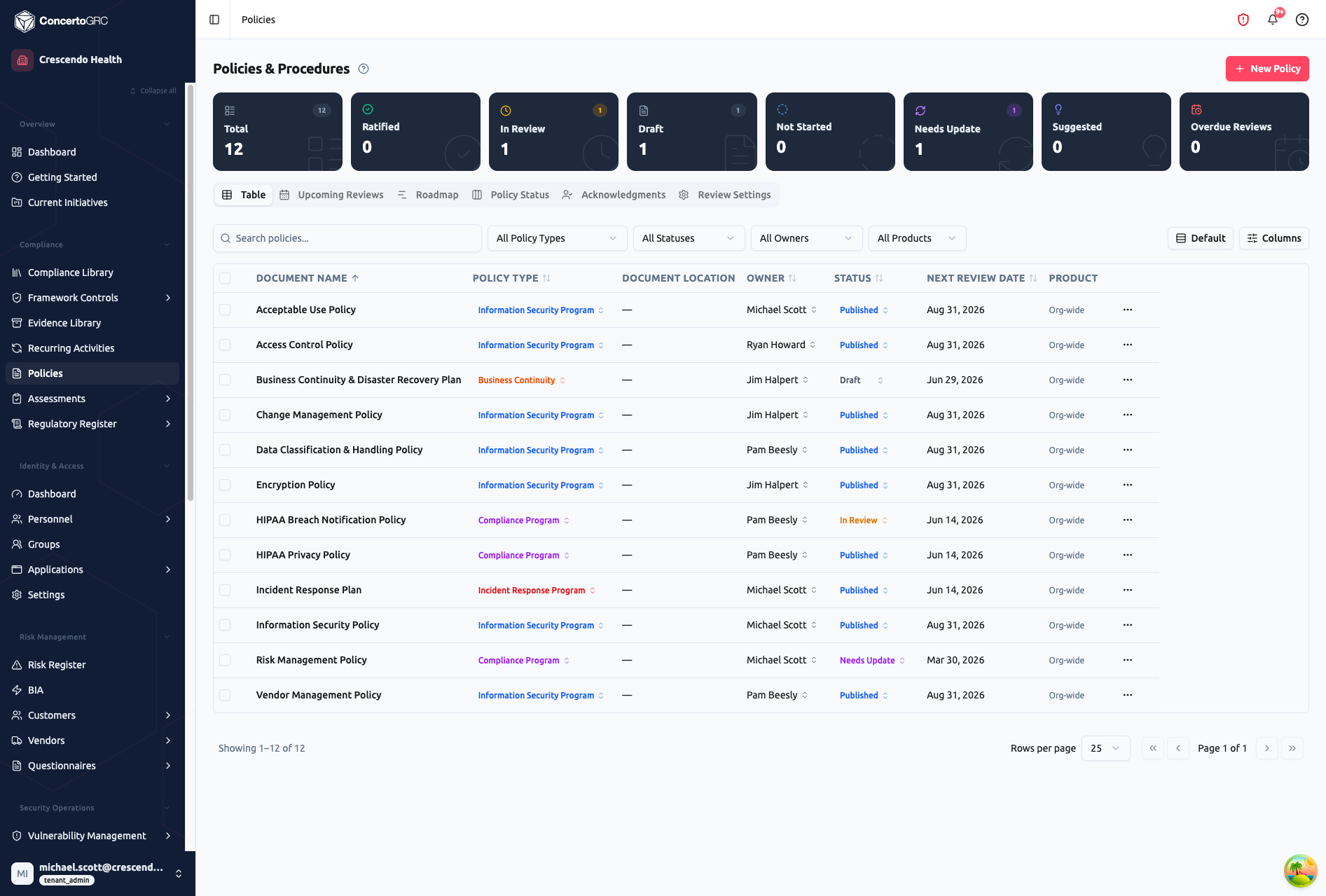
Summary Statistics
The top bar shows live counts by lifecycle status:
- Total -- All policies in your library
- Published -- Live and available to employees
- In Review -- Under stakeholder review
- Draft -- Being written or revised
- Not Started -- Acknowledged but drafting hasn't begun
- Needs Update -- Published but flagged for revision
- Suggested -- Recommended by the platform but not yet started
- Overdue Reviews -- Past their scheduled review date
Click any stat card to filter the table.
Table View
The default table shows all policies with sortable columns:
- Document Name -- Policy title (click to open sidecar)
- Policy Type -- Category with color-coded badge
- Document Location -- External URL to the canonical policy document
- Owner -- Assigned policy owner (inline editable)
- Status -- Lifecycle status with color-coded badge (inline editable)
- Next Review Date -- When the policy is next due for review (color-coded: red if overdue, amber if within 30 days)
- Product -- Org-wide or product-scoped
Use the filter bar to search by text, filter by policy type, status, owner, or product.
Upcoming Reviews
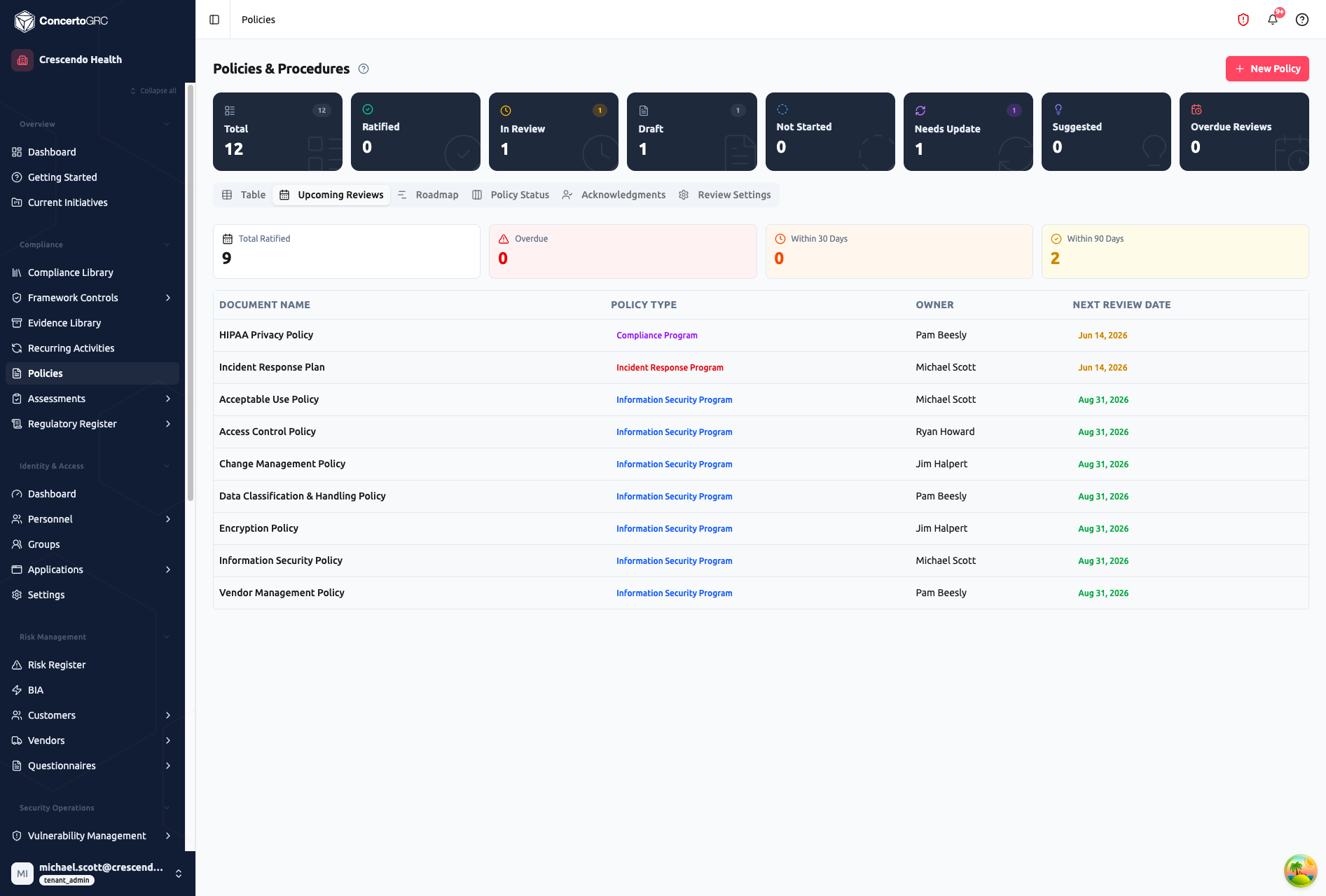
The Upcoming Reviews tab surfaces policies due for review, sorted by review date. The top bar shows:
- Total Published -- Policies currently in published status
- Overdue -- Reviews past their deadline
- Within 30 Days -- Reviews coming up in the next month
- Within 90 Days -- Reviews coming up in the next quarter
Review dates are color-coded by urgency. This view helps you plan review cycles and prevent policies from falling overdue.
Roadmap
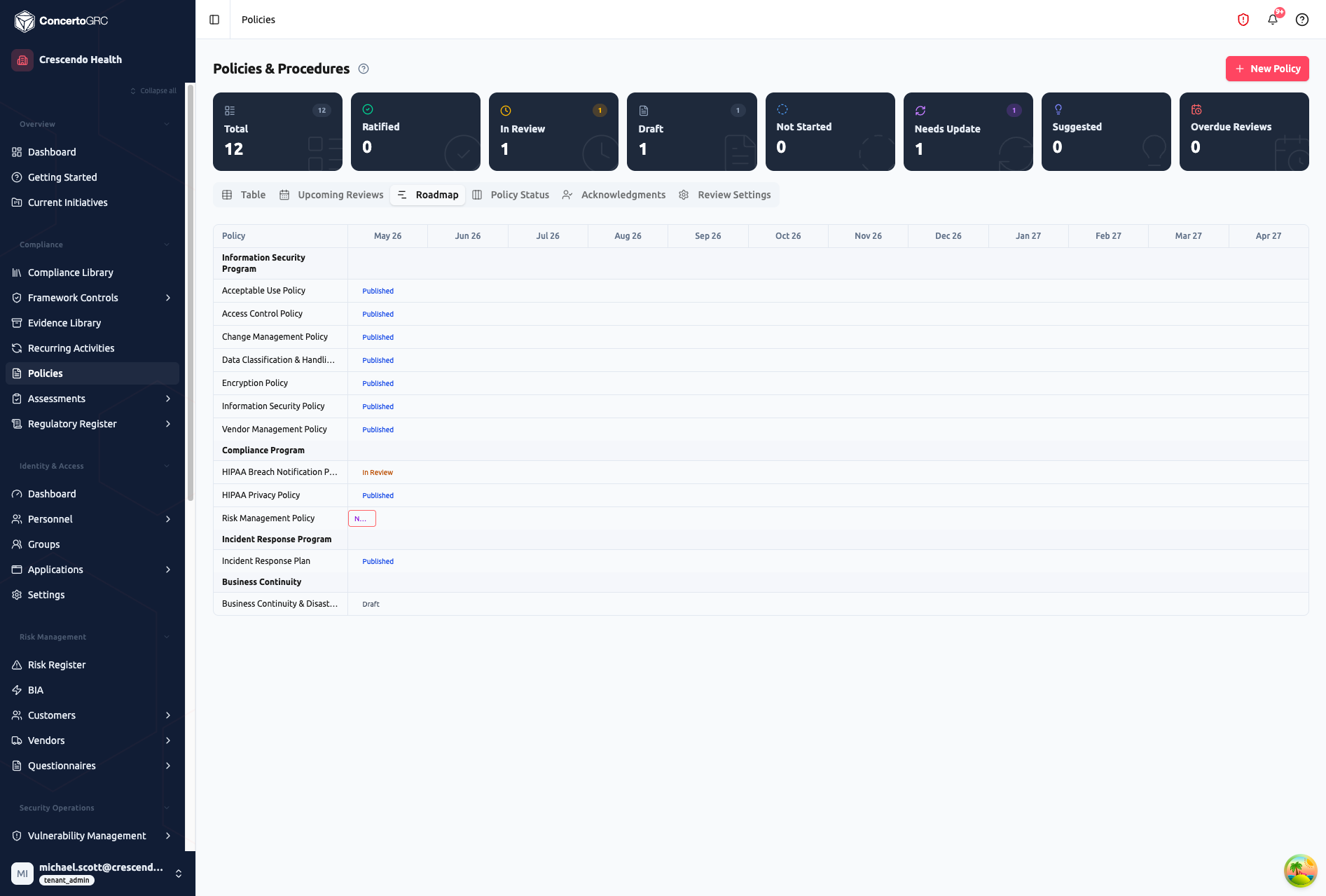
The Roadmap tab provides a Gantt-style timeline view of all policies grouped by type. Each row shows the policy name, current status badge, and a timeline bar spanning its review period. This gives a visual overview of your policy calendar and helps identify gaps or overlapping review windows.
Policy Status
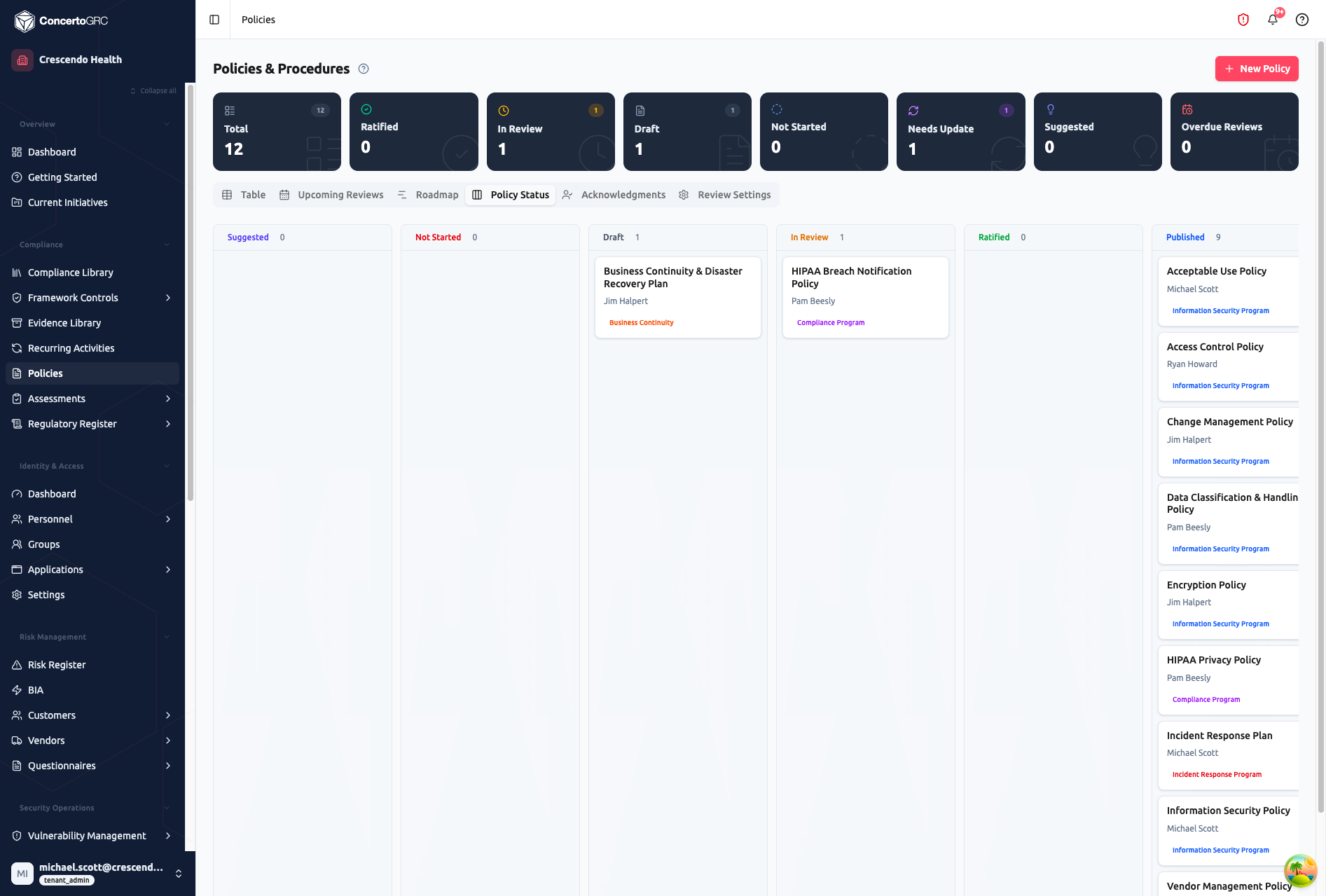
The Policy Status tab is a Kanban board showing policies in five lifecycle columns: Suggested, Not Started, Draft, In Review, and Published. Each card shows the policy name, owner, and policy type badge. Drag cards between columns to change status.
Acknowledgments
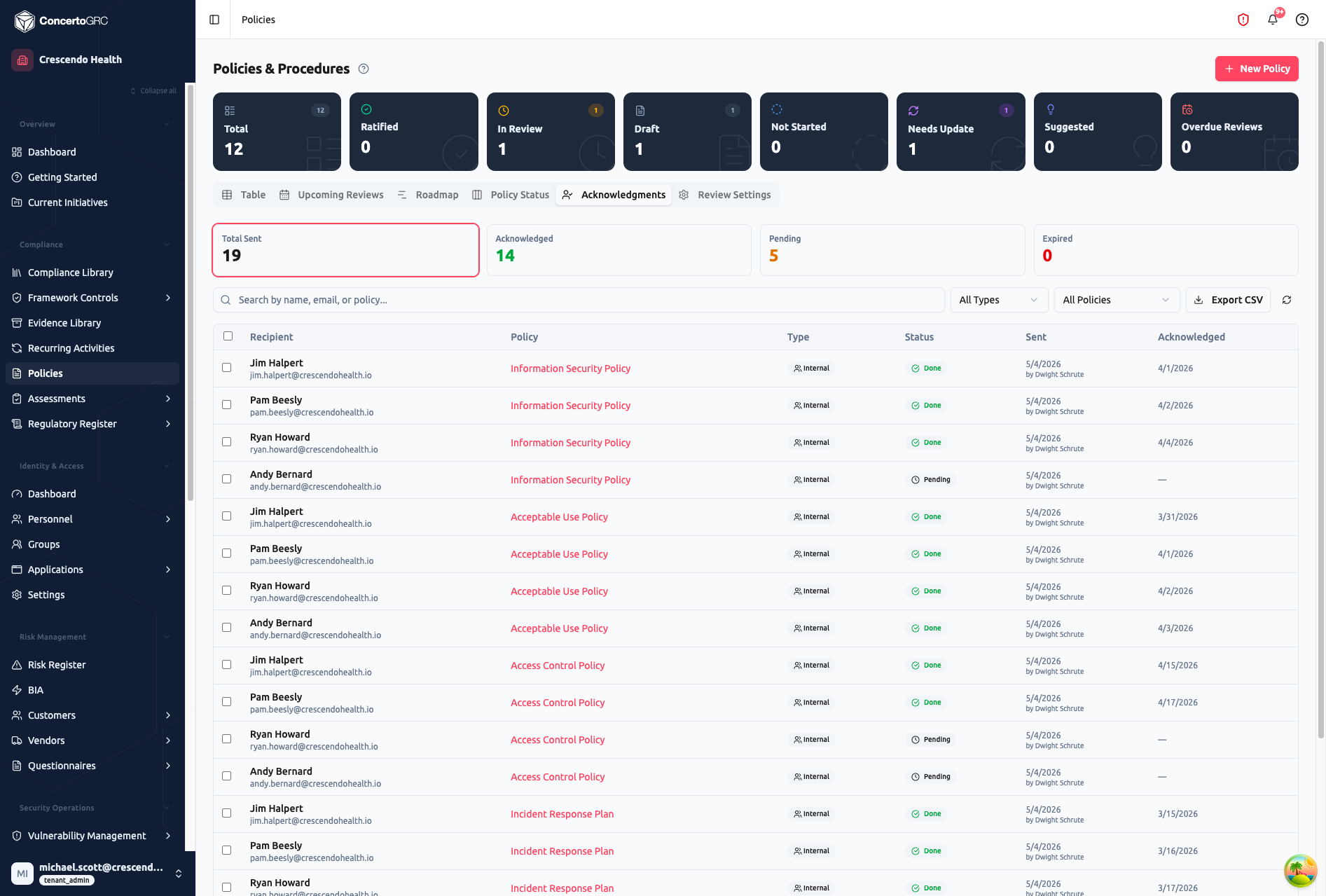
The Acknowledgments tab tracks employee policy acknowledgments across all policies. The top bar shows:
- Total Sent -- Total acknowledgment requests sent
- Acknowledged -- Completed acknowledgments
- Pending -- Outstanding acknowledgments awaiting employee action
- Expired -- Acknowledgments past their expiration
Filter by recipient name/email, acknowledgment type (Internal or External), or specific policy. Click Export CSV to download the full acknowledgment report.
Each row shows the recipient (name and email), linked policy, type (Internal for platform users, External for non-platform recipients), status (Done or Pending), sent date with sender name, and acknowledged date.
Review Settings
The Review Settings tab configures default review behavior for your policy program, including default review cadence and reminder settings.
Working with Policies
Click any policy row to open the detail sidecar. It has five core tabs, plus an Acknowledgments tab that appears when the policy has a published version.
Details Tab
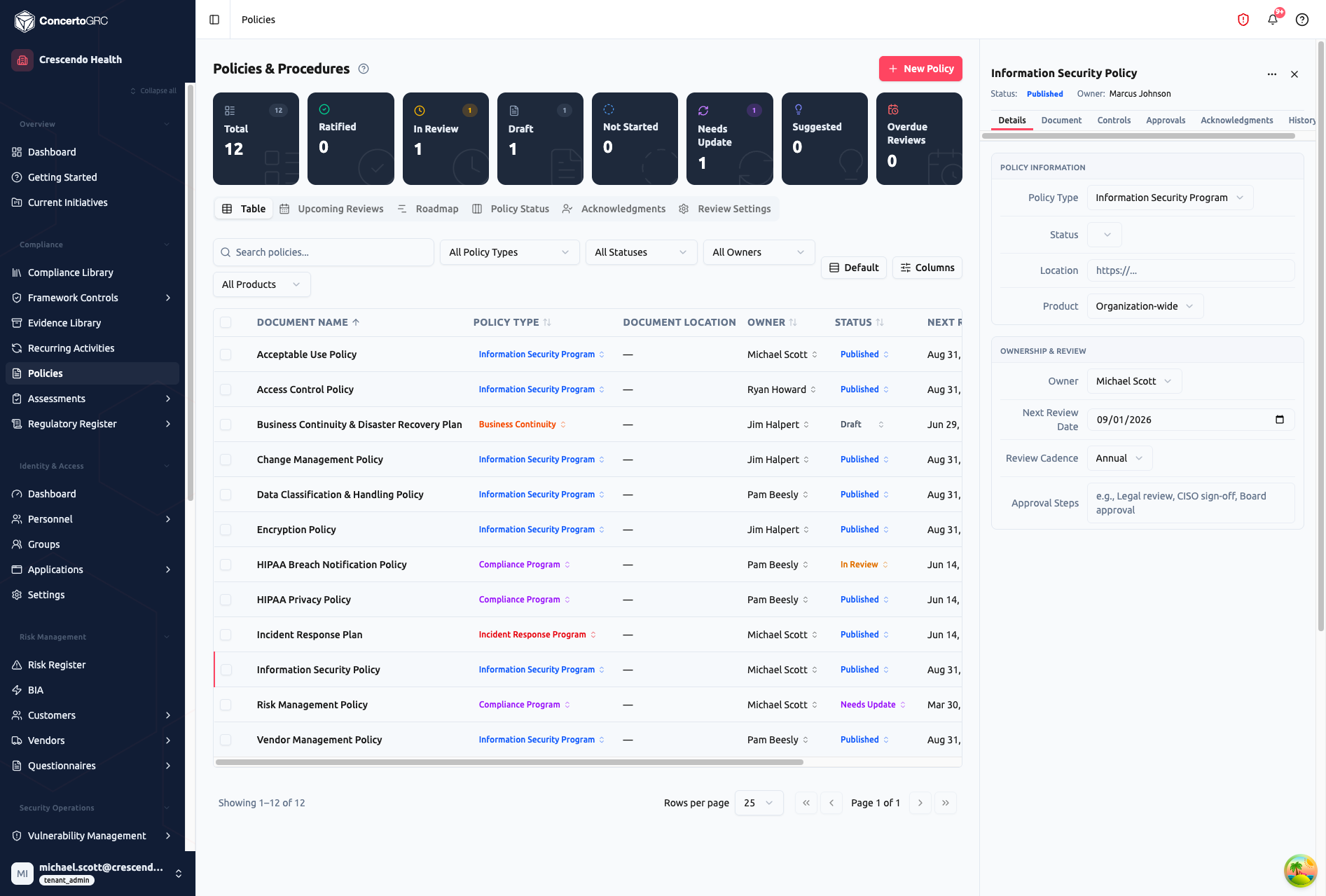
Policy Information:
- Policy Type -- Information Security Program, Compliance Program, Incident Response Program, or Business Continuity
- Status -- Current lifecycle status dropdown
- Location -- External URL to the canonical document (e.g., Google Docs, SharePoint, Confluence)
- Product -- Organization-wide or scoped to a specific product
Ownership & Review:
- Owner -- Person responsible for this policy
- Next Review Date -- When the policy is next due for review (auto-calculated from review cadence)
- Review Cadence -- How often the policy should be reviewed: Monthly, Quarterly, Semi-Annual, or Annual
- Approval Steps -- Free text describing the approval workflow (e.g., "Legal review, CISO sign-off, Board approval")
Document Tab
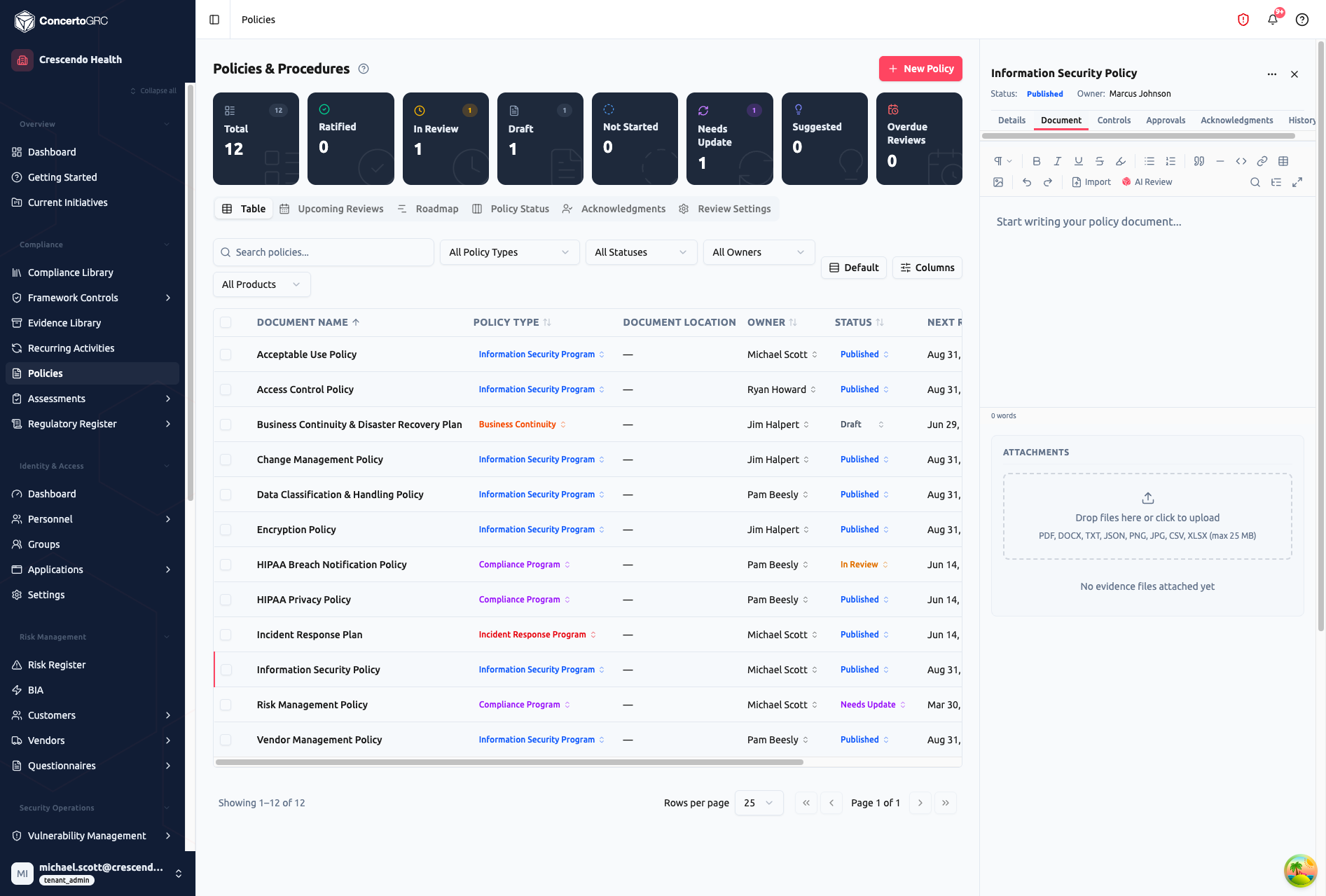
The rich text editor for writing and editing the policy document. The toolbar includes:
- Formatting -- Headings, bold, italic, underline, strikethrough, highlight
- Structure -- Bullet lists, numbered lists, blockquotes, horizontal rules
- Content -- Links, code blocks, tables
- Actions -- Undo/redo, Import, AI Review
- View -- Search, outline view, fullscreen editing
Import uploads an existing document (DOCX, TXT) and converts it to the editor format. AI Review sends the policy content to Claude for a compliance review -- the AI checks for completeness, suggests improvements, and flags gaps based on your compliance frameworks.
Attachments -- Upload supporting files (PDF, DOCX, TXT, JSON, PNG, JPG, CSV, XLSX -- max 25 MB) as reference materials for this policy.
The word count displays at the bottom of the editor.
Controls Tab
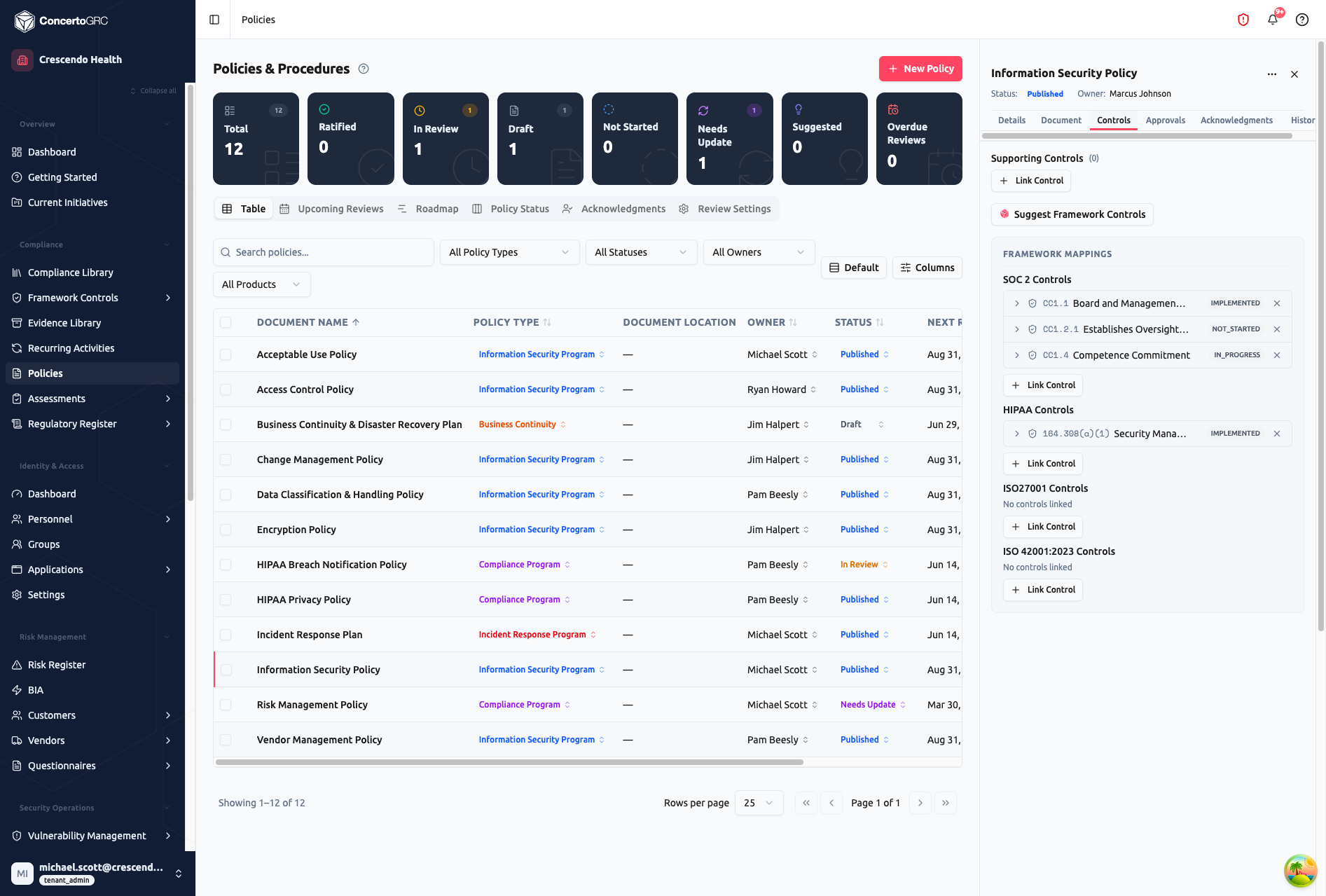
Supporting Controls: Link recurring activities that support this policy. Click + Link Control to search and attach existing recurring controls.
Suggest Framework Controls: Click to run AI-powered matching. The system analyzes the policy name and content to recommend relevant framework controls.
Framework Mappings: View and manage which framework controls this policy supports, grouped by framework. Each linked control shows its ID, title, and implementation status badge. Click + Link Control under any framework to search and attach controls.
Approvals Tab
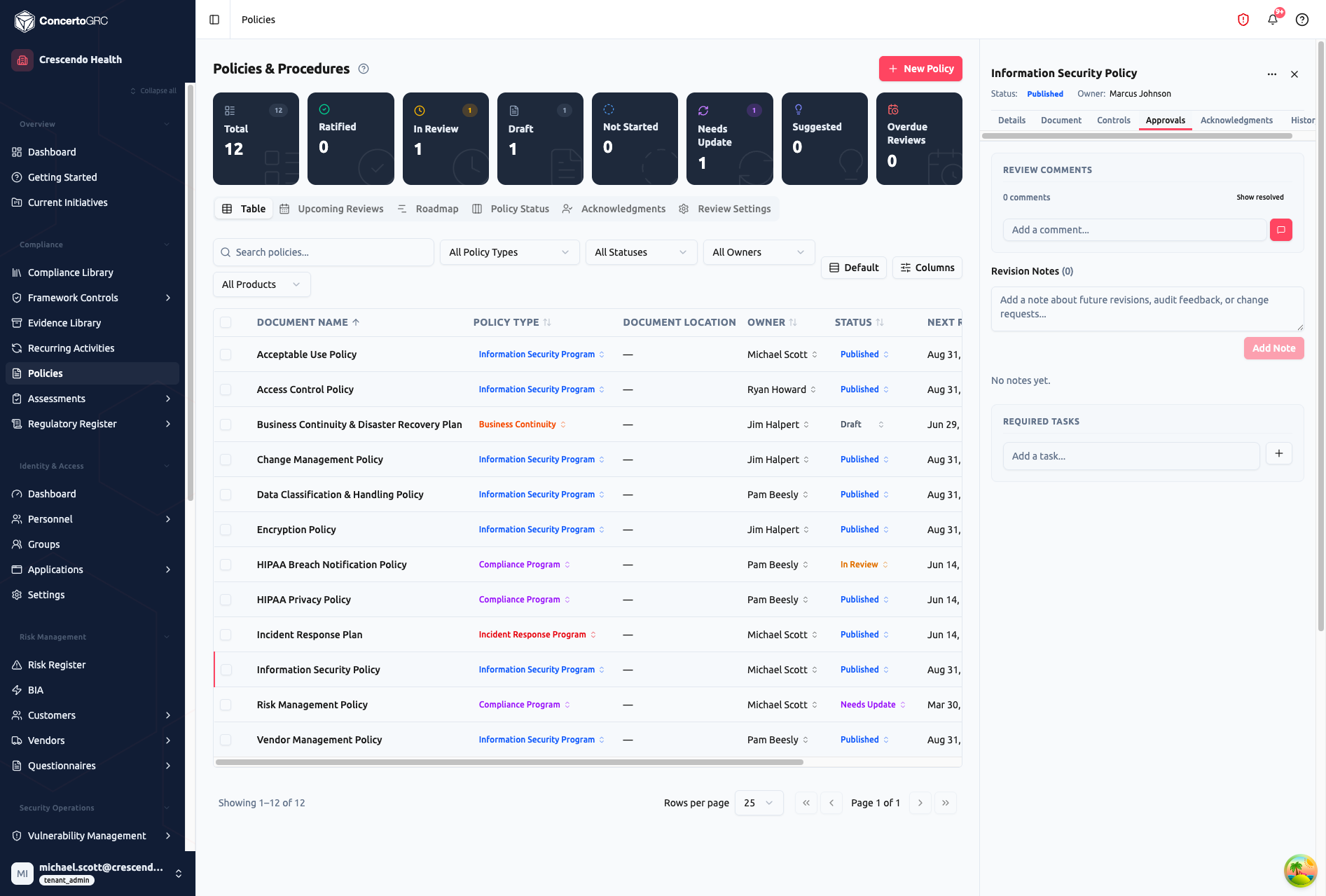
Review Comments: A threaded comment system for policy review discussions. Add comments, reply to threads, and mark comments as resolved. The comment count and "Show resolved" toggle help track review progress.
Revision Notes: Add notes about planned revisions, audit feedback, or change requests. Each note is timestamped and attributed to its author.
Required Tasks: Create and track tasks associated with this policy review -- action items for the policy owner or reviewers to complete before the policy can advance.
Acknowledgments Tab
This tab is only visible when the policy has a published version. Acknowledgments are version-aware -- each acknowledgment is tied to the specific policy version the recipient acknowledged. When a new version is published, prior acknowledgments are superseded and recipients can re-acknowledge the updated version.
- Send Acknowledgments -- Select internal users or enter external email addresses
- Track Status -- View who has acknowledged the current version and who is pending
- Resend Reminders -- Bulk-resend pending acknowledgment reminders
- Export -- Download acknowledgment records as CSV
History Tab
- Version History -- Track policy versions with diff comparison between versions
- Audit History -- Changelog of all field modifications, status changes, and review actions
Creating Policies
Click + New Policy to create a new policy. Fill in the document name (required), policy type, and owner. The policy opens in the sidecar in Draft status, ready for content authoring in the Document tab.
AI-Suggested Policies
When you enroll in a compliance framework, the platform may suggest policies that are commonly required. Suggested policies appear in the Suggested status and can be started with a click -- the system pre-fills the policy name and type based on framework requirements.
Policy Lifecycle
SUGGESTED > NOT_STARTED > DRAFT > IN_REVIEW > PUBLISHED
                            │                       │
                            └←←←←← NEEDS_UPDATE ←←←←┘
When all reviewers approve during the In Review phase, the policy is automatically published and a new version is created.
| Status | Description |
|---|---|
| Suggested | Recommended by the platform based on framework requirements |
| Not Started | Acknowledged but drafting hasn't begun |
| Draft | Being written or revised |
| In Review | Sent for stakeholder review -- auto-publishes when all reviewers approve |
| Published | Live and available to employees |
| Needs Update | Published but flagged for revision (returns to Draft) |
| Review Overdue | Past its scheduled review date (system-managed) |
Policy Types
| Type | Use For |
|---|---|
| Information Security Program | Core infosec policies (access control, encryption, data classification, acceptable use) |
| Compliance Program | Framework-specific compliance policies (HIPAA privacy, risk management) |
| Incident Response Program | IR plans and response procedures |
| Business Continuity | BC/DR plans and recovery procedures |
Review Cadence
| Cadence | Frequency |
|---|---|
| Monthly | Every month |
| Quarterly | Every 3 months |
| Semi-Annual | Every 6 months |
| Annual | Once per year |
When a policy's review date arrives, its status flags as Review Overdue until reviewed and re-published. The Upcoming Reviews tab surfaces policies approaching their review date.
Employee Acknowledgment
Published policies can require employee acknowledgment. Acknowledgments are version-aware -- each is tied to the specific policy version the recipient acknowledged:
- Send acknowledgments from the policy's Acknowledgments tab (only visible when a published version exists) -- select internal users or enter external email addresses
- Internal recipients see pending acknowledgments in the Employee Portal under the Policies module
- External recipients receive an email with a magic link to acknowledge
- Version supersession -- when a new version is published, prior acknowledgments are superseded and recipients can re-acknowledge the updated version
- Track completion in the Acknowledgments page tab -- filter by status, policy, or recipient type
- Bulk resend -- resend pending acknowledgment reminders to all outstanding recipients
- Export the full acknowledgment report as CSV for audit evidence
Acknowledgments have an expiration window. Expired acknowledgments are tracked separately and may need to be re-sent.
AI Features
AI Review
In the Document tab, click AI Review to have Claude analyze the policy content. The AI evaluates the policy against your enrolled compliance frameworks and provides feedback on completeness, clarity, and potential gaps.
Framework Control Suggestions
In the Controls tab, click Suggest Framework Controls to discover which controls across enrolled frameworks this policy helps satisfy.
Import & Export
Import
Click Import in the Document tab to upload an existing policy document (DOCX, TXT). The content is converted and loaded into the rich text editor.
Export
Policies can be exported from the rich text editor or downloaded as their original uploaded attachment format.