Settings
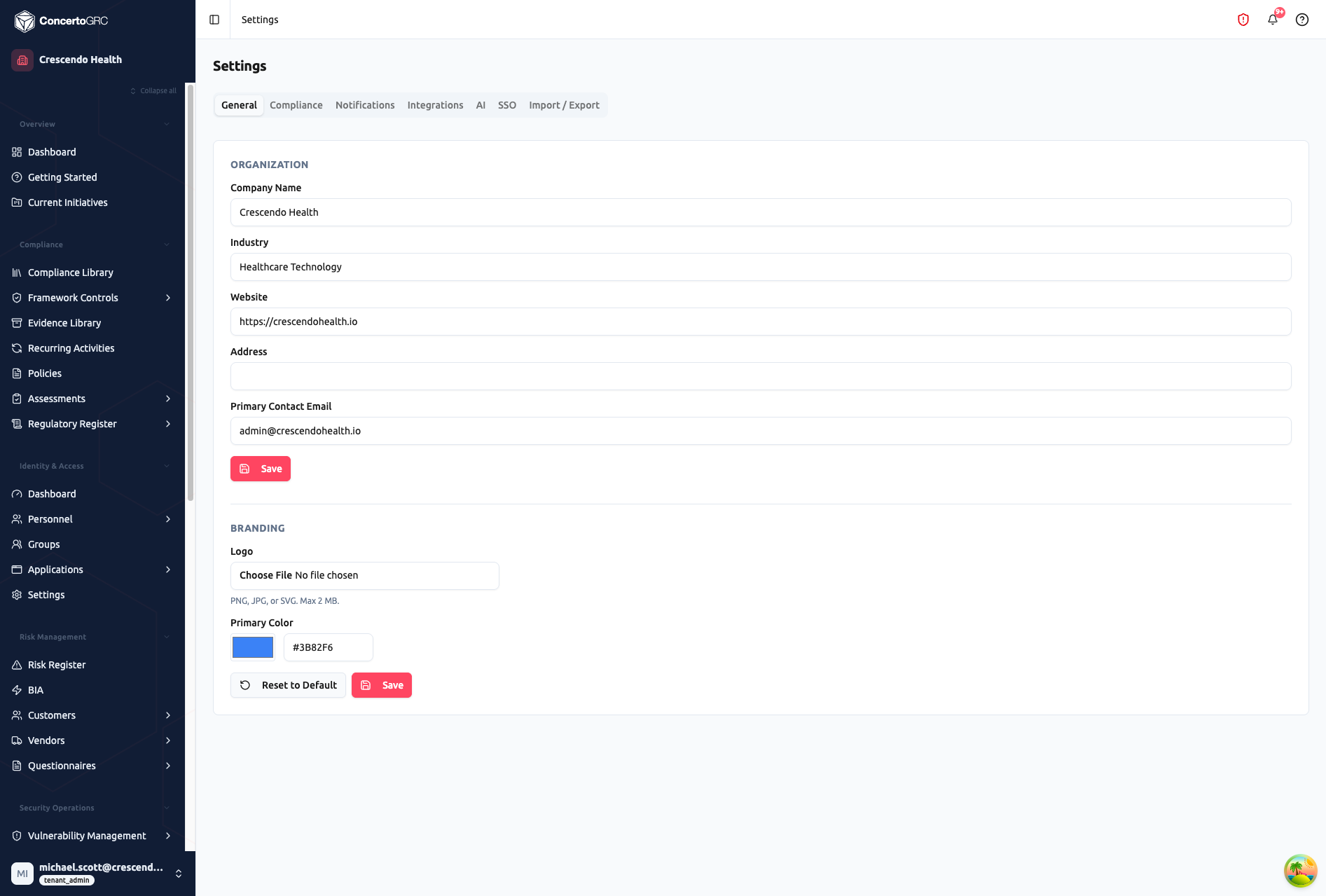
The Settings page centralizes your organization's configuration. Access from Administration > Settings in the sidebar. Settings are organized into five sections in a left-side navigation panel.
Organization
General
| Field | Description |
|---|---|
| Company Name | Your organization's display name |
| Industry | Industry classification (e.g., Healthcare Technology) |
| Website | Organization website URL |
| Address | Business address |
| Primary Contact Email | Main contact email for the organization |
Branding
| Field | Description |
|---|---|
| Logo | Organization logo (PNG, JPG, or SVG; max 2 MB) |
| Primary Color | Brand color with hex input and color picker |
Click Reset to Default to revert branding to the platform defaults.
Compliance
The Compliance section has two sub-tabs:
Frameworks
Toggle which compliance frameworks are active for your organization. Available frameworks include SOC 2, ISO 27001, ISO 42001, PCI DSS, HIPAA, GDPR, and others from the Master Framework Library.
Enabling a framework auto-enrolls the associated controls, evidence requests, and recurring activities.
Products
Manage products and scopes for per-product compliance tracking. Each product can be mapped to specific frameworks, allowing independent status and evidence per product.
Task Defaults
Configure default settings for task management across your organization. Requires the tenant.settings.manage permission.
Notifications
Configure organization-wide notification preferences:
- Digest emails -- Enable/disable, set frequency (daily/weekly), preferred day and time, timezone
- Email notifications -- Toggle per event type: task assigned, task overdue, task due soon, mentions, comment replies, control status changes, assessment assignments, report reviews, security alerts, support ticket updates
- In-app notifications -- Same toggles as email, controlling the in-platform notification bell
Connections
Integrations
Browse and configure integrations from the platform catalog. Integrations are grouped by category:
| Category | Examples |
|---|---|
| Cloud Infrastructure | AWS, Microsoft Azure, Google Cloud Platform |
| Identity & Access | Microsoft 365 (Entra ID), Google Workspace |
| Endpoint Management | Microsoft Intune, Jamf Pro, SimpleMDM |
| Communication | Slack |
| Task Management | Motion |
| Source Control & CI/CD | GitHub |
Each integration card shows connection status and provides configure/manage actions. Some integrations support multiple connections (e.g., multiple AWS accounts).
See Integrations for detailed setup guides.
SSO & MFA
Configure Single Sign-On and multi-factor authentication for your organization.
Supported Providers
| Provider | Description |
|---|---|
| Google Workspace | Google OAuth/OIDC integration |
| Microsoft Entra ID | Microsoft 365 SSO with tenant ID and client credentials |
SSO Settings
| Setting | Description |
|---|---|
| SSO Enforcement | Whether SSO is required or optional |
| Max Session | Maximum session duration in minutes |
| Idle Timeout | Session timeout after inactivity |
| MFA Policy | Multi-factor authentication requirements |
| MFA Grace Period | Days before MFA enforcement takes effect |
Security
Activity Log
View a chronological record of all changes made within your organization:
| Field | Description |
|---|---|
| Who | User who made the change |
| What | Record type and ID that was changed |
| When | Timestamp of the change |
| Changes | Previous and new field values |
Use the activity log for compliance evidence, incident investigation, or tracking configuration changes.
Employee Portal
Configure your organization's employee-facing portal. The portal provides employees with self-service access to vendor directories, training assignments, policy acknowledgments, and incident reporting. See Employee Portal for details.
Data
AI
View and configure AI-powered features across four categories: Orchestrator, Auto-Suggest, Analysis, and Generation. Each feature can be individually enabled/disabled with per-feature model selection.
AI model and prompt settings are managed by platform administrators (Concerto operators). Tenant administrators can view configurations but cannot modify them directly.
See AI Configuration for detailed settings.
Import / Export
Bulk import data into your organization from CSV files.
Supported Entity Types
| Entity | Description |
|---|---|
| Vendors | Vendor inventory records |
| Risks | Risk register entries |
| Recurring Controls | Recurring activity definitions |
| Policies | Policy and procedure records |
| BIA | Business impact assessment entries |
| Key Contacts | Organizational key contacts |
| Vulnerabilities | Vulnerability records |
| Projects | Project/initiative records |
Import Workflow
- Select entity type -- Choose what to import
- Upload CSV -- Upload your data file
- Map fields -- Match CSV columns to platform fields
- Set duplicate strategy -- Skip, update, or create duplicates
- Preview -- Review mapped data before importing
- Execute -- Run the import with progress tracking
Export history is available for previously completed imports.
Account
Support Access
Available for self-service and audit firm tenants. Grant temporary access to the Concerto support team for troubleshooting assistance.
| Duration | Description |
|---|---|
| 24 hours | Short-term support session |
| 7 days | Extended troubleshooting |
| 30 days | Longer engagement |
| Indefinite | Until manually revoked |
All grants and revocations are recorded in the Activity Log.