Users & Roles
The Users module manages team members within your organization. Administrators can invite new users, assign roles, manage module-level access, and enable or disable accounts. All role and status changes sync with AWS Cognito immediately.
Overview
Access from Administration > Users in the sidebar. The page has two tabs:
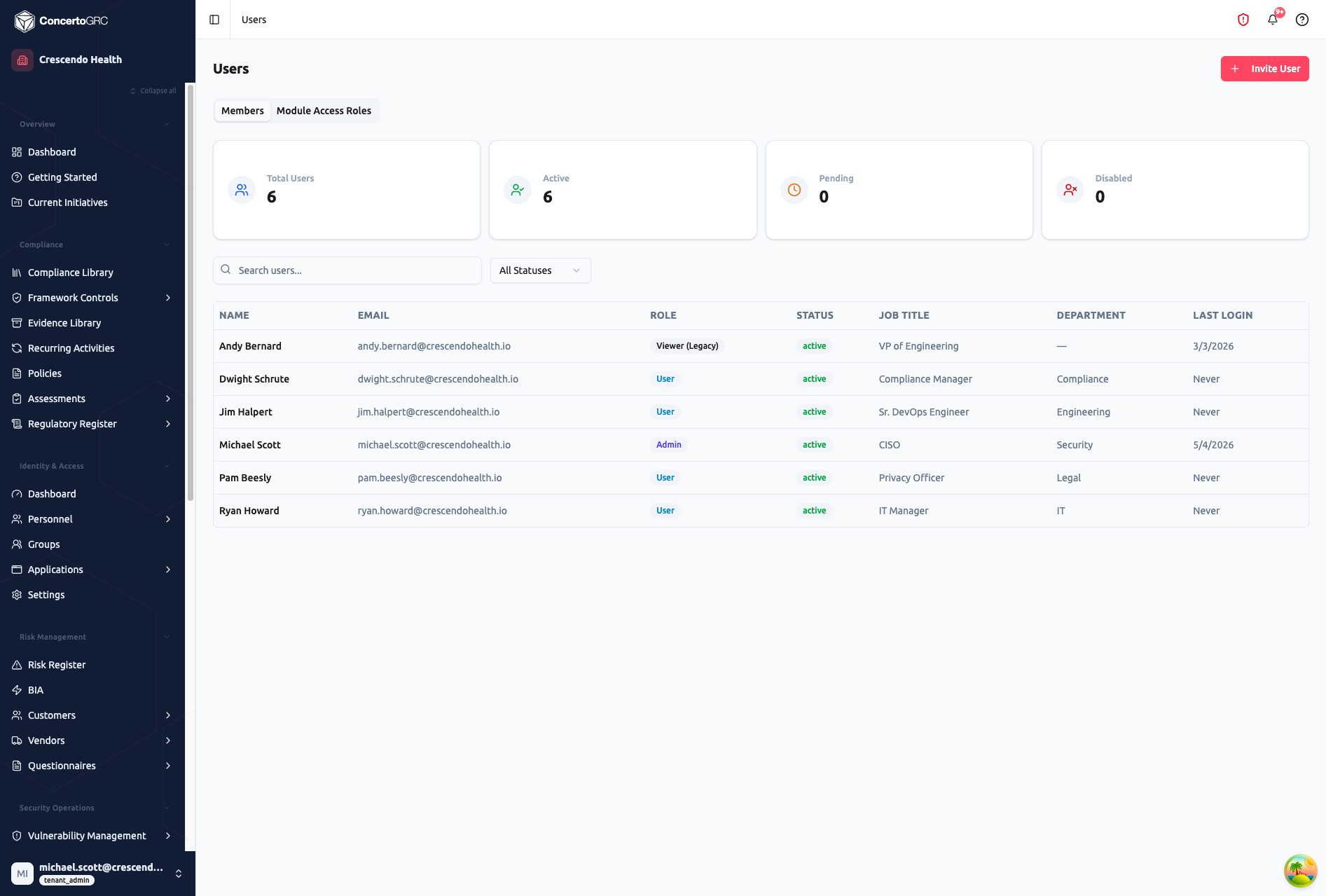
- Members -- User list with status cards, search, and detail sidecar
- Module Access Roles -- Granular module-level permission roles
Stat Cards
| Card | Description |
|---|---|
| Total Users | All users in the organization |
| Active | Users who can log in |
| Pending | Invited but haven't accepted yet |
| Disabled | Deactivated accounts |
User Table
| Column | Description |
|---|---|
| Name | User's full name (click to open detail sidecar) |
| Login email address | |
| Role | Color-coded role badge |
| Status | Active (green), Pending (amber), or Disabled (red) |
| Job Title | User's job title |
| Department | Assigned department |
| Last Login | Most recent login date, or "Never" |
Use the search bar to find users by name, email, job title, or department. Filter by status using the dropdown.
Inviting Users
Click + Invite User to open the invitation dialog.
- Enter email -- The system checks if the email belongs to an existing platform user
- Select role -- Choose a tenant role (Admin, User, Auditor, Executive, Compliance Reviewer, or Legal Approver)
- Set module access -- Optionally assign a Module Access Role for granular permissions
- Add profile details -- Job title, department, and phone (for new users)
- Send invitation -- The user receives an email to set up their account
If the email belongs to an existing platform user, they're added to your tenant without creating a new account.
User Detail
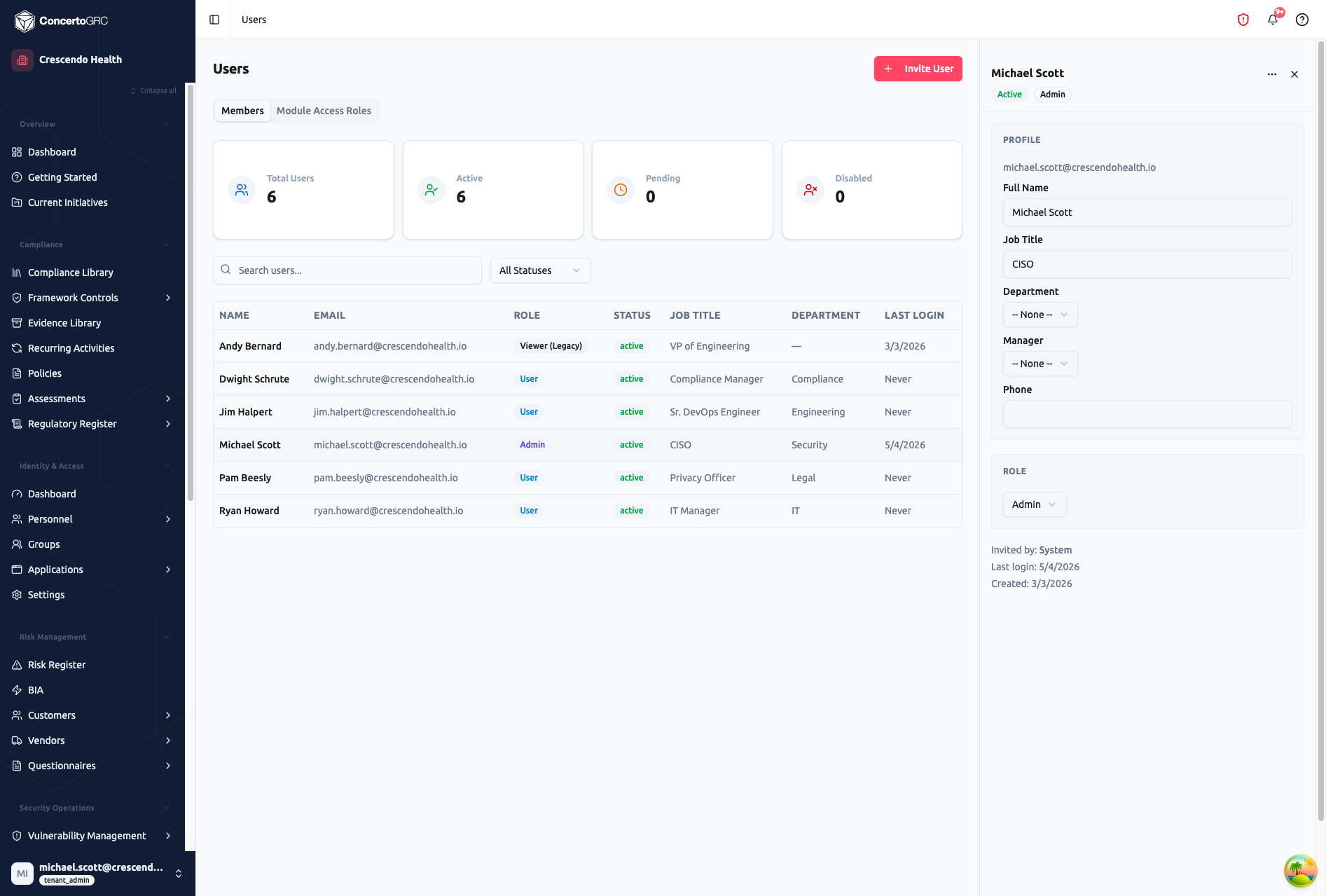
Click any user row to open the detail sidecar. All profile fields autosave on change.
Profile
| Field | Description |
|---|---|
| Login email (display only) | |
| Full Name | User's display name |
| Job Title | Position title |
| Department | Dropdown from organization's departments |
| Manager | Dropdown from organization's users |
| Phone | Contact phone number |
Role
Change the user's role using the dropdown. The change takes effect immediately on their next page load. Administrators cannot modify their own role.
Module Access
For non-admin users, you can assign a Module Access Role or customize per-module access:
- Module Access Role -- Select a predefined role that grants access to specific modules
- Custom Override -- Toggle individual module access with per-module checkboxes
Actions
The overflow menu (three dots) provides additional actions:
| Action | Description |
|---|---|
| Resend Invite | Resend the invitation email (for pending users) |
| Reset Password | Trigger a password reset via email |
| Disable Account | Prevent the user from logging in (preserves data attribution) |
| Enable Account | Re-enable a disabled account |
| Remove from Org | Remove the user from your organization (destructive, with confirmation) |
Metadata
The bottom of the sidecar shows:
- Invited by -- Who invited this user
- Last login -- Most recent login date
- Created -- Account creation date
Roles
Tenant Roles
| Role | Color | Access Level |
|---|---|---|
| Admin | Indigo | Full access -- manage settings, users, data, integrations |
| User | Sky | Read/write data -- cannot manage users or settings |
| Auditor | Amber | Read-only -- can view and export, cannot edit |
| Executive | Emerald | Dashboard-only -- high-level visibility |
| Compliance Reviewer | Teal | Customer commitment triage -- review and categorize incoming commitments |
| Legal Approver | Violet | Commitment approval -- approve or reject commitments after compliance review |
Role Permissions
| Permission Area | Admin | User | Auditor | Executive | Compliance Reviewer | Legal Approver |
|---|---|---|---|---|---|---|
| View dashboards | Yes | Yes | Yes | Yes | Yes | Yes |
| Read data | Yes | Yes | Yes | Limited | Scoped | Scoped |
| Create/edit data | Yes | Yes | No | No | Scoped | Scoped |
| Delete data | Yes | No | No | No | No | No |
| Manage users | Yes | No | No | No | No | No |
| Manage settings | Yes | No | No | No | No | No |
| Manage integrations | Yes | No | No | No | No | No |
| View reports | Yes | Yes | Yes | Yes | No | No |
| Generate reports | Yes | No | No | No | No | No |
| Export data | Yes | Yes | Yes | No | Scoped | Scoped |
| Review commitments | Yes | No | No | No | Yes | Yes |
| Approve commitments | Yes | No | No | No | No | Yes |
"Scoped" indicates access is limited to the Customer Commitments module.
See Roles & Permissions for detailed permission breakdowns.
Module Access Roles
The Module Access Roles tab lets you create reusable permission profiles that control which platform modules a user can access.
Each role defines:
- Name -- Role name (e.g., "Compliance Team", "Security Analyst")
- Description -- What this role is for
- Module Keys -- Which modules are accessible
- Full Access -- Toggle to grant access to all modules
Assign Module Access Roles to users during invitation or from the user detail panel. All members with a given role inherit changes immediately when the role is updated.
User Statuses
| Status | Color | Description |
|---|---|---|
| Active | Green | User can log in and use the platform |
| Pending | Amber | Invitation sent, user hasn't completed account setup |
| Disabled | Red | Account deactivated, user cannot log in |
Deactivated users retain their data attribution (created by, assigned to) across all records.
Key Contacts
Access from Administration > Key Contacts.
Key Contacts are designated individuals for specific compliance roles (e.g., CISO, DPO, Privacy Officer). These contacts appear in assessment reports and are used for automated notifications. Unlike regular users, key contacts don't need a platform login -- they can be external individuals.
Support Access
Tenants can grant temporary access to the Concerto support team for troubleshooting:
| Duration | Description |
|---|---|
| 24 hours | Short-term support session |
| 7 days | Extended troubleshooting |
| 30 days | Longer engagement |
| Indefinite | Until manually revoked |
All support access grants are logged in an audit trail. Access can be revoked at any time from Administration > Settings.