Vendor Management
Vendor Management tracks your third-party relationships, assesses their risk, and ensures appropriate due diligence. Vendors are scored by impact and likelihood, tiered by risk level, and monitored on a review cadence driven by their risk tier.
Overview
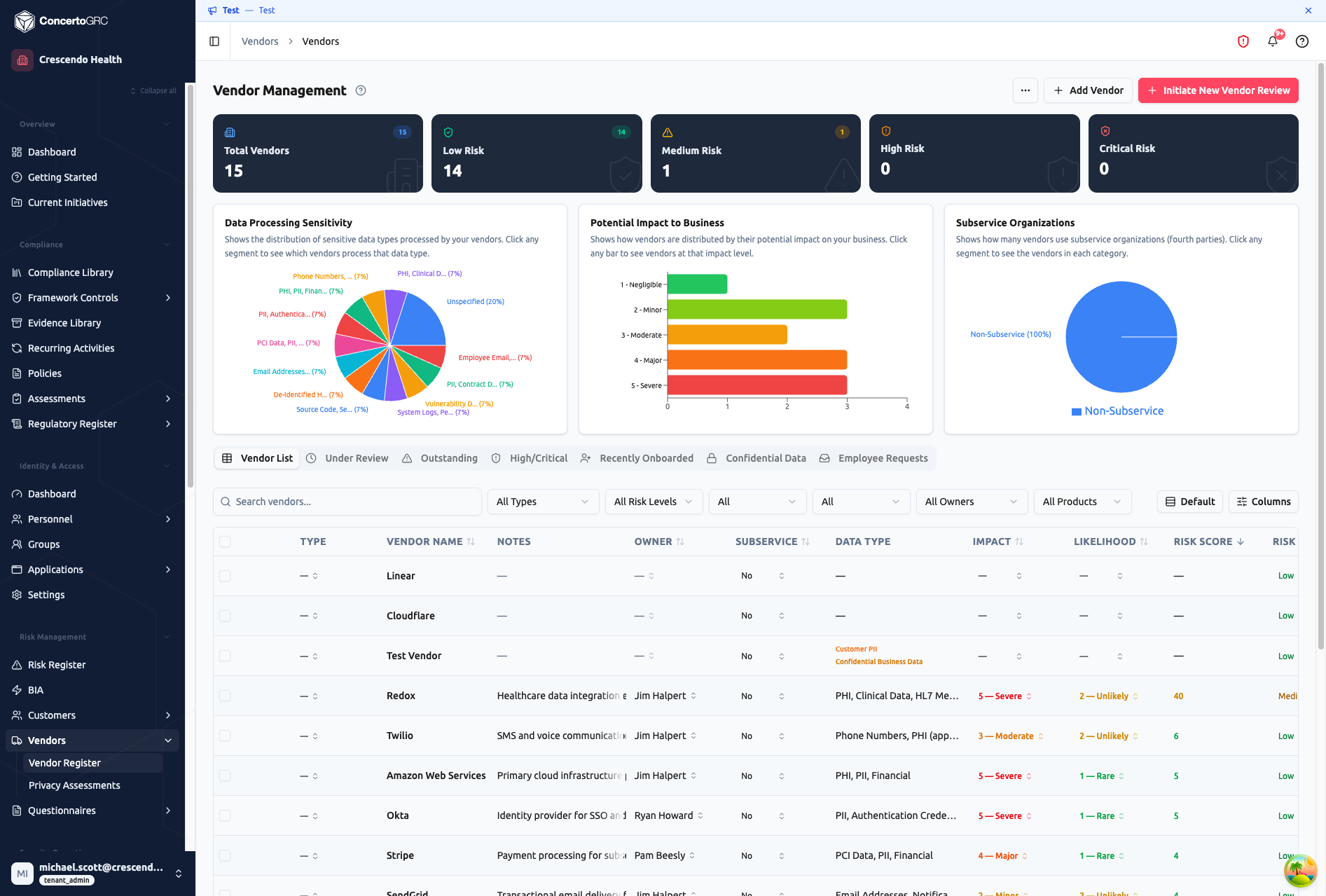
Access from Risk Management > Vendors > Vendor Register in the sidebar. The top bar shows vendor counts by risk tier, and three interactive charts visualize your vendor landscape: data processing sensitivity, business impact distribution, and subservice organization breakdown. Click any chart segment to filter the table.
Adding Vendors
Add Vendor
Click + Add Vendor to open the sidecar in create mode. Fill in the vendor name and basic details, then save. Best for quickly adding a vendor you'll flesh out later.
Initiate New Vendor Review
Click + Initiate New Vendor Review for a guided 5-step wizard that walks through the full onboarding workflow:
- Vendor Info -- Name, service description, owner assignment
- Data & Service -- Data types processed, subservice designation, attestation type, file upload (SOC 2 reports, ISO certs, pen test reports)
- Risk Assessment -- Impact (1–5) and likelihood (1–5) with live score calculation
- Due Diligence -- Due diligence notes, legal review toggle. If attestation files were uploaded, AI auto-generates due diligence notes
- Review & Create -- Summary of all steps with edit buttons before final creation
Working with Vendors
Click any vendor row to open the detail sidecar. The header shows the vendor's risk tier badge, assigned owner, and a New Assessment button that adapts to context:
- "Conduct Initial Assessment" -- if never reviewed
- "Review Due Soon" -- within 30 days of next review
- "Review Overdue" -- past the next review date
Details Tab
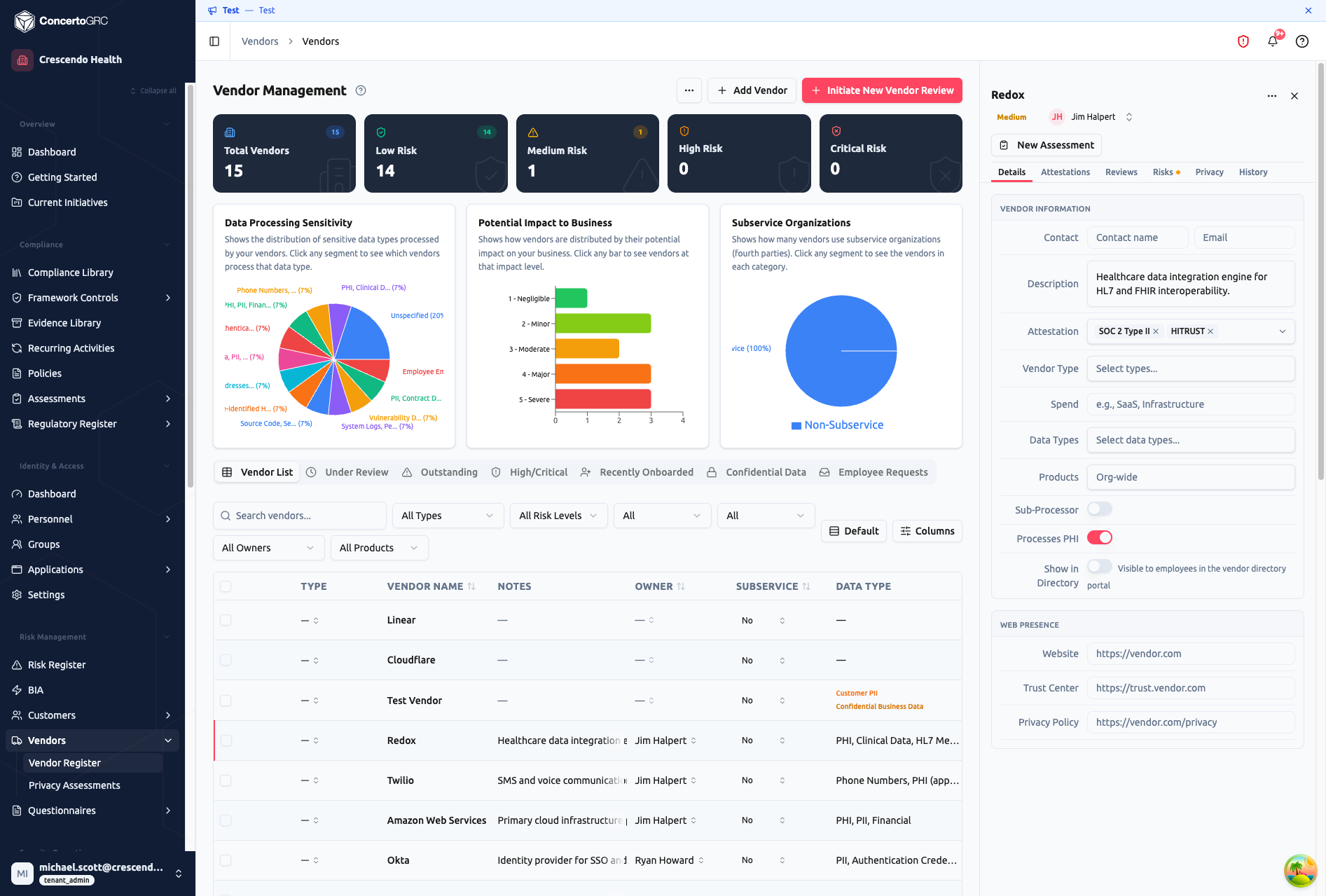
- Vendor Information -- Contact name and email, description (with AI generation), attestation types (SOC 2 Type II, HITRUST, ISO 27001, etc.), vendor type, spend category
- Data Types -- Multi-select the types of data this vendor processes (PII, PHI, Financial, custom labels). Drives the "Confidential Data" filtered view
- Products -- Scope to organization-wide or specific products
- Sub-Processor -- Toggle if the vendor uses sub-processors. Expands to capture processing purpose, location, transfer mechanism, and security measures
- Data Type Labels -- Assign data type labels (e.g., PHI, PII) to classify what data this vendor handles. When a label with BAA tracking enabled is assigned, BAA tracking appears on the Attestations tab
- Show in Directory -- Publish this vendor to the Employee Portal vendor directory
- Web Presence -- Website, trust center URL, privacy policy URL. The AI URL discovery button can auto-detect these from the vendor's domain
- Custom Fields -- Tenant-configurable fields
Attestations Tab
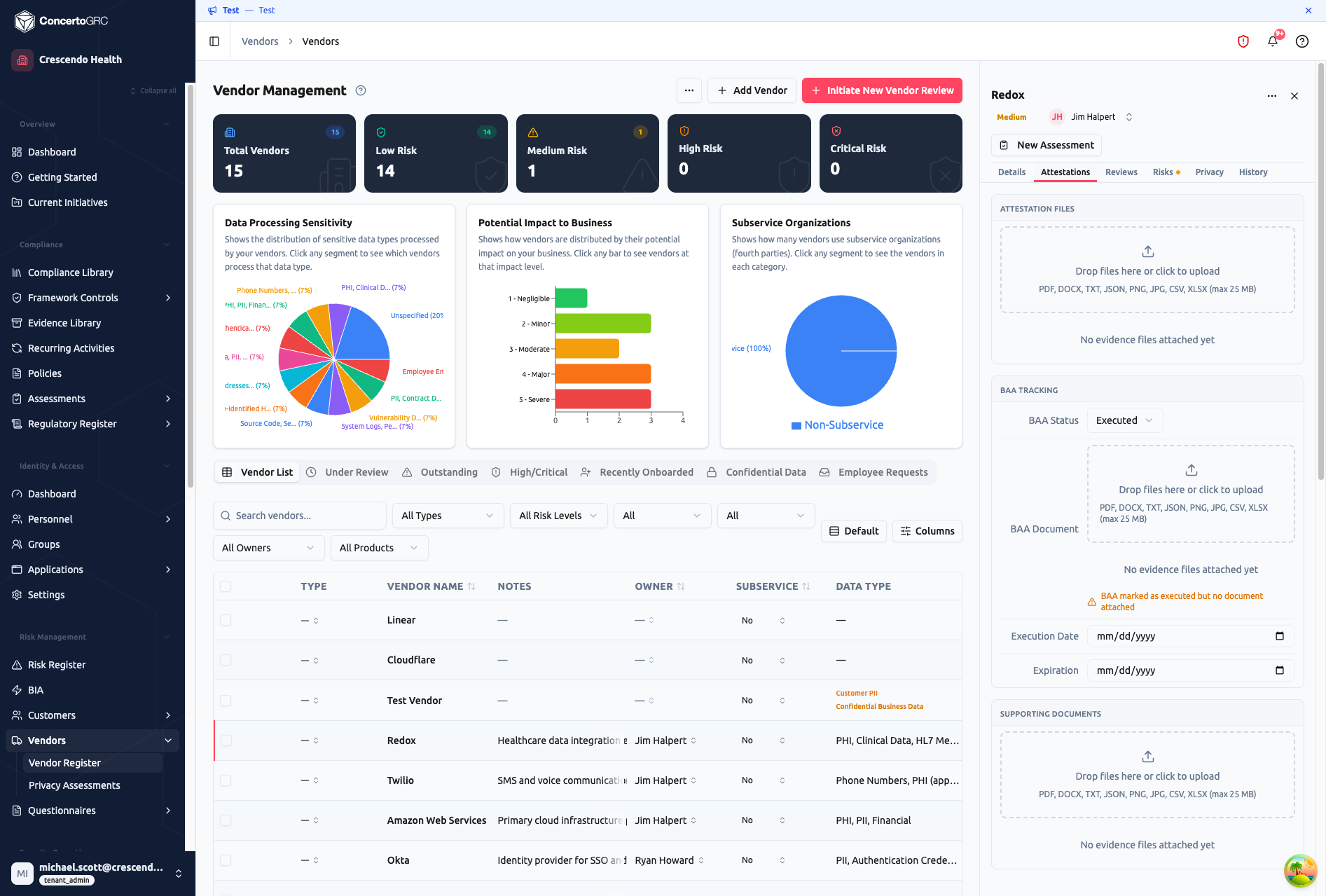
- Attestation Files -- Upload SOC 2 reports, ISO certificates, pen test reports, and other compliance documents. These files feed into AI-assisted due diligence analysis
- BAA Tracking -- Appears when a Data Type Label with BAA tracking is assigned:
- BAA Status (Executed, Pending, Expired, Not Required)
- Execution and expiration dates
- BAA document upload
- Warning banner when BAA is marked as executed but no document is attached
- Supporting Documents -- Additional vendor documentation (contracts, security questionnaire responses, etc.)
Reviews Tab
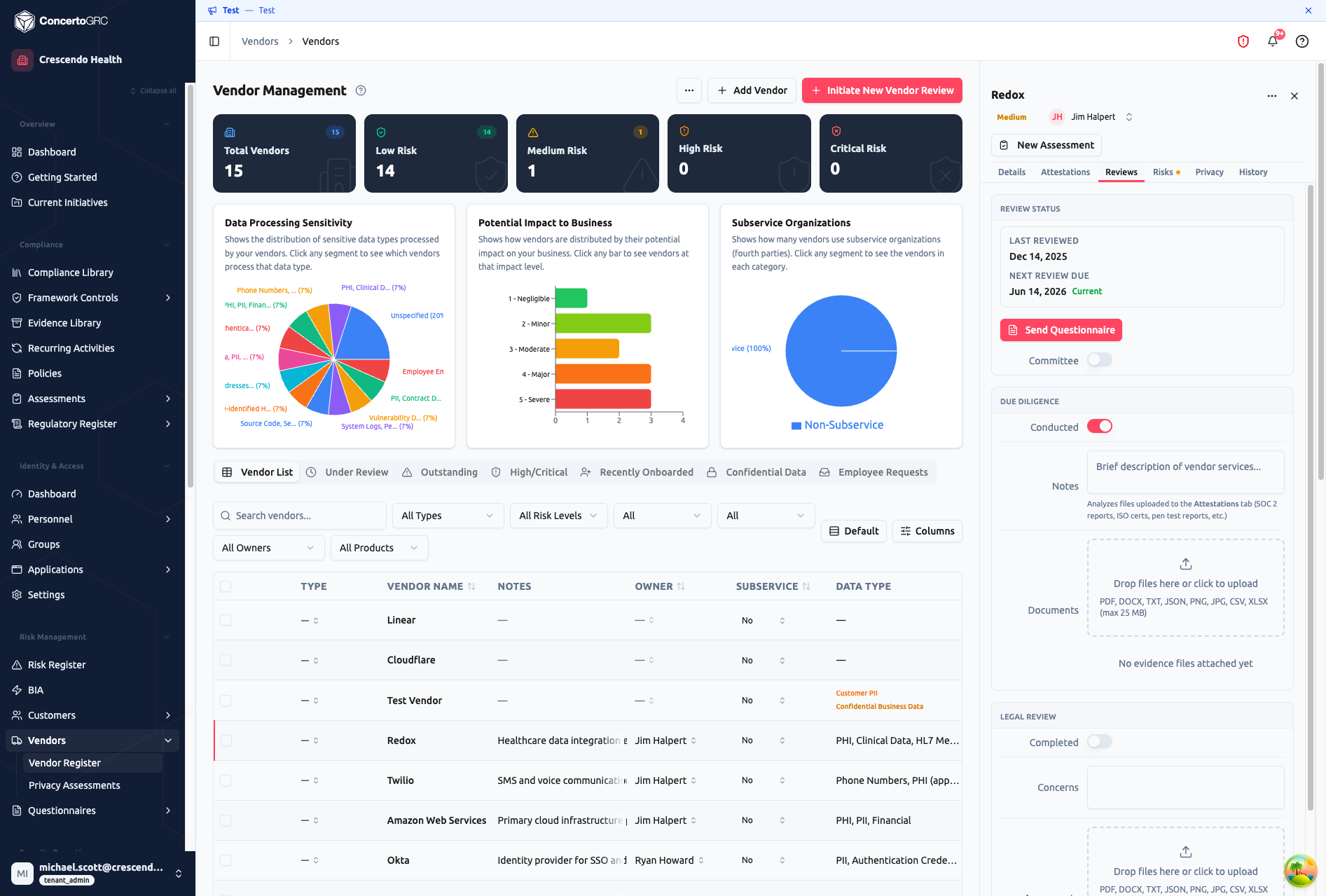
- Review Status -- Last reviewed date, next review due with status badge (Current, Due Soon, Overdue). Review cadence is auto-calculated from the vendor's risk tier
- Send Questionnaire -- Send a structured vendor questionnaire via the portal. Track response status (Draft -> Sent -> Accessed -> In Progress -> Submitted -> Under Review -> Accepted / Rejected / Revision Requested)
- Committee -- Toggle IRC (Information Risk Committee) review with review date
- Due Diligence -- Mark as conducted, add notes, upload documents. Click "Generate from Attestations" to have AI analyze uploaded SOC 2 reports and certificates into a structured due diligence write-up
- Legal Review -- Mark as completed, record date, add concerns. Click "Orchestrate Review" for AI-assisted legal analysis of contracts and agreements
- Review History -- Expandable entries showing past reviews with findings, action items, follow-up status, and documents reviewed
Risks Tab
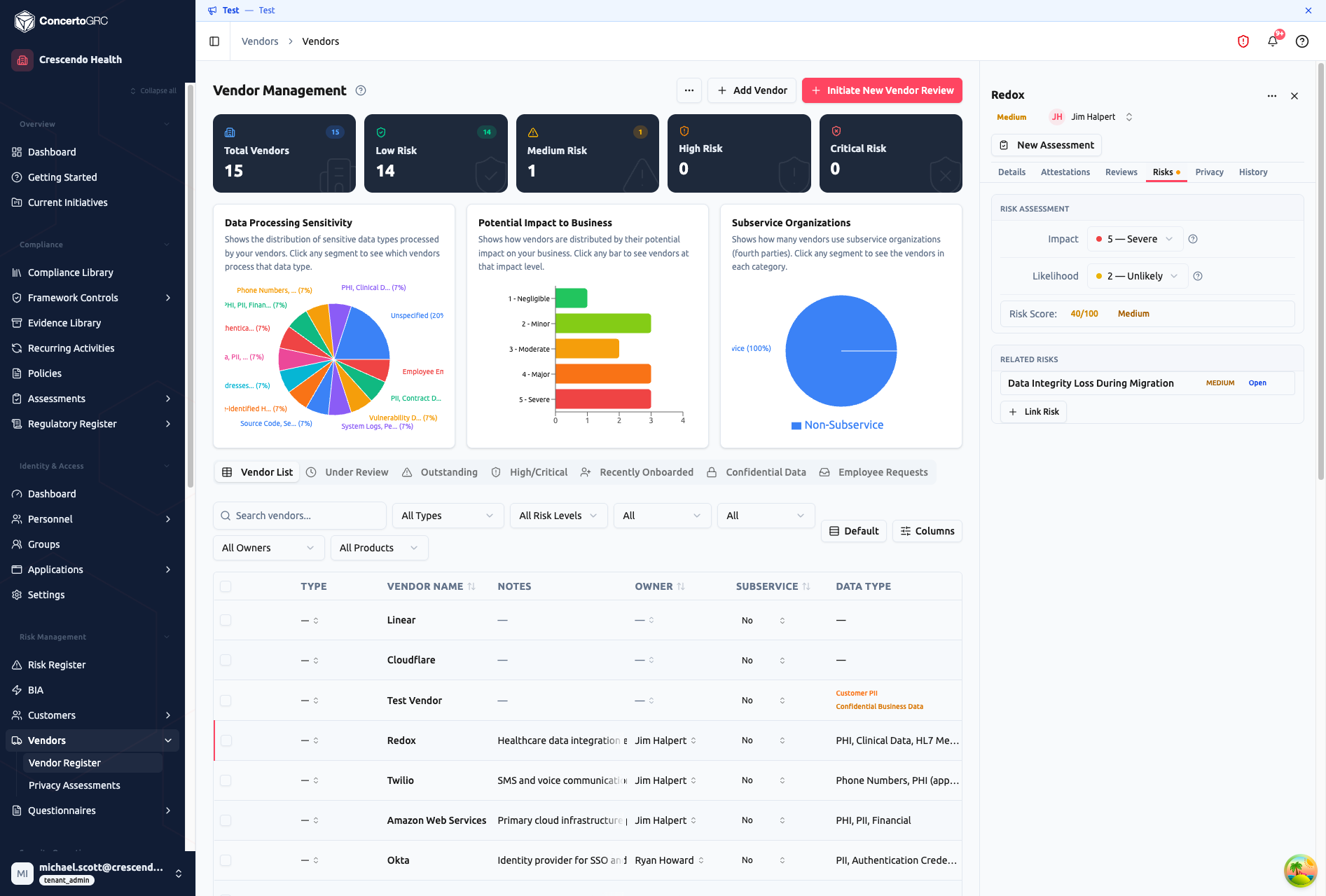
- Risk Assessment -- Set impact (1–5) and likelihood (1–5). The risk score is calculated as Impact × Likelihood (range: 1–25) and mapped to a tier
- Related Risks -- Link this vendor to risks in the Risk Register. Click + Link Risk to search and attach existing risks, or create a new risk inline. Links are bidirectional
Privacy Tab
Manage Privacy Impact Assessments (PIAs) linked to this vendor. Create new PIAs or view existing ones in a nested detail panel.
History Tab
Notes and actions field for free-form record-keeping, plus revision history.
Vendor Assessments
The assessment workflow is for existing vendors due for periodic review. Click the New Assessment button in the sidecar header to start a 5-step assessment:
- Scope & Data Review -- Review current scope and flag if data types or scope have changed
- Vendor Ownership -- Confirm or update the vendor owner
- Attestation Upload -- Upload new attestation files (or note why none are available)
- Risk Assessment & Findings -- Update impact/likelihood, record key findings (with optional AI-generated findings via "Generate with Orchestrator"), add action items
- Review Completion -- Set completion date, confirm auto-calculated next review date (or override with justification)
Completed assessments are recorded in the Review History on the Reviews tab.
AI Features
Due Diligence Generation
Upload attestation files (SOC 2 reports, ISO certs, pen test reports) and click Generate from Attestations. Claude analyzes the documents and produces a structured due diligence write-up covering security controls, compliance gaps, and risk indicators.
Legal Review Orchestration
Upload legal agreements (contracts, DPAs, BAAs, terms of service) and click Orchestrate Review. Claude evaluates privacy terms, data processing agreements, BAA adequacy, subprocessor disclosures, IP provisions, SLA terms, and insurance coverage. Returns a legal risk assessment with specific concerns.
URL Discovery
Click the AI button next to the web presence fields. Claude uses an agentic tool-use loop to discover and verify the vendor's website, trust center, and privacy policy URLs from their domain.
Field Generation
Click the AI icon next to the description field to auto-generate a vendor description based on the vendor name.
Tab Views
| View | Shows |
|---|---|
| Vendor List | All vendors with full filtering and sorting |
| Under Review | Vendors with review due within 30 days |
| Outstanding | Vendors with overdue reviews |
| High/Critical | Only HIGH and CRITICAL risk tier vendors |
| Recently Onboarded | Vendors added in the last 12 months |
| Confidential Data | Vendors processing PII, PHI, or other sensitive data |
Vendor requests submitted through the Employee Portal are managed on a separate Vendor Requests page accessible from Risk Management > Vendors > Vendor Requests in the sidebar.
Privacy Impact Assessments (PIAs) across all vendors are also available on a standalone Privacy Assessments page at Risk Management > Vendors > Privacy Assessments.
Risk Scoring
Risk Score = Impact × Likelihood (range: 1–25)
| Score Range | Tier | Review Cadence |
|---|---|---|
| 1–6 | Low | Every 36 months |
| 7–12 | Medium | Every 24 months |
| 13–18 | High | Every 12 months |
| 19–25 | Critical | Every 12 months |
Administrators can customize risk tier thresholds and review cadences via the scoring settings (gear icon in the toolbar). Threshold maximums must be strictly ascending whole numbers from 0 to 25.
Vendor Types
- Cloud Service
- SaaS
- AI Tool
- Infrastructure
- Professional Services
- Data Processor
- Security
- HR/Payroll
- Financial
- Other
Bulk Actions
Select multiple vendors using the checkboxes, then use the floating toolbar to:
- Assign Owner -- Bulk-assign a vendor owner
- Assign Product -- Scope vendors to specific products
- Delete -- Remove selected vendors (with confirmation)
Import & Export
Import
Bulk-import vendors via CSV. Click Import in the toolbar. Only Vendor Name is required.
| Column | Required | Accepted Values |
|---|---|---|
| Vendor Name | ✓ | Free text |
| Description | -- | Free text |
| Owner | -- | User name or email |
| Vendor Type | -- | CLOUD_SERVICE, SAAS, AI_TOOL, INFRASTRUCTURE, PROFESSIONAL_SERVICES, DATA_PROCESSOR, SECURITY, HR_PAYROLL, FINANCIAL, OTHER |
| Spend Category | -- | Free text |
| Impact | -- | 1–5 |
| Likelihood | -- | 1–5 |
Export
Click Export to download all vendors as CSV.
Employee Portal Integration
Vendors with Show in Directory enabled appear in the Employee Portal's vendor directory. Employees can browse approved vendors and submit requests for new vendor evaluations. Requests appear in the Employee Requests tab for admin review.