Business Impact Assessment (BIA)
The BIA module assesses your organization's business processes to determine their criticality, recovery requirements, and data sensitivity. Each process is scored on a 0–100 scale based on recovery objectives and data classification, then categorized by risk tier to prioritize business continuity planning.
Overview
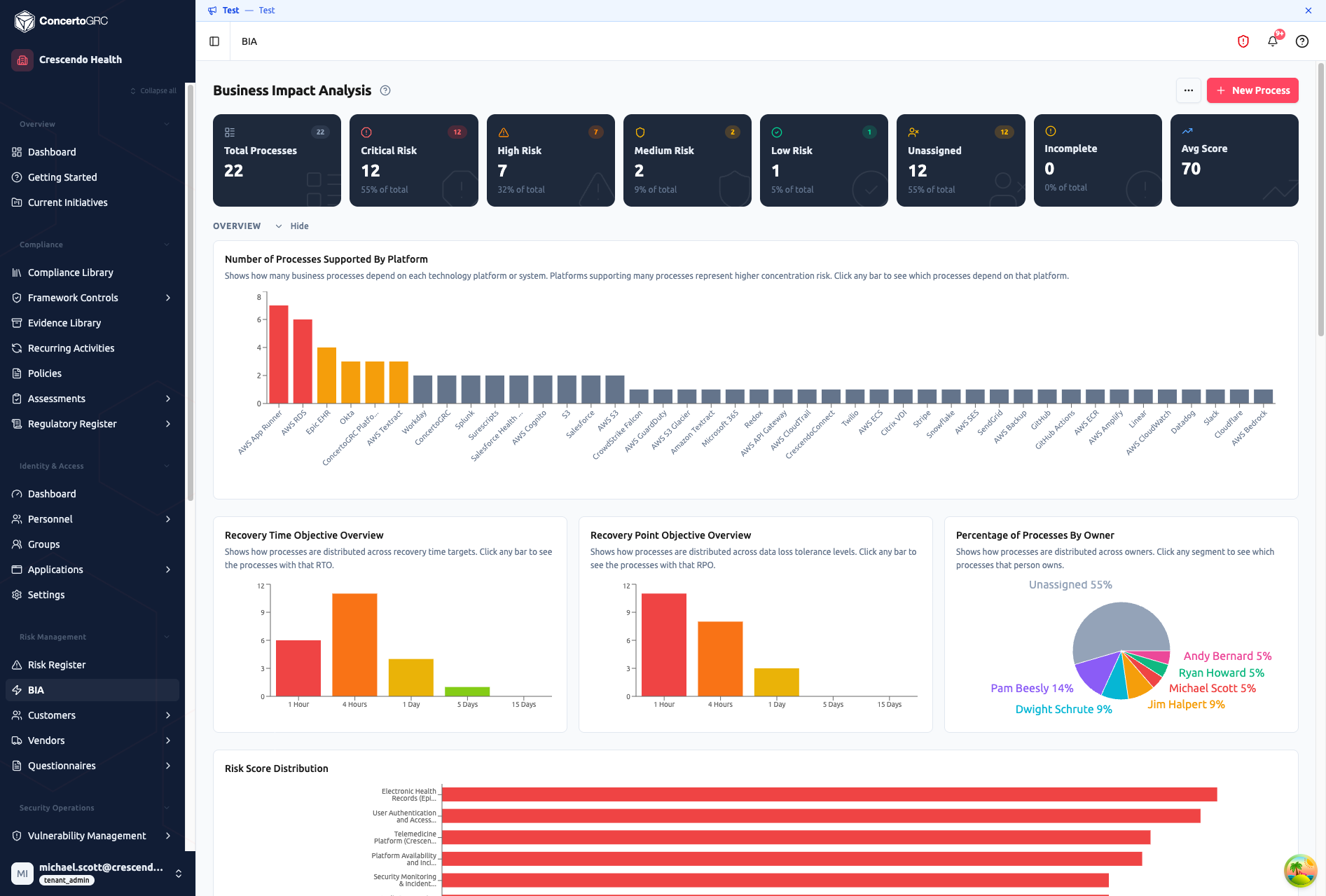
Access from Risk Management > BIA in the sidebar. The top bar shows live counts by risk category (Critical, High, Medium, Low) plus Unassigned (no owner) and Incomplete (no score). Click any stat card to filter the table. Below the stats, a collapsible overview section shows five interactive charts: platform dependencies, RTO distribution, RPO distribution, process ownership, and risk score distribution.
Adding Processes
New Process
Click + New Process to open the detail panel in create mode. Fill in the business process name (required) and any additional fields, then save. The panel groups fields into three sections:
- Process Information -- Name, description (with AI generation), owner, managed by, department dependencies
- Recovery Objectives & Data Classification -- RTO, RPO, MTD, data classification, backup frequency, backup requirements
- Additional Details -- Outage impact, antimalware toggle, log review
The risk score is auto-calculated as soon as recovery objectives and data classification are set.
BIA Orchestration (AI)
Click the BIA Orchestration button in the toolbar for AI-assisted process generation. The wizard adapts based on whether you already have BIA processes:
Incremental mode (when processes already exist) -- Describe the area you want to add processes for (e.g., "Add processes for our new payment workflow" or "Include HR and recruitment processes"). The AI uses your existing BIA as context to generate complementary processes without duplication.
Full mode (starting from scratch) -- A 3-step wizard collects your organization profile:
- Company Basics -- Industry, company size, business model, compliance frameworks (SOC 2, ISO 27001, HIPAA, PCI DSS, GDPR, etc.)
- Systems & Tools -- Select from pre-categorized suggestions (Cloud, Business Apps, Communication, Development, HR/Finance, Security, Data) or add custom systems
- Context & Generate -- Additional context, configuration summary, then generate
After generation, review each process card-by-card: Accept, Skip, or Edit fields (name, description, RTO, RPO, MTD, data classification, backup frequency, managed by, outage impact). The AI also suggests vendors and risks for each process. A summary screen shows accepted/skipped counts and new vendors and risks to be created before you commit.
Working with Processes
Click any row to open the detail sidecar. The header shows the process owner, managed-by badge, and the live risk category with score.
Details Tab
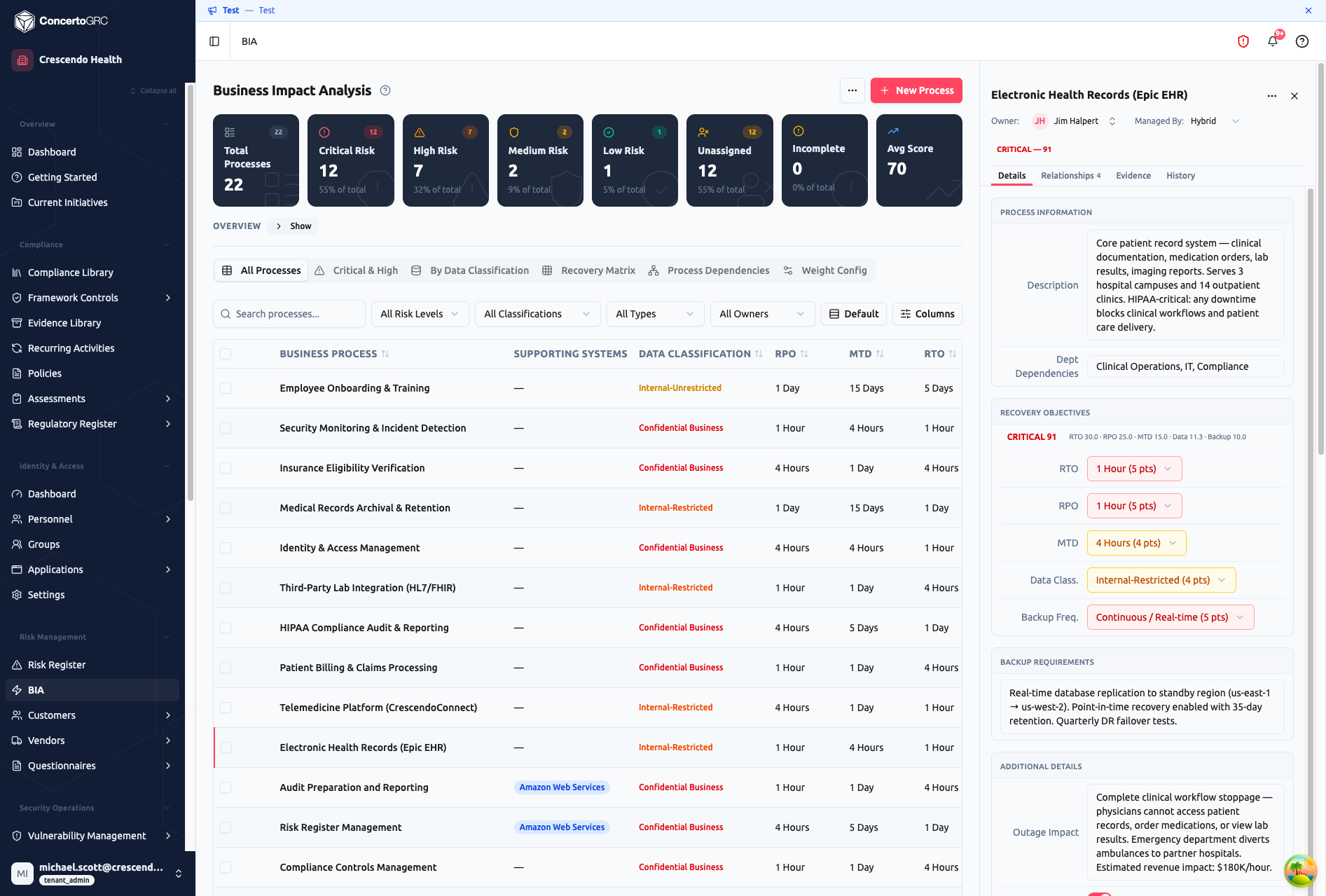
- Process Information -- Description (with AI generation button), department dependencies
- Recovery Objectives -- RTO, RPO, and MTD dropdowns, each showing the metric score (1–5 points) and color-coded by urgency. The header shows the composite score with a breakdown:
CRITICAL 91 RTO 30.0 · RPO 25.0 · MTD 15.0 · Data 11.3 · Backup 10.0 - Data Classification & Backup -- Data classification and backup frequency dropdowns
- Backup Requirements -- Free text describing backup strategy, retention, and DR testing
- Additional Details -- Outage impact narrative, antimalware toggle, log review cadence
- Custom Fields -- Tenant-configurable fields
Relationships Tab
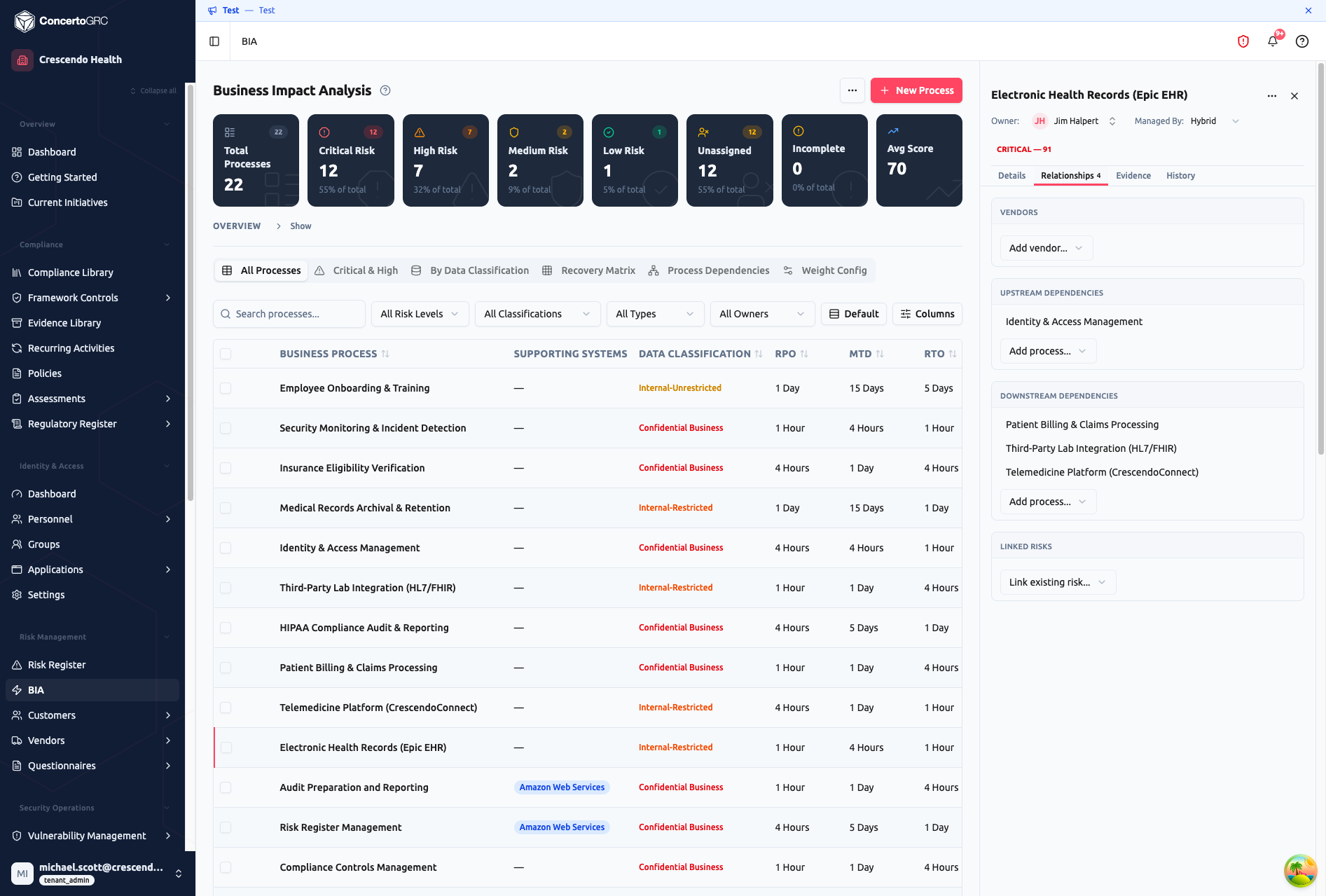
- Vendors -- Link vendors that support this process. Click Add vendor... to search and attach
- Upstream Dependencies -- Processes this one depends on. If an upstream process fails, this process is affected
- Downstream Dependencies -- Processes that depend on this one. If this process fails, downstream processes are impacted
- Linked Risks -- Connect to entries in the Risk Register. Click Link existing risk... to search, or create a new risk inline with type, impact, likelihood, and status
Evidence Tab
- Required Tasks -- Integration with recurring controls for evidence collection tasks
- Supporting Documentation -- Upload files (DR plans, runbooks, test reports) as supporting evidence
History Tab
Audit trail of changes to the BIA record.
Tab Views
All Processes
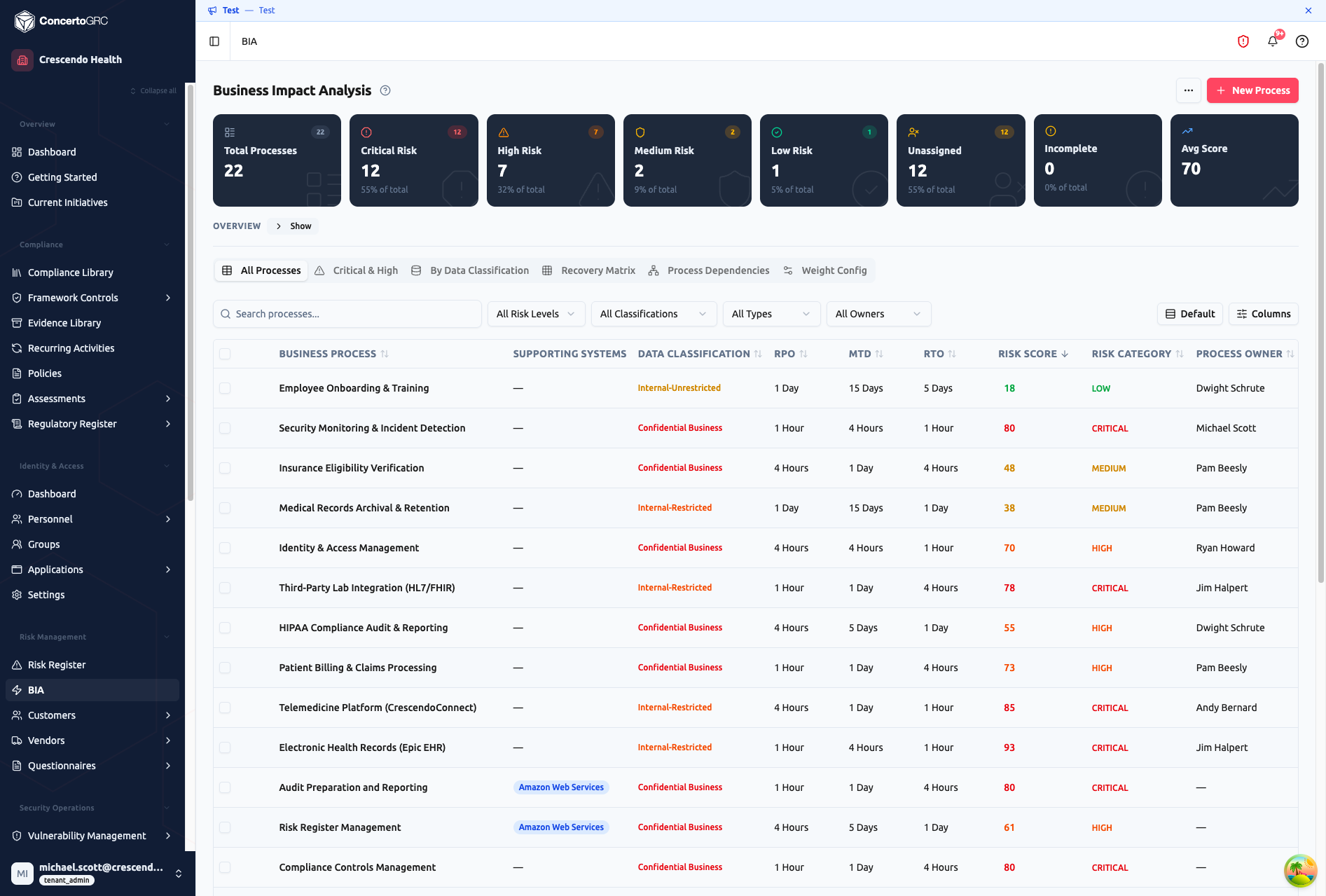
The default table view with all BIA processes. Sort by any column, filter by risk level, data classification, managed-by type, or owner. Click any cell to edit inline -- text fields save on Enter/blur, dropdowns save on selection. Use the Columns button to show/hide columns, reorder via drag-and-drop, or reset to defaults.
Critical & High
Filtered view showing only CRITICAL and HIGH risk processes, sorted by descending risk score. Use this during business continuity planning meetings to focus on the processes that matter most.
By Data Classification
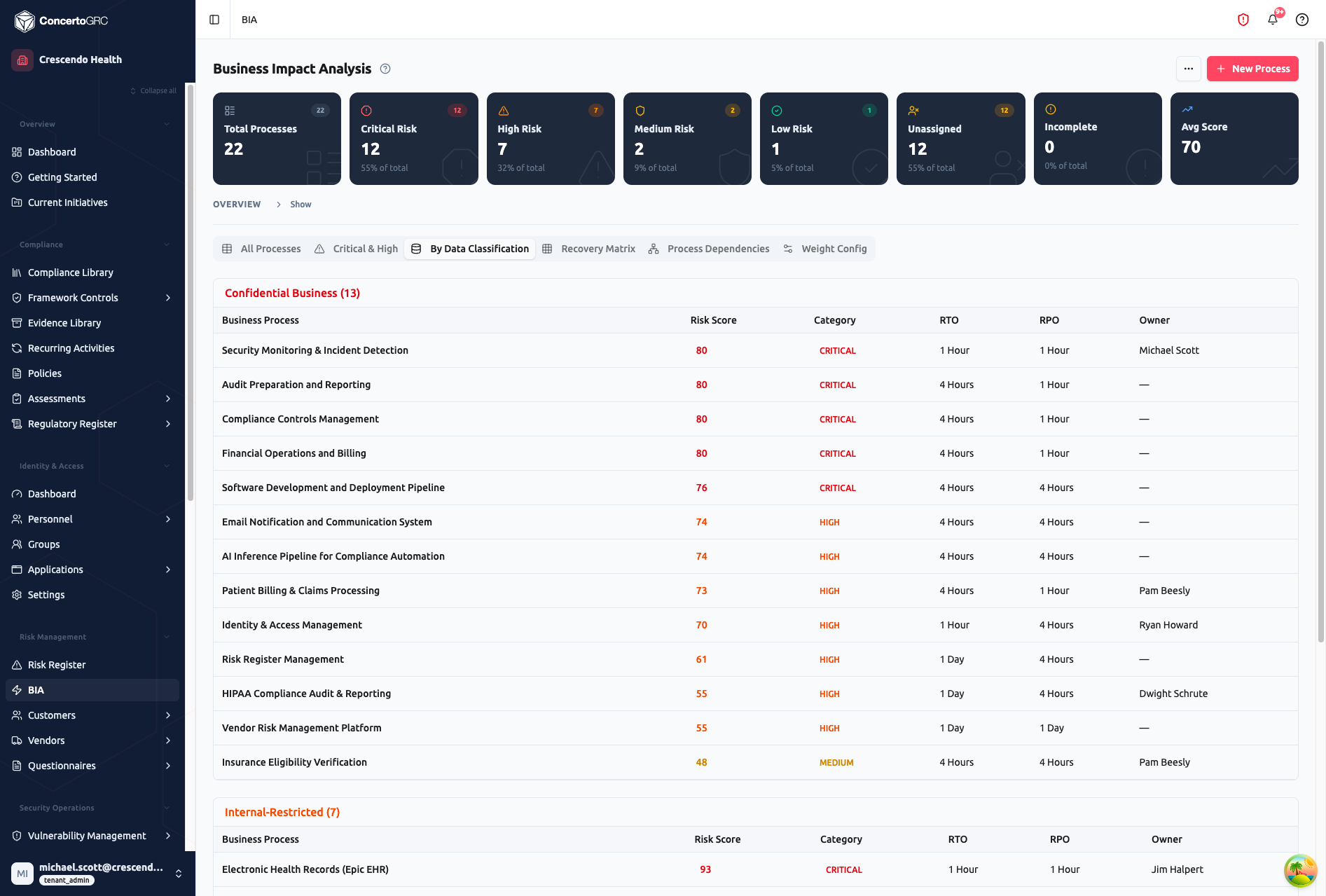
Processes grouped by data sensitivity level: Confidential Business, Internal-Restricted, Internal-Unrestricted, Public. Each group shows the process name, risk score, category, RTO, RPO, and owner. Helps identify which processes handle your most sensitive data and whether their recovery objectives match the sensitivity.
Recovery Matrix
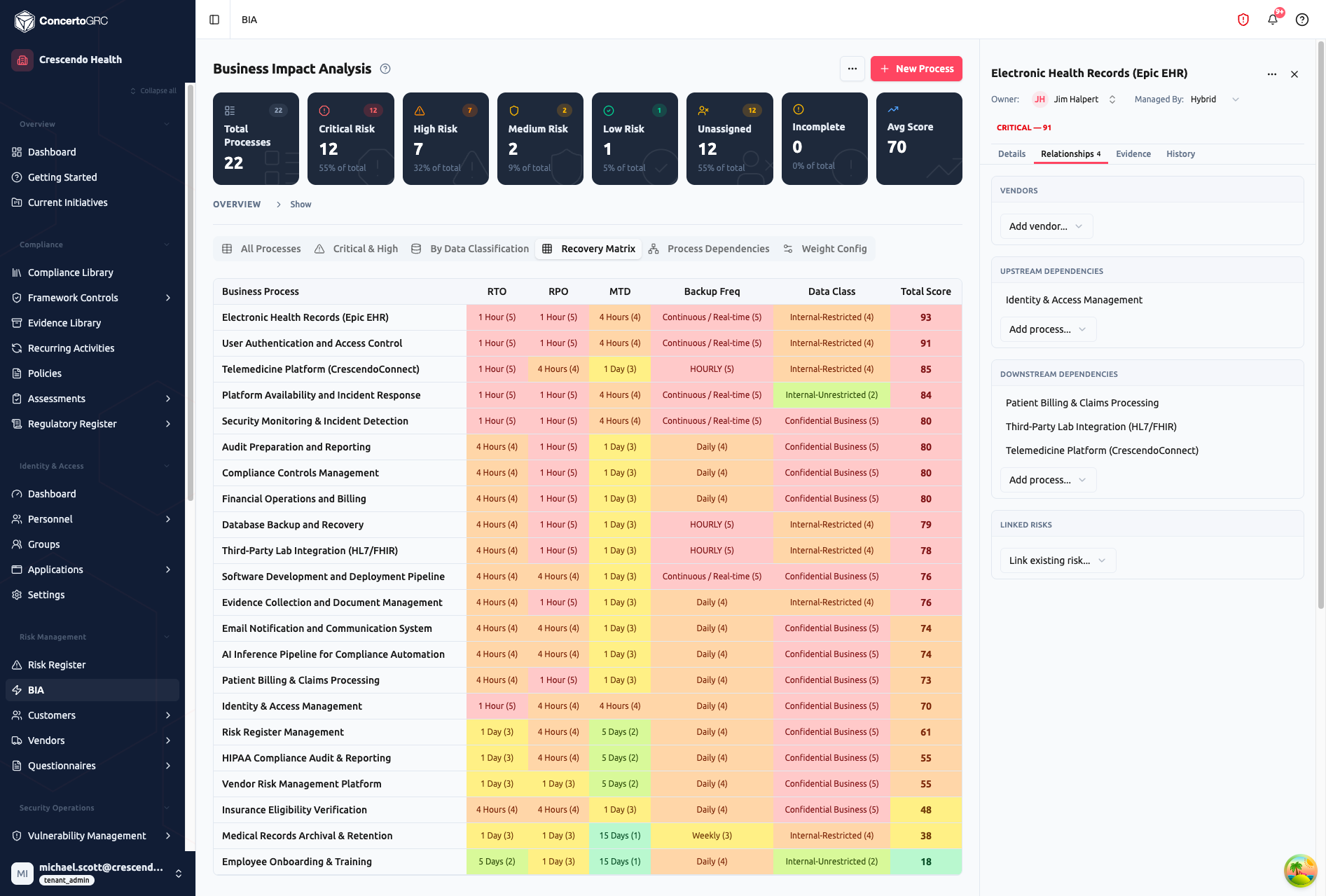
A ranked view showing the individual component scores that make up each process's total risk score. Columns show RTO, RPO, MTD, Backup Frequency, and Data Classification -- each with its point value (1–5). Processes are sorted by total score, highest first. Use this to compare recovery posture across processes and identify which specific metrics are driving high scores.
Process Dependencies
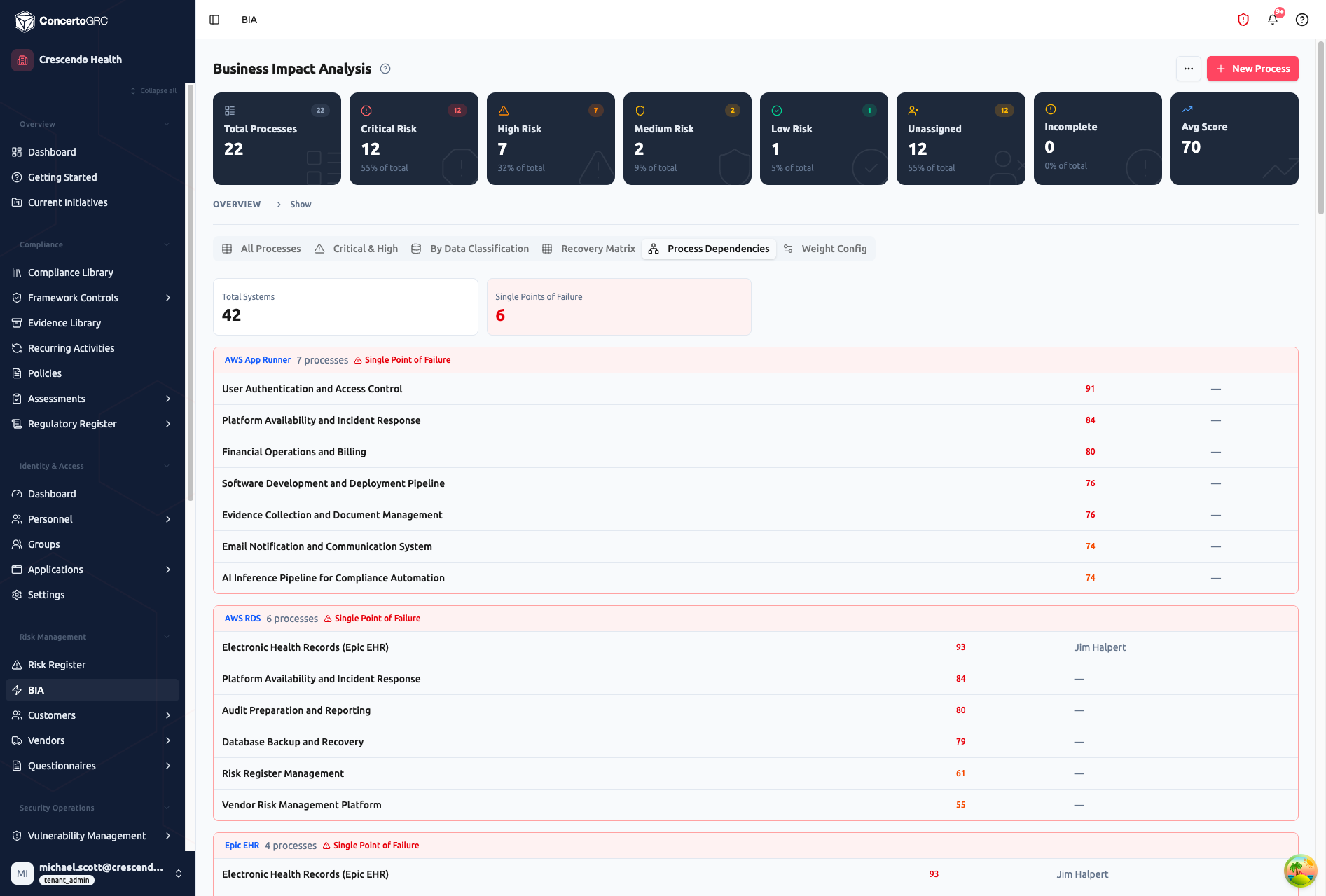
Processes grouped by supporting system or platform. The header shows total systems and Single Points of Failure -- systems that support 3 or more processes. These represent concentration risk: if that system goes down, multiple business processes are affected simultaneously. Each system group lists the dependent processes with their risk scores and owners.
Weight Config
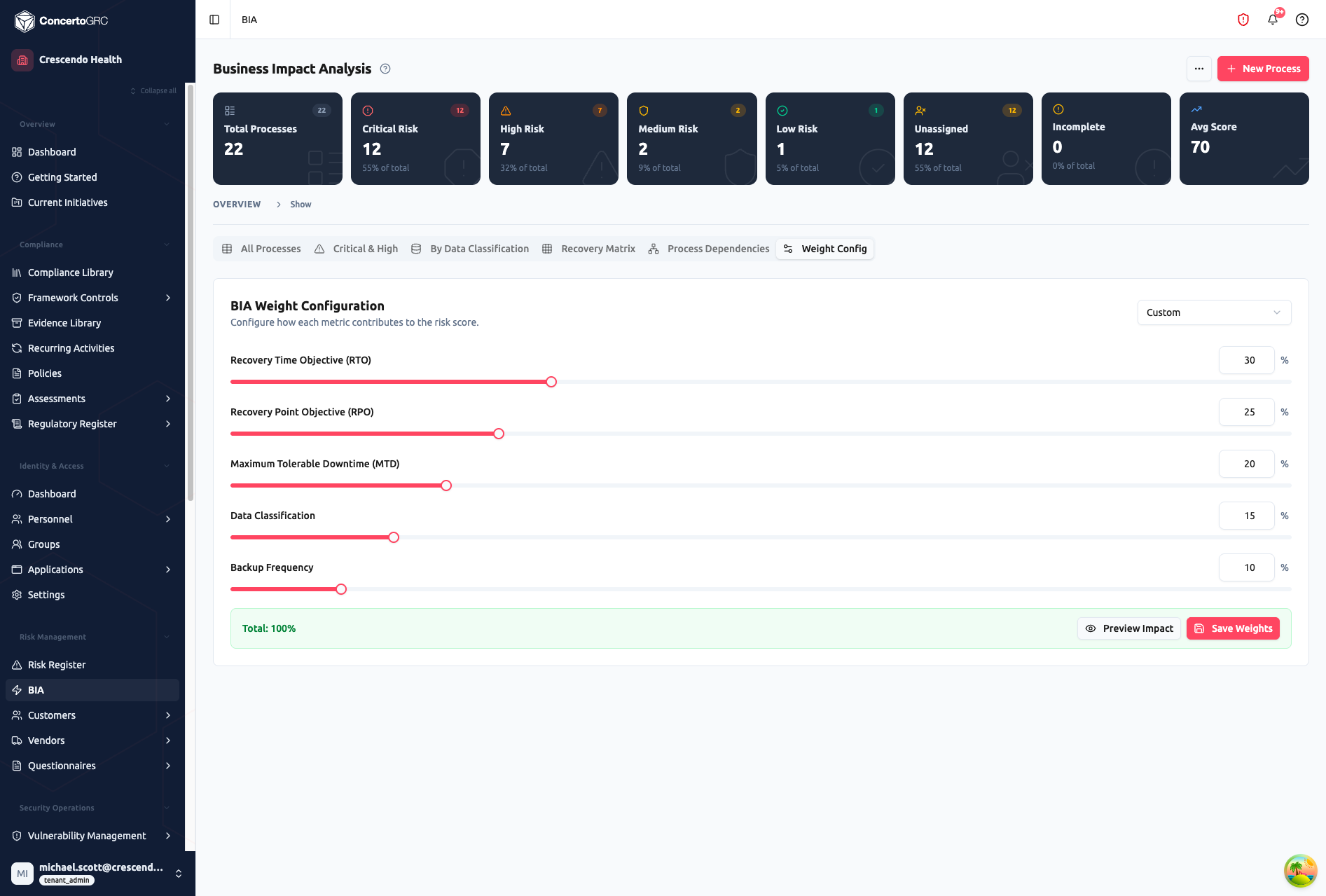
Configure how each metric contributes to the overall risk score. Adjust weights using sliders or direct number input -- the total must equal 100%. Choose from preset configurations or create a custom mix:
| Preset | RTO | RPO | MTD | Data Class. | Backup Freq. |
|---|---|---|---|---|---|
| Default | 30% | 25% | 20% | 15% | 10% |
| Balanced | 20% | 20% | 20% | 20% | 20% |
| Recovery Focused | 35% | 30% | 20% | 10% | 5% |
| Data Sensitivity Focused | 20% | 15% | 15% | 35% | 15% |
Click Preview Impact to see how weight changes would affect scores and categories across all processes before saving. Click Save Weights to apply -- all process scores are recalculated immediately.
Risk Scoring
Each BIA process receives a composite risk score (0–100) calculated from five weighted metrics.
Metric Scales
Each metric maps to a 1–5 point scale:
Recovery Objectives (RTO, RPO, MTD):
| Value | Points | Meaning |
|---|---|---|
| 1 Hour | 5 | Most aggressive recovery target |
| 4 Hours | 4 | Urgent recovery needed |
| 1 Day | 3 | Same-day recovery |
| 5 Days | 2 | Multi-day recovery acceptable |
| 15 Days | 1 | Extended downtime tolerable |
Data Classification:
| Level | Points |
|---|---|
| Confidential Business | 5 |
| Internal-Restricted | 4 |
| Internal-Unrestricted | 2 |
| Public | 1 |
Backup Frequency:
| Frequency | Points |
|---|---|
| Real-time / Hourly | 5 |
| Daily | 4 |
| Weekly | 3 |
| Monthly | 2 |
| None | 1 |
Formula
weightedRaw = (RTO_pts × RTO_weight) + (RPO_pts × RPO_weight) +
              (MTD_pts × MTD_weight) + (DataClass_pts × DC_weight) +
              (Backup_pts × BF_weight)

Risk Score = ((weightedRaw - 1) / 4) × 100
Risk Categories
| Score Range | Category | Priority |
|---|---|---|
| 75–100 | Critical | Essential process, rapid recovery required |
| 50–74 | High | Important process, significant impact if unavailable |
| 25–49 | Medium | Moderate importance, manageable downtime |
| 0–24 | Low | Supporting process, extended downtime tolerable |
AI Features
Description Generation
Click the AI icon next to the description field in the detail panel. The AI generates a process description based on the business process name, your organization's industry, and enabled compliance frameworks.
BIA Orchestration
See Adding Processes > BIA Orchestration above for the full AI-assisted process generation workflow.
Inline Editing
All fields in the table are inline-editable -- click any cell to modify:
- Text fields (process name) -- click to enter edit mode, Enter to save, Escape to cancel
- Dropdowns (data classification, RTO, RPO, MTD, backup frequency) -- click to open, selection auto-saves
- Owner -- click to open the owner selector with users and key contacts
Changes autosave immediately with a visual confirmation indicator.
Bulk Actions
Select multiple processes using the checkboxes, then use the floating toolbar to:
- Update Data Classification -- Bulk-set classification level
- Update RTO / RPO / MTD -- Bulk-set recovery objectives
- Update Backup Frequency -- Bulk-set backup cadence
- Assign Owner -- Bulk-assign a process owner
- Delete -- Remove selected processes (with confirmation)
Import & Export
Import
Bulk-import processes via CSV. Click Import in the toolbar. Only Business Process (name) is required.
| Column | Required | Accepted Values |
|---|---|---|
| Business Process | ✓ | Free text |
| Description | -- | Free text |
| Process Owner | -- | User name or email |
| RTO | -- | 1_HOUR, 4_HOURS, 1_DAY, 5_DAYS, 15_DAYS |
| RPO | -- | 1_HOUR, 4_HOURS, 1_DAY, 5_DAYS, 15_DAYS |
| MTD | -- | 1_HOUR, 4_HOURS, 1_DAY, 5_DAYS, 15_DAYS |
| Data Classification | -- | PUBLIC, INTERNAL, CONFIDENTIAL, RESTRICTED |
Export
Click Export to download all processes as CSV with all fields.