Customer Commitments
Customer Commitments tracks the contractual obligations your organization has made to customers -- notification SLAs, data handling requirements, incident response timelines, and breach notification promises. Upload contracts, let AI extract commitment clauses, triage them through a compliance review workflow, and monitor SLA performance when incidents occur.
Overview
Access from Risk Management -> Customers in the sidebar. The module has four sub-pages:
- Customer Register -- Your customer inventory with contracts and commitments
- Review Queue -- Triage AI-extracted commitments through compliance review
- My Notifications -- Notification drafts assigned to you for customer communication
- SLA Report -- SLA compliance performance across incidents
Customer Register
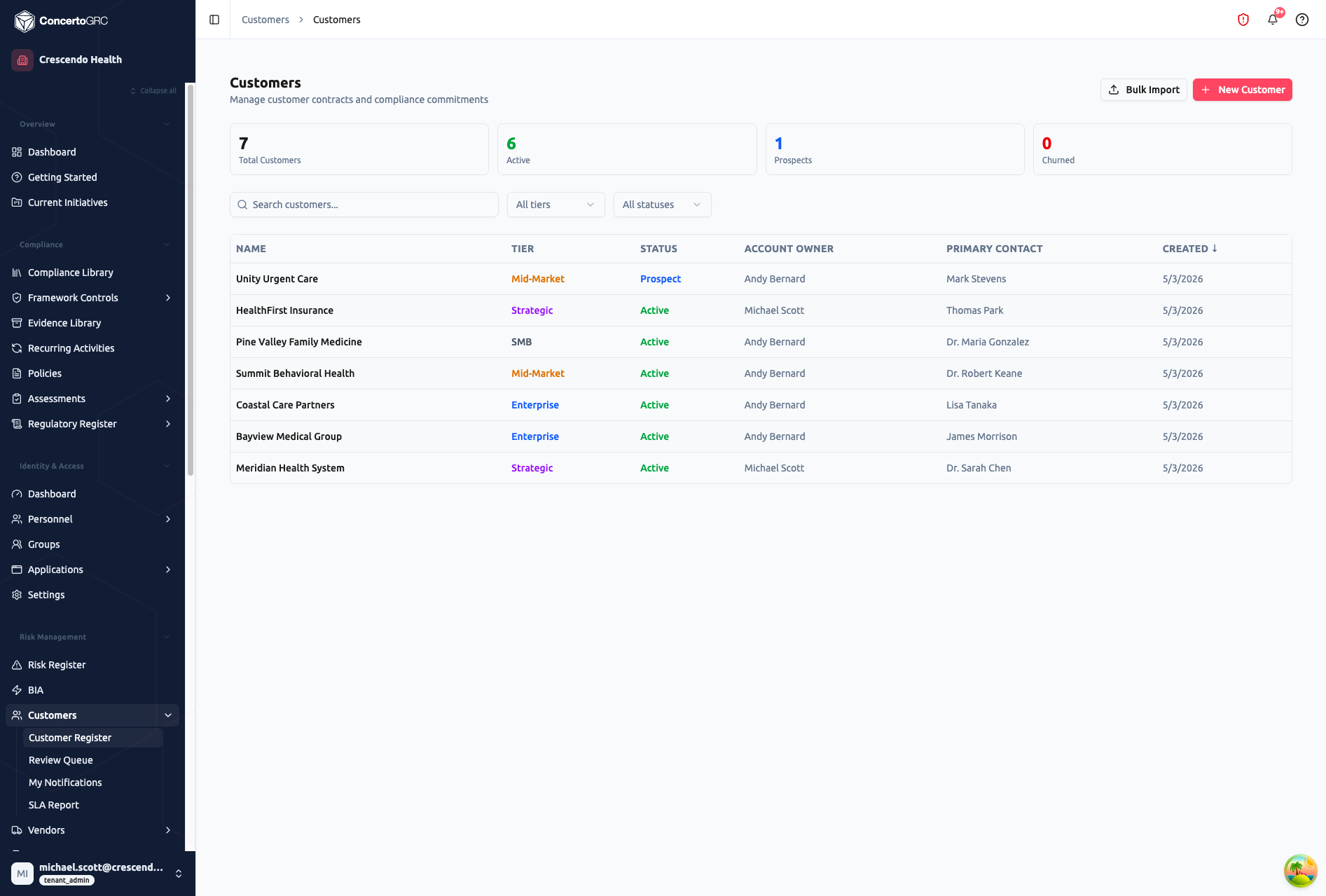
The Customer Register is your central customer inventory. The top bar shows live counts by status (Total, Active, Prospects, Churned). Click any stat card to filter. Search by customer name and filter by tier or status.
Adding Customers
Click + New Customer to open the create dialog. Fill in:
- Name (required) -- Customer organization name
- Primary Domain -- Customer's website domain
- Tier -- Strategic, Enterprise, Mid-Market, or SMB
- Status -- Active, Prospect, or Churned
- Primary Contact Name and Email -- Main point of contact
Bulk Import
Click Bulk Import to upload customers via CSV. A two-step wizard validates the file, shows a preview of the first 50 rows, and reports any errors before committing. Download the errors CSV to fix and re-upload.
| Column | Required | Accepted Values |
|---|---|---|
| name | ✓ | Free text |
| primaryDomain | -- | Domain name |
| tier | -- | STRATEGIC, ENTERPRISE, MID_MARKET, SMB |
| accountOwnerEmail | -- | User email |
| primaryContactName | -- | Free text |
| primaryContactEmail | -- | Email address |
| status | -- | ACTIVE, PROSPECT, CHURNED |
| notes | -- | Free text |
Working with Customers
Click any customer row to open the detail sidecar with three tabs.
Overview Tab
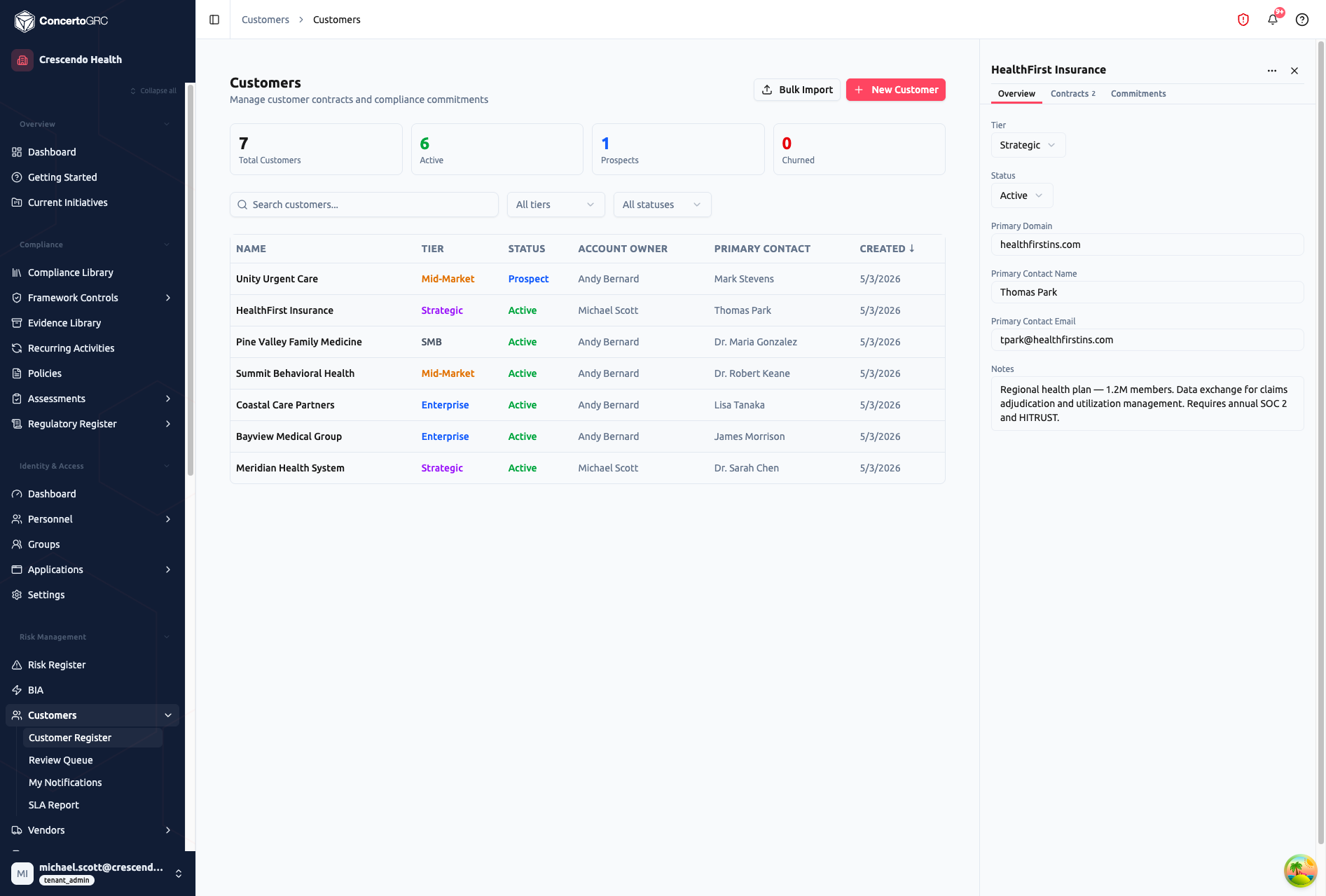
- Tier -- Strategic, Enterprise, Mid-Market, or SMB. Drives prioritization in the review queue
- Status -- Active, Prospect, or Churned
- Primary Domain -- Customer's website
- Primary Contact -- Name and email
- Notes -- Free-form context about the customer relationship (compliance requirements, contract highlights, etc.)
All fields autosave on change.
Contracts Tab
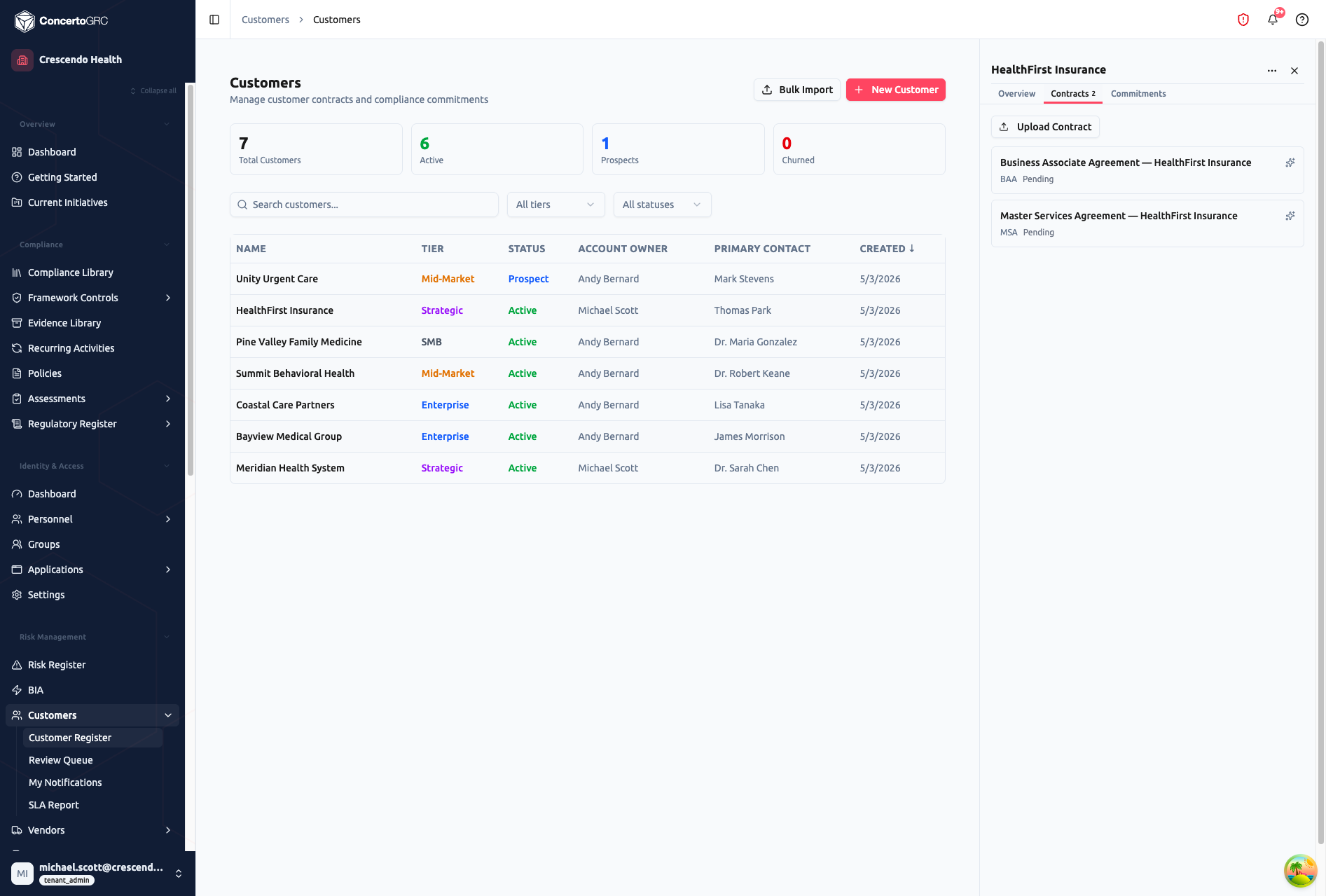
Upload and manage customer contracts. Click Upload Contract to drag-and-drop or select files (PDF, DOCX, TXT, ZIP -- up to 50MB per file). Each contract shows:
- Title -- Auto-generated from filename, editable
- Contract Type -- MSA, DPA, BAA, SLA, or Other
- Extraction Status -- Tracks AI commitment extraction progress:
- Pending -- Uploaded, not yet extracted
- Running -- AI extraction in progress
- Succeeded -- Commitments extracted successfully
- Failed -- Extraction failed (retry available)
- Budget Paused -- Organization exceeded monthly AI budget
- Skipped -- Extraction skipped manually
Click the AI extraction button on any pending or failed contract to trigger commitment extraction. Download the original file using the download icon.
Commitments Tab
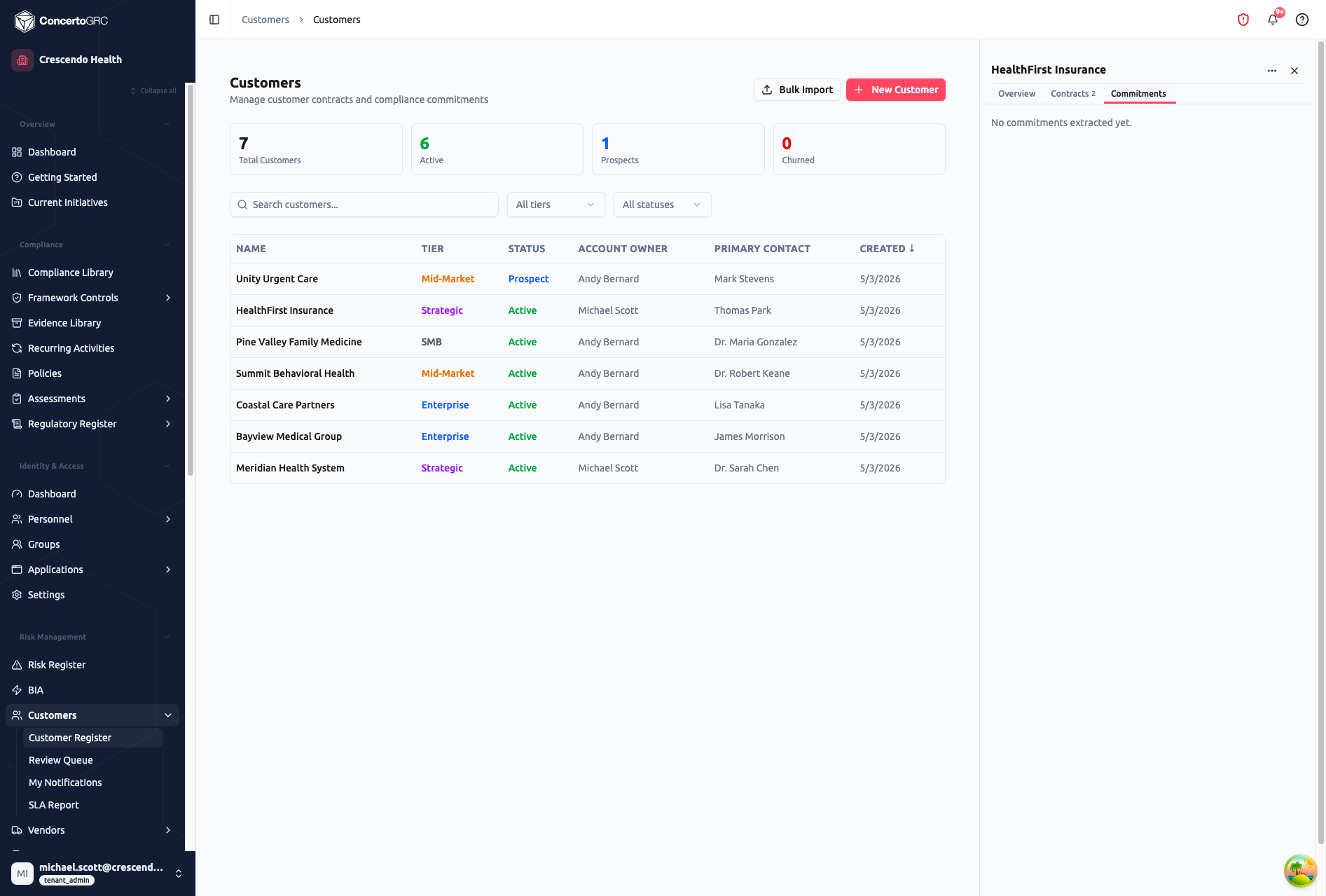
Lists all commitments for this customer, sorted by status (Verified first, then Compliance Reviewed, Draft, Rejected, Superseded). Each commitment shows the event type, status badge, SLA hours, notification method, and a preview of the source clause text.
Click any commitment to open its detail panel showing:
- Event Type -- Category of the obligation (see Event Types below)
- SLA Hours -- Required notification timeline in hours
- Notification Method -- Email, Portal, Phone, Certified Mail, or Any
- Notification Contact -- Who to contact at the customer
- Source Clause -- The original contract text containing the commitment
- Source Page -- Page number in the contract where the clause appears
- Extraction Confidence -- AI confidence score (color-coded: green ≥90%, amber ≥70%, red below 70%)
- Audit Trail -- Timeline of all actions with actor name, role, and timestamp
AI Contract Extraction
Upload a contract to the Contracts tab and click the AI extraction button. The system:
- Extracts text from the uploaded document (PDF, DOCX)
- Sends the text to Claude for analysis with a specialized prompt
- Claude identifies commitment clauses and classifies each one
- For each identified commitment, the system creates a Draft record with:
- Event type classification
- Covered data scope
- Notice SLA hours
- Notification method and contact
- Source clause text and page number
- Extraction confidence score (0–100%)
Draft commitments appear in the Commitments tab and the Review Queue for triage.
If you re-extract a contract, only Draft commitments are replaced. Verified and Compliance Reviewed commitments are preserved, so re-extraction is safe after partial review.
Review Queue
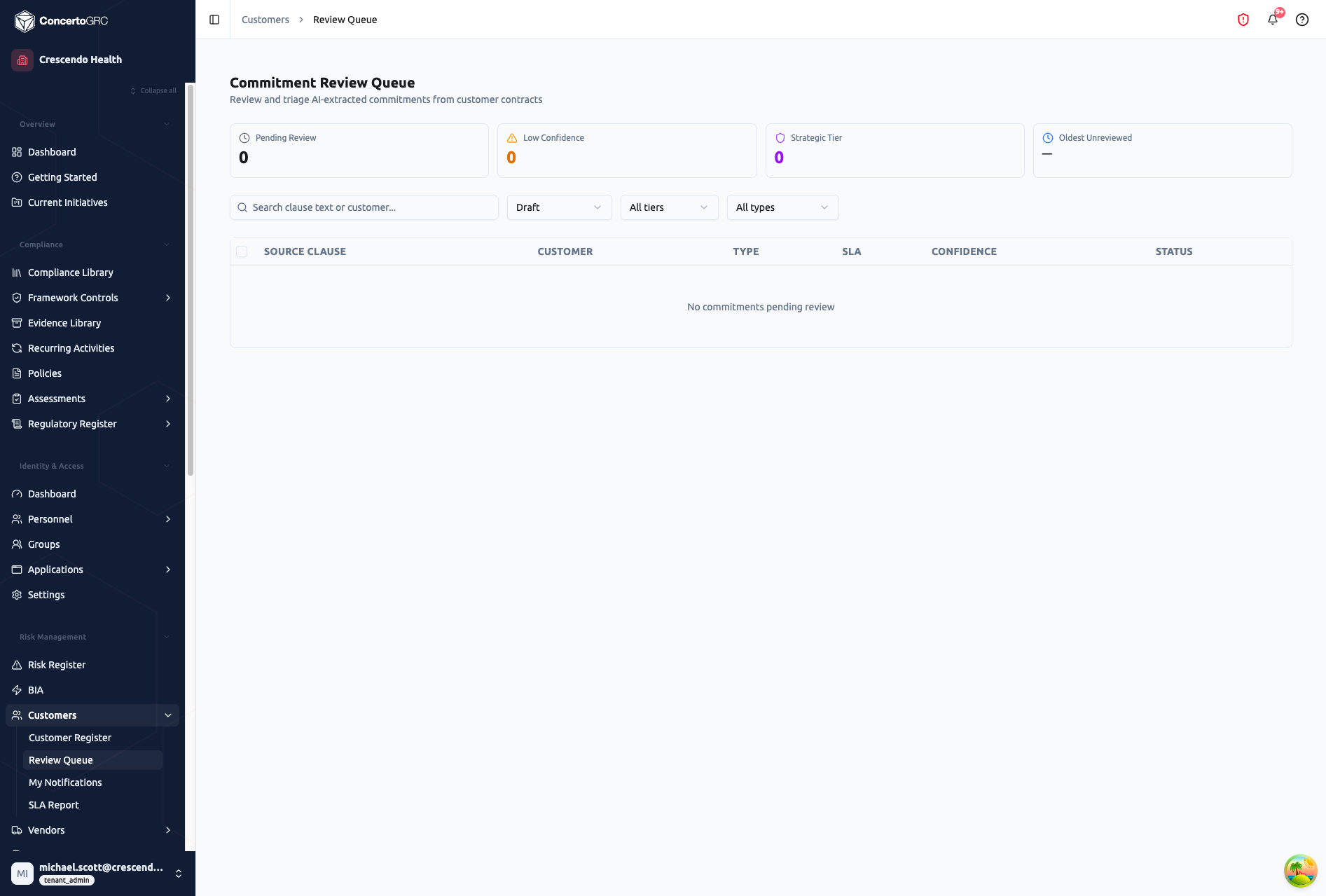
Access from Customers -> Review Queue. This page surfaces all Draft commitments across all customers for compliance triage. The top bar shows:
- Pending Review -- Total Draft commitments awaiting triage
- Low Confidence -- Commitments with extraction confidence below 70%
- Strategic Tier -- Draft commitments from Strategic-tier customers (prioritize these)
- Oldest Unreviewed -- Date of the oldest unreviewed commitment
Filtering
- Search -- Free-text search across clause text and customer names
- Status -- Draft (default), Reviewed, or Rejected
- Customer Tier -- Strategic, Enterprise, Mid-Market, SMB
- Event Type -- Filter by commitment category
Triage Actions
Click a commitment row to review its details. Actions available depend on your role:
- Mark Reviewed (triage role) -- Transitions Draft -> Compliance Reviewed
- Approve (approve role) -- Transitions Compliance Reviewed -> Verified
- Reject (reject role) -- Transitions to Rejected (requires a reason)
Bulk Actions
Select multiple commitments using the checkboxes, then:
- Mark Reviewed -- Bulk-transition selected Drafts to Compliance Reviewed
- Reject -- Bulk-reject selected commitments with a shared reason
My Notifications
Access from Customers -> My Notifications. Shows notification drafts assigned to you when incidents trigger customer commitments. For each notification:
- Customer and commitment context -- Which customer and what obligation
- SLA deadline -- Calculated from the commitment's SLA hours and the incident discovery time
- Draft content -- Pre-generated subject and body for customer notification
- Status tracking -- Drafted -> Assigned -> Acknowledged -> Sent (or Failed/Cancelled)
- Evidence attachment -- Upload proof of notification sent
SLA Report
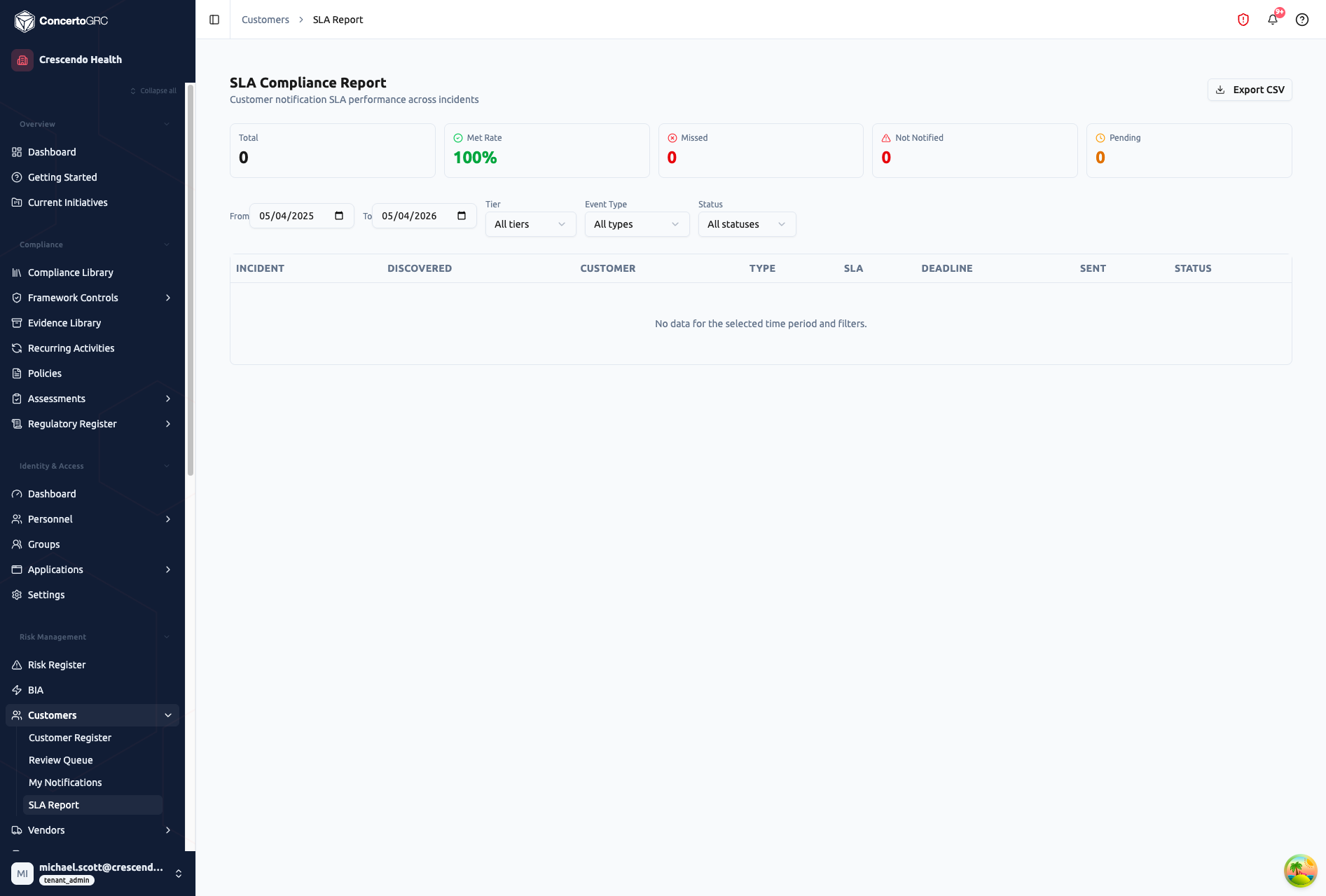
Access from Customers -> SLA Report. Tracks notification SLA compliance across incidents. The top bar shows:
- Total -- Total commitment-incident pairs in the period
- Met Rate -- Percentage of SLAs met on time
- Missed -- Notifications sent after the SLA deadline
- Not Notified -- Incidents where required notification was never sent
- Pending -- Notifications in progress
Filters
- Date Range -- Start and end date for the reporting period
- Tier -- Filter by customer tier
- Event Type -- Filter by commitment category
- Status -- Met, Missed, Not Notified, or Pending
Export
Click Export CSV to download the full report with applied filters. Columns include: Incident ID, Customer, Tier, Commitment Type, SLA Hours, Deadline, Sent At, and Status.
Commitment Status Lifecycle
DRAFT -> COMPLIANCE_REVIEWED -> VERIFIED
  │           │
  └-> REJECTED <-┘

SUPERSEDED (when newer version created)
| Status | Description |
|---|---|
| Draft | Newly extracted or created, needs compliance review |
| Compliance Reviewed | Compliance reviewer has triaged and accepted |
| Verified | Approved by legal/compliance -- active obligation |
| Rejected | Declined with reason (not a real commitment, duplicate, etc.) |
| Superseded | Replaced by a newer version from contract re-extraction |
Event Types
| Type | Examples |
|---|---|
| Data Breach | "Notify within 72 hours of a confirmed data breach" |
| Security Incident | "Report security incidents affecting customer data" |
| Service Outage | "Notify of service outages exceeding 4 hours" |
| Subprocessor Change | "30-day advance notice of subprocessor changes" |
| Audit Rights | "Customer may audit security controls annually" |
| Report Delivery | "Deliver SOC 2 report within 30 days of issuance" |
| Other | Custom commitment types not covered above |
Audit Trail
Every commitment state change is logged with:
- Actor -- Who performed the action (name and role)
- Action -- What happened (Created, Edited, Compliance Reviewed, Legal Approved, Rejected, Superseded)
- Before/After -- Field-level change tracking
- Timestamp -- When the action occurred
The audit trail is displayed as a visual timeline in the commitment detail panel.
Customer Tiers
| Tier | Use For |
|---|---|
| Strategic | Largest accounts, highest priority for SLA compliance |
| Enterprise | Major accounts with complex compliance requirements |
| Mid-Market | Growing accounts with standard compliance needs |
| SMB | Smaller accounts with basic requirements |
Tier drives prioritization in the Review Queue -- Strategic-tier commitments are highlighted for faster triage.