Reports
The Reports module generates formal compliance documentation -- risk assessments, gap analyses, vendor assessments, and BIA reports. Reports are built from templates, populated with live platform data, and optionally drafted by AI before human review and approval.
Overview
Access from Reporting --> Reports in the sidebar.
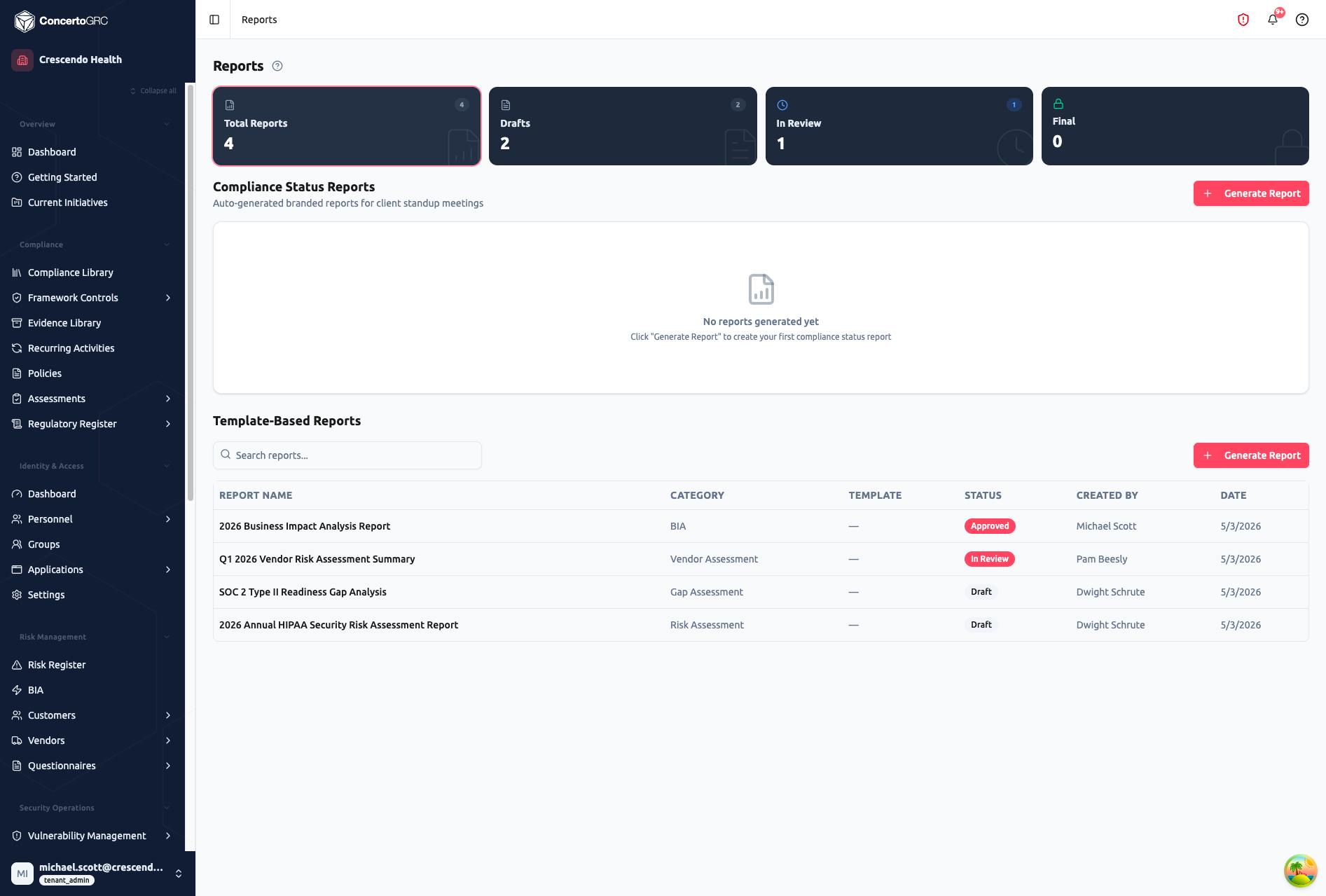
The page is organized into two sections:
- Compliance Status Reports -- Auto-generated branded reports for client standup meetings
- Template-Based Reports -- Custom reports built from templates with AI-drafted sections
Status Cards
Four status cards at the top summarize your report pipeline:
| Card | Description |
|---|---|
| Total Reports | Count of all reports |
| Drafts | Reports being composed |
| In Review | Reports submitted for review |
| Final | Locked, approved reports |
Report Categories
| Category | Description |
|---|---|
| Risk Assessment | Organizational risk posture evaluation |
| BIA | Business Impact Assessment report |
| Gap Assessment | Control gap analysis against a framework |
| Internal Audit | Internal compliance audit findings |
| Compliance Review | Periodic compliance status report |
| Vendor Assessment | Third-party risk evaluation |
| Custom | Any other report type |
Creating a Report
- Click Generate Report in either section
- Configure the report:
- Report name
- Category (risk assessment, gap analysis, etc.)
- Template (platform or tenant template)
- Framework(s) covered
- Assessment period (start/end dates)
- Assessor name and title
- Generate or manually compose sections
Report Structure
Reports are composed of typed sections:
| Section Type | Description |
|---|---|
| Cover Page | Title, branding, date, assessor info |
| Table of Contents | Auto-generated from sections |
| Executive Summary | High-level findings and recommendations |
| Methodology | How the assessment was conducted |
| Scope | What was evaluated and boundaries |
| Data Table | Tabular data (controls, risks, findings) |
| Chart | Visual representation of metrics |
| Narrative | Detailed analysis and discussion |
| Recommendations | Actionable improvement items |
| Conclusion | Summary and next steps |
| Appendix | Supporting documentation |
| Custom | Free-form content |
AI-Drafted Sections
Each section can be auto-drafted by AI using live platform data:
- Select a section to generate
- AI pulls relevant data (control statuses, risk scores, evidence metrics, vulnerability findings, policy results, vendor ratings)
- A draft is generated using the template's configured prompt
- Review and edit the draft before finalizing
Templates
Platform Templates
Operators create report templates with pre-defined section structure, AI prompts per section, variable definitions for data substitution, and category assignment.
Tenant Templates
Tenants can fork platform templates for customization, create templates from scratch, set default templates per framework, and configure module-specific templates (risk, vendor, BIA, assessment).
Review Workflow
DRAFT --> IN_REVIEW --> APPROVED --> FINAL
               \
     REVISION_REQUESTED --> REVISED --> IN_REVIEW
| Status | Description |
|---|---|
| Draft | Being composed, not yet submitted for review |
| In Review | Submitted to reviewer(s) for feedback |
| Revision Requested | Reviewer has requested changes with feedback |
| Revised | Author has addressed feedback, re-submitted |
| Approved | Reviewer has approved the content |
| Final | Locked -- no further edits allowed |
Reviewers can Approve the report, Request Revision with comments, or upload a marked-up document with annotations.
Version History
Every generation or edit creates a new version. Track changes over time, compare versions, and revert to a previous version if needed.
Export
| Format | Description |
|---|---|
| DOCX | Microsoft Word document with formatting |
| Print-ready PDF with branding |
Report Themes
Customize exported report appearance:
| Setting | Description |
|---|---|
| Font Family | Typography for the document |
| Header Color | Color for section headers |
| Accent Color | Highlight and emphasis color |
| Logo | Company logo on cover page |
| Default | Mark as the default theme for new reports |