Compliance Meetings
The Compliance Meetings module generates presentation-ready slide decks from live platform data. AI drafts narrative text and presenter notes for each slide, turning your compliance metrics into meeting-ready materials for biweekly status updates and quarterly risk committee reviews.
Overview
Access from Reporting --> Meetings in the sidebar.
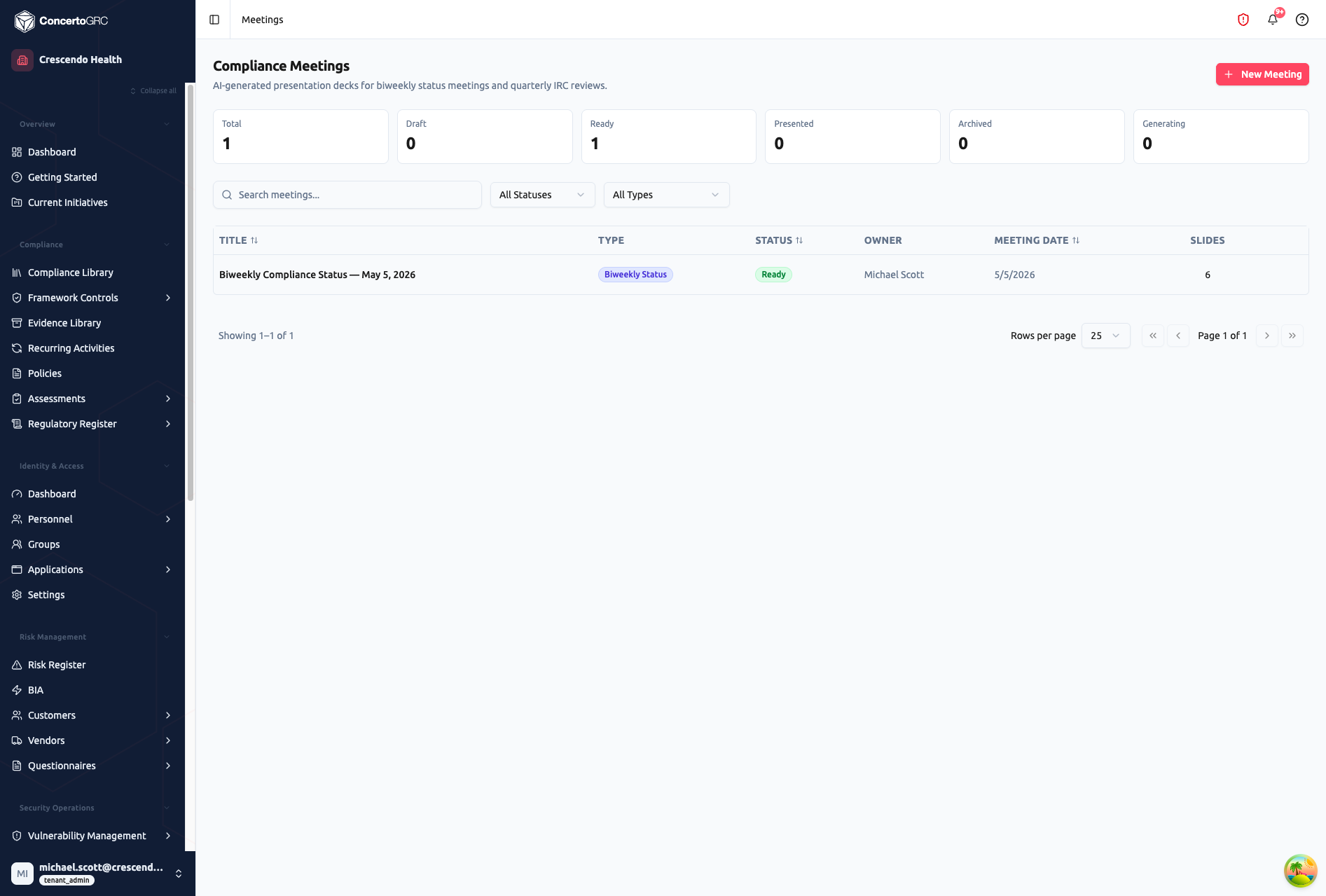
The page shows status cards for each meeting state, search and filter controls, and a meeting list. Status cards let you filter by clicking on them.
Status Cards
| Card | Description |
|---|---|
| Total | All meetings |
| Draft | Configured but not yet generated |
| Ready | Slides generated, ready for presentation |
| Presented | Meeting has been conducted |
| Archived | Historical records |
| Generating | AI is currently creating slides |
Meeting Types
| Type | Cadence | Purpose |
|---|---|---|
| Biweekly Status | Every 2 weeks | Operational compliance status update |
| Quarterly IRC | Every quarter | Internal Risk Committee formal review |
Creating a Meeting
- Click New Meeting
- Configure:
- Title
- Meeting type (Biweekly or Quarterly IRC)
- Meeting date
- Reporting period (start and end dates)
- Sections to include
- Owner
Meeting Detail
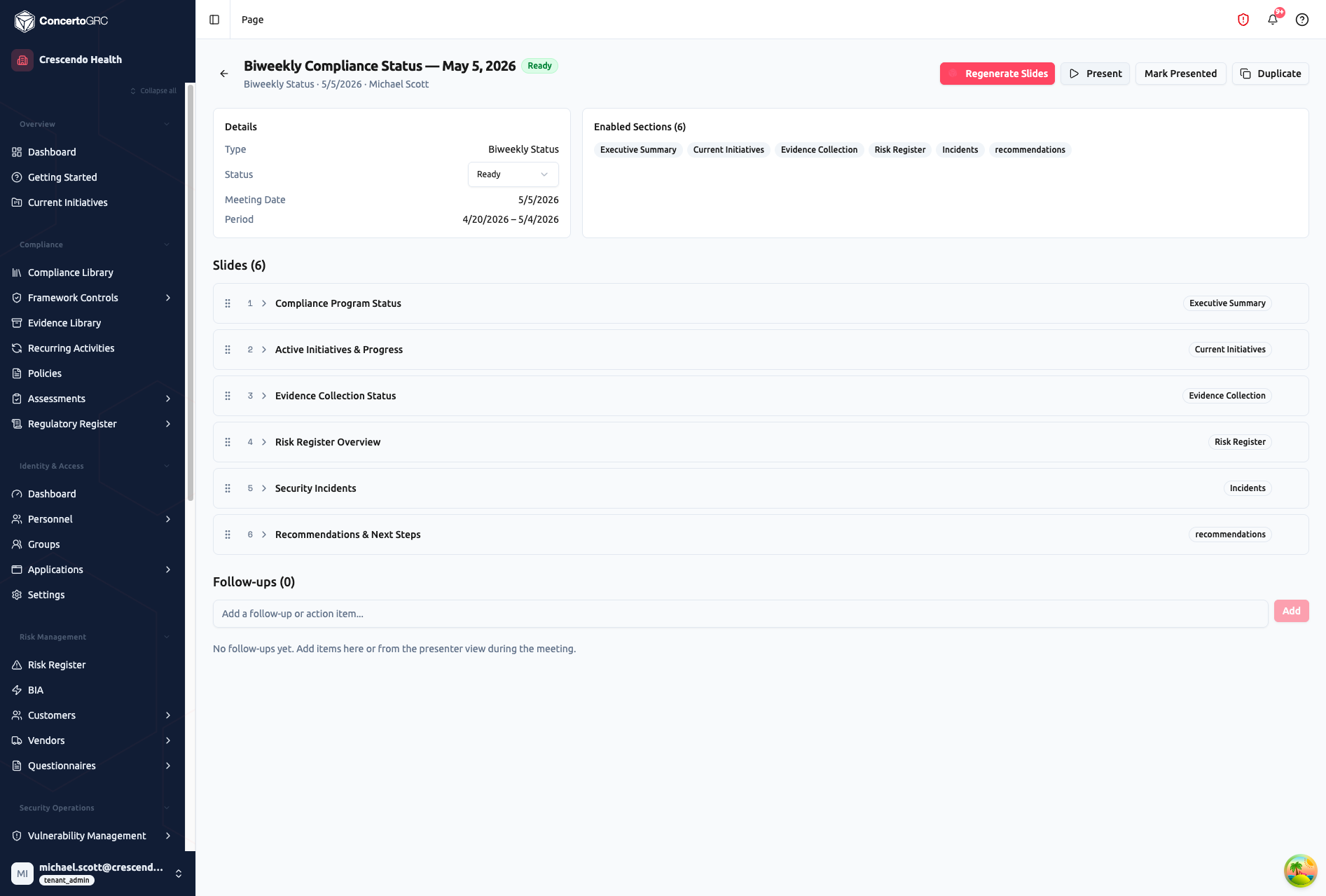
Click any meeting to open its detail page. The detail page shows meeting configuration, the generated slide list with drag-to-reorder, and a follow-ups section for tracking action items. Action buttons let you regenerate slides, enter the presenter view, mark as presented, or duplicate the meeting for the next occurrence.
Meeting Sections
Select which data sections to include in your deck:
| Section | Description |
|---|---|
| Executive Summary | High-level compliance health overview |
| Risk Register | Current risk posture and changes since last meeting |
| Evidence Status | Evidence collection progress and expirations |
| Control Status | Control implementation and effectiveness |
| Vulnerability Summary | Open findings and remediation progress |
| Incident Summary | Recent incidents and response metrics |
| Vendor Risk | Vendor assessment status and concerns |
| KPI Dashboard | Key performance indicator trends |
| Action Items | Outstanding items from previous meetings |
| Recommendations | Suggested next steps |
AI Generation
Once configured, generate the full slide deck:
- Click Generate on a draft meeting
- The platform captures a data snapshot (frozen metrics at generation time)
- AI creates slides for each selected section:
- Structured data payload (charts, tables, metrics)
- Narrative text summarizing the data
- Presenter notes with talking points
- Status moves from Draft --> Generating --> Ready
Data Snapshot
At generation time, a complete snapshot of relevant platform data is captured. This ensures meeting content reflects a specific point in time, changes after generation don't alter the deck, and you can re-generate to get fresh data if needed.
Slide Management
Each generated slide includes:
| Field | Description |
|---|---|
| Title | Slide heading |
| Narrative Text | AI-drafted summary for the slide body |
| Presenter Notes | Talking points for the presenter |
| Data Payload | Structured data for rendering (charts, metrics, tables) |
| Sequence Number | Position in the deck |
After generation, customize the deck by editing narrative text and presenter notes, reordering slides, adding custom slides for topics not covered by data, or removing irrelevant slides.
Meeting Workflow
DRAFT --> GENERATING --> READY --> PRESENTED --> ARCHIVED
| Status | Description |
|---|---|
| Draft | Configuration set, not yet generated |
| Generating | AI is creating slides (brief processing time) |
| Ready | Slides generated, ready for review or presentation |
| Presented | Meeting has been conducted |
| Archived | Historical record, no longer active |
Actions
| Action | Description |
|---|---|
| Generate | Create/recreate slides from live data |
| Present | Mark the meeting as conducted (records date and presenter) |
| Archive | Move to historical records |
| Duplicate | Copy meeting configuration for the next occurrence |
Meeting Chain
Meetings link to their predecessor, creating a chain for period-over-period comparison. Biweekly meetings link to the previous biweekly; quarterly meetings link to the previous quarterly. Duplicate the previous meeting to maintain consistent structure across occurrences.
Presenter View
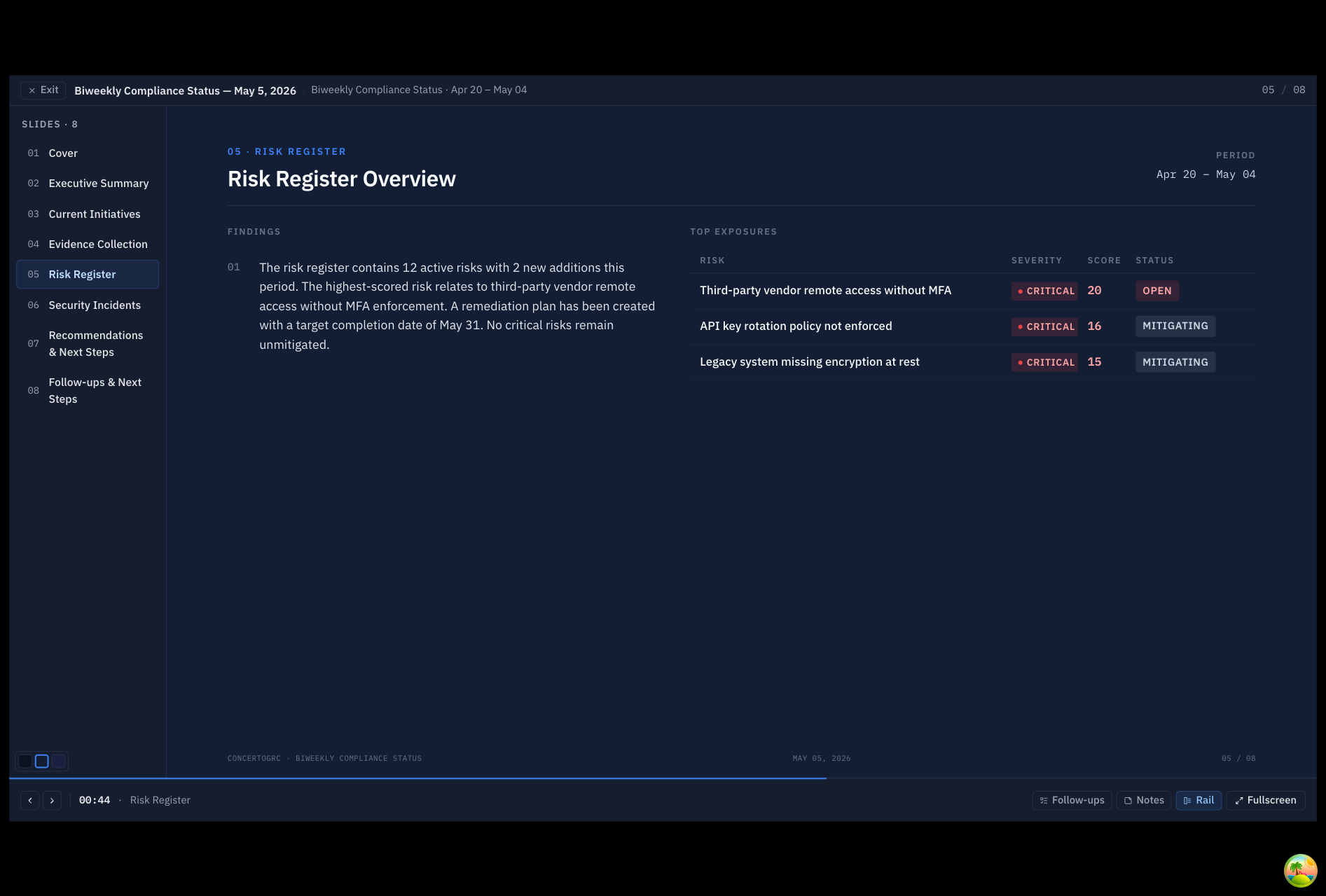
Click Present on a Ready meeting to enter the full-screen presenter view -- an ops-style dark-themed slide deck with a navigation rail, timer, and follow-up capture.
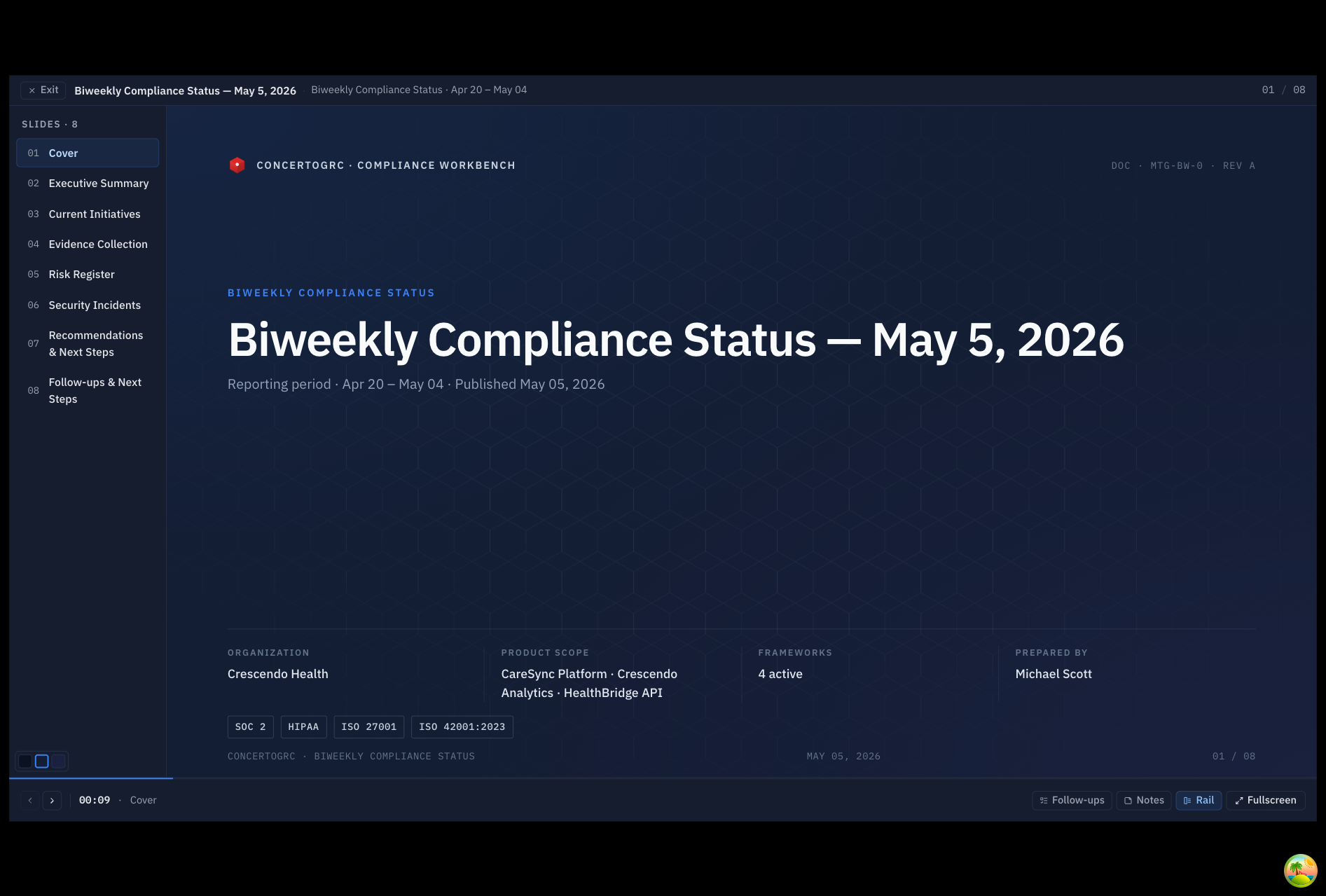
The cover slide shows organization context, product scope, active frameworks, and the reporting period. A left rail lists all slides for quick navigation.
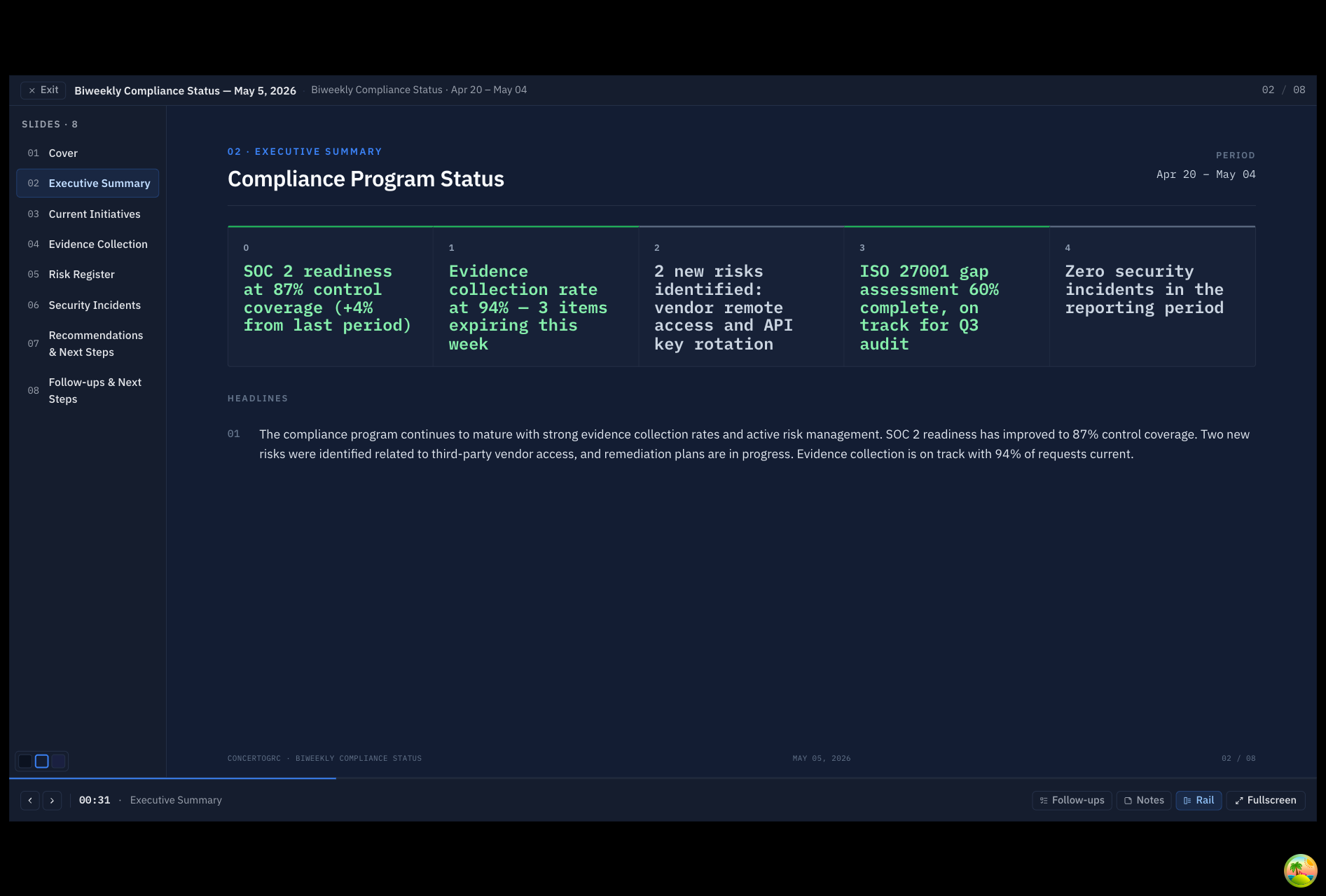
Data slides render structured metrics from the data snapshot -- highlight cards, tables, and narrative text. Each section pulls from live platform data captured at generation time.
Presenter Controls
| Control | Description |
|---|---|
| Slide Rail | Click any slide to jump to it |
| Arrow Keys | Navigate between slides |
| Timer | Running clock for pacing |
| Follow-ups | Capture action items during the meeting |
| Notes | View presenter notes for talking points |
| Fullscreen | Toggle fullscreen mode |
| Theme | Switch between midnight, slate, and ink themes |
Mark as Presented when complete to record the event and advance the meeting status.