User Access Lifecycle
The Identity & Access module manages your organization's personnel directory, application inventory, access grants, and review workflows. It provides a complete picture of who has access to what and ensures access remains appropriate through periodic reviews.
Personnel Directory
Access from Identity & Access → Personnel → Directory in the sidebar.
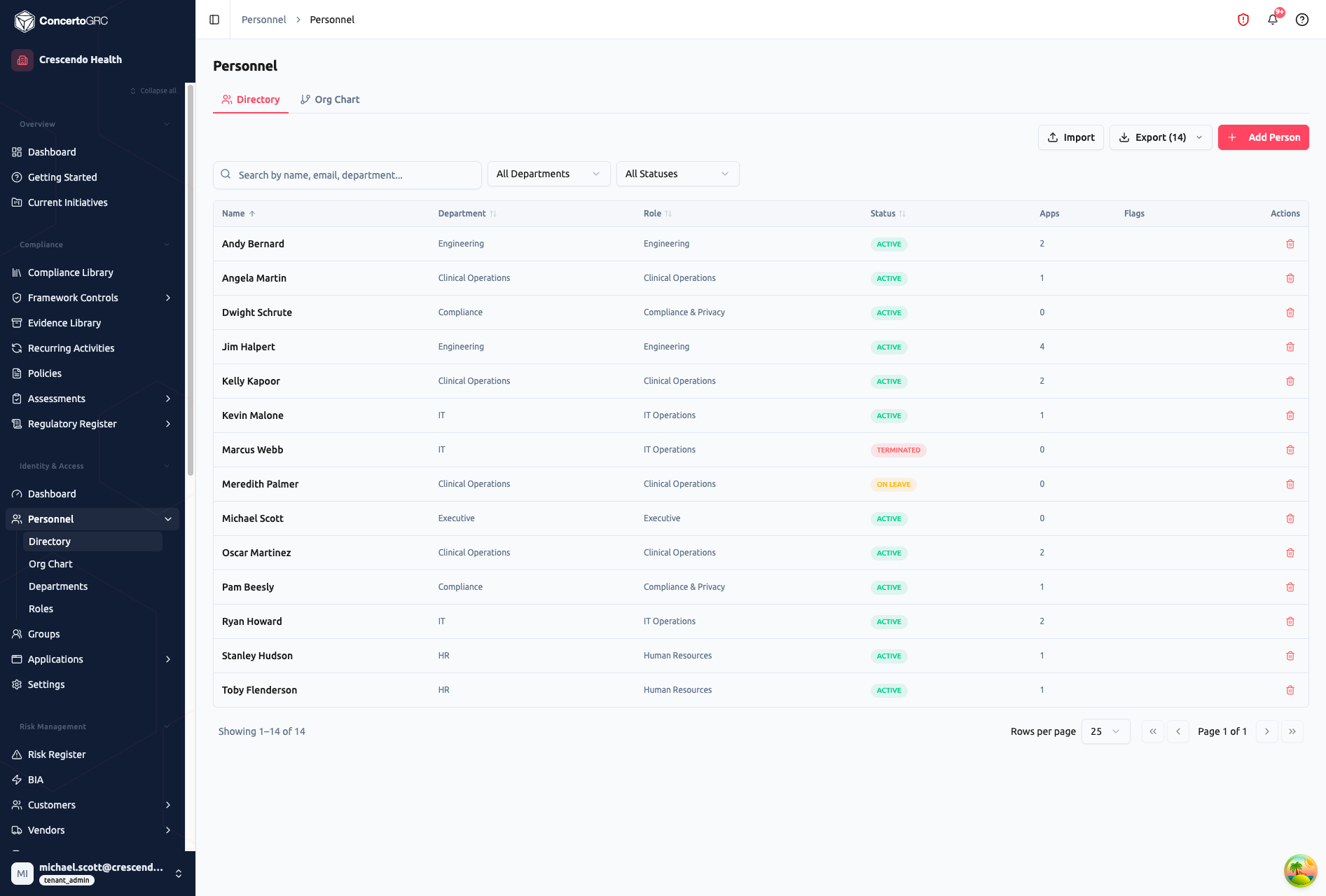
The directory shows all personnel records with sorting, search, and filter controls. Use the All Departments and All Statuses dropdowns to filter the list, or search by name, email, or department.
Personnel Table
| Column | Description |
|---|---|
| Name | Employee's full name |
| Department | Organizational department |
| Role | Job role |
| Status | Active, Terminated, On Leave, or Inactive |
| Apps | Count of applications with active access grants |
| Flags | Compliance flags (missing NDA, overdue training, etc.) |
| Actions | Delete action |
Click any row to open the personnel detail sidecar.
Personnel Detail
The detail sidecar shows:
- Basic Info -- Name, email, employee ID, phone, employment type
- Organization -- Department, role, manager, start/end dates
- Compliance -- Background check status, security training status, NDA signed
- Access Grants -- Applications this person has access to, with access levels
Personnel Statuses
| Status | Description |
|---|---|
| Pending Onboarding | New hire, not yet fully onboarded |
| Active | Currently employed and working |
| On Leave | On approved leave of absence |
| Suspended | Account temporarily suspended (e.g., from IdP sync) |
| Terminated | No longer with the organization |
Org Chart
The Org Chart tab shows a visual hierarchy based on manager relationships. Click any node to open that person's detail panel. The chart is auto-generated from the manager field -- no manual layout needed.
Departments & Roles
The sidebar sub-navigation under Personnel includes:
- Departments -- Manage organizational departments
- Roles -- Define job roles for personnel categorization
Identity Provider Sync
Personnel records can be automatically synced from your identity provider (Microsoft 365/Entra ID or Google Workspace). When sync is enabled:
- New employees are auto-created from the directory
- Status changes (suspension, deletion) are reflected automatically
- Fields marked as "IdP-managed" update on each sync cycle (every 24 hours)
- Manually-edited fields are preserved unless overridden by sync policy
- Suspended users are auto-escalated to Terminated after a configurable period
Import & Export
- Import -- Bulk import personnel from CSV
- Export -- Download all personnel records as CSV (button shows count)
Applications
Access from Identity & Access → Applications → Inventory in the sidebar.
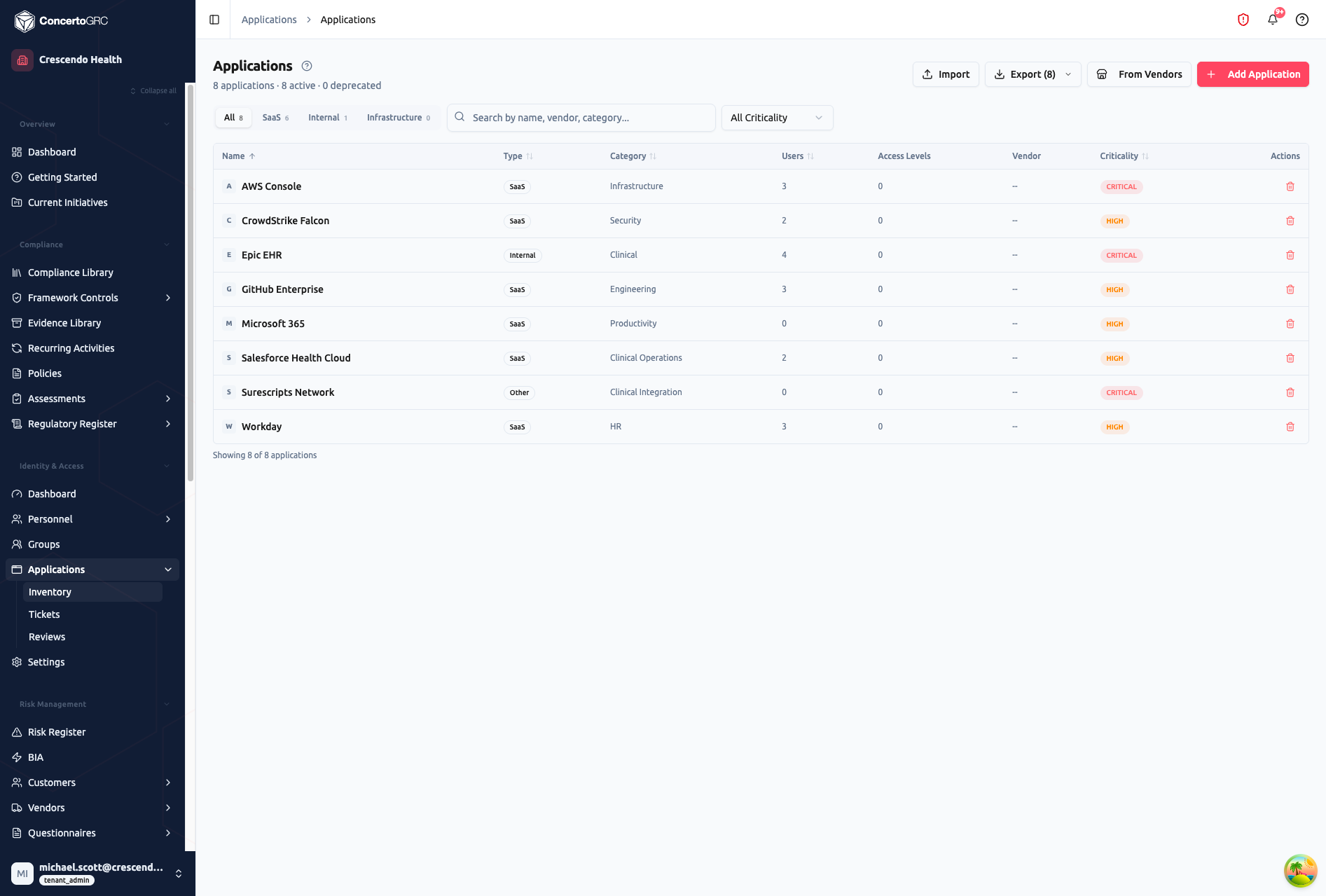
The application inventory tracks all software and services your organization uses, with type categorization, criticality ratings, and user counts.
Application Table
| Column | Description |
|---|---|
| Name | Application name with icon |
| Type | SaaS, Internal, Infrastructure, Database, or Other |
| Category | Functional category (Security, Engineering, Clinical, HR, etc.) |
| Users | Count of personnel with access grants |
| Access Levels | Number of defined access levels |
| Vendor | Linked vendor record |
| Criticality | Critical, High, Medium, or Low |
| Actions | Delete action |
Type Filters
Filter applications by type using the tab bar: All, SaaS, Internal, Infrastructure, Database.
Application Detail
Click any application to open the detail sidecar showing:
- Basic Info -- Name, type, category, URL, description
- Security -- Data classification, authentication method, SSO connected, MFA required
- Provisioning -- Provisioning method (Manual, SCIM, API, Directory Sync)
- Access Levels -- Defined access tiers with name, description, and risk tier
- Users -- Personnel with active access grants at each level
Access Levels
Each application defines its available access levels (e.g., "Read", "Edit", "Admin"). Each level has:
| Field | Description |
|---|---|
| Name | Human-readable level name |
| Description | What this level permits |
| Risk Tier | Low, Medium, High, or Critical |
Adding Applications
- Add Application -- Create manually with name, type, category, and criticality
- From Vendors -- Auto-create applications from your vendor inventory
Access Grants
Access grants record who has access to which applications at what level.
| Field | Description |
|---|---|
| Personnel | Who has the access |
| Application | Which application |
| Access Level | What level of access (from app's defined levels) |
| Grant Type | Standard, Exception, or Temporary |
| Status | Active, Revoked, or Suspended |
| Granted By | Who approved the access |
| Granted At | When access was granted |
Grant Types
| Type | Description |
|---|---|
| Standard | Normal access following standard procedures |
| Exception | Access outside normal policy (requires justification and approval) |
| Temporary | Time-limited access with automatic expiry |
Access Reviews
Access from Identity & Access → Applications → Reviews in the sidebar. Periodic reviews verify that access grants remain appropriate.
Creating a Review
- Navigate to Identity & Access → Applications → Reviews
- Create a new review with scope (department, application, or organization-wide)
- Assign a reviewer and due date
- The review generates a list of all grants in scope
Review Workflow
| Status | Description |
|---|---|
| In Progress | Reviewer is examining each grant |
| Submitted | Reviewer has submitted decisions |
| Approved | Review is finalized |
Review Decisions
For each grant, the reviewer decides:
| Decision | Description |
|---|---|
| Certified | Access is appropriate, no change needed |
| Revoked | Access should be removed |
| Modified | Access level should change |
| Flagged | Access flagged for further investigation or follow-up |
OCR-Based User Extraction
Access reviews support screenshot uploads for applications that don't have API-based user export. Upload a screenshot of the user list, and the platform uses OCR (Amazon Textract) to extract user names and match them against your personnel directory. This identifies:
- Orphaned accounts -- Users in the app who aren't in your directory
- Excess access -- Users with higher access than expected
- Missing access -- Users who should have access but don't
Access Tickets
Access from Identity & Access → Applications → Tickets. Track access provisioning and deprovisioning requests as tickets with status tracking and assignment.